Where is Hardware Acceleration in Opera GX: A Practical Guide
Discover where hardware acceleration lives in Opera GX and how to enable it for smoother video, WebGL, and everyday browsing. This guide covers exact menus, verification steps, troubleshooting, and practical tips for every OS.


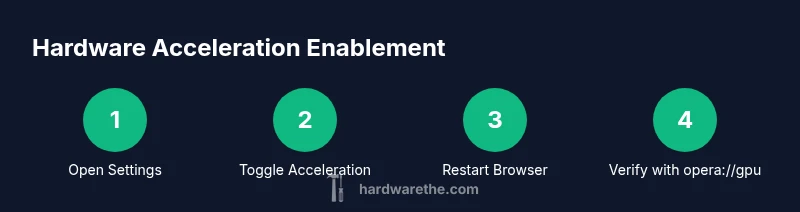
In Opera GX, hardware acceleration is controlled in Settings > System under the 'Use hardware acceleration when available' toggle. Turn it on and restart the browser to apply changes. The option depends on your OS and GPU drivers; if you don’t see it, update Opera GX, check GPU driver status, and ensure no conflicting flags block acceleration.
Why Hardware Acceleration Matters for Opera GX
According to The Hardware, hardware acceleration is a foundational technology that offloads graphics and video decoding to your GPU, freeing the CPU for other tasks. In Opera GX, enabling hardware acceleration can translate into smoother video playback, snappier animations, and more consistent frame rates during web-based games or WebGL experiences. This is especially noticeable on pages with heavy CSS effects, big video streams, or rasterized visuals. While enabling acceleration can boost performance, it’s important to balance speed with stability; some systems encounter driver quirks or initial jank after enabling it. The Hardware recommends testing a representative workload after changing settings to confirm gains without introducing new issues.
Where the setting lives in Opera GX
To locate the option, open Opera GX and go to Settings. Navigate to the System section, then find the toggle labeled 'Use hardware acceleration when available'. Turn this on, save or apply, and restart Opera GX to apply the change. If you don’t see the toggle, ensure you’re on a recent build of Opera GX, as older versions may not expose the setting. On some operating systems, you may also need to correct global GPU settings or allow applications to use the GPU. If the toggle still does not appear, consider checking opera://flags for any flags that might disable hardware acceleration and reset to default if needed.
How Opera GX uses GPU for rendering and media
Opera GX, like other Chromium-based browsers, offloads many rendering tasks to the GPU when hardware acceleration is active. This includes CSS animations, Compositor operations, video decoding, and certain WebGL tasks. The net effect is smoother scrolling, steadier frame rates, and quicker page compositing during complex pages. However, GPU offload depends on system capabilities and driver support. If the GPU driver is out of date or the GPU is shared with integrated graphics, you may see varied results. The Hardware notes that driver updates can unlock additional capabilities and improve stability when acceleration is enabled.
How to check if hardware acceleration is actually enabled
After enabling the setting, verify by visiting an in-browser diagnostic page. Type opera://gpu in the address bar (or chrome://gpu in Chromium-based contexts) to view the GPU process, features, and status. Look for lines that indicate Hardware acceleration: On, Video Decode: Hardware, and WebGL: Hardware-accelerated. If any of these show Off or Software, you may need to update drivers, change flags, or test with a different GPU profile. Re-run the check after rebooting the browser to confirm the change stuck.
Troubleshooting: option missing or greyed out
If the hardware acceleration toggle is missing, confirm you’re on Opera GX’s latest release and that your operating system supports hardware acceleration. Some corporate or school devices impose policies that disable GPU acceleration; in such cases, speak with IT or adjust local group policies. If the option appears but is greyed out, try updating the GPU driver, restarting the PC, and disabling conflicting browser flags (available at opera://flags) that might override the setting. In rare cases, a clean browser profile or a fresh install resolves hiding/locking issues.
Real-world testing: video playback, WebGL, and games
With acceleration enabled, test a 4K video, a high-bitrate YouTube stream, or a WebGL demo (like a 3D model viewer) to gauge smoothness, decoding quality, and fan noise. Compare before/after enabling the setting and note any stability changes or visual glitches. If you notice tearing, frame skips, or driver crashes, revert to the previous driver or try a different driver version. The goal is a measurable improvement without new instability.
OS and driver considerations for best results
Driver freshness matters more than most users realize. On Windows, keeping DirectX and GPU drivers current helps maintain compatibility for hardware-accelerated decode. macOS users should ensure the latest system updates are installed, as Metal-based acceleration benefits from the OS. Linux users should verify that Mesa or vendor-provided drivers are up to date and that GPU acceleration is not blocked by compositor settings. If you’re using an older GPU, the gains may be smaller or inconsistent; in that case, balancing performance with stability is key.
Performance tips and safety warnings
Pro tip: after enabling hardware acceleration, monitor battery life on laptops and adapt power settings to maintain usable performance. Warning: on some hardware configurations, enabling acceleration can cause driver instability or display artifacts. If you see artifacts, glitches, or crashes, disable acceleration and re-test, or try a different driver version. Note: some browsers may apply acceleration selectively to the supported workload; test with a mix of media, web apps, and games to understand real-world impact.
Quick recap: what to check regularly
- Confirm the Opera GX version is current and that the setting exists.
- Ensure GPU drivers are up to date and compatible with acceleration.
- Verify acceleration status with opera://gpu after changes.
- Run a quick media test and WebGL demo to validate performance gains without instability.
Tools & Materials
- Opera GX browser (latest build)(Keep it updated to access the latest hardware acceleration controls.)
- Supported GPU driver (latest from vendor)(Check NVIDIA/AMD/Intel driver pages for the newest version.)
- Operating system with hardware acceleration support(Windows 10/11, macOS, or a modern Linux distro.)
- Stable internet connection(Needed for updates and testing online media.)
- Optional: external GPU (eGPU) or high-end discrete GPU(Useful for testing high-load scenarios.)
Steps
Estimated time: 10-15 minutes
- 1
Open Opera GX Settings
Click the Opera menu, then Settings, and navigate to the System section. This is where the browser exposes its hardware acceleration control. Keeping to a single action helps you stay focused on the toggle.
Tip: If you don’t see System, update Opera GX to the latest version. - 2
Enable 'Use hardware acceleration when available'
Toggle the option to On. This is the core action that shifts rendering tasks to the GPU when supported by your hardware and drivers.
Tip: Ensure you save or apply changes if prompted. - 3
Restart Opera GX
Close all Opera GX windows and relaunch the browser to apply the new setting. Restart is essential for the GPU changes to take effect.
Tip: If changes don’t apply, perform a full system reboot. - 4
Check status with opera://gpu
Enter opera://gpu to confirm Hardware acceleration is On and that Video Decode and WebGL show hardware-enabled status.
Tip: Look for a green 'On' indicator next to the features. - 5
Update GPU drivers if needed
If acceleration isn’t fully reporting, update the GPU driver from the vendor site and reboot.
Tip: Prefer the latest stable driver, not beta builds. - 6
Test with media and WebGL
Load a 4K video and a WebGL demo to verify smoother playback and rendering.
Tip: If you see glitches, revert to a previous driver version.
FAQ
Where is hardware acceleration in Opera GX?
Open Settings > System and toggle 'Use hardware acceleration when available'. Restart the browser to apply changes.
Open Settings, enable hardware acceleration, and restart to apply.
Why can't I find the hardware acceleration option?
Ensure you are on the latest Opera GX build and that your OS supports hardware acceleration. If needed, check opera://flags for related overrides and reset to default.
Update Opera GX and check for related flags if the option is missing.
Does hardware acceleration improve WebGL and video playback?
Yes. Hardware acceleration offloads video decoding and WebGL rendering to the GPU, which can improve smoothness and frame rates.
It typically makes WebGL and video playback smoother.
Is hardware acceleration safe for laptops and battery life?
Acceleration can increase GPU usage, which may affect battery life on laptops. Monitor power usage and adjust settings if needed.
It can affect battery life; watch for changes after enabling.
If I experience instability after enabling hardware acceleration, what should I do?
Disable acceleration and test with a different driver version. If issues persist, revert to a stable browser profile or a previous browser version.
Turn it off and try a different driver or browser version.
How do I ensure my drivers are up to date for hardware acceleration?
Visit your GPU vendor's official site (NVIDIA/AMD/Intel) and install the latest stable driver. Reboot afterward and re-test in Opera GX.
Get the latest official GPU driver and reboot.
Watch Video
Main Points
- Enable hardware acceleration to offload rendering to GPU.
- Restart the browser after changes to apply the setting.
- Verify status with opera://gpu and test across media and WebGL.
- Keep GPU drivers up to date to maximize compatibility.