How to Turn Off Hardware Acceleration in Opera GX
Learn how to disable hardware acceleration in Opera GX, troubleshoot stability issues, and optimize browser performance. A practical guide from The Hardware Team for DIY enthusiasts and technicians.


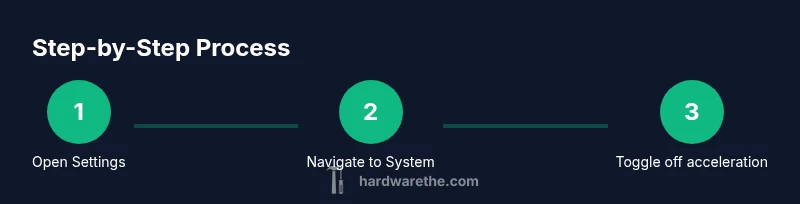
To turn off hardware acceleration in Opera GX, open Settings, go to System, and disable 'Use hardware acceleration when available'. Restart the browser to apply. This helps resolve graphics glitches, freezes, or high CPU usage on some GPUs. If issues persist, re-enable acceleration or update drivers. Consider testing web pages after changes and note any improvements or regressions.
What hardware acceleration is and why you might turn it off in Opera GX
Hardware acceleration is a feature that lets Opera GX shift graphics rendering tasks from the CPU to the GPU to improve visuals and performance. In theory this speeds up page rendering, video playback, and animations. According to The Hardware, this approach can yield noticeable gains on capable GPUs, but the benefits are not universal. On some systems, especially with older GPUs or inconsistent driver support, hardware acceleration can cause flickering, black screens, or driver crashes. If you notice unusual artifacts, instability, or excessive fan noise during browsing, turning hardware acceleration off may stabilize Opera GX. This section explains the rationale and what to expect when you make the change, including how to verify stability after the tweak.
The Hardware Team emphasizes that user environments vary greatly, so experimentation with a controlled set of pages is key. By documenting outcomes, you can decide whether to keep acceleration disabled or to switch it back on after driver updates or hardware changes.
Pros and cons of disabling hardware acceleration
Disabling hardware acceleration can offer notable benefits on problematic setups: fewer rendering glitches, reduced driver conflicts, and sometimes lower power draw during idle or light browsing. However, there are trade-offs. Some pages and video decoders rely on GPU acceleration for smooth playback, and disabling it can lead to slightly higher CPU usage or less fluid rendering on graphics-heavy sites. The Hardware analysis shows that impact is highly dependent on your GPU, driver version, and the current workload. For modern systems with current drivers, differences may be modest; on older hardware, you might notice a more pronounced shift toward CPU-based rendering. The key is to test both modes with a representative mix of sites and tasks to determine what your setup actually prefers.
When turning off acceleration helps: use cases
If you experience graphics glitches (tearing, flicker, black screens), browser hangs during GPU tasks like WebGL demos, or unusually high GPU temperatures and fan activity during long sessions, turning off hardware acceleration is a practical troubleshooting step. This is especially relevant on Windows with legacy GPUs or Linux environments where driver support can be irregular. For a fair assessment, test a subset of sites—especially streaming video and WebGL-heavy pages—before and after the change, noting performance, stability, and battery impact on laptops. The Hardware Team recommends a controlled, time-bound test window to avoid overgeneralizing from one session.
How GPU tasks are handled in Opera GX: a quick overview
Opera GX uses its rendering engine with an optional hardware acceleration path. When enabled, the GPU handles compositing, video decoding, and certain animations, potentially delivering smoother visuals. When disabled, the CPU takes on more of this work, which can increase CPU load and power usage but may reduce GPU-related glitches and driver conflicts. The user experience will vary by page type, extensions, and system drivers. The goal is to empower you to choose the mode that delivers stability and acceptable performance for your typical browsing profile.
Troubleshooting and post-change expectations
After turning off hardware acceleration and relaunching Opera GX, monitor key indicators: rendering stability, video playback quality, and overall responsiveness. If issues persist, consider updating your GPU drivers or trying a driver rollback to a version known for better compatibility with your hardware. Some extensions or browser features may interact oddly with acceleration; if you notice new glitches, disable suspect extensions one by one to identify culprits. Changes may take a moment to apply, so give the browser a few minutes of routine use before making a final judgment.
When to re-enable hardware acceleration
Re-enable hardware acceleration if you observe improved performance after graphics driver updates or when performing GPU-heavy tasks like 4K video streaming or WebGL demos. After a system or browser update, test both states for a day or two to determine which yields better overall stability and responsiveness. If you find that modern tasks benefit more from GPU offload, you may opt to keep acceleration enabled, with periodic checks after driver or OS updates. The Hardware Team notes that stability is highly workload-dependent, so a personalized default often works best.
Authoritative sources and further reading
For deeper technical background and cross-browser context, consider these credible sources:
- https://developer.mozilla.org/en-US/docs/Web/Performance/Hardware_acceleration
- https://web.dev/efficient-graphics-performance/
- https://www.w3.org
Tools & Materials
- Opera GX browser (latest version)(Ensure you have the latest version for UI labels)
- Computer or laptop(Windows 10/11, macOS 10.15+, Linux as applicable)
- Stable internet connection(Needed for updates if drivers change on restart)
- Backup of browser profile(Optional safety net before changing settings)
- Basic familiarity with Settings navigation(Helps locate the System hardware-acceleration option quickly)
Steps
Estimated time: 5-7 minutes
- 1
Open Opera GX Settings
Launch Opera GX and access the Settings panel from the main menu or use a keyboard shortcut to reach Settings quickly. The goal is to reach the area where system-level rendering options are configured.
Tip: If you can't find Settings via the menu, use the search box inside Settings to locate 'hardware acceleration'. - 2
Navigate to the System section
In Settings, look for the System or System and performance area where hardware acceleration toggles are typically located. Open that subsection to expose the GPU/CPU rendering options.
Tip: On some builds, the path may be labeled 'Advanced' or 'Performance'; use the search function if needed. - 3
Toggle off 'Use hardware acceleration when available'
Switch the option to off. This disables GPU offload for rendering tasks in Opera GX and shifts rendering back to the CPU.
Tip: If the control is greyed out, ensure you are in a standard user mode and not in a restricted profile. - 4
Restart Opera GX
Close all Opera GX windows and reopen the browser to apply the change. A full restart ensures the new setting takes effect.
Tip: Before restarting, save any work and consider syncing your profile to avoid data loss. - 5
Verify the change
After restart, browse a few WebGL pages and videos to confirm whether glitches are reduced and performance remains acceptable.
Tip: Compare with the previous session by replaying a known WebGL demo or video clip to benchmark differences. - 6
If issues persist, re-enable or update drivers
If disabling causes issues, re-enable acceleration or update your GPU drivers. Sometimes a driver update or rollback can resolve conflicts.
Tip: Back up your profile before making driver changes and test after each step.
FAQ
What is hardware acceleration and why does Opera GX use it?
Hardware acceleration offloads graphics tasks to the GPU to improve visuals and performance. In Opera GX, this can speed up rendering and video playback, but some systems encounter instability when the GPU is overly taxed. If you experience glitches, disabling it is a practical troubleshooting step.
Hardware acceleration uses the GPU to render graphics, which can speed things up, but on some systems it can cause glitches. If you notice issues, try turning it off to test stability.
Will turning off hardware acceleration affect gaming in Opera GX?
Browser-based games may run with slightly less GPU help and depend more on the CPU, which can change performance. Your mileage will vary based on the game and hardware.
Games in the browser may be a bit less smooth without GPU acceleration, depending on the game and your system.
How can I verify whether hardware acceleration is off after restart?
Open Settings > System and confirm the toggle is off. Then test pages that use GPU features (WebGL) to observe any changes in performance or stability.
Check the setting again and test a WebGL page to see if GPU tasks are being offloaded.
Should I disable hardware acceleration on all websites?
Yes, this is a global browser setting. However, you should test both modes on representative sites to determine which provides better overall stability for your setup.
It's a global setting, so test both modes on the sites you use most.
What should I do if Opera GX still shows GPU errors after disabling?
Update your GPU drivers, clear caches, and retry. If issues persist, re-enable hardware acceleration and re-test after another driver update or consult support.
Update drivers and try again; if it keeps happening, re-enable acceleration and test after updates.
Watch Video
Main Points
- Disable hardware acceleration only when stability is the priority.
- Restart Opera GX to apply changes reliably.
- Test performance across typical tasks before finalizing the setting.
- Keep drivers up-to-date; reassess the default after updates.