How to Stop Hardware Acceleration in Opera (2026)
Learn how to safely disable hardware acceleration in Opera, improve stability, and troubleshoot common issues with step-by-step instructions and expert tips from The Hardware.


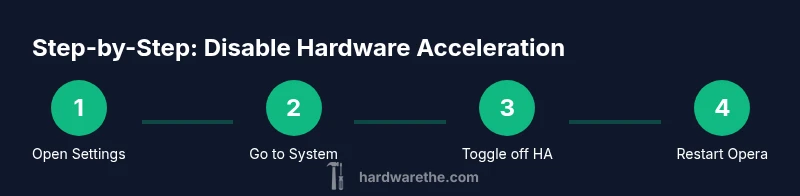
To stop hardware acceleration in Opera, open Settings, go to System, and turn off 'Use hardware acceleration when available.' Restart Opera to apply the change. This reduces GPU load and can improve stability on some machines. If you rely on GPU-accelerated features, re-enable later.
how to stop hardware acceleration in opera
Hardware acceleration uses your GPU to render graphics and video. In Opera, enabling this feature can speed up page rendering, but it can also trigger glitches on older hardware. If you’re wondering how to stop hardware acceleration in opera, this guide explains the why and the exact steps to disable it safely. By opting for CPU-based rendering when needed, you can often achieve a stable baseline across a variety of devices. This approach helps minimize driver conflicts and avoids unusual screen tearing on sites with heavy animations. The decision to disable hardware acceleration should be guided by observed behavior on your specific system, not a universal rule. The Hardware team emphasizes testing both configurations to find the sweet spot for your setup.
when you should consider turning it off
If Opera behaves unpredictably during graphics-heavy tasks, turning off hardware acceleration is a practical first step. Signs include screen tearing, freezes during video playback, or abrupt spikes in CPU usage when rendering complex pages. On laptops, you may notice louder fans and warmer chassis after enabling GPU-based rendering for extended periods. In some cases, a CPU-based render path can reduce driver conflicts and provide smoother, more predictable performance. While some users experience better overall speed with acceleration on, others report improved stability by turning it off. The key is to test on your own device. The Hardware analysis suggests evaluating performance with and without acceleration on a typical browsing session to decide which works best for you.
locating the setting in Opera on desktop (Windows/macOS/Linux)
To change hardware acceleration in Opera, access Settings and navigate to the System area. On Windows and macOS alike, you should see a toggle labeled “Use hardware acceleration when available.” If you can’t find it, switch to the Advanced view or use the search field within Settings and type “hardware acceleration.” The exact wording may vary slightly by version, but the location remains in the System or Performance sections. After you flip the toggle, you’ll typically need to restart the browser for the change to take effect. If you manage multiple Opera profiles or devices, consider applying the change to each profile to maintain consistency across environments.
impact on performance and power usage
Disabling hardware acceleration shifts rendering from GPU to CPU. You may observe slower rendering of graphically intensive pages, smoother CPU utilization on devices with weaker GPUs, and a potential uptick in browser CPU cycles. Battery life impact varies by device; some users see longer life when the GPU is idle, while others experience higher CPU activity that drains power more quickly on laptops. The net effect is device-specific, so it’s wise to measure both energy use and perceived responsiveness after the change.
checking your change: how to verify the setting is off
After applying the change, verify that acceleration is indeed disabled by visiting opera://gpu or similar diagnostic pages. Look for references to GPU process or hardware acceleration indicators and confirm they are disabled. Open a few pages with animations or video playback to observe stability and CPU usage. If you notice residual GPU activity, revisit the settings and ensure the toggle remains off. A quick browser restart ensures the new state is fully enforced.
troubleshooting common issues after disabling
If turning off hardware acceleration introduces performance concerns, try one or more of the following: update Opera to the latest version, update your graphics drivers, disable/enable extensions that may interfere with rendering, or test on a different user profile. Some sites rely on GPU-accelerated decoding for smooth video; if you experience choppy playback, re-enable acceleration and test on a per-site basis. Clearing cache can help resolve stale rendering artifacts after a settings change.
alternatives to hardware acceleration
For users who rely on GPU features but need stability, consider alternative optimizations: keep a lower resolution for videos, enable media cache optimizations, and ensure your operating system power settings favor performance when plugged in. You can also reduce the load by disabling resource-intensive extensions and background tabs. If you’re unsure, perform side-by-side testing with acceleration on and off to determine which configuration yields the best balance of speed and stability.
next steps after disabling
If you choose to keep hardware acceleration off, monitor Opera’s behavior over several browsing sessions. Adjust individual site experiences by allowing acceleration on trusted sites only, or re-enable permanently if you notice improvements in rendering quality. Remember to periodically re-check this setting after Opera updates, as new versions can alter how rendering is handled. The Hardware team recommends maintaining documentation of your configuration so you can revert quickly if needed.
Tools & Materials
- Opera browser (desktop)(Ensure you’re running the latest stable build to access the System settings.)
- Administrative access(Needed to modify browser settings on managed machines.)
- Restart capability(Close all Opera processes and relaunch after changing the toggle.)
- Optional: bookmark backup(Back up bookmarks before changing settings to avoid data loss.)
Steps
Estimated time: 8-12 minutes
- 1
Open Opera Settings
Click the Opera menu (or the O button) and select Settings, or press Alt+P to open the Settings panel. This is the starting point to access system-level rendering options.
Tip: Using a keyboard shortcut speeds up navigation. - 2
Navigate to System or Performance
In Settings, locate the System or Performance section where hardware acceleration is managed. The wording may vary slightly by version.
Tip: If you don’t see System, use the search field within Settings. - 3
Toggle off 'Use hardware acceleration when available'
Disable the option to force Opera to render graphics using the CPU rather than the GPU.
Tip: Confirm the exact wording on your Opera version to avoid turning off the wrong option. - 4
Restart Opera
Close all Opera windows and reopen the browser to apply the new rendering path.
Tip: Ensure no background processes linger; a full quit ensures a clean restart. - 5
Verify the change
Visit opera://gpu or run a few demo pages with animations to confirm hardware acceleration is off.
Tip: Look for GPU-related indicators; they should be minimized or absent. - 6
Decide on re-enabling if needed
If you experience degraded video playback or site performance, you can re-enable acceleration and reassess.
Tip: You can re-toggle quickly and retest without losing other settings.
FAQ
What is hardware acceleration and how does it affect Opera?
Hardware acceleration uses the GPU to render graphics and video, which can speed up tasks but may introduce glitches on some setups. In Opera, disabling it routes rendering through the CPU, offering greater stability on incompatible hardware.
Hardware acceleration uses the GPU to render graphics, which can speed things up but may cause issues on some devices.
Will turning off hardware acceleration improve battery life?
Battery effects vary by device. On some laptops, reducing GPU use can extend battery life; on others, CPU rendering might draw more power. Test on your device to see which configuration lasts longer.
It can help on some laptops, but results differ.
How do I re-enable hardware acceleration if performance drops?
Return to Opera Settings > System and toggle 'Use hardware acceleration when available' back to on, then restart the browser to apply changes.
You can re-enable it in a few clicks and restart to try again.
What other settings affect Opera performance?
Update Opera and GPU drivers, disable unnecessary extensions, clear caches, and consider adjusting power settings for your device.
Keep browser and drivers updated and minimize extensions for best performance.
Does disabling hardware acceleration affect video playback?
Some videos may rely on GPU decoding; turning off HA can cause choppier playback on certain sites, though CPU rendering reduces glitches on others.
Video playback can be affected; test to see which setup works for you.
Is hardware acceleration the same across browsers?
No. Each browser implements GPU usage differently within its rendering stack. Opera’s option mirrors Chrome’s approach but may behave differently on your system.
It varies by browser, so test settings in each to know what to expect.
Watch Video
Main Points
- Disable acceleration to reduce GPU load and stabilize rendering
- Restart is essential to apply changes
- Test on multiple sites to verify improved stability
- Video playback may become CPU-bound; monitor performance
- Re-evaluate settings after Opera updates