Disable Chrome Hardware Acceleration: Practical Guide
Learn how to disable hardware acceleration in Chrome, when it helps, and how to test for stability. A step-by-step, safety-minded approach with tips for Windows, macOS, and Linux.


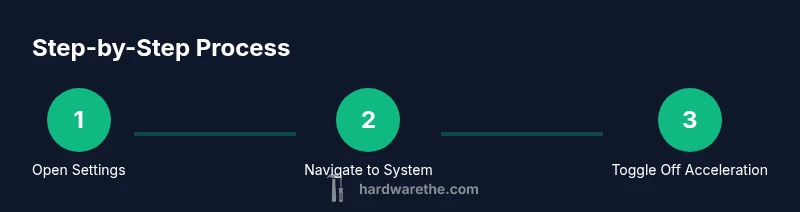
To disable hardware acceleration in Chrome, open Settings > System and turn off 'Use hardware acceleration when available'. Then relaunch Chrome to apply changes. This can resolve display glitches or performance problems on some systems. If you rely on GPU-accelerated features, test how tasks like video playback and canvas rendering behave after the change.
What Chrome hardware acceleration does for you
Hardware acceleration in Chrome uses the GPU to render graphics, freeing the CPU for other tasks. This can make animations smoother and help with video playback on capable GPUs. According to The Hardware, hardware acceleration can improve user experience on modern systems, but it can also introduce glitches if the GPU drivers are outdated or incompatible. The decision to enable or disable this setting often depends on your hardware, drivers, and the type of workload you run in the browser. The rest of this guide explains how to evaluate whether turning it off will help you, and how to safely apply changes. The Hardware analysis, 2026 notes that tracking performance across tasks—such as scrolling, canvas-heavy pages, and video decoding—can help reveal whether the feature is helping or hurting your setup. If your daily tasks are light, disabling acceleration is typically risk-free; if you rely on GPU-accelerated rendering for WebGL experiments or graphics-heavy work, you’ll want to test carefully. In many cases the best approach is to flip the option temporarily, measure impact, and keep the changes only if you see a measurable benefit. This section lays the groundwork for making an informed decision about the presence or absence of hardware acceleration in Chrome.
description_for_pagination_savedForLaterTeasers_placeholderǃ questionaire_placeholder_ -note: internal use only
note: 0
Tools & Materials
- Chrome browser (latest version)(Ensure you’re updating to the latest stable release)
- Operating system (Windows/macOS/Linux)(Chrome follows OS restart rules for changes to take effect)
- Internet access(For reading pages or updating drivers as needed)
- Optional: GPU driver updates(Update drivers to test changes under different GPU conditions)
Steps
Estimated time: 10-15 minutes
- 1
Open Chrome Settings
Click the three-dot menu in the top-right corner of Chrome, then choose Settings. If you don’t see the option right away, use the Settings search box and type 'hardware acceleration' to locate the related setting quickly. This step gets you to the System section where acceleration is controlled.
Tip: Using the search field reduces clicks and avoids hunting through nested menus. - 2
Navigate to System settings
In the Settings menu, scroll to or search for the System section. The goal is to reach the line that mentions hardware acceleration so you can toggle it off. This action isolates the feature from other performance tweaks you might be trying.
Tip: If you are on a managed device, ensure you have permission to change system settings. - 3
Disable the hardware acceleration toggle
Find the option labeled 'Use hardware acceleration when available' and switch it to Off/Disabled. This change directs rendering back to the CPU for tasks that would normally use the GPU. You should see the toggle reflect the off state immediately.
Tip: Take note of the exact wording used in your Chrome version to avoid confusion with similar options. - 4
Relaunch Chrome to apply changes
Close all Chrome windows completely and reopen the browser. A full restart ensures the setting is re-read by the renderer process so you don’t get inconsistent results between tabs.
Tip: On some systems a full reboot may be needed if Chrome doesn’t acknowledge the change after a simple restart. - 5
Test common tasks for stability
Open sites with heavy graphics, play a video, and use WebGL content to evaluate whether the change improved stability or caused new issues. Compare performance to your baseline before the change.
Tip: Keep notes on any tearing, stuttering, or crashes to decide if you should keep acceleration off. - 6
Re-check GPU drivers and re-enable if needed
If issues persist, consider re-enabling hardware acceleration and updating GPU drivers, as driver gaps can cause more problems than the feature itself.
Tip: Driver updates can restore compatibility and improve performance with acceleration enabled. - 7
Document the outcome
Record which tasks were helped or hindered by turning acceleration off. This helps you reproduce the result or revert if later Chrome updates change behavior.
Tip: A simple log makes it easy to justify future changes to team members or IT.
FAQ
Will disabling hardware acceleration improve performance on all systems?
Not always. For some systems, turning off hardware acceleration can improve stability and reduce glitches, but it may slightly reduce GPU-accelerated performance in graphics-heavy tasks. Always test with your typical workload.
Disabling hardware acceleration can help with glitches on some systems, but you may see a small drop in GPU-accelerated performance in graphics-heavy tasks.
Do I need to restart Chrome after changing the setting?
Yes. You should fully close all Chrome windows and relaunch the browser to apply the change reliably.
Yes, you need to restart Chrome after changing the setting to ensure the change takes effect.
Is the effect of this change the same on Windows, macOS, and Linux?
Core behavior is similar, but the exact performance impact can vary due to driver implementations and OS rendering paths.
The change works on all major OSes, but the impact can differ depending on your drivers and OS rendering.
What should I do if I still see issues after disabling hardware acceleration?
Try updating GPU drivers, testing with a clean browser profile, or re-enabling acceleration to compare results. If problems persist, seek hardware diagnostics.
If issues persist, update drivers and test with acceleration on and off to compare results.
Can I re-enable hardware acceleration later without problems?
Yes. You can re-enable the option and restart Chrome. If issues return, re-evaluate drivers or settings.
You can turn it back on later and restart Chrome to see if performance improves.
Watch Video
Main Points
- Disable acceleration to resolve stability issues on GPU-bound systems
- Restart Chrome after changing the setting to ensure changes take effect
- Test common tasks to measure impact before deciding to keep the change
- If issues persist, update GPU drivers or re-enable acceleration and reassess