How to Turn on Hardware Acceleration: A Practical Guide
Learn how to enable hardware acceleration across Windows, macOS, and browsers with practical steps, troubleshooting tips, and best practices to speed up rendering.


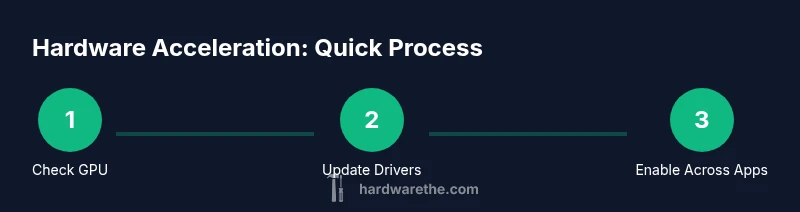
You can speed up graphics and app performance by turning on hardware acceleration. It allows the GPU to handle graphics tasks, easing the CPU and delivering smoother visuals. Start by confirming compatibility, then enable the setting in your operating system or application. If issues occur, disable and reassess with updated drivers.
Why hardware acceleration matters
Hardware acceleration lets your GPU do graphics tasks so your CPU can focus on other work. This shift can dramatically improve video playback, game rendering, and UI responsiveness in creative apps, browsers, and productivity tools. According to The Hardware, enabling this feature can reduce CPU bottlenecks on systems with midrange GPUs and integrated graphics. When supported, users notice smoother animations, fewer dropped frames, and shorter load times. However, not every workload benefits equally; some apps may already be optimized and won't gain much from acceleration. Understanding when your system benefits most helps you avoid unnecessary changes and potential compatibility issues.
How to check compatibility before you enable
Before flipping switches, verify that your hardware and software environment can take advantage of acceleration. Start with your GPU model and driver version: visit the vendor's site or your OS update channel to confirm you have a recent driver. Check that your CPU, RAM, and motherboard support modern graphic features. On Windows, you can run a quick check by opening the Device Manager and inspecting Display adapters; on macOS, most hardware acceleration is managed by the system, but keeping macOS up to date is essential. Linux users should ensure they run a supported desktop environment and a recent kernel that includes GPU enablement features. Keep in mind that some virtualization or remote desktop scenarios may disable acceleration by default.
Prepare your environment: drivers, backups, and settings
A clean start helps prevent conflicts when enabling hardware acceleration. Update GPU and chipset drivers from the official vendor pages, not third-party mirrors. If your system has dedicated graphics, ensure you have the latest Studio or Game Ready driver. Create a restore point or backup of existing display settings so you can revert if something goes wrong. Decide whether you’ll apply acceleration system-wide or per-application. Some apps have their own hardware acceleration toggle; enabling both can yield the best results, but you should test after each change to isolate effects.
Step-by-step: enabling hardware acceleration in major environments
Windows:
- Open Settings > System > Display > Graphics settings. If available, enable “Hardware-accelerated GPU scheduling” and ensure your preferred GPU is set for graphics performance.
- Reboot after changes to apply them.
macOS:
- Keep macOS up to date. Hardware acceleration is largely managed by the OS; ensure you’re on the latest release to benefit from GPU scheduling optimizations.
- No universal toggle exists like Windows; rely on system updates for gains.
Chrome/Edge:
- Go to Settings > System. Turn on “Use hardware acceleration when available” and relaunch the browser.
Firefox:
- Open Preferences > General > Performance. Uncheck “Use recommended performance settings,” then check “Use hardware acceleration when available” and restart the browser.
Per-application:
- Enable per-app acceleration in editors, media players, or game launchers when the option exists, and verify UI smoothness after enabling.
Troubleshooting common issues after enabling
If you notice screen artifacts, crashes, or higher power use after enabling hardware acceleration, start with a quick rollback: disable the feature in the same places you turned it on and test if the problems disappear. Ensure drivers are the latest version and compatible with your OS build. Some virtualization or remote desktop configurations can block acceleration; test on a direct, local session. If a specific app exhibits problems, check for app updates or known compatibility notes from the vendor. Keeping a changelog helps associate symptoms with configuration changes.
Browser-specific tuning: Chrome, Edge, Firefox
Chrome and Edge generally respect the system setting, but you can force activation per browser:
- Chrome/Edge: Settings > System > Use hardware acceleration when available; relaunch.
- Firefox: Settings > General > Performance; enable hardware acceleration.
- If one browser shows artifacts, try another to confirm whether the issue is browser-specific or system-wide.
Consider testing with a video-heavy page and a demanding UI to observe differences in frame rate and stutter. If you notice crashes in one browser, disable acceleration there and keep it enabled in others.
System maintenance to keep acceleration stable
Regular maintenance supports sustained performance improvements. Keep drivers and BIOS/UEFI firmware up to date, as vendors periodically release optimizations for new GPU architectures. Maintain sufficient free disk space for driver installers and cache files. Periodically run lightweight benchmarks or use built-in performance tests to compare before/after results, ensuring that your system benefits remain consistent. Clear notifications for driver updates and OS patches to prevent missed optimizations.
When to disable hardware acceleration
If you observe persistent glitches, unexpected shutdowns, or higher power consumption after enabling acceleration, disable it temporarily to identify root causes. Certain power profiles or battery modes can limit GPU performance, negating the benefits. Some virtual machines or remote environments suppress GPU usage, so rely on a direct physical machine for the best evaluation. If issues persist after updates, revert to a known-good configuration and then reattempt activation later.
Best practices and maintenance checklist
- Verify driver versions and OS compatibility before enabling acceleration.
- Enable at most one per-application toggle first; test before applying system-wide changes.
- Keep a recovery point so you can revert quickly if problems arise.
- Test with typical tasks used on your machine to gauge real-world impact.
- Document changes to help diagnose future issues.
Authority sources
- Authority sources and further reading:
- https://www.nist.gov
- https://ieeexplore.ieee.org
- https://developer.mozilla.org
Authority sources (continued)
These sources provide foundational information on performance and rendering and help confirm best practices for graphics acceleration across platforms.
Tools & Materials
- Updated GPU drivers(Download from the official vendor site or OS update channel; verify version after install.)
- System administrator access(Admin privileges may be needed to change graphics settings.)
- Internet connection(For driver updates and OS updates.)
- Backup/restore points(Create a system restore point or export current display settings.)
- Target apps list(Note which apps you’ll enable acceleration for (browsers, media players, editors).)
- Optional performance testing tools(Benchmarks or built-in tests to compare before/after.)
Steps
Estimated time: 45-60 minutes
- 1
Prepare your system
Review prerequisites and back up your current display settings. Confirm you have admin access and an internet connection for updates. This groundwork prevents cascading issues when you flip on acceleration.
Tip: Create a restore point so you can revert without losing prior configuration. - 2
Update drivers and firmware
Install the latest GPU drivers and chipset firmware from official sources. Reboot after installation to ensure changes take effect.
Tip: Verify the driver version after reboot to confirm the update succeeded. - 3
Enable OS hardware acceleration
In Windows, enable graphics scheduling if available and set your preferred GPU for performance. In macOS, rely on system updates for optimization improvements.
Tip: If options aren’t visible, update your OS to the latest build. - 4
Enable in browsers and critical apps
Turn on hardware acceleration in Chrome/Edge and Firefox as described in the guide. Relaunch each app to apply changes.
Tip: Close and reopen apps to ensure settings take effect. - 5
Run a quick performance check
Test a heavy UI task, video playback, or a benchmark to compare with prior results. Look for smoother frames and reduced latency.
Tip: Use built-in tests or simple tasks you use daily. - 6
Troubleshoot and rollback if needed
If problems arise, disable acceleration for affected apps first, then for the system. Revisit driver versions and OS compatibility.
Tip: Maintain a change log to track what you adjusted.
FAQ
What is hardware acceleration and why should I enable it?
Hardware acceleration uses the GPU to render graphics, freeing up the CPU for other tasks. When supported, it can improve video playback, UI responsiveness, and rendering speeds.
Hardware acceleration lets your graphics card handle visuals, making things run smoother in many apps.
How can I tell if my GPU supports hardware acceleration?
Check your GPU model and driver version on the vendor’s site or OS update utility. Most modern GPUs support hardware acceleration, but you should confirm specific features like GPU scheduling.
Look up your GPU model and driver version to confirm support.
Can hardware acceleration cause problems?
Yes. It can cause crashes, artifacts, or higher power usage in some configurations. If problems occur, disable acceleration and update drivers.
Sometimes it can cause glitches; if that happens, turn it off and update your software.
Is hardware acceleration the same across Windows and macOS?
The concept is the same, but the controls differ by OS. Windows offers explicit toggles; macOS relies more on system-level optimizations through updates.
The idea is the same, but the steps vary by operating system.
Do browsers enable hardware acceleration automatically?
Most browsers enable it by default, but you can toggle it in settings if you experience issues or need to optimize performance.
Usually it’s on by default, but you can switch it off if you run into problems.
How do I revert changes if something goes wrong?
Use the OS or app reset, or restore a saved point, to undo acceleration settings. Then re-test with incremental changes.
If things go wrong, reset the changes and try again in smaller steps.
Watch Video
Main Points
- Enable acceleration to offload graphics tasks to the GPU
- Verify compatibility and update drivers first
- Test across apps before committing to system-wide changes
- If issues arise, disable acceleration and consult official sources