How to Fix Hardware Acceleration Issues
Learn practical, step-by-step techniques to fix hardware acceleration issues across Windows, macOS, and browsers. Update drivers, adjust tunable settings, and validate stability with safe testing to restore smooth graphics performance in everyday tasks.


According to The Hardware, hardware acceleration issues typically stem from driver conflicts, browser or app settings, or thermal throttling. This quick guide outlines a safe, step-by-step approach to diagnose and fix the problem, including updating graphics drivers, toggling acceleration, and testing performance across programs. Follow the plan to restore smooth graphics and reliability.
What hardware acceleration does, and what can go wrong
Hardware acceleration lets your GPU handle graphics tasks, improving rendering in apps, browsers, and games. When it works, you see smoother visuals and snappier responsiveness. When it fails, you may encounter stutter, glitches, or crashes. According to The Hardware, many problems stem from driver conflicts, outdated firmware, or thermal throttling that forces the GPU to dial back performance. Because the GPU, its drivers, the operating system, and the application all interact, a fault in any layer can disrupt acceleration. Identifying the exact layer responsible is the first step in a safe, structured fix. This understanding keeps you from chasing symptoms with broad, unnecessary changes and helps you apply targeted updates or configuration tweaks. With that foundation, you can proceed to practical checks, updates, and settings adjustments that reliably restore accelerated graphics.
Quick checks you can do before major updates
Before diving deep into drivers or firmware, take a few quick, low-risk steps. Check for obvious software conflicts, close unnecessary background apps, and verify that your power plan isn’t restricting performance. If you notice browser-specific issues, test in an alternate profile or another browser to see if the problem is isolated. The Hardware analysis indicates that many acceleration problems come from software conflicts rather than hardware faults, so ruling these out early saves time. Keep a log of symptoms, including when they occur (e.g., after waking from sleep, during video playback, or while gaming) to guide subsequent fixes. This quick triage helps you decide whether to proceed with driver updates or move to configuration changes.
Update graphics drivers and firmware
Keeping graphics drivers current is one of the most reliable fixes for hardware acceleration issues. Start by downloading the latest driver package from your GPU vendor (NVIDIA/AMD/Intel) and install any available firmware updates for the GPU or motherboard chipset. If you’re unsure which version you need, use the driver auto-detect tool from the vendor’s site. After installation, reboot and re-test the affected apps. This step often resolves conflicts that cause stuttering, color issues, or driver timeouts. If you’re on a laptop, ensure you’re updating the correct driver for your discrete GPU rather than the integrated graphics.
Note: The Hardware advises performing backups and setting a restore point before major driver changes to safeguard your configuration.
Tweak OS and application-specific settings
Some hardware acceleration issues are driven by how the OS and apps request GPU resources. Turn hardware acceleration on or off in key applications (browsers, media players, and design software) to compare behavior. In Windows, check the Graphics settings and the Power & Sleep options to ensure high performance is enabled when plugged in. On macOS, ensure Metal is active and that any third-party GPU helpers aren’t conflicting. For browsers, disable hardware acceleration temporarily to determine if rendering problems persist, then re-enable if performance improves after other fixes. Adjusting these settings isolates the fault to a specific app or system component rather than the entire machine.
Test with benchmarks and monitor temperatures
After updates and config tweaks, validate performance with lightweight benchmarks or real workloads you use daily. Monitor GPU and CPU temperatures during testing to detect thermal throttling or cooling deficiencies. If temperatures rise quickly or stabilize at high levels, address cooling: reseat fans, clean dust, improve airflow, or consider a more capable cooling solution. The goal is to ensure the GPU handles peak workloads without throttling, which is a common root cause of degraded acceleration.
Advanced troubleshooting: BIOS/UEFI and power plans
If hardware acceleration continues to underperform, deeper settings may be involved. Update BIOS/UEFI firmware if available, and review PCIe settings and integrated graphics options. Adjust power plans to a high-performance profile (or create a custom plan) to prevent power-saving states from throttling the GPU. Disable features like C-states temporarily to determine if power management is the culprit. Note that BIOS changes carry risk: back up data and document current settings before proceeding. This stage is for users comfortable with firmware-level tweaks and system configuration.
Platform-specific guidance: Windows, macOS, Linux, and browsers
Windows users often fix acceleration by updating drivers, re-enabling hardware acceleration in Edge/Chrome, and ensuring the system isn’t CPU-limited. macOS users should verify Metal usage and keep macOS up to date, as Apple-specific driver changes can impact acceleration. Linux distributions may require enabling the correct GPU driver stack (NVIDIA/AMD/Intel) and ensuring compositor settings align with your GPU. For browsers, consistently test in at least two browsers after each change to confirm cross-application stability. If a particular platform keeps failing, isolate by a clean environment or alternative hardware configuration to confirm the root cause.
When to escalate and how to document changes
If none of the above fixes resolve the issue, escalate to technical support or a hardware professional. Document every change you made, including driver versions, firmware update dates, and temperature readings. A clear change log helps the next technician understand the history and prevents repeated steps. In the meantime, continue using safe workarounds (e.g., disabling acceleration for heavy tasks) to maintain productivity while you pursue a deeper diagnosis.
Tools & Materials
- Administrative access (admin account)(Needed to install drivers, update firmware, and modify system settings)
- Latest graphics driver installers(Download from GPU vendor or OEM site; avoid mixed sources)
- Firmware/BIOS update utility(Manufacturer utility; only if updates are released and recommended)
- System restore point / backup drive(Create before major changes to recover quickly)
- Temperatures monitoring tool(Helps identify thermal throttling during tests)
- Alternative GPU or external device (optional)(Useful for isolating hardware faults)
Steps
Estimated time: 60-120 minutes
- 1
Back up your data
Save work and create a system restore point before making any changes. This protects against unintended data loss or misconfiguration during driver or firmware updates.
Tip: Verify the restore point completes successfully before proceeding. - 2
Update GPU drivers
Download the latest graphics driver package for your GPU model and install. Reboot after install and retest affected applications.
Tip: Use clean install options if available to remove old components cleanly. - 3
Update firmware/ BIOS if available
Apply any recommended firmware or BIOS updates that address graphics subsystem stability. Reboot and verify again.
Tip: Only perform BIOS updates if you’re comfortable and have a stable power source. - 4
Update OS and applications
Install pending OS updates and ensure affected apps are on recent versions that support hardware acceleration.
Tip: Check release notes for known issues with acceleration in recent builds. - 5
Test acceleration toggles in apps
Enable and disable hardware acceleration in key apps to identify where the fault lies. If one app behaves oddly, focus troubleshooting on that app first.
Tip: Document which apps were tested and outcomes for each toggle. - 6
Adjust power and performance settings
Set high-performance profiles for plugged-in operation and confirm PCIe/graphics options aren’t restricted by power-saving modes.
Tip: Temporarily disable aggressive power-saving to see if performance improves. - 7
Perform a clean boot to isolate software conflicts
Disable nonessential startup items and services to see if acceleration issues persist. If stability returns, re-enable items one by one to identify the culprit.
Tip: Keep a changelog of which items you disable and re-enable. - 8
Test and log results
Run representative workloads and record temperatures, frame rates, and any glitches. Compare to baseline measurements.
Tip: Use the same test scenarios for reliable before/after comparisons.
FAQ
What causes hardware acceleration issues?
Common causes include driver conflicts, firmware or OS mismatches, and thermal throttling. Software conflicts can also disrupt acceleration. Identifying the exact layer helps target fixes without unnecessary changes.
Hardware acceleration issues are often caused by driver or software conflicts and overheating. Start by checking drivers and settings, then test progressively.
Should I disable hardware acceleration to fix issues permanently?
Disabling acceleration can be a quick diagnostic step, but it reduces performance in graphics-heavy tasks. Use it only as a temporary workaround while you pursue a proper fix.
Disabling acceleration can help diagnose, but it lowers performance, so use it only temporarily.
How do I safely update graphics drivers?
Use the official GPU vendor’s installer to perform a clean install and reboot afterward. Avoid third-party drivers. If available, use the vendor’s tool to detect the correct version for your system.
Update drivers from the official vendor, use clean install when offered, and reboot to apply changes.
Can hardware acceleration issues occur on macOS?
Yes. macOS uses Metal and Apple-supplied graphics drivers; ensure the OS is up to date and check for app-specific acceleration options. Some third-party plugins can conflict and should be disabled to test stability.
Mac users should keep macOS current and test apps with and without acceleration to identify conflicts.
What if updates don’t fix the problem?
If updates don’t help, isolate by booting with minimal services, test with a different GPU if possible, and review cooling. If the issue persists across hardware, consider professional inspection.
If updates fail, try a clean boot and test with another GPU to identify hardware vs software causes.
Is BIOS/UEFI update risky for this issue?
BIOS/UEFI updates carry risk and should be done only when recommended by the motherboard or system maker. Ensure stable power and follow official instructions precisely.
BIOS updates can fix hardware issues but carry risk—only proceed with vendor guidance and reliable power.
Watch Video
Main Points
- Back up data before changes.
- Update drivers and firmware first.
- Test after each change to isolate effects.
- Monitor temperatures to catch thermal throttling.
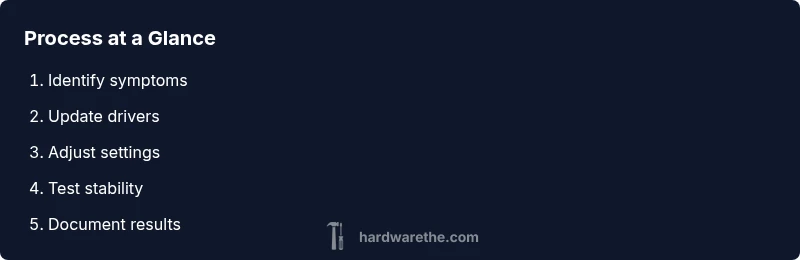
- Document results for future reference.