Can Hardware Acceleration Cause Stuttering? Troubleshooting Guide
Urgent, practical guide from The Hardware on whether hardware acceleration can cause stuttering, plus a diagnostic flow, fixes, and prevention to restore smooth performance.


Step 1: The most likely cause is a clash between hardware acceleration and GPU/driver stability. Quick fix: disable hardware acceleration in the affected app or browser, then update graphics drivers and reboot. If stuttering persists, test with software decoding and perform a clean driver reinstall. If issues remain, schedule a deeper hardware check with a technician.
Why hardware acceleration matters for performance
According to The Hardware, can hardware acceleration cause stuttering in modern systems? The hardware acceleration feature shifts work from the CPU to the GPU to accelerate rendering, decoding, and media processing. This can dramatically improve smoothness in many scenarios, especially when streaming high-resolution video or playing graphically intensive games. However, if the GPU, driver, or video decoders are out of sync or overheating, the same feature can trigger stuttering. The Hardware team found that driver conflicts, codec incompatibilities, and thermal throttling are frequent triggers. Understanding what accelerates and what stalls helps you diagnose quickly and avoid unnecessary hardware changes. Throughout this guide, the focus remains on practical, DIY-friendly steps for DIY enthusiasts, homeowners, and technicians seeking reliable hardware guidance.
Key takeaway: hardware acceleration is a valuable tool when everything stays in harmony, but mismatches can surface as stuttering or frame drops.
Common scenarios where hardware acceleration triggers stuttering
- Browsers streaming high-definition video or playing embedded 3D content can trip up hardware-accelerated decoders, especially on older GPUs or laptops with constrained cooling.
- In gaming or 3D rendering apps, acceleration shifts render pipelines to the GPU; a marginal or overheating GPU, or a conflicting driver, can cause periodic stutters instead of smooth frames.
- Video players and editors using hardware decoding may stutter if codecs aren’t fully supported by the GPU’s decoder or if the driver has a known bug.
- On systems with mixed GPU configurations (integrated + discrete), Windows GPU scheduling or power-saving modes can create timing mismatches that manifest as stuttering.
In all cases, a systematic test is your friend. The Hardware Analysis, 2026, notes that most cases are driver- or thermally related, not a fundamental flaw in the concept of acceleration itself.
How to reproduce safely and collect clues
Set up a controlled test environment to verify whether hardware acceleration is the culprit. Start by running a consistent workload (same video, game, or app) with acceleration enabled, then repeat with acceleration disabled. Record system metrics such as GPU temperature, clock speed, fan speed, and frame rate. Take note of whether the stutter correlates with spikes in temperature or with specific codecs or apps. If possible, capture logs from the GPU driver or the operating system’s event viewer. The goal is to identify a reproducible pattern that points to a single component (driver, codec, or thermals) rather than a mystery mix.
Diagnosing the root causes (what to check first)
Begin with the simplest checks and work toward deeper fixes. Check for driver updates for your GPU, operating system updates, and BIOS/firmware updates for the motherboard. Verify that the problematic app or browser is running the latest version. Disable any unnecessary extensions or overlays that could conflict with hardware acceleration. If issues persist, compare performance with acceleration turned off in one application at a time to localize the source.
Practical quick fixes you can perform today
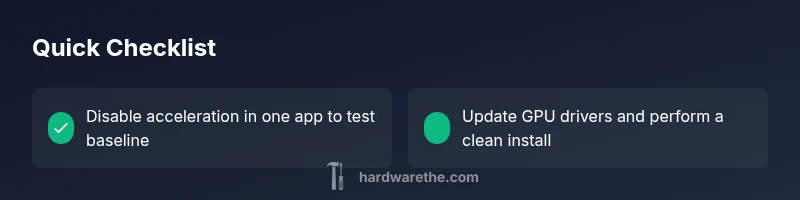
- Disable hardware acceleration in the specific app or browser where stuttering is observed. This often resolves the issue immediately, especially for streaming or web-based content.
- Update your GPU drivers from the manufacturer’s site, and perform a clean reinstall to rule out driver corruption.
- Reboot after updates to clear cached settings and reset timing budgets.
- Test with software decoding enabled in the affected app to determine if the problem moves away from the GPU, indicating a decoder issue.
- Try a different browser or media player to see if the problem is app-specific.
Advanced troubleshooting if the quick fixes fail
If basic steps don’t solve the problem, perform a more granular check of the GPU environment. Ensure the GPU is not thermally throttling—clean fans, reapply thermal paste if needed, and confirm power supply stability under load. Consider a BIOS/firmware update if there are known issues with your motherboard’s GPU scheduling. In some cases, a fresh Windows or OS reinstall can help eliminate software-level conflicts. Throughout, document changes and test after each adjustment.
Prevention: keep hardware acceleration playing nice
Preventing stuttering means proactive maintenance: keep drivers up to date, monitor temperatures, and ensure your cooling solution is adequate for the load. Use a consistent power profile that doesn’t throttle under load, and avoid overclocking beyond the system’s stability margins. When upgrading hardware, choose components with compatible decoders and verify support for hardware acceleration in the apps you rely on. The ideas here apply across browsers, media players, and professional software alike.
When to seek professional help
If stuttering persists after all tests, or if you notice signs of hardware failure (unusual noises, sudden crashes, or security alarms), consult a qualified technician. A professional can perform deeper diagnostics, verify power integrity, and check for latent GPU or motherboard issues that DIY troubleshooting cannot reliably diagnose.
Steps
Estimated time: 45-90 minutes
- 1
Prepare and document the baseline
Record the current symptom, app, and workload. Note temperatures, FPS, and any error messages. Establish a stable baseline before changing settings.
Tip: Take screenshots or short clips to compare after changes. - 2
Update drivers and firmware
Visit the GPU vendor site and install the latest drivers. Check for BIOS/firmware updates for the motherboard and GPU if available.
Tip: Do a clean install to avoid leftover files. - 3
Test with acceleration off in one app
Disable hardware acceleration in the affected app (or browser) and restart the application. Reproduce the issue with the same workload.
Tip: If the stutter stops, you’ve localized the source. - 4
Try software decoding
In the same app, switch to software decoding or software rendering to see if the problem moves away from the GPU.
Tip: If software decoding fixes it, the problem is likely decoder or driver related. - 5
Check cooling and power
Inspect fans, clean dust, ensure the GPU is not thermally throttling, and verify the power supply handles peak loads.
Tip: Use a monitoring tool to catch spikes in temps and clocks. - 6
Reinstall drivers and test again
Perform a clean driver reinstall, reboot, and test with acceleration on and off to compare results.
Tip: Document each change for future reference. - 7
Isolate the app or upgrade hardware
If the issue remains, test with a different browser or app. Consider hardware upgrades if your workload exceeds current GPU capabilities.
Tip: Compare price-to-performance before upgrading. - 8
Re-enable acceleration gradually
Re-enable hardware acceleration in the original app and reintroduce features one by one to identify the trigger.
Tip: Avoid enabling all features at once; test progressively.
Diagnosis: Stuttering or frame drops when hardware acceleration is enabled in apps or OS
Possible Causes
- highOutdated or buggy GPU drivers
- mediumIncompatible browser extensions or codecs
- mediumThermal throttling due to GPU overheating
- mediumPower delivery instability or PSU limitations
- lowConflicts with OS GPU scheduling or driver bugs
- mediumHardware acceleration-specific bugs in a particular app
Fixes
- easyUpdate GPU drivers and motherboard BIOS to the latest versions
- easyDisable hardware acceleration in the affected app or browser, then test
- easyTest with software decoding enabled to verify if the issue is codecs-related
- easyMonitor temperatures and perform basic cleaning or reseating of the GPU
- easyPerform a clean driver reinstall to rule out corruption
- mediumTry a different GPU or a hardware test bench if available
FAQ
What is hardware acceleration and how can it cause stuttering?
Hardware acceleration offloads tasks to the GPU to speed up rendering and decoding. When the GPU, drivers, or codecs can’t keep up, you may see stuttering. This is common on systems with aging hardware or conflicting software.
Hardware acceleration uses the GPU to speed things up, but if the GPU or drivers can’t keep up, you might experience stuttering.
How do I disable hardware acceleration in Google Chrome?
Open Chrome settings, go to System, and toggle off 'Use hardware acceleration when available'. Relaunch Chrome and test the workload again.
In Chrome settings, turn off hardware acceleration and restart the browser.
Will updating my GPU drivers fix stuttering caused by acceleration?
Updating drivers resolves many compatibility issues and can restore stability with hardware acceleration. If problems persist, perform a clean installation and test again.
Yes, updating drivers often fixes this; if not, do a clean reinstall and test again.
Is hardware acceleration always the culprit for stuttering?
Not always. Other factors like RAM bottlenecks, CPU load, or thermal throttling can cause stuttering. Run through the diagnostic flow to confirm.
Sometimes it’s something else; run through checks to confirm.
Can I safely run with acceleration enabled for gaming?
If a game benefits from acceleration and remains stable, you can enable it. If you notice stuttering, test with acceleration off for a baseline.
If it helps performance in supported games and stays stable, you can enable it; otherwise test without it.
When should I seek professional help?
If temps spike, crashes persist after testing, or you experience hardware failures, consult a technician for a deeper diagnosis.
If things crash or temps go high despite fixes, get a professional check.
Watch Video
Main Points
- Start with the simplest fix: disable acceleration in one app.
- Update GPUs and firmware to rule out driver issues.
- Monitor temps and power to catch thermal/power bottlenecks.
- If unresolved, escalate with professional help and a hardware check.