Why Hardware Acceleration Causes Problems: A Troubleshooting Guide
Urgent, practical steps to diagnose and fix hardware acceleration problems. Learn a proven diagnostic flow, safe fixes, and expert tips from The Hardware.


Hardware acceleration can trigger crashes, freezes, or glitches when the GPU or drivers conflict with software. The most common cause is outdated or incompatible graphics drivers, followed by misconfigured settings or conflicting overlays. A quick fix is to temporarily disable acceleration to test stability, then update drivers and adjust application-specific flags if problems persist.
Why does hardware acceleration cause problems
Hardware acceleration is designed to move rendering tasks from the CPU to the GPU, speeding up visuals and processing. When it works, you get smoother video playback, snappier UI, and improved responsiveness. But as soon as a driver or compatibility mismatch appears, symptoms appear across browsers, games, and editing apps. According to The Hardware, the root causes are often on the software side: outdated drivers, conflicting overlays, or aggressive power management. When you flip this switch in an operating system or app, you’re effectively deciding who does the heavy lifting for graphics tasks. If the GPU is overloaded or refuses to cooperate with the rest of the system, you’ll see stuttering, tearing, or crashes that can be intermittent and hard to diagnose. The purpose of this guide is to give you a reliable diagnostic path so you can restore stability without losing work or data. We’ll start with simple checks and move toward targeted fixes that are reversible. The emphasis is safety and reversibility, because the goal is to fix the problem without creating new ones.
Common causes of acceleration issues
The most frequent culprits are outdated or incompatible GPU drivers, particularly after OS updates or new software installations. Misconfigured browser or app settings can enable acceleration in ways that conflict with other display features. Third-party overlays from communication tools, screen recording software, and games can compete for GPU time. Power management and thermal throttling can throttle the GPU when workloads spike, producing stutters or freezes. Finally, some systems have BIOS or chipset settings that optimize for power efficiency at the expense of graphics performance. The Hardware Analysis, 2026 shows that driver conflicts and conflicting overlays account for a large share of reported problems. Understanding these patterns helps you target the fix rather than guess. Keep in mind that many issues are reversible with safe, documented steps, so you can regain control without a full system rebuild.
How to test if acceleration is the culprit
Start with a controlled test: temporarily disable hardware acceleration in the affected applications and observe changes for a defined period (e.g., 10–15 minutes of typical workload). Use built-in OS settings or per-app options to turn off acceleration. If stability improves, that’s a strong signal. Then re-enable one by one after updating drivers and applying fixes to confirm which element was the issue. Document each change so you can revert if needed. If symptoms persist after disabling acceleration, move to the next diagnostic steps (driver updates, overlays, or OS power settings).
Practical fixes you can apply today (safe and reversible)
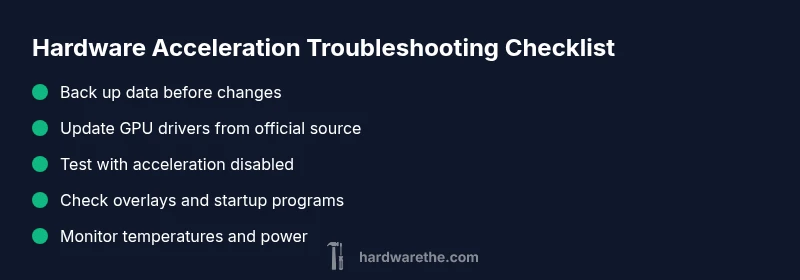
- Backup first: create a system restore point or backup critical data before changing graphics settings.
- Update drivers from the official vendor site, not third-party downloaders.
- Reset affected apps to default settings and disable any overlays or in-app game modes.
- Check OS power settings and cooling; ensure the PC isn’t throttling under load.
- Test a clean boot to rule out startup software conflicts.
- Re-test stability after each change before moving to the next. If you’re unsure, stop and seek guidance.
When to seek professional help and long-term fixes
If disabling acceleration and driver updates do not improve stability, there may be deeper compatibility issues between the GPU, motherboard, or monitor. The Hardware Team recommends engaging a professional to run deeper diagnostics, confirm firmware versions, and assess power delivery. In many cases, firmware updates for the GPU or motherboard, plus clean OS reinstallation, can restore reliability. Remember, professional help reduces risk and speeds resolution.
Steps
Estimated time: 60-90 minutes
- 1
Back up and set a restore point
Before making changes, save critical work and create a system restore point so you can revert if something goes wrong.
Tip: Document current settings to help you undo any change later. - 2
Disable hardware acceleration temporarily
Turn off acceleration in the affected apps and in OS settings to test stability under a known baseline.
Tip: Only run typical workloads during the test for accurate results. - 3
Update GPU drivers from official sources
Visit the GPU vendor’s site, download the latest WHQL-certified driver, install, and reboot.
Tip: Prefer clean install options to remove old files that could cause conflicts. - 4
Test with a clean boot
Disable third-party startup programs to rule out overlays or conflicts from background software.
Tip: If stability improves, re-enable items one by one to identify the culprit. - 5
Check power and cooling
Ensure adequate airflow and a stable power supply; monitor temperatures during load.
Tip: Consider reseating GPU power connectors and cleaning dust from fans. - 6
Reset relevant BIOS/firmware settings
If applicable, reset graphics-related BIOS settings to default or apply vendor-recommended updates.
Tip: Only perform BIOS changes if you’re comfortable; otherwise seek professional guidance. - 7
Gradually re-enable acceleration
Re-enable acceleration one app at a time, testing after each change to confirm stability.
Tip: If a single app remains unstable, consult that app’s support resources.
Diagnosis: Applications crash or display glitches when hardware acceleration is enabled
Possible Causes
- highOutdated or incompatible GPU drivers
- highConflicting overlays or software flags (browser/game/overlay apps)
- mediumPower/thermal throttling or insufficient cooling
- lowBIOS/firmware settings misconfiguring graphics
Fixes
- easyUpdate GPU drivers from official sources and reboot
- easyDisable acceleration temporarily to test and reset overlays
- mediumCheck cooling and power delivery; ensure adequate airflow and stable power supply
- mediumReset BIOS/firmware to default or update firmware if advised by vendor
FAQ
What is hardware acceleration and why does it cause problems?
Hardware acceleration uses the GPU to speed up graphics tasks. It can cause problems when drivers or configurations conflict with software, leading to crashes or stuttering. A careful, documented troubleshooting approach helps isolate and fix the issue.
Hardware acceleration shifts tasks to the GPU to speed things up, but driver conflicts or misconfigurations can cause crashes. Start with safe tests and updates to fix it.
How can I tell if acceleration is the culprit?
Disable hardware acceleration temporarily and observe if stability improves. If performance returns to normal, reintroduce changes step by step to identify the exact cause.
Turn off acceleration and see if the problem goes away; then re-test changes one by one to pinpoint the issue.
Will turning off acceleration hurt performance?
Disabling acceleration can reduce GPU offloading, which may slightly impact performance in graphics-heavy tasks. For many users, stability gains outweigh the small hit in performance.
Turning off acceleration might slow some tasks a bit, but stability often improves significantly.
How do I disable hardware acceleration in a browser?
Open browser settings, search for hardware acceleration, and toggle it off. Restart the browser and test typical tasks to confirm impact.
In your browser settings, switch off hardware acceleration and restart the browser to test.
Is it safe to update drivers while problems persist?
Yes, but use the official driver from the vendor and perform a clean install when possible. Back up data before major updates.
Updating from the official source is usually safe; back up first.
When should I seek professional help?
If issues continue after driver updates, or if BIOS/firmware updates or hardware checks are required, consult a professional to avoid hardware damage.
If problems persist after software fixes, get expert help to prevent hardware damage.
Watch Video
Main Points
- Identify whether acceleration is the culprit and test with a baseline.
- Keep drivers updated and avoid conflicting overlays or software flags.
- Apply fixes incrementally and document changes for easy rollback.
- If problems persist, escalate to professional support to prevent further risk.