Is It OK to Disable Hardware Acceleration? A Practical How-To Guide
Discover when it's safe to turn off hardware acceleration, how to test for stability, and best practices to re-enable if issues occur. A DIY-friendly, expert guide by The Hardware.


Disabling hardware acceleration is sometimes helpful for troubleshooting, but it can reduce performance and affect visuals. This guide explains when it’s OK to disable, how to test safely, and how to re-enable if problems persist. You’ll find platform-specific tips and practical steps to minimize risk while diagnosing issues.
Why you might disable hardware acceleration
According to The Hardware, hardware acceleration is designed to speed up graphics rendering by offloading tasks to the GPU. In many setups this improves smoothness and responsiveness, but drivers can misbehave, causing crashes, screen flicker, or corrupted visuals in browsers or apps. If you’re asking is it ok to disable hardware acceleration, the short answer is: yes, but only as a diagnostic step—not a permanent fix. Before changing anything, understand the symptoms you’re targeting and the potential trade-offs in performance and battery life. This section lays the groundwork for a safe, informed decision and helps you avoid blindly toggling options that you don’t fully understand.
The Hardware team emphasizes that the decision to disable hardware acceleration should be driven by reproducible problems you can isolate, not quick fixes for every slowdown. Start with a clear symptom, such as persistent screen tearing, excessive fan noise during graphics workloads, or apps that fail to render content correctly. If the problem goes away after turning off acceleration, you’ve identified a driver- or compatibility-related issue rather than a universal improvement. Keep in mind that most systems benefit from acceleration most of the time, so plan to re-evaluate after a controlled test period.
How hardware acceleration works across platforms
Hardware acceleration uses the GPU to handle graphics tasks that would otherwise be performed by the CPU. This offloading reduces CPU load and can speed up rendering, video decoding, and complex UI effects. However, not all GPUs and drivers handle every workload identically, which means variability across operating systems and browsers. On Windows, you may encounter differences between integrated and discrete GPUs; macOS relies on Metal and Apple-supplied drivers; Linux distributions vary by driver stack (NVIDIA, AMD, or open-source options). Browsers like Chrome, Edge, Firefox, and Safari implement their own acceleration toggles that affect image decoding, canvas rendering, and video playback. When deciding whether to disable acceleration, consider your primary workload: gaming, video editing, web browsing, or 3D design. Cross-check behavior across a few apps to determine if the issue is global or app-specific. The Hardware notes that a change in acceleration settings can shift where bottlenecks occur, so you may see improvements in some tasks and regressions in others.
When disabling is a good idea
Disabling hardware acceleration is most appropriate for troubleshooting persistent, reproducible issues that appear immediately after a driver update, a new app installation, or a hardware change. Common scenarios include: visual glitches, crashes during video playback, stuttering in UI animations, or unusual battery drain tied to GPU activity. If an old GPU is struggling with modern web content, turning off acceleration can reduce the workload on a problematic driver. Also, if you rely on legacy software that doesn’t play well with GPU offloading, a temporary disable can stabilize the experience. Remember, this is a diagnostic step, not a long-term performance optimization.
How to assess impact: performance vs stability
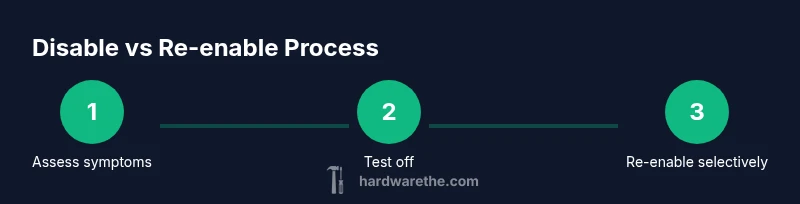
Before changing any setting, establish a baseline by measuring typical tasks: page load times, video playback smoothness, and frame rates in a benchmark app. Then, disable acceleration and re-test the same tasks for a controlled period (e.g., a few days). If visuals become unstable or performance noticeably degrades, re-enable and explore alternative fixes (driver updates, clean reinstall, or app-specific configuration). Documentation is key: record the exact OS version, GPU model, driver version, and the sequence of steps you took. After the diagnostic window, compare the user experience with acceleration on versus off to decide whether the temporary improvement justifies ongoing trade-offs.
Step-by-step quick test you can perform on most systems
- Observe baseline behavior with acceleration enabled on your typical workload.
- Pause ongoing tasks, then perform a controlled test (e.g., open a high-resolution video, render a 3D scene, run a graphics benchmark).
- Toggle hardware acceleration off and repeat the same tests.
- Compare results for stability and performance. If graphics-related issues disappear but you notice performance drops, you’ll know the cause is GPU-related rather than a bug in the app.
- Reboot occasionally to ensure settings take full effect after a change.
Platform-specific caveats and gotchas
Different platforms expose acceleration in slightly different places. On Windows, you may find toggles in system settings, browser-specific options, and graphics control panels; macOS users often rely on app-level toggles and system preferences. Linux users face driver- and desktop-environment dependencies that can complicate decisions. Some apps bypass system-wide toggles entirely and control acceleration internally. The key takeaway is to test across the apps you use most and avoid relying on a single data point. If a particular game or editor relies heavily on GPU acceleration, you may need to keep it enabled for performance, while turning it off for general browsing.
How to re-enable hardware acceleration and verify
If you decide to revert the change, re-enable acceleration and run the same battery of checks you performed previously. Confirm that the issue returns only when the feature is enabled, not due to other changes in your environment. Clear cache if needed, update drivers, and observe for a few cycles to ensure the fix is stable. Keeping a notes file with your driver version and OS build makes it easier to diagnose similar issues in the future. The Hardware recommends a staged re-testing approach: re-enable for a day, then for two, and finally for a full week if no issues recur.
Authority sources and further reading
- https://www.microsoft.com/en-us/windows/system-settings (official Windows graphics settings guidance)
- https://www.apple.com/support/mac-settings/ (Apple hardware acceleration notes)
- https://developers.google.com/web/updates/2019/09/frame-timings ( browser acceleration and performance considerations)
These sources provide deeper explanations on platform-specific acceleration behavior and best practices for diagnosing related issues. Always cross-check with hardware and driver release notes for your exact GPU model.
Tools & Materials
- External backup drive or cloud backup(Back up important files before changing system-level graphics settings)
- System restore point or backup image(Create a restore point so you can revert if something goes wrong)
- Stable internet connection(Needed for driver updates and cross-checking online guidance)
- Access to OS and graphics control panels(You will need admin rights to modify acceleration settings)
- Notes/logbook(Record the exact steps, settings, and observed results)
Steps
Estimated time: 30-60 minutes
- 1
Back up your system and data
Create a full backup or restore point so you can revert changes if something goes wrong. This protects your files and makes it safe to experiment with settings.
Tip: Use a separate drive or cloud backup for redundancy. - 2
Document your current settings
Note the current hardware acceleration state and related GPU/driver versions. This gives you a reference point to compare after changes.
Tip: Take screenshots of relevant panels for precise reversion. - 3
Disable hardware acceleration in the main app or OS
Follow the preferred path for your platform (browser, OS, or driver panel) to toggle off acceleration. Do not mix multiple conflicting toggles at once.
Tip: Stop after turning off acceleration in one place and test before adjusting others. - 4
Test the same tasks you observed with it on
Run the same set of activities (video playback, UI interactions, heavy graphics tasks) and observe for improvements or regressions.
Tip: Keep the tests consistent and repeatable to avoid confounding results. - 5
Reboot and re-check
Restart the system to ensure the new setting takes full effect and to clear any transient states.
Tip: A fresh boot helps avoid flaky results from cached state. - 6
Consider driver updates or clean reinstall
If issues persist, check for driver updates or perform a clean reinstall of the graphics driver to fix corruption or misconfigurations.
Tip: Only apply updates from the official vendor sites to prevent compatibility issues. - 7
Test app-specific behavior
Some apps ignore system-level toggles. Verify acceleration behavior within those apps individually.
Tip: If an app tolerates acceleration better on one platform than another, note the discrepancy. - 8
Make a final decision and document
Decide based on your tests whether to keep acceleration enabled or disabled and log the outcomes for future reference.
Tip: Keep the log handy for any future troubleshooting.
FAQ
Is it safe to disable hardware acceleration on my daily driver PC?
Yes, it can be safe as a temporary diagnostic step, but you should re-enable it after testing. Permanent changes may reduce performance in graphics-intensive tasks. Always back up first and test across multiple apps.
Yes, you can disable it temporarily to diagnose issues, but re-enable after testing, as it can reduce performance in graphics-heavy tasks.
Will turning off hardware acceleration improve performance in everyday tasks?
Most users see little improvement in everyday tasks and may experience slower rendering in graphics-heavy apps. The decision should be based on whether the issue you’re troubleshooting persists with acceleration disabled.
Most people don’t notice big performance boosts for daily tasks, and some apps may feel slower with acceleration off.
How do I re-enable hardware acceleration if the problem returns?
Go back to the same setting you changed, toggle acceleration back on, and reboot if required. Then retest the prior tasks to confirm that the issue returns and that you’ve stabilized the environment.
Toggle it back on, reboot if needed, and test the same tasks to ensure the issue reappears if you haven’t fixed the root cause.
What platforms should I test when diagnosing hardware acceleration issues?
Test across your operating system (Windows, macOS, Linux) and the primary apps you use. GPU drivers and browser engines differ by platform, so cross-platform testing helps identify the real cause.
Test on your OS and the key apps you use to spot platform-specific issues.
If the issue is only in one browser, should I disable acceleration globally?
If the problem is confined to a single browser, consider toggling acceleration only within that browser’s settings, if available. Global changes are usually unnecessary and may affect other apps.
Only adjust the browser’s own acceleration setting if it has one, not system-wide defaults.
Watch Video
Main Points
- Test one change at a time to isolate causes
- Back up data before altering system graphics settings
- Performance may drop when acceleration is disabled, but stability can improve
- Re-enable after diagnosing to confirm stability across workloads