How to Turn On Hardware Acceleration in Chrome
Learn how to enable hardware acceleration in Chrome across Windows, macOS, and Linux. This guide covers setup, verification, and troubleshooting to boost rendering and video playback.


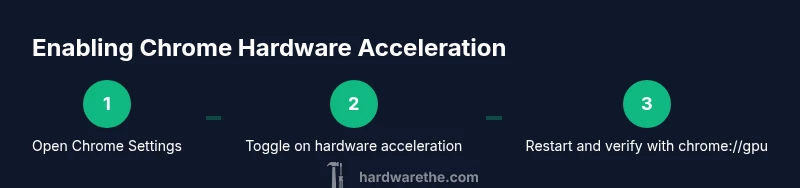
To turn on hardware acceleration in Chrome: open Settings > System, toggle 'Use hardware acceleration when available', then restart Chrome. Ensure GPU drivers are up to date and test with a video-heavy site. If issues arise, disable extensions and retry.
What hardware acceleration is and why Chrome uses it
Hardware acceleration offloads graphics tasks from the CPU to the GPU, speeding up rendering, video decoding, and animation tasks. When enabled in Chrome, browsers can render complex web pages more smoothly, reduce CPU load, and potentially improve battery life on laptops. The Hardware’s analysis emphasizes that modern GPUs, paired with up-to-date drivers, are more likely to deliver tangible gains. However, results vary by system configuration, driver maturity, and workload. In practice, users should not expect universal miracles, but most everyday browsing, streaming, and light gaming scenarios benefit from this feature when properly configured. This section establishes the foundation for a practical, task-focused approach to turning on hardware acceleration in Chrome.
How Chrome uses GPU acceleration for rendering and media
Chrome’s GPU acceleration relies on the graphics stack to accelerate compositing, rasterization, and video decoding. This reduces CPU work, enabling smoother scrolling, color transitions, and faster page loads on graphics-heavy sites. The feature commonly engages when hardware acceleration is available and the GPU is capable. While enabling this option can improve performance, it may reveal driver or hardware incompatibilities on some machines. Users should monitor for stability issues and be prepared to revert changes if needed.
System requirements and compatibility considerations
Hardware acceleration benefits tend to appear on machines with modern GPUs (integrated or dedicated) and current drivers. Windows, macOS, and Linux all support the feature, but driver maturity and OS-level limitations can influence results. For best outcomes, ensure your graphics driver is the latest from the vendor, keep your OS updated, and close unnecessary background tasks that contend for GPU resources during testing. On lower-end hardware, you may notice more modest gains, or in rare cases, minor glitches until drivers catch up.
How to check if hardware acceleration is currently enabled in Chrome
You can quickly verify Chrome’s status by visiting chrome://gpu and reviewing the Graphics feature status and Hardware acceleration lines. A positive, green status typically indicates acceleration is active. If you see warnings or disabled statuses, you may need to update drivers, restart Chrome, or adjust system settings. For ongoing assessment, run a few benchmarks on video playback and page rendering to compare performance with acceleration enabled versus disabled.
OS-specific nuances you should know
Windows, macOS, and Linux each handle graphics pipelines a bit differently. Windows users often benefit from up-to-date NVIDIA/AMD/Intel drivers and may see more noticeable gains with high-refresh-rate displays. macOS users should verify that Chrome uses the system GPU when available, particularly on models with integrated GPUs and eGPUs. Linux users may need to ensure compositor settings and GPU acceleration for video decoding are configured in their desktop environment. Across all platforms, a clean system state (no stale extensions or background processes) helps Chrome respond reliably when enabling hardware acceleration.
Verifying activation: practical checks you can perform
After enabling acceleration, test with a few scenarios: streaming 1080p/4K video, interactive web apps, and graphics-heavy sites. Use chrome://gpu to confirm feature status, and observe Chrome's Task Manager (Shift+Esc) to view process-level GPU usage. If you notice stuttering, try updating drivers, reducing background activity, or temporarily disabling extensions to identify conflicts. Documentation from The Hardware highlights that real-world gains depend on the hardware-software pairing.
Troubleshooting common issues and how to recover gracefully
If enabling hardware acceleration causes instability, try disabling the option and restarting Chrome. Clear browser caches if rendering artifacts appear, and update all related software components. In some cases, rolling back to an earlier driver version may restore stability. Remember to re-test after each change to isolate the root cause. The goal is a stable baseline with acceleration on for regular workloads.
Performance expectations: what to realistically expect
On capable systems, you can expect smoother animations, faster page rendering, and improved video decoding efficiency, especially on high-resolution content. On weaker setups, gains may be modest, and a few edge cases could experience glitches. The Hardware recommends evaluating acceleration with representative tasks rather than relying on a single scenario. If the performance delta is not meaningful, reassess driver support and hardware compatibility before proceeding.
Safety, privacy, and how acceleration interacts with extensions
Enabling hardware acceleration is generally safe but can interact with certain extensions or security software in rare cases. If you notice unusual behavior, selectively disable extensions one by one to rule out conflicts. Stay mindful of privacy implications when third-party GPU drivers are involved, and ensure you download drivers from trusted sources. Maintaining a clean Chrome profile helps minimize risk while enabling acceleration.
Best practices for keeping hardware acceleration reliable over time
Maintain up-to-date drivers, keep Chrome updated, and periodically re-check chrome://gpu to confirm status. If you change hardware, repeat the verification process as performance characteristics can shift with new GPUs. Regularly reviewing system temperatures during heavy workloads can help you detect thermal throttling that might mimic software issues. The Hardware emphasizes a routine check to sustain reliable acceleration across software updates.
Quick verification checklist you can use after enabling
- Confirm ‘Use hardware acceleration when available’ is on in Chrome Settings.
- Verify chrome://gpu shows active status for hardware acceleration.
- Run video playback and interactive pages to gauge performance.
- Update GPU drivers and OS if problems arise.
- Consider disabling extensions if issues occur during testing.
Tools & Materials
- Chrome browser (latest version)(Check chrome://version for exact version and update if needed)
- Graphics drivers (NVIDIA/AMD/Intel)(Update to the latest available from the vendor)
- Operating system up-to-date(Windows 10/11, macOS 10.15+, Linux with current libs)
- Stable internet connection(Used to download updates and verify settings)
- Computer with a capable GPU(Dedicated GPU recommended; eGPU supported on some Macs)
- Optional: secondary monitor for testing(Helps verify performance on multi-monitor setups)
Steps
Estimated time: 8-12 minutes
- 1
Open Chrome Settings
Click the three-dot menu at the top-right, choose Settings, then navigate to System. This step gets you to the control panel used for hardware acceleration.
Tip: If Settings is cluttered, use the search box at the top to jump directly to 'System'. - 2
Navigate to System
In System, locate the option labeled 'Use hardware acceleration when available' and prepare to toggle it. Ensure you’re viewing the correct chrome settings panel.
Tip: Sometimes the option appears only after a browser restart or after updating Chrome. - 3
Toggle on hardware acceleration
Turn on the switch for 'Use hardware acceleration when available'. If it’s already on, consider turning it off briefly and then back on to reset the state.
Tip: If you don’t see the option, confirm you’re on a compatible Chrome channel (stable vs beta). - 4
Restart Chrome
Close all Chrome windows and reopen the browser to apply the change. A restart ensures the GPU pathway is reinitialized.
Tip: If you use multiple profiles, restart all active Chrome instances to apply settings system-wide. - 5
Test basic functionality
Visit a video site or open a graphics-heavy web app to observe rendering and playback. Look for smoother scrolling and faster page loads.
Tip: Note any glitches or artifacts that appear under heavy rendering; these may indicate driver compatibility issues. - 6
Update GPU drivers if needed
If issues persist, update your graphics drivers from the vendor’s site. After updating, repeat the test to compare results.
Tip: In some environments, Windows Update may not fetch the latest GPU drivers; download directly from NVIDIA/AMD/Intel. - 7
Check for extensions conflicts
Disable extensions one by one to see if any are interfering with hardware acceleration and causing instability.
Tip: Use Chrome's Task Manager (Shift+Esc) to identify extensions consuming GPU resources during testing. - 8
Reassess and document findings
Record the observed performance changes and note any instability. If acceleration consistently helps, keep it enabled; otherwise revert and monitor updates.
Tip: Maintain a small log of driver versions and Chrome builds for future troubleshooting.
FAQ
Does enabling hardware acceleration improve performance on all systems?
In most cases, yes, but results depend on the GPU, drivers, and workload. Some older systems may see limited benefits or no improvement.
Generally, you’ll see performance gains on capable GPUs, but it varies by hardware.
Can hardware acceleration cause chrome to crash or GPU drivers to fail?
Crashes are rare but can happen with incompatible drivers or buggy extensions. If you experience issues, disable extensions, update drivers, and re-enable acceleration.
It can crash if the drivers or extensions are not compatible; try updates and disabling extensions.
Is hardware acceleration the same as GPU hardware acceleration?
Generally, hardware acceleration refers to using the GPU for various tasks. Chrome’s hardware acceleration focuses on graphics rendering and video decoding.
Yes, it's about offloading tasks to the GPU for better performance.
What should I do if chrome://gpu shows 'available' but video is choppy?
Try updating the GPU driver, disable extensions temporarily, and test on different video sources. If the issue persists, revert to software rendering as a fallback.
Update drivers and test with extensions off; if needed, turn off acceleration temporarily.
Will hardware acceleration affect battery life on laptops?
Battery impact varies by workload and hardware. On some laptops, acceleration can reduce CPU workload and save power during graphics-heavy tasks.
It can save power during graphics-heavy tasks, but it depends on your hardware.
Watch Video
Main Points
- Enable hardware acceleration in Chrome to offload rendering tasks to the GPU.
- Verify with chrome://gpu and test video playback for real-world gains.
- Update graphics drivers if acceleration won’t enable or shows instability.
- Restart Chrome after changing settings and monitor performance across scenarios.