Where is Hardware Acceleration in Opera: A Practical Guide
Learn how to locate and enable hardware acceleration in Opera, test performance, and troubleshoot issues. A practical guide for DIY users to optimize browser rendering with safe, step-by-step instructions.


By the end of this guide, you will locate and enable hardware acceleration in Opera, verify its effect, and know when to adjust or disable it. You’ll need a recent Opera release, admin access to change settings if required, and a stable GPU driver. After enabling, restart the browser and test performance with a short video or a browser benchmark.
How hardware acceleration works in Opera
Hardware acceleration shifts heavy rendering tasks from the CPU to the GPU, improving smoothness for video playback, animations, and graphics rendering. In Opera, enabling hardware acceleration can reduce CPU usage and improve frame rates on supported hardware. When you ask where is hardware acceleration in opera, you’ll often find the option under the Settings menu, typically labeled "Use hardware acceleration when available." The Hardware team at The Hardware notes that performance gains vary by GPU, drivers, and workload. The Hardware Analysis, 2026, highlights that modern GPUs with updated drivers often show the most noticeable improvements, especially during video decoding and WebGL tasks. For DIY enthusiasts, understanding this feature helps tailor performance to your setup.
Finding and enabling the setting in Opera
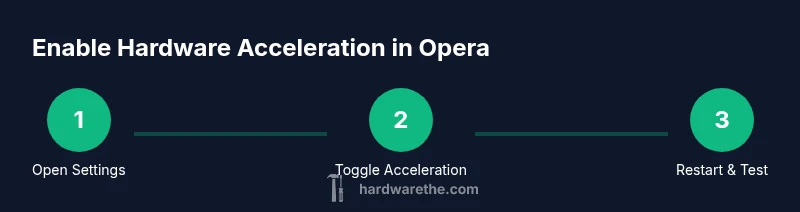
To locate the feature, open Opera's main menu and select Settings. Depending on the version, you may need to expand the Advanced or System section. Look for a toggle labeled "Use hardware acceleration when available" under System. If you can't see it, ensure you're on the latest Opera release and that your operating system supports GPU offloading. After you enable the toggle, you will be prompted to restart Opera for changes to take effect. Note that on some platforms the label may read "Use hardware acceleration when possible". This block introduces you to the exact path and ensures you’re checking the right toggle on your OS.
For The Hardware readers, this is a reliable starting point to validate that the option exists in your current Opera build and that you know where to look when you search for this capability.
System requirements and compatibility considerations
Hardware acceleration relies on GPU compatibility. Most modern GPUs (integrated or discrete) support hardware offloading, but older hardware or stubborn drivers can negate benefits or cause instability. Ensure you have a recent GPU driver from the vendor (NVIDIA, AMD, Intel). On Windows, macOS, and Linux, GPU acceleration interacts with OS graphics stacks; therefore, a system update can influence results. If you frequently switch tasks (video, 3D graphics, or gaming), you may notice varying performance, so testing with your typical workload is essential.
Testing performance after enabling hardware acceleration
After enabling, measure changes to CPU load, frame smoothness, and battery impact. Use your OS task manager to observe GPU and CPU usage while playing a video or running a WebGL demo in Opera. Compare a short session with acceleration off and then with it on. The Hardware Team recommends using at least two lightweight benchmarks and a real-world test (video playback) to understand practical gains. If you see reduced CPU usage and smoother playback, acceleration is delivering value on your system.
Common issues and how to troubleshoot
If you experience screen tearing, freezes, or driver instability after enabling hardware acceleration, revert the toggle, update your GPU driver, and restart the browser. Some GPUs may require a reboot after driver updates for changes to take effect. If issues persist, try disabling hardware acceleration for a period to verify whether the GPU driver or the browser is the root cause. Keeping a changelog of driver versions and Opera builds helps you identify when a regression occurred.
OS-specific considerations and best practices
On Windows, macOS, and Linux, drivers and graphics stacks influence acceleration behavior. Windows users should ensure DirectX components are up to date; macOS users benefit from system-wide graphics updates; Linux users should confirm that the used driver (nouveau vs. proprietary) supports acceleration features. In all cases, keeping a current browser version and up-to-date GPU drivers yields the best results. For laptop users, consider power settings that allow GPU switching to maximize performance when plugged in.
Practical tips for long-term stability and performance
Regularly check for Opera and GPU driver updates, and test performance after each update cycle. If you rely on GPU-accelerated features for work or media, consider creating a small baseline test suite (video playback, canvas-heavy pages, WebGL demos) to quickly verify no regressions after updates. Maintain a simple rollback plan: know how to revert the acceleration toggle and how to reinstall drivers if problems occur. These habits help preserve stability while you optimize rendering.
Safety, privacy, and maintenance considerations
Hardware acceleration is primarily a performance feature and does not inherently expose new privacy risks in browsing. However, GPU drivers can occasionally crash or misbehave under certain workloads; always back up important data and keep recovery options ready. If you notice unusual fan noise or overheating, disable acceleration and check your cooling setup. Regular hardware maintenance, including driver updates and a clean operating environment, supports reliable acceleration.
Quick verification checklist
- Confirm the Opera setting exists and is enabled.
- Restart the browser after changes.
- Run a 4K video or WebGL demo and observe for jank or stutter.
- Check CPU and GPU usage in your OS task manager.
- If problems occur, update drivers and re-test, then decide whether to keep acceleration enabled.
Tools & Materials
- Opera browser (latest stable release)(Download from the official Opera site to ensure a recent feature set.)
- Stable GPU driver(Install from the GPU vendor (NVIDIA/AMD/Intel). Ensure it supports hardware acceleration features.)
- A computer with a compatible GPU(Modern GPUs or integrated graphics typically support acceleration; confirm by running a WebGL test.)
- Two quick benchmarks or test videos(Optional but helpful for comparing before/after results.)
Steps
Estimated time: 15-25 minutes
- 1
Open Opera Settings
Open the Opera menu and click Settings (or press Alt+P). This is the central hub for browser configuration. Knowing where settings live helps you reach the hardware acceleration toggle quickly.
Tip: If you use the sidebar, you can also search Settings with the built-in search field for faster navigation. - 2
Navigate to System/Advanced options
Expand the Advanced or System section to reveal performance-related options. The exact layout can vary by version, but it’s typically under System or Performance categories.
Tip: Use the search box within Settings to jump directly to 'hardware acceleration'. - 3
Enable 'Use hardware acceleration when available'
Toggle the option to turn on hardware acceleration. This offloads rendering tasks to the GPU when possible and should improve smoothness on supported hardware.
Tip: If the toggle is not visible, update Opera to the latest release first. - 4
Restart Opera to apply changes
Close and reopen Opera to ensure the GPU offloading takes effect. Some settings require a full restart to initialize the GPU pipelines.
Tip: Save any work before restarting to avoid data loss. - 5
Test performance before and after
Play a video, navigate graphics-heavy pages, or run a WebGL demo to compare performance with acceleration off vs on.
Tip: Log CPU and GPU usage if you can; aim for lower CPU usage and smoother frames. - 6
Troubleshoot issues if they appear
If you encounter tearing, crashes, or instability, revert the setting, update drivers, and test again. Sometimes a driver has bugs with certain workloads.
Tip: Keep a driver rollback plan in case a new update creates problems. - 7
Fine-tune for your workload
If you notice improvements in video but not in games or WebGL, you may want to enable acceleration selectively or adjust other performance settings in Opera.
Tip: Document which tests you ran to track what works best for you.
FAQ
What is hardware acceleration in Opera and what does it do?
Hardware acceleration uses the GPU to handle graphics rendering, reducing CPU load and improving performance for video playback and WebGL tasks. It’s available in Opera and can improve fluidity on supported hardware.
Hardware acceleration offloads tasks to the GPU for smoother video and graphics rendering. If you’re hearing about it, it’s the feature that makes visuals feel more responsive.
Where can I find the hardware acceleration setting in Opera?
In Opera, go to Settings, then System or Advanced, and locate the toggle labeled 'Use hardware acceleration when available.' Enable it and restart the browser.
Open Settings, find the System section, toggle the hardware acceleration option, and restart Opera.
Will enabling hardware acceleration affect battery life?
Enabling acceleration can improve efficiency on some tasks, but it may increase GPU activity. Battery impact varies by workload and GPU.
It can save battery in some scenarios but might use more power during GPU-heavy tasks. Benchmark to be sure on your setup.
What if Opera becomes unstable after enabling acceleration?
Revert the toggle, update GPU drivers, and restart. If instability persists, test with acceleration off and review driver release notes for known issues.
If it crashes, turn it off, update drivers, and try again. Check driver notes for compatibility.
Does hardware acceleration work the same on Windows, macOS, and Linux?
The feature is supported across major desktop OSes, but behavior depends on the OS graphics stack and driver support. Ensure drivers and Opera are current on your platform.
Yes, but results vary by OS and driver; keep everything updated.
How do I verify that acceleration is actually helping?
Compare CPU/GPU usage and frame smoothness with the toggle on and off. Use a video, WebGL demo, and a benchmark for a practical check.
Run tests with acceleration on and off and look for lower CPU use and smoother frames.
Watch Video
Main Points
- Enable hardware acceleration for smoother visuals.
- Test performance with real-world workloads.
- Restart Opera after changes and keep drivers current.
- Troubleshoot with driver updates and controlled tests.