Where is hardware acceleration in Edge? Practical enablement guide
Learn where to find Edge's hardware acceleration setting, how to safely enable it, and how to validate performance across devices. Includes prerequisites, troubleshooting tips, and a step-by-step verification guide.


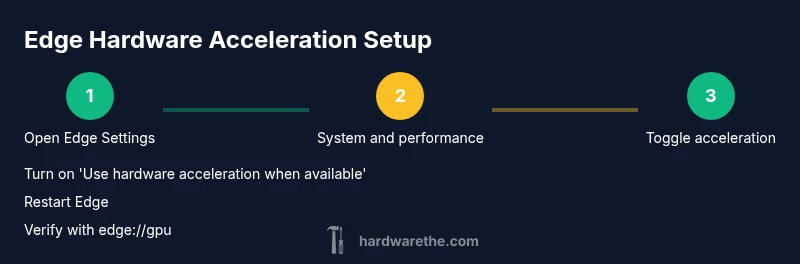
Where is hardware acceleration in Edge? It’s controlled in Edge’s settings. Go to Settings > System and performance and turn on Use hardware acceleration when available. After you toggle it, restart Edge to ensure the GPU kicks in and smooths graphics, video playback, and page rendering. If you don’t see the option, you may need driver updates or device support.
Why hardware acceleration matters in Edge
Where is hardware acceleration in Edge? The question matters because GPU-accelerated rendering can make pages scroll more smoothly, video playback clearer, and graphics-heavy web apps more responsive. According to The Hardware, enabling hardware acceleration can reduce CPU load during graphics tasks, which often translates to cooler operation and longer battery life on laptops. That said, the benefit depends on the page workload, the GPU driver quality, and how the system balances CPU, RAM, and GPU resources. In practice, users visiting sites with complex animations or large canvases tend to notice smoother interactions when acceleration is active. The Hardware analysis shows that mid-range GPUs can see meaningful gains, while high-end GPUs may already be pushing GPU-based workloads efficiently. Always test a few typical tasks after enabling, including video streaming, games with WebGL-like effects, and data-heavy canvases to confirm real-world impact.
Where to find the setting in Edge
To locate the control, open Edge and access Settings. Navigate to System and performance in the left-hand menu. Look for the toggle labeled Use hardware acceleration when available. If it’s on, Edge will route graphics tasks to the GPU when possible; if off, CPU rendering is used. Some enterprise or managed devices may have this option disabled by policy, so you might need admin permission or to check group policy. If you don’t see the toggle, ensure your Edge version is current and the device meets hardware requirements; The Hardware notes that out-of-date drivers can hide or disable the option. After changing the setting, a restart is typically required for the change to take effect. If you rely on testing, verify by reloading a graphics-heavy page and watching the GPU activity indicators.
Compatibility and prerequisites
Hardware acceleration relies on GPU support and driver compatibility. Most modern GPUs support it, but some older or vendor-blocked drivers can prevent enabling. Ensure you have a recent driver package installed, and that your operating system is up to date. On Windows, check Windows Update for graphics updates and the device manufacturer's drivers; on macOS, hardware acceleration interacts with system graphics APIs, which may vary by macOS version. The Hardware recommends keeping your system on the latest supported Windows, macOS, or Linux kernel and drivers to ensure the feature is available and stable. In some cases, enterprise configurations or power-saving modes can disable acceleration automatically, so check power settings as well.
How to enable and verify in Edge
Step-by-step: Open Edge Settings and go to System and performance; Toggle Use hardware acceleration when available to On; Restart Edge; After restart, open edge://gpu to verify; Look for a status indicator showing hardware acceleration is active. If the page shows disabled or unsupported, re-check drivers and OS compatibility, and make sure no extensions or themes are interfering. For a quick confirmation, try a graphics-heavy page and compare frame rate and scrolling smoothness.
Common issues and troubleshooting
If hardware acceleration is unavailable, reboot with the toggle On, then ensure drivers are updated. Some systems may show the option disabled due to corporate policy or power-saving modes; check Group Policy or battery/power settings. If Edge crashes after enabling acceleration, revert the toggle and re-check the GPU drivers. Disable problematic extensions or themes temporarily to rule out conflicts. In rare cases, BIOS-level GPU settings can affect acceleration, so consult your device manual if instability persists. Always revert to CPU rendering if you notice instability or artifacts after updates.
Performance expectations and battery impact
Expect smoother UI transitions and faster rendering of animated content when hardware acceleration is active, especially on mid-range GPUs. The magnitude of benefit varies by workload and driver quality. On laptops, enabling acceleration can shift workloads to the GPU, which may increase short-term power usage but decrease CPU heat and improve perceived responsiveness. The Hardware notes that results are task-dependent, so run a few representative tests—video playback, canvas-heavy dashboards, and browser-based games—to gauge your setup’s actual gains or trade-offs.
Edge on different platforms and devices
Edge leverages platform-specific graphics APIs, so hardware acceleration behaves a little differently across Windows, macOS, and ARM devices. On Windows with DirectX, you may see pronounced gains during video and 3D rendering; macOS users rely on Metal-backed paths that align with system graphics, and ARM devices may limit GPU capabilities on older silicon. The Hardware emphasizes testing on your target device because the same setting can yield different results depending on drivers, OS version, and thermal conditions. If you rely on battery life, monitor real-world usage after enabling acceleration to decide if it’s worth keeping on.
Testing and validation in real-world scenarios
After enabling hardware acceleration, validate by loading several graphically intensive pages and noting scroll smoothness, video playback quality, and open tab responsiveness. Use edge://gpu to confirm the status and watch for any indicators of deactivation or errors. Compare performance with acceleration off to quantify differences. For a practical baseline, test a page with Canvas/WebGL elements, a 4K video, and a large data visualization, then record subjective and, if possible, objective metrics like FPS or GPU utilization.
Tools & Materials
- Computer with a supported GPU(Integrated or discrete GPU with current drivers)
- Latest GPU drivers(Check manufacturer site for the newest release)
- Edge browser installed(Use the stable release with settings available)
- Stable internet connection(Needed for driver updates and testing)
- Optional: Edge edge://gpu page(For quick verification of acceleration status)
Steps
Estimated time: 15-25 minutes
- 1
Open Edge settings
Click the three-dot menu (or press Alt+F) and choose Settings to begin. This is the starting point for any graphics acceleration configuration.
Tip: Use a keyboard shortcut to speed up navigation if you’re updating multiple devices. - 2
Navigate to System and performance
In the left pane, click System and performance to reveal system-level controls including graphics options.
Tip: If you don’t see System and performance, you may be using an older Edge version—update first. - 3
Toggle Use hardware acceleration when available
Find the switch labeled Use hardware acceleration when available and set it to On. This directs rendering tasks to the GPU when possible.
Tip: If the toggle is grayed out, you may need admin rights or policy changes. - 4
Restart Edge
Close all Edge windows and reopen the browser to apply the change. Restarting ensures the GPU starts handling rendering tasks.
Tip: If you’re testing, close all Edge processes completely to avoid cached states. - 5
Verify with edge://gpu
Type edge://gpu in the address bar and review the status sections for hardware acceleration indicators.
Tip: Look for a green status label or a specific note that confirms GPU usage. - 6
Update drivers and re-test
If you don’t see the expected results, update GPU drivers and re-test using the same pages to confirm changes.
Tip: Record before/after observations to quantify impact.
FAQ
Where is hardware acceleration in Edge?
Open Edge Settings, go to System and performance, and enable Use hardware acceleration when available. Restart Edge afterward to apply changes.
Open Settings, select System and performance, enable the hardware acceleration option, and restart Edge to apply.
Why is hardware acceleration not available in Edge?
The option can be disabled by policy or blocked by outdated drivers. Update your GPU drivers and check any enterprise policies affecting graphics settings.
If you can’t see it, update drivers and check for enterprise policy blocks.
Will enabling hardware acceleration affect battery life?
It can improve energy efficiency on some workloads by shifting work to the GPU, but results vary by task and device. Monitor battery usage after enabling.
Battery impact varies; test on your device to decide.
Do I need to restart Edge after enabling hardware acceleration?
Yes. A restart ensures Edge initializes the GPU-based rendering path and applies the setting correctly.
Yes, restart Edge to apply the change.
What should I do if Edge crashes after enabling hardware acceleration?
Disable the feature, update drivers, and test with extensions disabled. If problems persist, revert to CPU rendering and consult hardware support resources.
Turn it off, update drivers, and test without extensions.
Is hardware acceleration the same as GPU acceleration?
Hardware acceleration uses GPU components to accelerate rendering tasks. In most cases, these terms refer to similar GPU-assisted operations within the browser.
They’re related—both involve using the GPU for rendering.
Watch Video
Main Points
- Enable hardware acceleration for improved graphics performance
- Find the setting under Settings > System and performance
- Restart Edge after changing the toggle
- Verify status with edge://gpu
- Keep GPU drivers up to date and test across tasks