Where is hardware acceleration in Chrome: A practical guide
Learn where hardware acceleration lives in Chrome, how to verify its status, and step-by-step troubleshooting to improve browser performance with GPU rendering.


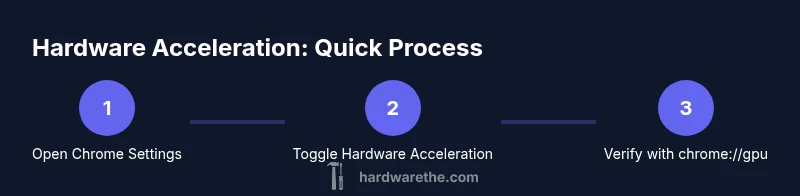
Hardware acceleration in Chrome lives in the browser’s GPU process and is usually enabled by default. To confirm and adjust it, open chrome://gpu to see the GPU features and enable status, then test with animations. If you experience crashes or glitches, toggle the setting in Chrome’s advanced system settings and relaunch.
What is hardware acceleration in Chrome?
According to The Hardware, hardware acceleration is Chrome’s use of the GPU to render graphics and video, rather than relying solely on the CPU. This offloads intensive tasks like compositing, decoding, and rendering of complex web pages to the GPU. The result is smoother scrolling, faster video playback, and improved responsiveness, particularly on graphics-heavy sites and web apps. Hardware acceleration is designed to enhance performance while preserving accuracy and visual fidelity, but it can interact with driver stability and system power management. Understanding how this feature works helps you tailor Chrome to your hardware setup for reliable results.
How Chrome uses the GPU for rendering
Chrome uses a multi-process architecture where the GPU participates in compositing layers and accelerating certain raster operations. The GPU handles tasks such as accelerated video decoding, CSS animations, and canvas rendering, freeing the CPU to handle layout and script execution. The balance between CPU and GPU load depends on the page and extension usage. In The Hardware’s testing, systems with up-to-date drivers tend to experience smoother animations and less main-thread work, particularly on high-DPI displays and hardware-accelerated video playback scenarios.
Where the hardware acceleration setting lives in Chrome
To control hardware acceleration, you need to access Chrome’s System settings. On Windows and macOS, navigate to the three-dot menu > Settings > System. On Linux, the path is similar but may include distro-specific UI elements. Look for the toggle labeled “Use hardware acceleration when available.” If you don’t see it, ensure you’re on a supported Chrome version and that your device has a GPU capable of acceleration. For many users, the default configuration works well out of the box, but a quick check helps with stability and performance. The Hardware team notes that user environments vary, so a quick test can confirm what works best for you.
How to verify hardware acceleration with chrome://gpu
Open a new tab and type chrome://gpu. This internal page lists the status of GPU features and whether hardware-accelerated rendering and compositing are active. Key indicators include the status of “Hardware-accelerated rendering” and “Compositing.” If these show as hardware or a similar positive label, you’re effectively using GPU acceleration. If you see software rendering or warnings, you may need to adjust driver settings, update Chrome, or test on a different GPU configuration. The chrome://gpu page also helps identify any features that are blocked by your current setup.
Enabling and disabling hardware acceleration: step-by-step
If you need to enable or disable hardware acceleration, follow a careful 6-step workflow:
- Open Chrome Settings > System.
- Toggle “Use hardware acceleration when available” off, then relaunch Chrome.
- Return to the same setting and toggle it on, then relaunch again.
- Reopen chrome://gpu to verify the feature shows as enabled.
- Run a video-heavy or animation-rich page to validate performance.
- If issues persist, update graphics drivers and try a clean Chrome profile. This process helps isolate driver-related or browser-specific problems without impacting other apps.
Common issues and how to troubleshoot
Problems with hardware acceleration often fall into three categories: driver incompatibilities, browser glitches, and power-management interactions. If you experience choppy video, screen tearing, or crashes, start by updating your GPU drivers from the manufacturer’s website and ensuring your Chrome version is current. If instability continues, disable hardware acceleration temporarily to confirm whether it’s the root cause. In many cases, toggling the feature after a reboot resolves stale state or misconfigured cache. Always test with representative pages to confirm improvements across common tasks.
Impact on battery life and heat generation
GPU usage can increase power consumption and heat on some devices, particularly laptops and compact PCs. Hardware acceleration improves responsiveness for animations and media but may drain batteries faster if the GPU runs at higher clocks for extended periods. The Hardware recommends balancing performance needs with thermal limits. If you notice rapid battery drain, consider adjusting power settings, lowering display refresh rates, or scheduling active time windows for GPU-intensive tasks.
Compatibility tips for different systems
- Windows: Ensure Windows Update and the GPU driver are current; some users see better stability with integrated graphics enabled.
- macOS: macOS graphics drivers are updated via system updates; Chrome tends to align with the OS driver stack.
- Linux: Driver availability varies by distribution; use official repositories and consider testing with a live session to verify acceleration behavior.
- External GPUs: If you use a eGPU, verify that Chrome is selecting the discrete GPU in your system settings and that the eGPU is stable under load.
Testing workflow after changes
Create a small validation plan: 1) Confirm chrome://gpu shows hardware-accelerated rendering. 2) Play multiple video streams to verify decoding. 3) Open pages with heavy CSS animations to observe compositing performance. 4) Use a page performance tool, such as the browser's built-in Performance tab, to compare before/after metrics. 5) If a change degrades performance, revert or adjust. A simple, repeatable test helps ensure consistent results across updates.
Recommendations for hardware setups
For laptops with integrated GPUs, ensure your system’s power settings favor performance during intensive tasks. For desktops with discrete GPUs, select the discrete GPU in your OS’s graphics settings when appropriate. If you work with high-resolution displays (4K or higher), GPU acceleration often yields smoother visuals. Regardless of setup, keeping Chrome and drivers current is key to stable acceleration and compatibility.
Keeping Chrome and drivers up to date for best support
Regular updates to Chrome include bug fixes and improvements for hardware acceleration. Pair these with the latest GPU drivers from your hardware vendor, and reboot after updates to apply new configurations. The Hardware suggests enabling automatic updates and periodically testing with chrome://gpu after major OS or driver changes. A proactive maintenance routine helps sustain performance and reduces troubleshooting time.
Quick-reference troubleshooting checklist
- Is chrome://gpu showing hardware-accelerated rendering? If not, update Chrome or toggle the setting.
- Are graphics drivers current from the vendor? If not, install latest drivers and reboot.
- Does a representative test page perform smoothly after updates? If issues persist, try a clean Chrome profile or disable extensions that interfere with rendering.
- Have you checked OS power settings to ensure performance mode during testing? Fine-tuning can matter for GPU-heavy tasks.
Tools & Materials
- Google Chrome browser(Stable version, preferably current release)
- Computer with GPU (integrated or discrete)(Supports hardware acceleration)
- Updated graphics drivers(From the hardware vendor’s site)
- Stable internet connection(For driver updates and Chrome updates)
- Test pages with rich animations/videos(Examples include sample animation demos or streaming video)
Steps
Estimated time: 15-25 minutes
- 1
Open Chrome Settings
Click the three-dot menu in the top-right corner and choose Settings. This step establishes the pathway to system-level graphics options.
Tip: If Settings isn’t visible, press Alt+F to open the menu quickly. - 2
Navigate to System settings
In the Settings panel, select System and locate the toggle labeled “Use hardware acceleration when available.”
Tip: On some Linux distros, you may see a slightly different label; look for GPU-related acceleration terms. - 3
Toggle hardware acceleration
Turn off, then relaunch Chrome; then return and turn it back on if you need to refresh the state.
Tip: Always relaunch after changing this setting to ensure the change takes effect. - 4
Check chrome://gpu
Open a new tab and go to chrome://gpu to verify ‘Hardware-accelerated rendering’ is active and that relevant features are not disabled.
Tip: If a feature is off, consult driver updates or OS-level settings that may override browser options. - 5
Test with a heavy page
Navigate to a page with CSS animations or video to observe performance and fluidity.
Tip: Compare behavior before and after updates to quantify improvement. - 6
Update drivers and test again
If issues persist, update your graphics drivers and re-test to ensure compatibility.
Tip: Keep a backup of your current driver version in case you need to revert.
FAQ
What is hardware acceleration in Chrome and why does it matter?
Hardware acceleration uses the GPU to render graphics and video in Chrome, reducing CPU load and improving performance for animations and media. It helps provide smoother visuals on modern web pages, especially those with rich graphics.
Hardware acceleration uses your GPU to handle graphics work in Chrome, which can make animations and video smoother and take pressure off the CPU.
How do I know if hardware acceleration is enabled?
Open chrome://gpu and look for status indicators like Hardware-accelerated rendering. If those show as enabled, you’re using GPU acceleration. If not, check Chrome settings and update drivers.
Check chrome://gpu to see if hardware acceleration is enabled. If not, adjust settings and drivers.
What should I do if Chrome crashes after enabling acceleration?
First update your GPU drivers and Chrome. If the problem persists, disable hardware acceleration to confirm it’s the cause, then investigate conflicting software or extensions.
If Chrome crashes after turning on acceleration, update drivers and Chrome, then try disabling acceleration to test stability.
Will hardware acceleration affect battery life?
GPU usage can increase power draw on some laptops, potentially reducing battery life. If you notice shorter battery times, consider power settings and test different configurations.
GPU work can use more power, which may affect battery life. Adjust power settings if needed.
Should I enable hardware acceleration on all my devices?
Not necessarily. If a device has an older GPU or driver, acceleration can cause instability. Test on each device and keep drivers current.
Test each device separately; older GPUs may have compatibility issues, so verify before enabling everywhere.
How often should I update Chrome and drivers for best results?
Regularly check for Chrome updates and graphics driver releases. After major OS or hardware changes, re-test acceleration to confirm continued compatibility.
Keep Chrome and drivers up to date and re-test after big system changes.
Watch Video
Main Points
- Enable hardware acceleration to boost GPU rendering in Chrome.
- Verify status with chrome://gpu and test on graphics-heavy content.
- Keep Chrome and GPU drivers up to date for stability.
- If issues occur, toggle off/on and consider a clean profile or reboots.