How to Enable Hardware Virtualisation: A Practical Guide
A comprehensive DIY guide on enabling hardware virtualization, BIOS/UEFI settings, choosing a hypervisor, and optimizing VM performance for home and professional use.


You will learn how to enable hardware virtualization on your PC, verify CPU support (VT-x/AMD-V), and set up a basic virtual machine environment. This quick-start covers BIOS/UEFI changes, selecting virtualization software, allocating RAM and storage, and tuning CPU cores for stable performance. By the end, you’ll be ready to run guest OSes securely.
What is hardware virtualization?
Hardware virtualization is the technology that allows a single physical computer to run multiple isolated operating systems, or guest VMs, concurrently. A hypervisor sits between the hardware and the guest OS, allocating CPU cores, memory, disk, and network resources as needed. For DIYers and technicians, understanding the basics helps answer the question how to on hardware virtualisation: you need hardware support, compatible software, and proper configuration. According to The Hardware, modern processors include built-in virtualization extensions (Intel VT-x or AMD-V) that must be enabled for good performance. These extensions enable the hypervisor to trap privileged instructions and provide memory isolation without modifying the guest OS. In practice, virtualization unlocks scenarios like testing an OS without dual-booting, running legacy software in a sandbox, and consolidating lab hardware into one machine. It also raises considerations around resource planning and security, since misconfigurations can degrade performance or create exposure if VM networks are not properly segmented.
How to on hardware virtualisation: prerequisites
This section outlines the essential foundations you must confirm before diving into setup. You’ll need a CPU that supports virtualization extensions (Intel VT-x or AMD-V) and a motherboard that allows you to enable them in the BIOS/UEFI. Plan for enough RAM to host your VMs while keeping the host OS responsive; general guidance is to have at least 8 GB for light workloads and 16 GB or more for heavier lab environments. Ensure you have a reliable storage subsystem (SSD recommended) with enough space for the host system, a few virtual machines, and their data. Decide on the type of hypervisor you’ll use—Type-2 (hosted) or Type-1 (bare-metal)—as this will influence performance and management. Finally, sketch a basic network layout for VMs (NAT, bridged, or host-only) and confirm your backup strategy so you don’t lose VM states.
Enabling virtualization in BIOS/UEFI
To activate hardware virtualization, you’ll typically need to enter your BIOS/UEFI setup during boot and enable the virtualization options. Look for terms like “Intel VT-x,” “Intel Virtualization Technology,” “AMD-V,” or “SVM.” Also consider enabling IOMMU options like “VT-d” or “AMD-Vi” if you plan I/O virtualization or PCI passthrough. Save changes and reboot. If you don’t see the options, consult your motherboard manual or the OEM support site for a firmware update. After enabling, verify the feature is active using your operating system’s built-in tools or a lightweight hardware check utility.
Selecting a virtualization platform
Choose a hypervisor that fits your needs. For Windows hosts, Hyper-V provides strong performance and deep OS integration; for cross-platform needs, VirtualBox offers broad guest support; VMware Workstation and VMware ESXi provide robust features for professional workflows. Remember that some platforms are free for basic use while others require licenses for advanced capabilities. Assess features such as snapshot support, virtual networking options, 3D acceleration, and resource control (RAM, CPU cores, and I/O). Your choice should balance ease of setup, performance, and compatibility with the guest operating systems you plan to run.
Creating your first VM: a practical walkthrough
With virtualization enabled and a hypervisor installed, your next step is creating your first virtual machine. Allocate CPU cores, assign RAM, and create a virtual hard disk. Attach a guest OS ISO or installation media, configure network settings, and start the VM to begin installation. After the OS boots, complete the usual setup steps and install guest additions or drivers to improve performance and usability. Document the VM’s resources so you can adjust allocations later as workloads change.
Performance tuning and security considerations
Performance hinges on balancing host and VM resources. Enable features like memory ballooning if your hypervisor supports them to optimize RAM allocation. For improved IO performance, use an SSD and enable proper caching strategies. Security-wise, isolate VMs from the host network when possible and apply regular updates to both host and guest OSes. Consider enabling nested virtualization only when necessary and ensure you keep firmware and hypervisor software up to date to mitigate known vulnerabilities.
Troubleshooting common issues
If your VM won’t start, recheck BIOS/UEFI settings to confirm virtualization is active. Verify that the selected VM’s hardware config matches the guest OS requirements, especially RAM and storage. If you encounter poor performance, monitor CPU and memory usage on the host to identify bottlenecks and adjust allocations. For networking problems, review the hypervisor’s virtual switch settings and ensure the correct adapter is selected. When in doubt, consult the hypervisor’s logs and official documentation for error codes and remediation steps.
Next steps and best practices
Document every change you make to BIOS settings, hypervisor configuration, and VM specs. Create a baseline VM image you can clone for new environments to speed up future projects. Schedule regular backups of VM states and consider test-rig setups to validate configurations before production use. Finally, keep your host OS, hypervisor, and guest OS up to date with security patches to maintain a reliable virtualization environment.
Tools & Materials
- Host computer with hardware virtualization support (VT-x/AMD-V)(Ensure CPU supports virtualization and it is enabled in BIOS/UEFI.)
- BIOS/UEFI access(Know how to enter setup (e.g., F2, Del) and locate virtualization settings.)
- Hypervisor software (Hyper-V, VirtualBox, VMware Workstation, or ESXi)(Choose based on host OS and workload needs.)
- RAM(Minimum 8 GB; 16 GB+ recommended for multiple VMs.)
- Storage space (SSD recommended)(Sufficient free space for host OS + VMs; plan 20–50 GB per VM.)
- Guest OS installation media (ISO or USB)( legally obtain ISO for the guest OS.)
- Network planning doc(Decide NAT/bridged/host-only networking before setup.)
- Backup strategy(Snapshots or VM backups to protect data.)
Steps
Estimated time: 60-120 minutes
- 1
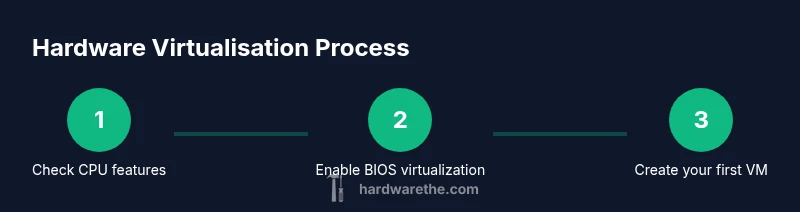
Check CPU virtualization support
Confirm your processor supports VT-x or AMD-V and that it is enabled in the BIOS. Use a quick hardware check tool or your OS utilities to verify. This ensures the hypervisor can operate securely and efficiently.
Tip: If the feature is disabled, re-enter BIOS/UEFI and enable the flag, then reboot. - 2
Enable virtualization in BIOS/UEFI
Enter BIOS/UEFI during boot and locate the virtualization setting (e.g., Intel VT-x, AMD-V, SVM). Enable it, save changes, and reboot. This is essential for any subsequent virtualization steps.
Tip: If you can’t find the option, consult your motherboard manual or vendor support page. - 3
Choose and install a hypervisor
Install your chosen hypervisor on the host OS. Follow the official installer prompts, and enable any additional features like 3D acceleration or network bridging as needed.
Tip: For beginners, start with a user-friendly option like VirtualBox or Hyper-V. - 4
Create your first VM
In the hypervisor, create a new VM, allocate CPU cores and RAM, and attach a virtual disk. Use a standard OS ISO to start the installation process.
Tip: Keep the VM’s resource allocation conservative at first and adjust after testing. - 5
Install the guest OS
Boot from the mounted OS ISO, complete the installation, and install guest additions or VM tools to improve performance and integration.
Tip: Install updates inside the guest OS to ensure security and compatibility. - 6
Configure networking
Set up NAT, bridged, or host-only networking as required for your use case. Ensure guest OS networking works without exposing the host to unnecessary risk.
Tip: Test connectivity from both host and VM to verify routing and DNS. - 7
Tune resources and security
Adjust RAM, CPU, and storage allocations based on workload. Enable snapshots/backups and configure firewall rules for VM traffic.
Tip: Document all settings for future replication or troubleshooting. - 8
Test and validate
Run representative tasks on the VM to gauge performance and stability. Confirm backups and recovery workflows are functional.
Tip: Keep a log of performance metrics to guide future optimizations.
FAQ
What is hardware virtualization?
Hardware virtualization lets a single computer run multiple isolated operating systems using a hypervisor. It creates virtual hardware for each guest OS and manages resource allocation. This enables testing, development, and sandboxed environments without multiple physical machines.
Hardware virtualization lets one computer run several operating systems using a hypervisor, each with its own virtual hardware.
Do I need a powerful CPU for virtualization?
A modern multi-core CPU with virtualization extensions helps, but the exact needs depend on your VM workload. Light use may run on mid-range hardware, while heavy workloads require more RAM and faster storage.
Yes, a capable CPU with virtualization support helps, but match your hardware to the VM workloads.
What’s the difference between Type-1 and Type-2 hypervisors?
Type-1 hypervisors run directly on the host hardware and generally offer better performance and security. Type-2 hypervisors run on a host OS like applications, making them easier to use on desktops but typically slower.
Type-1 runs on bare metal for best performance; Type-2 runs on a host OS, easier for beginners but usually slower.
Can virtualization improve security for testing?
Yes, virtualization isolates guest systems from the host, reducing risk when testing new software or configurations. Snapshots add another safety layer by enabling quick rollback.
It helps isolate tests and makes it safer to try new software.
How much RAM do I need for multiple VMs?
RAM needs scale with the number and size of VMs. Start with a baseline (e.g., 8–16 GB) and monitor usage under typical workloads to avoid host slowdowns.
RAM depends on how many VMs you run; start modest and adjust as needed.
Is nested virtualization supported on consumer hardware?
Some consumer CPUs support nested virtualization but performance can be limited. It’s useful for labs and learning but expect reduced speed.
You can enable nesting on some CPUs, but performance may be slower.
Watch Video
Main Points
- Verify CPU virtualization support before starting
- Enable virtualization in BIOS/UEFI and reboot
- Choose a suitable hypervisor for your workload
- Balance VM resources to preserve host responsiveness
- Regularly back up VM states and update software