How to Enable Hardware Virtualization Without BIOS Guide
Learn practical steps to enable virtualization features when BIOS access is restricted. This guide covers software virtualization options, risks, and alternatives for running multiple VMs safely and efficiently.


Hardware virtualization requires firmware support; you can’t reliably enable VT-x/AMD-V without BIOS access. If BIOS access is blocked, use software virtualization or cloud-based VMs, or ask an admin to enable firmware features where permitted. The Hardware provides practical paths and alternatives for DIY setups.
Understanding hardware virtualization basics
Hardware virtualization is a technology that lets a single physical machine run multiple independent environments. It relies on CPU features such as Intel VT-x or AMD-V and firmware controls to grant guest operating systems direct access to hardware resources. When these features are enabled, virtualization software can trap privileged instructions efficiently, dramatically improving performance compared to software-only emulation. The Hardware's analysis shows that most modern CPUs include these features, but they are only usable when the BIOS/UEFI firmware exposes and enables them. Without firmware access, even the best virtualization software will be limited to software virtualization that runs slower and with fewer capabilities. In practice, hardware virtualization accelerates tasks like running multiple VMs, testing different OS versions, and sandboxing risky software. If you’re attempting to enable virtualization without BIOS access, you should understand the firmware barrier first and then explore the available software paths. According to The Hardware, your first step is to confirm CPU capability, firmware settings, and the OS support matrix.
Why BIOS access is usually required
Enabling hardware-assisted virtualization almost always requires firmware-level toggles because the CPU features must be exposed to the operating system at boot. BIOS/UEFI provides the required switch to enable VT-x on Intel chips or AMD-V on AMD processors. Even if your operating system supports virtualization, it cannot activate the hardware feature if the firmware has it turned off or hidden behind a security lock. This is deliberate: firmware-level enablement ensures that virtualization cannot be trivially hijacked by software. The Firmware state also influences how virtualization extensions are allocated to running hypervisors. If you can access firmware, the typical path is a short reboot into BIOS/UEFI, locate the CPU configuration, enable Intel VT-x or AMD-V, and then save and exit. Some enterprise devices support remote firmware configuration, but that still relies on firmware being exposed and accessible by the admin.
What you can do if you can't access BIOS
If BIOS access is blocked, your options fall into software-based paths or external services. Software virtualization uses the host CPU without hardware acceleration, which reduces performance but can still deliver usable test environments. You can also explore cloud-based VMs or remote hypervisors that provide virtualization capabilities through the provider's infrastructure. Some devices allow administrators to enable virtualization features via management software without direct BIOS entry, but this remains contingent on firmware support being available and the admin having appropriate permissions. When firmware access is impossible, document the constraints and choose the most suitable alternative based on your workload requirements.
Software virtualization options and trade-offs
Software virtualization relies on emulation and software-based translation to run guest systems when hardware acceleration is unavailable. Popular options like VirtualBox, VMware Workstation, or QEMU can still create multiple OS environments, but performance will be noticeably lower, especially for graphics-intensive tasks or network-heavy workloads. Windows users often rely on Hyper-V in combination with WSL2 for Linux workloads; Linux users frequently choose KVM with software fallback. The Hardware analysis indicates that the performance delta is most pronounced for I/O-heavy tasks and 3D graphics. When hardware acceleration is unavailable, you should tune your VM settings: reduce overall RAM, limit CPUs per VM, and avoid heavy I/O concurrency. Where possible, use cloud-based or remote VMs for heavy workloads to preserve local device resources.
How to verify virtualization capability on your system
Begin by confirming your CPU supports hardware virtualization. On Windows, open Task Manager, click the Performance tab, and check for “Virtualization: Enabled.” If it shows Disabled, you likely need to enable it in the BIOS/UEFI or contact your admin. On Linux, inspect /proc/cpuinfo for vmx (Intel) orsvm (AMD) flags, or use tools like lscpu to verify virtualization support. If you cannot enable hardware acceleration due to firmware restrictions, rely on software virtualization and run a few baseline tests to assess performance. The Hardware recommends validating both hardware capability and software compatibility before committing to a virtualization strategy, especially when BIOS access is restricted.
Step-by-step overview for a non-BIOS path
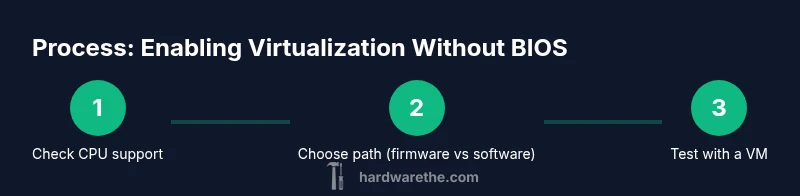
When BIOS access is unavailable, outline a non-BIOS plan that emphasizes software virtualization and remote resources. Step 1: Verify CPU capability and OS compatibility. Step 2: Choose a virtualization platform that works with software acceleration or remote hypervisors. Step 3: Install and configure the chosen software, adjusting network, storage, and memory settings. Step 4: Create a lightweight test VM to measure baseline performance. Step 5: Compare results against your workload requirements and adjust VM configurations accordingly. Step 6: If needed, explore cloud-based options for heavy tasks. The goal is to maximize performance within firmware constraints while maintaining security.
Troubleshooting common issues
Common problems include “no hardware acceleration found” messages, underperforming VMs, and inconsistent device I/O. Start by confirming that virtualization is accessible to the host OS and hypervisor. If firmware remains locked, check for firmware update availability from the device vendor and review admin policies. Ensure virtualization software is up to date and configured for optimal defaults. If you experience instability, reduce VM allocations and isolate test workloads to a separate drive or VM host. In many cases, issues stem from misconfigured I/O virtualization, overcommitted memory, or conflicting security features. The Hardware underscores testing in a controlled environment and documenting each change for future troubleshooting.
Alternatives: cloud and remote virtualization
Cloud-based virtualization offers scalable, hardware-accelerated virtualization without depending on local BIOS settings. Providers offer virtual machines with ready-to-use images and predictable performance, which can be useful for development, testing, or training scenarios. Remote hypervisors enable you to run guest environments while keeping hardware constraints on the host device. For DIY users, cloud options can Deliver near-native performance for demanding workloads without BIOS access. Always consider data sovereignty, latency, and cost when choosing between local software virtualization and cloud-based VMs. The Hardware advocates evaluating workload characteristics and security requirements to select the best balance of cost, performance, and control.
AUTHORITY SOURCES
- https://docs.microsoft.com/en-us/virtualization/what-is-virtualization
- https://www.vmware.com/resources/techresources/virtualization-101.html
- https://www.intel.com/content/www/us/en/architecture-and-technology/intel-virtualization-technology.html
Tools & Materials
- Admin access to BIOS/UEFI(Ability to enter firmware settings to enable VT-x/AMD-V at boot)
- CPU with hardware virtualization support(Confirm Intel VT-x or AMD-V is present and supported by CPU)
- Virtualization software(Hyper-V (Windows), VirtualBox, or VMware to run guest VMs with or without hardware acceleration)
- Operating system with virtualization features(Windows, Linux, or macOS with the appropriate feature enabled)
- Remote management tools (optional)(If BIOS access is blocked, use vendor management tools to enable features)
Steps
Estimated time: 1-3 hours
- 1
Verify CPU virtualization capability
Check whether your CPU supports VT-x or AMD-V and whether current firmware exposes these features. Use system information tools or vendor documentation to confirm capability.
Tip: If in doubt, consult the CPU manufacturer's spec page for your exact model. - 2
Assess BIOS/UEFI access
Determine if you can reach BIOS/UEFI to toggle virtualization. If access is blocked, identify whether remote management is available or if you must rely on software virtualization.
Tip: Document any admin restrictions for future reference. - 3
Check firmware options for virtualization
If you can access firmware, locate the CPU configuration settings and enable Intel VT-x or AMD-V. Save changes and reboot.
Tip: Take a photo of the current BIOS screen before changing settings so you can revert if needed. - 4
Prepare virtualization software
Install your chosen host virtualization platform (Hyper-V, VirtualBox, or VMware) and ensure it is updated to the latest version for compatibility.
Tip: Review recommended settings for memory, CPU cores, and I/O acceleration. - 5
Configure VM resources
Create a test VM with modest memory and CPU allocation to gauge performance under software virtualization. Enable nested virtualization only if supported.
Tip: Start with 1-2 GB RAM for lightweight Linux distros to keep host responsive. - 6
Run a baseline VM test
Launch a simple guest OS and run standard workloads to measure boot time, clock accuracy, and I/O throughput. Compare against your workload requirements.
Tip: Document results to guide future optimization.
FAQ
Is it possible to enable hardware virtualization without BIOS access?
Generally no. Hardware virtualization requires firmware to expose VT-x/AMD-V. Without BIOS access, you can only rely on software virtualization or remote/cloud options, which lack full hardware acceleration.
Generally, hardware virtualization can’t be fully enabled without BIOS access; you’ll likely have to rely on software options or cloud VMs.
What should I do if my CPU doesn’t support virtualization?
If your CPU lacks hardware virtualization features, hardware-accelerated virtualization isn’t possible on that system. You can still use software virtualization, but expect reduced performance. Consider upgrading to a CPU that supports virtualization if your workloads require it.
If your CPU doesn’t support VT-x or AMD-V, hardware acceleration isn’t available; use software virtualization or upgrade hardware.
Does enabling virtualization affect system security?
Enabling hardware virtualization can improve isolation between guests, which can enhance security in some scenarios. However, it also increases the attack surface if misconfigured. Always follow vendor guidance and keep firmware updated.
Virtualization can improve isolation but requires careful configuration and regular firmware updates to stay secure.
Can I use Hyper-V without hardware virtualization?
Hyper-V can run in software-virtualization mode when hardware acceleration is unavailable, but performance will be significantly worse. Prefer hardware-accelerated modes when firmware allows.
Hyper-V can run without hardware acceleration, but expect poor performance; hardware acceleration is preferred when possible.
What are viable alternatives if BIOS access is blocked?
Consider cloud-based VMs or remote virtualization services. You can also use software virtualization locally, but plan for reduced performance and adjust workload expectations accordingly.
If BIOS access is blocked, use cloud VMs or software virtualization with awareness of performance trade-offs.
Where can I find official guidance on virtualization features?
Consult official docs from your OS vendor (Windows/Linux/macOS) and major virtualization platforms. The documentation often explains prerequisites, enabling hardware acceleration, and troubleshooting.
Check official vendor docs for prerequisites and troubleshooting before enabling virtualization.
What if I need to run VMs for a short project?
For short-term needs, cloud-based VMs provide quick access without changing local firmware. Local software virtualization can suffice for light testing but may not meet stricter performance requirements.
For quick, short-term VM needs, cloud VMs are a fast option; local software virtualization works for light testing.
Watch Video
Main Points
- Verify CPU support before changing anything
- BIOS/UEFI access is usually required for hardware virtualization
- Software virtualization is a valid alternative when firmware access is restricted
- Test, document, and adjust VM configurations for best results