How to Fix: Hardware Virtualization Must Be Turned On
Learn how to diagnose and enable hardware virtualization on your PC. This guide covers BIOS/UEFI settings, OS features, and troubleshooting to ensure VT-x/AMD-V stays on for seamless virtual machines.


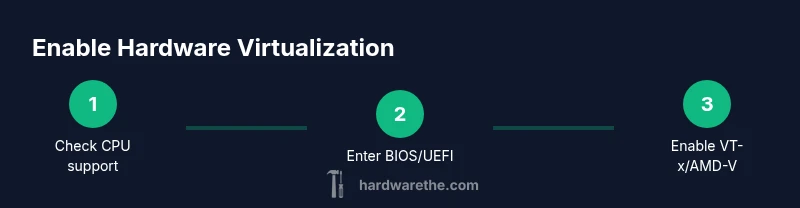
By following this guide, you will enable hardware virtualization on your PC and verify it remains active for your virtualization workloads. You’ll check CPU support, access BIOS/UEFI, enable VT-x or AMD-V, and confirm the setting in your operating system. This fix is essential for running Hyper-V, VirtualBox, or KVM smoothly and reliably.
What hardware virtualization is and why it matters
Hardware virtualization lets a single computer host multiple isolated environments, each running its own operating system and applications. This capability is the backbone of modern test labs, software development sandboxes, and efficient desktop virtualization. The Hardware notes that enabling virtualization is a prerequisite for many workloads because the CPU can handle privileged instructions, memory management, and I/O virtualization in hardware rather than via software emulation.
If you're solving a problem with how to fix hardware virtualization must be turned on, you’ve taken a smart first step. Enabling this feature unlocks Hyper-V, KVM, VMware Workstation, and VirtualBox with improved performance and stability. Before you start, ensure your machine is reasonably modern and has a CPU that supports VT-x (Intel) or AMD-V (AMD). According to The Hardware, the right hardware foundation makes the rest of the setup safer and more predictable.
Common symptoms that virtualization is off
When virtualization is disabled, many virtual machine tasks fail to start or crash unexpectedly. You may see errors such as “VMX not supported” or “Intel VT-x is not available” in your virtualization software or system logs. Another telltale sign is that performance-heavy emulation behaves poorly, with software loops, stutters, or reduced memory efficiency. These symptoms aren’t always final proof, but they strongly point to a configuration gap that must be closed.
The presence of these issues often correlates with BIOS/UEFI settings or OS-level restrictions. The Hardware emphasizes that diagnosing virtualization readiness early saves time and reduces frustration when you spin up new VMs or containers. If you routinely run multiple VMs for development, these checks pay dividends in stability and predictability.
Prerequisites and safety checks before enabling virtualization
Before you flip any switches, confirm your CPU supports hardware virtualization and that your motherboard firmware is current. Make a full system backup or create a restore point so you can roll back if something unexpected happens. Gather your BIOS/UEFI access key and confirm you can boot into the firmware interface. If you rely on features like Secure Boot or device encryption, review their interaction with virtualization to avoid boot or boot-time lockouts. The Hardware notes that ensuring a solid foundation—backups, firmware freshness, and a known recovery path—reduces risk when enabling VT-x/AMD-V.
How to enter BIOS/UEFI and locate virtualization settings
Restart your computer and press the BIOS/UEFI entry key (often F2, Del, or Esc) during the initial boot screen. Once inside, navigate to the advanced, CPU, or security tab to locate hardware virtualization settings. Look for terms like “Intel Virtualization Technology,” “VT-x,” “Intel VT-d,” or “SVM” (for AMD). Enable the corresponding option, then save changes and reboot. If you can’t find the option, consult your motherboard manual or vendor support, as some systems hide virtualization behind firmware updates or security policies.
Why this matters: enabling virtualization at the firmware level is a prerequisite for any further OS-level virtualization features. Without this, even powerful software-based virtualization will fail to initialize.
OS-level virtualization options and requirements
With hardware virtualization enabled, you can turn to OS-level virtualization features. Windows users commonly enable Hyper-V, which requires Windows Pro or Enterprise and may require turning off conflicting virtualization platforms. Linux users have options like KVM and Virt-Manager, which leverage the same hardware features for efficient guest VMs. macOS users typically rely on virtualization apps (such as Parallels Desktop or VMware Fusion) that also depend on hardware-assisted virtualization.
To proceed, enable the desired platform: Windows features for Hyper-V, install KVM packages and libvirt on Linux, or install your preferred macOS virtualization tool. The hardware foundation remains the same: VT-x/AMD-V must be active for best results.
Verifying virtualization is enabled
After rebooting, verify that virtualization is active. On Windows, open Task Manager, switch to the Performance tab, and check that “Virtualization” shows as Enabled. On Linux, run grep -E 'vmx|svm' /proc/cpuinfo; if you see a match, virtualization is active. macOS users can verify through their virtualization tool’s diagnostics or by checking that the guest hypervisor reports a running VM. The Hardware notes that a quick verification prevents wasted time spinning up VMs that won’t start.
Troubleshooting common issues after enabling virtualization
If virtualization remains unavailable after BIOS changes, consider common culprits: outdated BIOS/UEFI firmware, a manufacturer policy restricting virtualization, or a conflicting hypervisor already running in the background. Update the BIOS to the latest version from the vendor’s site, disable conflicting security features, or remove other hypervisors that may lock virtualization features. In some cases, enabling Secure Boot and re-enabling virtualization in a specific sequence is required. The Hardware recommends validating with a clean test VM to isolate the problem.
Performance and security considerations after enabling virtualization
Enabling hardware virtualization generally yields better VM performance and memory handling, but it can introduce minor overhead or security considerations. Keep firmware and virtualization software up to date to mitigate known vulnerabilities. Regularly review which services and VMs have access to hardware features to limit exposure. The Hardware reminds readers that maintaining a well-chosen security baseline while virtualization is enabled keeps workloads safe and stable.
Real-world use cases: from dev machines to hardware labs
Developers rely on virtualization to isolate build environments, test patches, and run multiple OSes simultaneously. IT technicians use hardware-assisted virtualization to validate hardware-software interactions without hardware spares. A compact home lab can run several guest machines to simulate client networks, test automation scripts, or learn virtualization administration. The Hardware highlights that a properly configured virtualization setup makes experimentation efficient and repeatable.
Quick-start checklist to ensure virtualization stays on
- Confirm CPU supports VT-x/AMD-V.
- Enter BIOS/UEFI and enable virtualization.
- Save and reboot, then verify in the OS.
- Enable desired OS-level virtualization features.
- Run a test VM to confirm everything works as expected.
- Periodically update firmware and virtualization software to maintain compatibility.
Tools & Materials
- CPU with hardware virtualization support (Intel VT-x or AMD-V)(Check CPU specs; verify support via manufacturer documentation.)
- BIOS/UEFI access key (e.g., F2, Del)(Used to enter firmware settings during boot.)
- System backup/restore point(Create a safe rollback in case settings cause issues.)
- Training or reference materials(Motherboard manual or vendor guides for locating the VT-x/AMD-V options.)
- Stable power source(Ensure uninterrupted power during BIOS changes.)
- virtualization software (Hyper-V, KVM, VirtualBox)(Optional, for testing and management after enabling virtualization.)
Steps
Estimated time: 40-60 minutes
- 1
Check CPU virtualization support
Verify that your CPU supports VT-x or AMD-V and that it is not disabled by firmware or vendor policy. Use system utilities or CPU specifications to confirm.
Tip: If the feature is listed as unavailable, update your BIOS/UEFI or consult the vendor for a feature lock. - 2
Enter BIOS/UEFI and locate the setting
Restart and press the BIOS entry key (common keys include F2, Del, or Esc) to access firmware. Navigate to the CPU, Advanced, or Security section to find the virtualization option.
Tip: If you cannot find it, check the motherboard manual or vendor support page for the exact navigation path. - 3
Enable virtualization in BIOS/UEFI
Turn on Intel VT-x or AMD-V (and any related VT-d or SVM if present). Save changes and reboot the system.
Tip: Don’t change other unrelated settings; a focused change reduces misconfiguration risk. - 4
Boot into the operating system and confirm
Log back in and verify that the hardware virtualization flag is now active in OS tools (Task Manager, lscpu, or sysctl).
Tip: If you don’t see it, re-enter BIOS to ensure the setting was saved properly. - 5
Enable OS-level virtualization features
Turn on the chosen platform (Hyper-V on Windows, KVM on Linux, or a macOS virtualization app). Ensure any prerequisites are met (Windows Pro/Enterprise, kernel modules, etc.).
Tip: Only run one primary hypervisor at a time to avoid conflicts. - 6
Install and configure a test VM
Create a small test VM to verify boot, hardware acceleration, and performance. Use default networking to keep the test isolated.
Tip: Monitor resource usage during boot to detect any bottlenecks. - 7
Test and validate hardware-assisted features
Verify that features like nested virtualization or GPU pass-through work as expected if needed for your workloads.
Tip: If not, check hardware compatibility and enable corresponding options in the virtualization software. - 8
Document the configuration
Record the exact BIOS/OS settings you used so you can reproduce the setup later or assist others.
Tip: Creating a simple changelog keeps future changes organized.
FAQ
What is hardware virtualization and why do I need it?
Hardware virtualization lets you run multiple virtual machines on one host, isolating workloads and enabling rapid testing and development.
Hardware virtualization lets you run several virtual machines on one computer, which is great for testing and learning.
How can I tell if my CPU supports virtualization?
Check CPU specifications on the manufacturer’s site or use system tools to verify VT-x/AMD-V support and whether it’s enabled.
Look up your CPU model to confirm VT-x or AMD-V support, then check the BIOS/firmware settings.
What if virtualization options are missing in BIOS?
Update the BIOS/UEFI to a version that exposes virtualization settings and consult the motherboard manual or vendor support for guidance.
If you don’t see the option, update firmware or check vendor instructions for enabling virtualization.
Will enabling virtualization affect system performance?
Generally, virtualization adds some overhead but provides better resource management and testability; real-world impact depends on workloads and hardware.
Enabling virtualization may add a little overhead, but it improves VM performance and management.
Do I need a specific Windows edition to use Hyper-V?
Hyper-V requires Windows Pro, Enterprise, or Education editions; some consumer editions may not support Hyper-V.
Hyper-V needs specific Windows editions, so check your OS license if you plan to use it.
Can I run multiple hypervisors at the same time?
Running more than one hypervisor can cause conflicts; disable other hypervisors before using a new one to avoid resource contention.
Avoid running multiple hypervisors at once to prevent conflicts and instability.
Watch Video
Main Points
- Enable virtualization safely by verifying CPU support
- Access BIOS/UEFI and enable VT-x or AMD-V
- Verify virtualization in OS and run a test VM
- Maintain firmware and software updates for stability