How to Install Hardware Virtualization on Windows 10
Step-by-step guide to enable hardware virtualization on Windows 10: verify CPU support, enable BIOS/UEFI VT, enable Hyper-V, and create your first VM safely.


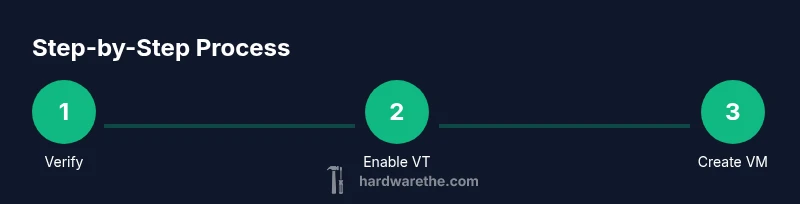
You will verify CPU support for VT-x/AMD-V, enable virtualization in BIOS/UEFI, turn on Hyper-V and the Virtual Machine Platform in Windows features, and finally create and run your first virtual machine using Hyper-V Manager. This sets up a safe, isolated environment for testing OSes and software.
Understanding hardware virtualization and why it matters on Windows 10
Hardware virtualization allows a single physical computer to run multiple operating systems at the same time by using a hypervisor. On Windows 10, enabling hardware virtualization is the first step toward building isolated testing environments, learning new software configurations, and validating drivers without risking the host system. The process relies on CPU features such as Intel VT-x or AMD-V, plus BIOS/UEFI settings that expose these options to the operating system. When enabled, Windows can allocate virtual CPUs, memory, and storage to guest VMs with predictable performance and security boundaries. For DIYers and technicians, this capability unlocks practical hands-on experiments—without requiring extra hardware or teardown of your main workstation. The Hardware team emphasizes careful planning and verification before enabling virtualization to avoid conflicts with other virtualization tools or security features.
Key takeaway: virtualization is a host feature that unlocks sandboxed testing environments while preserving the stability of the main system.
Checking your system for virtualization support
First, confirm your CPU supports virtualization extensions. On modern Intel or AMD processors, VT-x or AMD-V should be listed in the official product specs. Next, verify current Windows state: open Task Manager, go to the Performance tab, and look for a line labeled Virtualization that should read Enabled. You can also run systeminfo from Command Prompt and search for a line that says Virtualization: Enabled. If these checks pass, your system is prepared for the next steps. If virtualization is disabled at the BIOS/UEFI level, you must enable it there before Windows can utilize the feature.
Tip: keep a spare reboot window and document any setting changes so you can revert if needed. The Hardware analysis shows that enabling virtualization correctly improves VM responsiveness and stability when running multiple guests.
Preparation and prerequisites you should have on hand
Before diving into BIOS changes, gather a few essentials: admin access on Windows 10, a Windows edition that supports Hyper-V (typically Windows 10 Pro/Enterprise/Education), and an ISO image or installation media for your guest OS. Ensure you have adequate RAM to support the host and at least one guest VM. If you plan to test multiple VMs, consider allocating more than the minimum RAM per VM. Also, review backup plans and ensure you have current system restore points in case you need to revert. The Hardware team suggests documenting each change you make to avoid confusion during troubleshooting.
Enabling virtualization in BIOS/UEFI
Reboot your PC and enter BIOS/UEFI settings (common keys are Del, F2, or Esc; the precise key is shown briefly on startup). Locate the CPU configuration area, often under Advanced or Security, and enable Intel VT-x or AMD-V. Some systems also require enabling Intel VT-d or AMD IOMMU for I/O virtualization; enable these if available. Save your changes and exit, then let Windows restart. If you encounter boot issues after enabling VT, revisit BIOS/UEFI and recheck the settings. The Hardware guidance emphasizes careful navigation to avoid disabling other critical features.
Turning on Windows features for virtualization
In Windows 10, Hyper-V and related components must be enabled to run VMs. Open Control Panel > Programs > Turn Windows features on or off. Check Hyper-V, Virtual Machine Platform, and Windows Hypervisor Platform. If you use Windows 10 Home, you won’t have Hyper-V; consider upgrading or using alternative tools like VirtualBox for your testing needs. After enabling, reboot to apply changes. Once the system returns, you’re ready to create VMs using Hyper-V Manager or PowerShell.
Note: Some antivirus solutions may interfere with Hyper-V; temporarily disable conflicting protections during setup if you run into issues. The approach here balances performance with security while keeping a straightforward setup path.
Creating and managing virtual machines with Hyper-V
Launch Hyper-V Manager from the Start menu. Create a virtual switch to enable guest networking, selecting an External switch if you want VM internet access through your real NIC. Create a new virtual machine, give it a name, assign memory and virtual CPUs, attach a virtual hard disk, and connect an installation ISO. Start the VM and follow the guest OS installation prompts. After the OS is installed, install integration services (for Windows guests this is typically automatic in modern Hyper-V) to optimize performance and driver support. Regularly snapshot your VM before major changes to guard against misconfigurations.
First steps for a successful VM setup and test
With Hyper-V configured, create a simple test VM to confirm virtualization is functioning. Install a lightweight guest OS (such as a Linux distribution or Windows evaluation image) to validate boot, networking, and device emulation. Verify guest additions or integration services are operational to ensure smooth cursor and time synchronization, improved graphics, and efficient IO. Fine-tune memory and processor allocation to balance host responsiveness with guest performance. If you encounter performance hiccups, consider adjusting VM settings or using Dynamic Memory to optimize utilization.
Troubleshooting common virtualization issues
If virtualization won’t start, recheck BIOS/UEFI settings, confirm Windows features are enabled, and ensure there are no conflicting hypervisors already installed. Verify that the guest OS ISO is intact and that the VM’s hardware configuration aligns with the guest requirements. Review Windows Event Viewer logs for Hyper-V-related entries and check for updates to Windows and device drivers. If Hyper-V cannot be used due to hardware constraints, consider alternatives like VirtualBox or VMware Workstation Player for non-production testing.
Summary: what you’ve achieved and next steps
You’ve verified hardware support, enabled virtualization in BIOS/UEFI, activated Windows virtualization features, created a first VM, and validated basic operation. With virtualization enabled, you can safely test software, build lab environments, and simulate different OS configurations. Keep your VM templates organized, back up guest images, and gradually expand your lab with additional VMs as needed. This disciplined approach helps maintain host stability while expanding testing capabilities.
Tools & Materials
- CPU with virtualization support (Intel VT-x or AMD-V)(Check processor specifications or vendor product page)
- BIOS/UEFI access(Admin access to reboot and modify firmware settings)
- Windows 10 Pro/Enterprise/Education edition(Hyper-V is not available on Windows 10 Home)
- Hyper-V or alternative virtualization software(Hyper-V is built into Windows 10 Pro/Enterprise; VirtualBox/VMware as alternatives)
- Guest OS installation media(ISO image or bootable USB/DVD for the guest OS)
- Sufficient host RAM(Ensure host plus guest RAM meet your workload needs)
Steps
Estimated time: 45-90 minutes
- 1
Verify system readiness
Confirm CPU virtualization support and Windows edition compatibility. Run systeminfo to verify Virtualization: Enabled and ensure you have admin access for BIOS changes.
Tip: Document current settings before changes and keep a backup plan in case you need to revert. - 2
Enter BIOS/UEFI and enable VT
Reboot and press the designated key (often Del, F2, or Esc). Navigate to CPU configuration and enable Intel VT-x or AMD-V. Save and exit.
Tip: If you can't find the option, consult your motherboard manual or vendor support page. - 3
Enable Windows virtualization features
In Windows, go to Control Panel > Programs > Turn Windows features on or off. Check Hyper-V, Virtual Machine Platform, and Windows Hypervisor Platform. Reboot afterward.
Tip: If using Windows 10 Home, Hyper-V isn't available; consider enabling Windows Sandbox or using an alternative host VM tool. - 4
Create a virtual switch
Open Hyper-V Manager and create a External virtual switch so VMs can access network resources. Attach this switch to your physical NIC.
Tip: Choose external for internet access; default Switch often suffices for isolated testing. - 5
Create the first virtual machine
Run New -> Virtual Machine in Hyper-V Manager. Allocate memory and CPUs, create or attach a VHDX, and connect the guest OS ISO.
Tip: Start with modest resources to avoid host slowdown; adjust based on guest needs. - 6
Install guest OS and integration services
Boot the VM and install the guest OS from the ISO. Windows often installs integration services automatically; Linux guests benefit from Integration Services for performance.
Tip: Install updates after OS setup to ensure drivers and features are current. - 7
Test and optimize
Run basic tasks in the guest (browser, file transfer, networking) and validate performance. Tweak memory, CPU, and network settings as needed.
Tip: Take a snapshot before major changes to simplify rollback. - 8
Document and plan future expansions
Record configurations and VM templates. Plan a small lab with multiple VMs to simulate realistic workflows.
Tip: Keep a consistent naming scheme to avoid confusion as your lab grows.
FAQ
Do I need Windows 10 Pro to use Hyper-V?
Yes, Hyper-V is available on Windows 10 Pro, Enterprise, and Education. Windows 10 Home does not include Hyper-V by default. If you are on Home, consider upgrading or using VirtualBox as an alternative.
Hyper-V isn’t included in Windows 10 Home, so you’ll need Pro or better to use Hyper-V, or switch to a different virtualization tool.
Can I enable virtualization on Windows 10 Home?
Virtualization features that Hyper-V relies on are not available in the Home edition. You can still run some virtualization tools, but Hyper-V itself is not supported without upgrading.
On Windows 10 Home, Hyper-V isn’t supported, but you can use other virtualization apps like VirtualBox.
Why is virtualization disabled in BIOS/UEFI?
Manufacturers sometimes disable VT-x or AMD-V by default for stability or compatibility. You must re-enable it in BIOS/UEFI, save, and reboot for Windows to use virtualization.
VT-x or AMD-V is often turned off by default; re-enable it in BIOS, then restart.
Is Hyper-V safe to enable on a daily workstation?
Hyper-V is a mature, enterprise-grade hypervisor. When used on a dedicated testing host with appropriate updates and backups, it is safe. Avoid running production workloads on a test host.
Hyper-V is generally safe for testing, just keep backups and separate testing from production workloads.
Will enabling virtualization slow down my PC?
Enabling virtualization itself has minimal impact when idle. Running VMs uses host resources; if you allocate too much RAM or CPU, host performance can drop. Balance allocations based on workload.
Virtualization consumes host resources; peripherals stay unaffected when VMs are idle, but heavy VM use can slow the host if resources are tight.
Can I use other virtualization tools with Hyper-V enabled?
Hyper-V can conflict with other hypervisors. If you plan to switch, consider disabling Hyper-V or using nested virtualization carefully and testing compatibility.
Other hypervisors may conflict with Hyper-V; plan accordingly and test in a controlled setup.
Watch Video
Main Points
- Verify CPU support and enable VT-x/AMD-V before BIOS changes
- Enable Hyper-V features in Windows and create a guest VM
- Test, snapshot, and optimize VM performance with careful resource allocation
- If Hyper-V isn't available, use compatible alternatives
- Document configurations for scalable lab environments