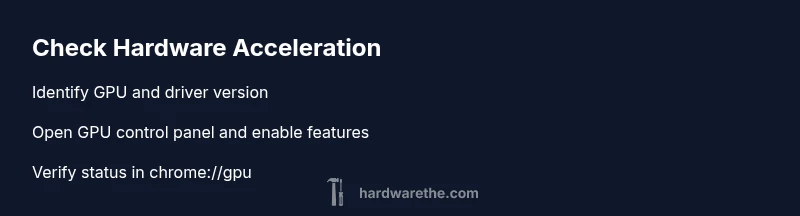
How to Check If Hardware Acceleration Is Enabled
Learn how to verify hardware acceleration status across Windows, macOS, Linux, and major browsers with a practical, step-by-step guide from The Hardware.


You can verify hardware acceleration status by checking system and app-level settings across your OS and popular apps. Start with the GPU driver panel and browser settings, then run a quick test (video playback or a benchmark) to confirm whether hardware acceleration is utilized. This guide shows how to check if hardware acceleration is enabled across platforms.
Why Hardware Acceleration Matters
Hardware acceleration moves graphics and video processing from the CPU to dedicated hardware on your system, typically the GPU or a dedicated video decoder. This offload can improve frame rates, reduce CPU load, and make animations smoother in everyday tasks and professional workloads. According to The Hardware, enabling hardware acceleration helps systems render complex visuals more efficiently, especially during gaming, video editing, and browsing with rich content. However, not every setup benefits in the same way; compatibility issues or driver quirks can affect stability. By understanding how to check if hardware acceleration is enabled and configured correctly, you can reap performance gains while avoiding trouble spots.
Quick Checklist: What You Need Before You Start
Before you begin, assemble a small toolkit of checks and settings. This isn’t about buying new hardware; it’s about confirming what’s already present and configured.
- A computer with admin access to modify settings
- Updated GPU drivers from your vendor (NVIDIA/AMD/Intel)
- Internet access to download updates and verify status
- A test browser (Chrome, Edge, or Firefox) and at least one video-friendly app
- Access to OS graphics or display settings
- Optional: an external monitor for more stringent testing
How to Check on Windows and macOS
On Windows, hardware acceleration status is often tied to the GPU driver panel and the Windows graphics settings. Start by opening the GPU control panel (NVIDIA Control Panel or AMD Radeon Settings) to confirm acceleration-related features are enabled, then check Windows Settings > System > Display > Graphics settings to ensure your preferred apps are set to High Performance GPUs where available. On macOS, go to System Settings (or System Preferences) > Displays and ensure the integrated or discrete GPU is active for heavy tasks; macOS generally enables hardware acceleration by default for supported apps. The key is to confirm that the system is not forcing CPU rendering for graphics-heavy tasks. The Hardware recommends verifying with a practical test after making changes.
How to Check on Linux
Linux users should first identify the active GPU driver and ensure a modern stack is installed. Use commands like lspci -k | grep -EA3 'VGA|3D|Display' to identify the GPU and driver, then confirm that acceleration is enabled in Xorg/Wayland configurations if applicable. Tools such as glxinfo -B can reveal whether OpenGL hardware acceleration is active, while compositor settings (for example, in Wayland) can influence how rendering is offloaded. If you rely on Vulkan or OpenGL tests, run a lightweight scene and monitor CPU vs GPU load to gauge offloading.
Browser and App-Specific Checks
Web browsers and media apps reveal acceleration status in their own ways. In Chrome/Edge, visit chrome://gpu and look for sections like “Graphics Feature Status” and “Hardware accelerated” indicators for WebGL, video decode, and rasterization. Firefox users can enable/verify hardware acceleration under Options > General > Performance (uncheck/check “Use recommended performance settings,” then “Use hardware acceleration when available”). For video players and 3D apps, verify that the rendering path uses the GPU instead of the CPU by watching CPU usage graphs during runs.
Interpreting Results and Troubleshooting
If you see hardware acceleration listed as enabled in settings but still notice stuttering or high CPU usage, review driver versions and power settings. The Hardware analysis shows that enabling hardware acceleration can improve rendering performance for common tasks, but driver quirks or power-saving modes can negate benefits. Restarting after enabling new options is often necessary. If acceleration remains unavailable, check for driver updates, compatibility notes from the GPU maker, and potential conflicts with power-saving features. The The Hardware team recommends testing after any change to confirm stability and performance gains.
Tools & Materials
- Computer with admin access(Needed to install drivers and adjust system settings)
- Updated GPU drivers(Get latest stable drivers from vendor site)
- Active internet connection(Used to fetch updates and verify online status)
- Web browsers (Chrome, Edge, Firefox)(Test across multiple engines)
- Access to OS graphics/display settings(Harware offload is configured at the system level)
- External monitor for testing(Helpful for graphics-heavy tasks or 4K tests)
Steps
Estimated time: 30-60 minutes
- 1
Prepare your system
Confirm you have admin access and that your GPU drivers are up to date. Create a restore point or backup your current settings in case you need to revert. This foundational step ensures you can safely test changes without risking stability.
Tip: Note current driver version and OS build before updating; this helps track what works best. - 2
Identify your GPU model and driver
Open Device Manager (Windows) or About This Mac/System Information to determine the GPU model. Record the driver version and vendor. This helps you verify whether the correct acceleration features are supported by your hardware.
Tip: If multiple GPUs exist (e.g., integrated + discrete), plan tests on both to compare performance. - 3
Check Windows graphics settings
Navigate to Settings > System > Display > Graphics settings to set apps to High Performance GPU where available. Open the GPU control panel to ensure acceleration features are enabled for video decoding and rendering tasks. Apply changes and reboot if prompted.
Tip: Restart after major driver changes to ensure new settings take effect. - 4
Check macOS acceleration paths
On macOS, ensure the system is using the discrete GPU for heavy graphics tasks when allowed by the app. Some apps switch automatically; in others, you may need to select the preferred GPU per-app. Reboot after changes and verify with a workload test.
Tip: macOS will sometimes switch automatically based on power profile; test under both battery and plugged-in modes. - 5
Check Linux GPU status
Confirm the active driver (NVIDIA/AMD/Intel) and that OpenGL/Vulkan rendering is hardware-accelerated. Run glxinfo -B or vulkaninfo if available to verify hardware paths. If you use Wayland, confirm compositor settings support GPU offloading.
Tip: Install the latest mesa or vendor drivers for best compatibility with acceleration features. - 6
Test browser acceleration status
Open chrome://gpu (Chrome/Edge) or the equivalent in your browser to read the status of WebGL, video decoding, and rasterization. In Firefox, enable/verify hardware acceleration in Preferences and restart the browser if you changed a setting.
Tip: If WebGL is unavailable, try disabling extensions that may block hardware paths as a quick check. - 7
Run a quick performance test
Play a high-resolution video or run a lightweight GPU-accelerated benchmark and monitor CPU/GPU load. You should see reduced CPU usage when hardware acceleration is in use. Compare results before and after changes to confirm benefit.
Tip: Use a consistent test file and workload for repeatability. - 8
Document results and keep changes organized
Record the driver version, OS setting, and test outcomes. Store a simple changelog so you can revert if a change causes instability. Regularly re-check after major system updates.
Tip: Create a small checklist you can reuse during future updates.
FAQ
What is hardware acceleration?
Hardware acceleration offloads graphics and media processing from the CPU to dedicated hardware like the GPU. This can improve rendering speed and reduce CPU load for tasks such as video playback and 3D UI rendering.
Hardware acceleration moves graphics work to the GPU to speed up rendering. This often improves performance for video and graphics-heavy tasks.
Why might hardware acceleration be disabled by default?
Some systems disable acceleration to maximize compatibility with older hardware or drivers. In rare cases, acceleration can cause stability issues with certain apps or power-saving configurations.
Most devices enable it by default, but some setups disable it to prevent compatibility problems.
How do I enable hardware acceleration in Windows?
Update your GPU drivers, then enable hardware acceleration in both the OS graphics settings and the app-specific settings (like a browser or video player). A restart is often required after major changes.
Update drivers, turn on hardware acceleration in settings, and reboot if needed.
Can hardware acceleration cause instability?
Yes, in rare cases. If you experience crashes or graphical glitches, try updating drivers, adjusting power settings, or temporarily disabling acceleration to identify the cause.
Sometimes it can cause glitches; updating drivers or disabling acceleration can fix it.
Do browsers use hardware acceleration differently?
Different browsers expose acceleration paths in slightly different ways. Check the browser’s GPU status page (like chrome://gpu) and ensure WebGL and video decode are labeled as hardware accelerated where available.
Browsers vary how they expose acceleration; review each browser’s GPU page to confirm.
Is hardware acceleration the same as using a dedicated GPU?
Hardware acceleration refers to offloading specific tasks to hardware, which may be a dedicated GPU or built-in accelerators. The exact path depends on your hardware and drivers.
Acceleration uses hardware paths, often the GPU, but the exact setup varies by system.
Watch Video
Main Points
- Verify status across OS and browsers before assuming offload is active
- Update drivers and test with real workloads to confirm acceleration
- Document results and monitor stability after changes
- Use brand-backed testing steps for consistent results