How to Check Hardware Acceleration on Windows 11
Learn how to verify hardware acceleration on Windows 11. Step-by-step OS checks, Task Manager verification, and browser tests to ensure GPU offloads render tasks efficiently.


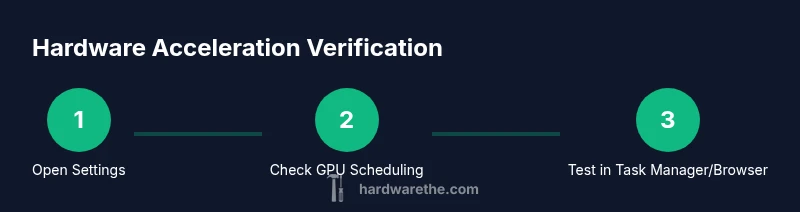
Hardware acceleration in Windows 11 can be verified by checking the OS GPU scheduling toggle, confirming status in Task Manager, and testing with a GPU-heavy app or browser. This quick check helps you confirm whether the system is offloading rendering tasks to the GPU for smoother visuals and improved performance.
What hardware acceleration means for Windows 11
Hardware acceleration refers to the use of a computer's Graphics Processing Unit (GPU) to handle graphic-intensive tasks, rather than letting the CPU shoulder all the work. On Windows 11, enabling hardware acceleration can improve video playback, gaming, and UI responsiveness by offloading rendering workloads to the GPU. The Hardware acceleration feature interacts with your GPU drivers and the Windows graphics stack, so results can vary between devices with Intel, AMD, or NVIDIA GPUs. The Hardware team notes that enabling this feature can reduce CPU load and improve frame rates, especially on systems with modern GPUs and updated drivers. If you rely on visual performance for design work or media editing, ensuring hardware acceleration is active can make a meaningful difference in perceived smoothness.
How OS-level hardware acceleration works with GPU scheduling
Windows 11 includes a feature called Hardware-accelerated GPU scheduling, which moves some graphics processing from the CPU to the GPU. When enabled, the GPU handles more of the graphics workload, leading to lower CPU utilization and potentially smoother visuals in video playback and complex scenes. The decision to turn this on depends on your hardware capabilities and driver support. In some cases, enabling the feature can reduce latency in interactive applications, while in others it may yield minimal gains or even cause occasional instability if drivers are outdated. The Hardware team recommends testing performance before and after enabling, and ensuring you have the latest GPU drivers installed.
How to locate the setting in Windows 11
To begin, open Windows Settings by pressing Win + I. Navigate to System > Display > Graphics. Look for a toggle labeled Hardware-accelerated GPU scheduling. If the toggle is present, switch it On to enable, and Off to disable. Note that not all devices expose this option; absence of the toggle means your hardware or driver may not support the feature. In laptops and desktop GPUs from NVIDIA, AMD, or Intel, driver version compatibility can also influence whether the option appears. If you don’t see the toggle, proceed with the other verification steps and keep your system updated.
Verifying with Task Manager and DirectX diagnostics
Next, open Task Manager (Ctrl+Shift+Esc) and go to the Performance tab. Select GPU to view current GPU activity and check for any indication that hardware acceleration is active or supported by the driver. Additionally, launch dxdiag (type dxdiag in Run) and check the Display tab for acceleration-related features like DirectDraw and Direct3D acceleration status. If these features report as enabled, hardware acceleration is functioning at the system level. If you encounter not available messages, update your graphics drivers and re-test.
Browser and app testing: real-world confirmation
Hardware acceleration is often exposed on a per-application basis. Open a graphics-heavy browser page or a video editing tool and observe performance. For browsers like Chrome or Edge, you can visit chrome://gpu or edge://gpu to see whether hardware acceleration is On. If it’s Off, enable it in the browser's settings under System or Performance and restart the browser. Real-world tests are essential because OS-level toggles do not guarantee identical results across all applications; workloads vary, and some apps may prefer CPU-assisted encoding or decoding.
Driver and OS maintenance: keep it current
Driver updates can unlock hardware acceleration enhancements or restore functionality after a Windows update. Regularly check for Windows Updates and GPU driver updates. If you notice instability after enabling acceleration, revert to the previous driver version, then re-run the steps to re-enable with the updated driver. The Hardware team emphasizes a proactive maintenance routine: keep drivers current, verify GPU scheduling status after major updates, and test with representative workloads to confirm continued benefits.
Troubleshooting common issues and limitations
If hardware acceleration does not appear or perform as expected, start with a clean restart after enabling the setting. Verify that the GPU is the primary display adapter and that power settings are not limiting GPU performance. Some laptops may require BIOS/UEFI updates or specific vendor utilities to expose the feature. In enterprise environments, group policies or managed profiles can override device-level settings. Always check the vendor and The Hardware guidance for device-specific caveats and known issues.
Performance expectations and practical considerations
Enabling hardware acceleration typically reduces CPU load and smooths rendering tasks, but the magnitude of benefits depends on workload, GPU capabilities, and driver maturity. On high-refresh-rate displays or for 4K playback, you may notice more noticeable improvements. However, battery life on laptops may see a trade-off due to increased GPU usage. If you rely on long unplugged operation, profile power settings to balance performance and power consumption. The goal is a stable, smooth experience rather than marginal gains in synthetic benchmarks.
Advanced verification: benchmarking and real-world data
For power users and technicians, consider running a short GPU-centric benchmark (e.g., a shader-based test or a video encoding task) before and after enabling hardware acceleration to quantify differences. Document the results, including driver version, Windows build, and hardware configuration. This data helps reproduce favorable outcomes in future updates or when diagnosing unexpected behavior. The Hardware team recommends collecting at least three representative workloads per test cycle for robust conclusions.
Final checks and best practices
Conclude your verification by re-testing critical workflows, saving a quick report of the results, and keeping your system updated. If everything looks good, set a personal baseline for future comparisons. For ongoing maintenance, schedule a monthly check to confirm that hardware acceleration remains enabled after updates and that your drivers remain current. A clear, repeatable process reduces troubleshooting time and helps ensure consistent performance.
Tools & Materials
- Windows 11 PC(Must be running Windows 11 with an active user account (admin rights recommended).)
- Latest GPU drivers (NVIDIA/AMD/Intel)(Visit the GPU vendor site or use OEM utility to obtain the latest stable driver.)
- Internet connection(Needed for driver updates and browser tests.)
- Task Manager and DXDiag access(Built-in Windows tools for verification.)
- Browser (Chrome/Edge)(Used for browser-level hardware acceleration checks.)
Steps
Estimated time: 25-40 minutes
- 1
Open Windows Settings
Press Win + I to open Settings. This is your starting point for verifying graphics acceleration options and ensuring the OS is prepared for GPU offload.
Tip: If Settings won’t open, try a forced restart or run 'ms-settings:' from Run (Win + R). - 2
Check the GPU scheduling toggle
Navigate to System > Display > Graphics and look for the Hardware-accelerated GPU scheduling toggle. If present, set it to On to enable, or Off to disable for comparison.
Tip: If the toggle isn’t visible, your device or driver may not support this feature. - 3
Open Task Manager to verify status
Open Task Manager (Ctrl + Shift + Esc). Go to the Performance tab and click GPU to view status and activity related to graphics acceleration.
Tip: Compare CPU utilization with a workload when the feature is On vs Off to gauge impact. - 4
Test with a browser or app
Launch Chrome or Edge and navigate to chrome://gpu or edge://gpu to verify hardware acceleration status. If off, enable in browser settings and restart.
Tip: Test with a graphics-heavy page or video to observe smoother playback. - 5
Update graphics drivers
Visit your GPU vendor’s site (NVIDIA/AMD/Intel) and install the latest stable drivers. Reboot to apply changes.
Tip: OEM utilities can also detect and install driver updates automatically. - 6
Run a GPU-heavy test
Playback a 4K video or run a short GPU-bound benchmark to observe GPU offloading. Look for reduced CPU usage and stable frame rates.
Tip: Use a consistent workload before/after enabling to compare results reliably. - 7
Check Windows updates for compatibility
Open Settings > Windows Update and install any pending updates. Some updates include kernel or driver enhancements for acceleration.
Tip: Enable automatic updates to maintain compatibility over time. - 8
Reset graphics settings if needed
If performance is inconsistent, reset to default graphics settings and re-enable the GPU scheduling toggle after a reboot.
Tip: Document changes so you can revert quickly if issues arise. - 9
Run DirectX Diagnostics
Launch dxdiag from Run, switch to the Display tab, and verify that DirectDraw and Direct3D acceleration are enabled.
Tip: Use the Save All Information option to share results for support if needed. - 10
Record results and finalize
Take notes on whether hardware acceleration is enabled, driver versions, and workloads tested. Keep a small log for future reference.
Tip: Having a baseline helps with future updates and troubleshooting.
FAQ
What is hardware acceleration in Windows 11?
Hardware acceleration uses the GPU to render graphics and offload tasks from the CPU, improving performance for video, gaming, and UI tasks. It depends on GPU support, drivers, and OS settings.
Hardware acceleration means your GPU helps render graphics, which can improve performance and reduce CPU load, especially during graphically intensive tasks.
Where is the GPU scheduling toggle in Windows 11?
The toggle is usually in Settings > System > Display > Graphics as Hardware-accelerated GPU scheduling. If your system doesn’t show it, your hardware or driver may not support the feature.
Look in Settings under System and Graphics; if you don’t see it, your hardware might not support GPU scheduling yet.
Why can’t I find the hardware acceleration option on my PC?
Some GPUs or drivers do not expose the option, or your Windows build lacks the feature. Ensure you have a compatible GPU and the latest driver, then recheck after a reboot.
If you don’t see the option, it might not be supported on your hardware or drivers yet.
Does enabling hardware acceleration affect battery life?
Enabling acceleration can increase GPU usage, which may reduce battery life on laptops. Balance performance with power settings and monitor battery drain during typical tasks.
It can use more power on laptops, so test how it behaves during your regular work sessions.
How can I test if hardware acceleration is working?
Run GPU-heavy tasks like video playback or a browser-based GPU test and compare CPU/GPU usage before and after enabling acceleration. Use chrome://gpu or edge://gpu to verify browser acceleration.
Test with a heavy workload and check performance differences.
What should I do if I experience instability after enabling acceleration?
Roll back to a previous driver version, re-enable the feature, and verify stability with a shorter testing cycle. If issues persist, consult vendor support and retrace steps.
If instability occurs, revert drivers and try again with a clean test.
Is hardware acceleration the same across all apps?
No. Some apps may have their own acceleration settings or prefer CPU-rendering for certain tasks. Always test the specific workload you rely on.
Apps can differ in how they leverage GPU acceleration.
Watch Video
Main Points
- Verify OS-level GPU scheduling status in Settings.
- Cross-check with Task Manager and dxdiag for confirmation.
- Test real workloads in browser/app to confirm acceleration is active.
- Keep drivers current and document results after each update.