How to Check Chromebook Hardware: A Practical Guide
Learn to check Chromebook hardware using built-in tools and simple steps. Verify CPU, RAM, storage, GPU, battery, and peripherals—no third-party apps required for all models.


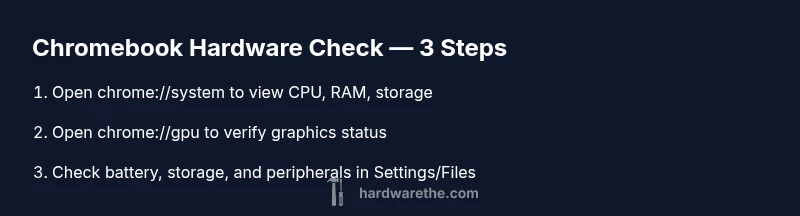
Step 1: Open chrome://system to view the hardware snapshot including CPU, RAM, storage, and model details. Step 2: Open chrome://gpu to inspect graphics status and driver support. Step 3: In Settings, review battery/power health and storage usage. Step 4: Test peripherals via USB/Bluetooth connections. Step 5: Compile a concise hardware health note for future reference. This built-in, no-install guide helps you assess Chromebook hardware quickly and reliably.
Why checking Chromebook hardware matters
In the DIY world, understanding your hardware helps you make informed decisions about repairs, upgrades, and compatibility. When you learn how to check hardware on Chromebook, you gain a baseline for performance, reliability, and safety. This guide explains practical, built-in methods that work across most Chromebooks, without installing third-party software. According to The Hardware, a structured hardware check can prevent wasted time and help you communicate effectively with support teams. You’ll be surprised how much information is available just by exploring the browser and system pages. The Chromebook hardware landscape includes the CPU, memory (RAM), storage, graphics, battery, and peripheral controllers. Even devices with identical model names can differ in configuration, firmware, and wear. The goal is not perfection but a clear snapshot that you can reference when diagnosing slowdowns, unexpected reboots, or peripheral issues. Start with a simple plan and expand as you verify each component.
Understanding Chromebook hardware terminology
Before you dive into checks, it helps to know what the terms mean. The CPU (often part of a system-on-a-chip) handles general computing tasks, while RAM is the short-term workspace used by active apps. Storage refers to long-term data space, typically NAND flash on Chromebooks. The GPU handles graphics tasks, and its status can reveal driver readiness or acceleration support. Battery health describes the device’s ability to hold charge and deliver consistent power, while peripherals include keyboards, touchpads, cameras, Wi‑Fi, Bluetooth radios, and sensors. Firmware and security features (like Verified Boot) influence how hardware presents itself during startup. A clear glossary keeps you from misreading numbers or mismatched terms during later steps.
Where to find hardware information in Chrome OS
Chromebooks expose hardware data across several surfaces. Start in Settings > About Chrome OS to confirm the device name, OS version, and build. For deeper hardware snapshots, open chrome://system in a new tab to load a detailed, machine-readable summary of CPU, memory, storage, and other components. For graphics and driver status, navigate to chrome://gpu to see Hardware acceleration indicators and feature statuses. If your device supports a Diagnostics tool, run it to verify sensors and peripheral health. Not all models show every field, so use a combination of sources to form a complete picture.
Using chrome://system for a full hardware snapshot
chrome://system presents a comprehensive view of your Chromebook’s hardware. Open a new tab and type chrome://system, then scroll to sections labeled memory, cpu, and board information. Use the browser’s Find function (Ctrl+F) to jump to terms like “RAM” or “model name.” Take screenshots for your records and compare against your model’s official specs. If you spot unusual values (extremely low RAM after startup, or a model name that doesn’t match your device), note them for troubleshooting or support inquiries. Remember that some fields are vendor-specific and may appear in different formats depending on the Chromebook family.
Verifying graphics and performance with chrome://gpu and related tools
The chrome://gpu page highlights graphics-related status, including graphics feature support, acceleration, and any driver workarounds. Look for positive indicators such as active hardware acceleration and supported compositing paths. If certain features are marked as unavailable or blocked, that may indicate driver or firmware limitations on your device. Use chrome://system in parallel to ensure the GPU section aligns with your CPU and memory data. Some Chromebooks also show a dedicated “Diagnostics” option for testing the GPU, memory bandwidth, or display signals. Cross-check results across these sources to avoid misinterpretation.
Checking power, battery health, and storage usage
Power and battery information can usually be found in Settings > Power or Battery sections, where you can view charge status, discharge rate, and estimated remaining life. For storage usage, open the Files app and examine the storage bar and the list of installed apps. A healthy Chromebook maintains a balanced ratio of used to free space, with enough headroom for OS updates and cache. If battery health indicators show rapid drain or short runtime, document the behavior and compare against typical usage scenarios. Cross-reference storage stats with chrome://system data to spot anomalies such as unexpectedly high reserved space or misreported free space.
Testing peripherals and wireless components
Peripheral health matters for a smooth workflow. Test USB devices by plugging them in and verifying they’re recognized in the system. Check Bluetooth by pairing a known-good accessory and confirming data transfer works. If you rely on Wi‑Fi, confirm a stable connection and review the signal strength in Settings > Network. Inconsistent connectivity or unrecognized peripherals can point to driver or hardware faults. If issues persist outside the test environment, capture date/time and the affected ports or devices to share with support.
Documenting your results and planning next steps
Create a concise hardware health report that lists model name, major hardware components (CPU, RAM, storage), graphics status, battery health, and peripheral test results. Note any deviations from expected specs and any actions you took (updates, tests, reboots). Use this record when contacting support or planning upgrades. Regular checks help you anticipate failures and time maintenance around OS updates. A clear report also helps you track changes over time and demonstrates a methodical approach to hardware maintenance.
Common pitfalls and misinterpretations
Hardware data can be noisy. Do not overinterpret a single data point—fields vary by model and firmware, and some entries are placeholders for compatibility. If chrome://gpu shows a feature as unavailable, verify whether that limitation is normal for your device or a sign of a driver mismatch. Always cross-check with chrome://system and the Settings panels. The Hardware team's guidance emphasizes consistency: perform the same checks after major OS updates and compare against your baseline to spot meaningful changes. The The Hardware team notes that hardware health checks are most effective when paired with regular updates and documented baselines.
Tools & Materials
- Chromebook(Any model running Chrome OS with internet access optional for updates)
- Charger(Original or compatible charger for safe power testing)
- Notebook or digital note tool(Record findings and create a simple report)
- Screen capture capability(Capture chrome://system/chrome://gpu outputs)
- Internet connection(Useful for retrieving official specs or updates)
Steps
Estimated time: 15-30 minutes
- 1
Open hardware snapshot
Open a new tab and enter chrome://system to load the hardware snapshot. Scan CPU, memory, storage, and model information in a single, organized view. This gives you a baseline before you dive deeper into individual components.
Tip: Use Ctrl+P to save a PDF for your records. - 2
Locate core data in chrome://system
Use the Find function (Ctrl+F) to jump to sections labeled memory, cpu, and board information. Note the values and compare them with your Chromebook’s official specifications. If something looks unusual, jot it down for later confirmation.
Tip: Take a quick screenshot of the relevant sections for your report. - 3
Open graphics status with chrome://gpu
In a new tab, type chrome://gpu and review the Graphics Feature Status and hardware acceleration indicators. This helps you gauge driver readiness and potential performance limitations on your device.
Tip: If graphics status is unclear, cross-check with chrome://system data for consistency. - 4
Check power and storage in Settings
Navigate to Settings and review Battery/Power information and Storage usage. Look for remaining battery life estimates, discharge rate, and free space. These metrics affect updates and overall responsiveness.
Tip: Note any rapid battery drain or unexpected storage alarms. - 5
Test peripherals and wireless components
Plug in a USB device and pair a Bluetooth accessory to verify recognition and basic functionality. Check network stability in Settings > Network. Peripherals troubleshooting can reveal port or driver issues.
Tip: Document which ports and devices were tested and the results. - 6
Document results and consolidate findings
Compile a compact hardware health report including model name, CPU, RAM, storage, GPU status, battery health, and peripheral tests. Store it with timestamps so you can compare against future checks.
Tip: Keep your report accessible for support calls or warranty claims. - 7
Review baseline and plan next steps
Compare current data with your baseline to identify deviations. Plan updates, tests after OS changes, and any recommended repairs or professional diagnostics if you spot concerning trends.
Tip: Schedule periodic checks to maintain consistent hardware health.
FAQ
What is chrome://system and what data does it show?
Chrome://system provides a detailed snapshot of hardware-related data such as CPU information, memory, storage, and board details. Use it as the primary source for hardware layout and to spot anomalies.
Chrome://system gives you a detailed hardware snapshot like CPU, memory, and storage to help you spot issues.
Is chrome://system available on all Chromebooks?
Most Chromebooks expose chrome://system, but the exact fields and presentation can vary by model and firmware. If you don’t see all sections, rely on chrome://gpu and Settings for additional context.
Most devices support chrome://system, but fields can vary by model.
Do I need an internet connection to check hardware?
No. You can access chrome://system and chrome://gpu offline to view essential hardware details. Internet is only needed for updates or accessing online help.
You can check hardware offline with chrome://system and chrome://gpu.
What should I do if I find a hardware issue?
Document what you found, compare with your device specifications, and contact support or check warranty options. Do not attempt risky hardware repairs without guidance.
If you find an issue, write it down and contact support; avoid risky DIY repairs.
Can I fix hardware problems myself on a Chromebook?
Many hardware problems require professional diagnosis or warranty service. Avoid opening the device unless you are trained, as it can void warranties and cause further damage.
Most hardware issues need professional service; don’t open the device yourself if you’re unsure.
How often should I run these checks?
Run a hardware check when you notice performance changes, before and after OS updates, and at least once per quarter for preventive maintenance.
Do checks when things feel off, and regularly every few months.
Watch Video
Main Points
- Check core Chromebook hardware with built-in tools
- Use chrome://system and chrome://gpu for data
- Document results for support and maintenance
- Regular checks help prevent unexpected issues