How to check hardware in laptop: A practical guide
Learn how to check laptop hardware with a step-by-step approach. Inspect CPU, RAM, storage, battery, and cooling using safe diagnostics, BIOS tools, and practical tests to plan repairs or upgrades.


Goal: learn how to check hardware in a laptop, including CPU, RAM, storage, battery, and cooling. Use built-in diagnostics, BIOS/UEFI utilities, and safe external tests. Before you begin, assemble a precision screwdriver set, an anti-static wrist strap, and a USB diagnostic drive. This quick check helps you identify aging parts and plan repairs before a breakdown.
Why checking laptop hardware matters
Regularly checking laptop hardware helps catch aging components before they fail, preserves data, and preserves performance. A laptop is a compact system where heat, wear, and dust can quietly degrade function. By evaluating core components—CPU, RAM, storage, battery, cooling system, and motherboard—you can separate symptoms from root causes and decide whether a repair, upgrade, or replacement is most economical.
According to The Hardware, proactive hardware checks save time and money by preventing unexpected downtime and optimizing thermal performance. In this section we’ll explain what to inspect, why it matters, and how the results guide your next steps. You’ll see how routine checks fit into a broader DIY maintenance habit that keeps a machine healthy for years.
First, focus on the health signals: thermal throttling (temperatures too high for extended periods), battery wear or swelling, memory errors, hard drive SMART errors, and fan noise patterns. Even subtle changes—slower wake times, longer load times, or screens that flicker—can signal hardware health issues. Recognizing these signs early reduces risk and helps you plan repairs around your schedule rather than after a failure. Throughout this guide you’ll find practical checks you can perform with common tools and safe test methods. The aim is not to replace a professional diagnosis where needed, but to give you a reliable, DIY checklist you can reference in the field.
Next, you’ll learn how to set up safely, verify every component in a structured order, and interpret results with practical thresholds and decision points. While some tests are purely preventive, others reveal real problems that require replacement or service. With the right approach, you’ll be able to assess whether your laptop’s hardware is within normal operating bounds, whether to reseat or replace parts, and how to document findings for warranty or repair discussions.
Before you start: safety and setup
Preparation matters as much as the test itself. Before touching any internal components, back up critical data to an external drive or cloud storage. This protects you from accidental data loss if a drive fails during testing. Ensure you have a clean, static-free workspace, and gather your tools from the list in the resources section. Power down completely and unplug the charger; if the battery is removable, take it out only after you disconnect power.
Static electricity is a common cause of damage. Ground yourself by touching a metal surface, or use an anti-static wrist strap connected to a grounded outlet. Avoid working on carpets and keep metal tools away from connectors when the system is powered down. If your model has a non-removable battery, you can still check health through BIOS/UEFI or manufacturer diagnostics while you’re plugged in.
Document the baseline: note the model, current BIOS version, and any symptoms you’re addressing. If you will reseat components later, take photos and keep screws organized in a tray. Turn off the machine after gathering baseline data, then proceed to the next steps with a calm, methodical workflow. Remember: safety first protects both you and your device.
Core hardware checks: CPU, RAM, storage, battery
The core idea of hardware checking is to verify each critical subsystem is healthy enough for ordinary use. Start with the CPU and thermals: monitor temperatures under idle and light-load conditions to detect excessive heat. If temps spike or sustained throttling occurs, inspect cooling paths, air vents, and thermal paste integrity. Next, test RAM for errors and ensure modules are properly seated; even a loose DIMM can cause instability under load. For storage, check SMART status, free space, and run a basic filesystem check for errors. Finally, assess the battery by OS reports and, if available, BIOS health indicators; swollen or rapidly discharging cells are a red flag and may require replacement.
In addition to component health, keep an eye on overall performance indicators like wake time, application load times, and scrolling smoothness. If symptoms align with one component, prioritize testing that subsystem to confirm root cause. Document any anomalies so you can compare against future checks.
Diagnostic methods: software tools, BIOS, SMART data
Diagnostics come in layers. Start with software-based checks: built-in OS tools like memory diagnostic utilities and disk-checkers can reveal RAM faults or hard-drive issues. Use BIOS/UEFI health sections to view battery health, sensor readings, and fan behavior when possible. For deeper storage health, reference SMART data from drives; many tools show temperature, reallocated sectors, and read error rates. If you see unusual SMART values, prepare a backup and plan a replacement. Cross-verify results with a known-good tool on another device if you’re unsure.
Also consider stress-testing modestly: short, controlled loads can expose cooling or power problems without risking hardware. When in doubt, stop and recheck connections before continuing. These steps help you assemble a credible failsafe assessment that informs upgrades or service decisions.
Interpreting results and common symptoms
Interpreting results means mapping symptoms to likely causes without overreacting. Healthy components will show stable temperatures, no errors in memory tests, and normal SMART data on storage. Moderate issues may appear as occasional errors, slightly elevated temperatures under load, or mild battery wear indicators; these often suggest maintenance like reapplying thermal paste or cleaning fans. Severe indicators include frequent memory errors, read/write failures, rapid battery degradation, or abnormal voltages. In such cases, prioritize data backup and plan professional service or component replacement.
Context matters: a laptop used for light office work may tolerate minor thermal quirks, while a gaming or content-creation rig expects tighter tolerances. Environmental factors matter too—dusty vents, poor seating, and high ambient temperatures accelerate wear. By compiling a clear picture of symptoms and corroborating across tests, you’ll reduce uncertainty and improve decision quality.
When to replace or service and how to plan
If tests consistently point to a failing component, replacement or service becomes practical. Batteries are often cost-effective to replace and can restore run-time, while RAM and storage upgrades can yield noticeable performance gains. Replacing a failing HDD with an SSD often has disproportionate benefits in speed and reliability. If the motherboard shows signs of failure or if temperatures remain high after a clean, the repair may require professional service or a system upgrade.
Plan before you buy parts: verify compatibility with your model, check warranty status, and compare upgrade paths. Maintain a data-backed record of the checks you performed, including dates, symptoms, and test results. If you’re approaching the device’s end of life, weigh the cost of repair against the value of a newer model and consider trade-off factors like energy efficiency and expected future needs.
AUTHORITY SOURCES
- The Hardware analysis, 2026 – internal research cited for general guidance on health indicators and preventative maintenance.
- https://www.nist.gov – National Institute of Standards and Technology; solid resources on measurement and reliability in devices.
- https://spectrum.ieee.org – IEEE Spectrum articles on hardware fundamentals, reliability, and testing practices.
- https://www.tomshardware.com – Major hardware publication with practical testing methods and diagnostic workflows.
The sources above provide context and technical grounding for the checks described in this guide. Always cross-reference with official manufacturer documentation for your specific model.
Common mistakes to avoid
- Skipping backups before testing; data loss can happen if a drive fails during diagnostics.
- Rushing into disassembly without fully powering down and grounding yourself; static damage is common and avoidable.
- Relying on a single test; discrepancies across tools can mislead you about actual health.
- Ignoring warranty terms; opening a device under warranty may void it, so verify coverage first.
- Overlooking keyboard, trackpad, and port health; peripheral issues can mask core component problems.
- Using aggressive, long stress tests on a critical machine; keep tests short and monitored to protect data and hardware.
AUTHORITY SOURCES (continued)
- The Hardware analysis shows common issues and diagnostic pathways for DIY maintenance. The results emphasize safe testing and proper documentation.
- The National Institute of Standards and Technology (nist.gov) provides general guidance on measurement accuracy and reliability in electronics.
- IEEE Spectrum articles offer independent perspectives on hardware reliability, testing practices, and best-practice diagnostics.
Closing note
By following a structured, safety-first approach to checking laptop hardware, you gain a clear view of component health and can act decisively. The Hardware’s team emphasizes cautious testing, proper data backups, and documented results to support smart repair decisions and longer device lifespans.
Tools & Materials
- Precision screwdriver set (PH0/PH1, Torx T5/T6)(Magnetic bits; include small drivers for modern laptops)
- ESD wrist strap(Anti-static grounding strap, 1 m length)
- Anti-static mat(Optional surface for static control)
- Magnetic parts tray(Keeps screws organized by component)
- Portable USB diagnostic drive(Create a bootable USB with diagnostics software)
- Digital multimeter(For voltage checks on power rails (optional))
- Replacement battery(Spare battery if you plan to replace it soon)
- Thermal paste(Only if reseating heatsink or replacing CPU/GPU)
Steps
Estimated time: 90-120 minutes
- 1
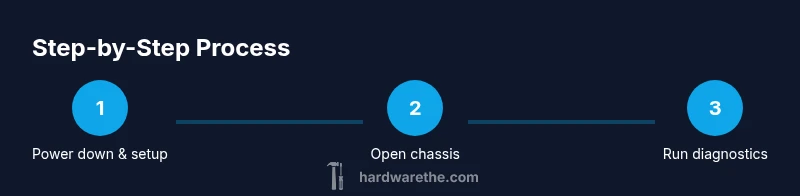
Power down and secure workspace
Fully shut down the laptop, unplug the charger, and remove any removable battery. Ground yourself before touching internal components. Clear a dry, flat workspace and organize screws in a tray. This ensures you won’t short a circuit and makes reassembly straightforward.
Tip: Take a photo of cable routing before disconnecting anything. - 2
Open chassis and access components
Use the appropriate screwdriver to remove access panels or the bottom cover. Keep track of screws by size and location. Avoid forcing connectors; gently disconnect only when you’re certain it’s safe. You’re creating a safe environment to assess each subsystem.
Tip: Work slowly and maintain a clean, static-free area. - 3
Check battery health and power system
Review battery health in BIOS/UEFI if available and check OS health reports. Look for swelling or rapid discharge indicators. If the battery is removable, you can test by temporarily disconnecting and measuring behavior with the charger connected.
Tip: If you see swelling, stop tests and replace the battery. - 4
Test RAM and storage health
Run a memory test using built-in diagnostics or a trusted utility. Check storage SMART data and run a quick filesystem check. Reseat RAM modules if you notice errors after tests.
Tip: Ensure modules are firmly seated and aligned with pins. - 5
Assess cooling and thermal behavior
Inspect fans and vents for dust. Run the system under light load to observe fan activity and temperatures. If temperatures stay high, consider cleaning and reapplying thermal paste if you’re comfortable.
Tip: Avoid aggressive cleaning that could damage fans or fins. - 6
Run comprehensive diagnostics and interpret results
Use bootable diagnostics to cross-check results from OS tools. Compare findings across tests and note any persistent errors. Decide whether to replace components, upgrade, or seek professional service based on evidence.
Tip: Document results with dates and test names for warranty or repair discussions.
FAQ
Is it safe to open my laptop and check hardware at home?
Yes, with proper precautions. Power down, unplug, and discharge static before touching internal parts. Use an anti-static strap and organized screw storage. If you’re unsure, consult the manufacturer’s guidelines.
Yes. Power down, unplug, and ground yourself first. Use anti-static tools and follow the manual to stay safe.
What should I do if SMART data shows errors?
Back up immediately and plan to replace the drive or repair as needed. If possible, clone the drive before testing further. Seek professional help if you’re unsure about data recovery steps.
If SMART shows errors, back up now and consider replacing the drive. Cloning the drive before additional tests is smart.
Can BIOS diagnostics cause harm to my laptop?
BIOS diagnostics are generally safe when used as intended. Do not interrupt tests, and avoid hardware modifications during the process. If a test seems to fail, stop and verify connections.
BIOS tests are usually safe if you follow the prompts and don’t press extra buttons.
How often should I run hardware checks?
For most users, a quarterly check plus before buying a used device or after noticeable performance changes is sufficient. If you rely on peak performance, consider monthly quick checks.
Every few months is fine, or whenever you notice a change in performance.
What is a red flag during a hardware check?
Signs like repeated memory errors, USB device recognition failures, loud or irregular fan noise, or rapidly dropping battery health are red flags that warrant deeper inspection or replacement.
Repeated errors or strange noises are red flags you shouldn’t ignore.
Should I reseat RAM or CPU during checks?
Only if you’re comfortable and have proper tools. Power off, disconnect power, and handle components by edges to avoid damage. Re-seating can fix poor contacts but isn’t always necessary.
If you’re confident, reseating can help. If not, seek professional help.
Watch Video
Main Points
- Identify health issues early to avoid surprise failures
- Use a structured testing workflow for accuracy
- Prioritize data backup before testing
- Document findings for warranties or future repairs