How to Hardware Reset Chromebook: Step-by-Step Guide
Learn how to hardware reset Chromebook devices safely. This step-by-step guide covers hard reset, pinhole resets, and Powerwash options to restore performance without data loss.


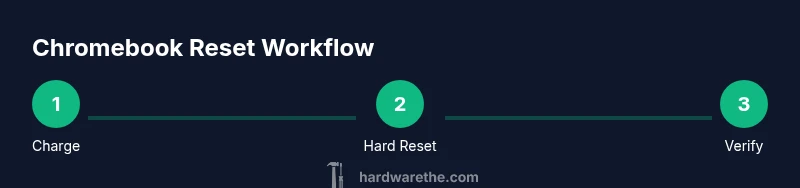
This quick guide explains how to hardware reset chromebook devices. You’ll learn the exact steps to perform a hardware reset (a hard reset) to restore responsiveness without wiping data, using methods like Refresh + Power, a pinhole reset, or a forced power cycle. Ensure the device is charged before starting.
What a hardware reset does and when to use it
A hardware reset on a Chromebook reinitializes the device’s hardware state and restarts the system without deleting user data in a typical hard reset. It is a valuable first step when the device becomes unresponsive, freezes, or behaves oddly after software updates. According to The Hardware, understanding when to perform this reset can save time and prevent unnecessary data loss. In most cases, a hard reset should be enough to restore basic functionality without requiring a full Powerwash. Use a hardware reset when you can still access the power button and the screen after a freeze, and reserve more drastic options for stubborn symptoms such as boot loops or persistent hardware errors. For those new to Chromebooks, remember: a reset is different from a factory reset, and it does not erase your local files by default.
To make the most of a reset, note down any recent changes (apps installed, extensions added, or settings altered) so you can replicate essential configurations after the device restarts.
Hardware reset methods: three common approaches
Chromebooks offer a few reliable ways to reset, depending on the hardware and model. The most common is a hard reset using the Refresh key plus the Power button. If your device has a recessed reset hole, you can perform a pinhole (hardware) reset with a paperclip. A force power cycle can help when the device is completely unresponsive. The Hardware team recommends starting with the least invasive method and moving to a hardware-based reset only if necessary. Power considerations matter: always try to perform resets with the charger connected to avoid interruptions. In some cases, a software reset via Powerwash is appropriate if you’re troubleshooting persistence issues after a normal reset.
- Hard reset (Refresh + Power): Quick and non-destructive, resets the hardware state.
- Pinhole reset: Requires a small tool, used only on devices with a reset hole.
- Force power cycle: Long-press the Power button to shut down when unresponsive, then power up again.
Pinholes, buttons, and model nuances
Not all Chromebooks share the same reset mechanism. Some models hide a tiny reset hole behind the battery cover or along the side edge. If you cannot locate a reset hole, the Refresh + Power method is usually still available. In devices with a dedicated reset button or a hidden hole, the press duration matters: a brief press can differ from a firm press. When in doubt, consult the model’s manual or The Hardware’s troubleshooting notes for model-specific guidance. Remember, using the right method protects your device from unintended resets or data loss.
If your Chromebook has a reset pinhole, prepare a paperclip and align the tool with the hole during Step 2. If you can’t find a reset feature, proceed with a standard hard reset first and move to a hole reset only if needed.
Data safety: what gets reset and what stays
A standard hard reset typically preserves user data and local files because it only reinitializes the hardware state and restarts the OS. However, some reset flows—particularly Powerwash or recovery modes—will erase downloaded apps, local accounts, and cached data. To minimize risk, back up important files to Google Drive or an external drive before attempting deeper resets. The Hardware team emphasizes that backups are a smart precaution, especially if you’ve recently installed unusual software or performed many configurations. If you rely on offline work, consider exporting essential documents before beginning the reset sequence.
Also, ensure you know the current Wi-Fi network and password, as you’ll likely reconnect after the reset. If you use enterprise management, verify policy settings post-reset since some restrictions may reapply once the device reboots.
In summary, a hardware reset aims to restore normal operation while minimizing data loss, but always proceed with caution if you depend on local files.
Step-by-step guidance: the most common method (Refresh + Power) explained
The Refresh + Power method is the quickest way to attempt a hardware reset on most Chromebooks. Start with the device on, then press and hold the Refresh key (circular arrow) and tap the Power button once. Release both keys after about a second and wait for the machine to reboot. If the screen flickers or the boot process continues, let the device complete its startup without interrupting. This procedure reinitializes hardware state and often resolves freezes caused by temporary software glitches, without affecting local data.
If you still observe unresponsiveness after a Refresh + Power reset, proceed to a pinhole reset if available, or perform a force power cycle as a last resort.
Post-reset setup: what to check immediately
After a reset, verify that common functions work: the keyboard, trackpad, Wi-Fi, and display are responsive. Open a few apps to ensure stability, and check that Chrome loads normally. Reinstall any recently added extensions if needed, and review recent downloads for any anomalies. If you used a Powerwash option during the process, you’ll need to sign back into your Google account and re-sync your data.
To maintain reliability, run a quick system check: run a browser session, test notification delivery, and confirm that battery charging resumes correctly. In many cases, a successful reset leads to a smooth start, clearing glitches that appeared after updates or misconfigurations.
Troubleshooting: when resets don’t solve the issue
If a hardware reset does not resolve the problem, consider deeper diagnostics. Check hardware indicators such as LED status and error messages, and review the Chrome OS health check in the settings. If the device still won’t boot or exhibits recurring freezes, there may be a hardware fault or a more complex software issue. In such cases, gather model information, serial number, and a detailed symptom log before contacting support. The Hardware team advises documenting every step you took during the reset to help technicians reproduce the issue quickly.
When to seek professional help and preventive steps
Sometimes a reset is not enough, especially if the device shows hardware signs of failure like unexpected shutdowns, buzzing noises, or overheating. In those cases, reach out to official support channels or a trusted service provider. Preventive care includes keeping the OS up to date, avoiding incompatible apps, and performing regular system checks. For businesses, establish a standard reset protocol to minimize downtime and plan routine maintenance windows to test the device performance after updates. Following these practices helps you keep Chromebooks reliable and reduces the likelihood of data loss during future resets.
Tools & Materials
- Charged Chromebook(Ensure the device has sufficient charge before starting to avoid interruption.)
- Charger and power adapter(Keep the charger connected during the reset process.)
- Pinhole reset tool (paperclip or SIM ejector)(Needed only for Chromebooks with a recessed reset hole.)
- Model-specific manual or guide(Helpful for device-specific reset instructions.)
Steps
Estimated time: 5-15 minutes
- 1
Charge and prepare
Plug in the charger and ensure the Chromebook is charged to avoid power loss during the reset. Save any open work if possible.
Tip: A well-charged device reduces the risk of mid-reset shutdown. - 2
Try a standard hard reset (Refresh + Power)
With the device on, press and hold the Refresh key (circular arrow) and then tap the Power button once. Release both after about a second and let the device reboot.
Tip: If your device reboots successfully, you’ve avoided more drastic steps. - 3
Use a pinhole reset if available
If the screen remains unresponsive or the hard reset didn’t work, locate a recessed reset hole and insert a paperclip to press gently for about 5 seconds.
Tip: Check the device model manual if you’re unsure where the hole is located. - 4
Force a power cycle if needed
If the Chromebook is completely unresponsive, press and hold the Power button for 10–12 seconds to force a shutdown, then press Power again to restart.
Tip: Use this as a last resort to avoid potential software issues from abrupt shutdowns. - 5
Sign back in and verify
Once rebooted, sign in and test key functions (Wi‑Fi, keyboard, touchpad, display). If you used Powerwash, re-sync settings from your Google account.
Tip: Test multiple apps to confirm stability before resuming work. - 6
If problems persist, escalate
Document symptoms and model details, and contact support or a service provider for deeper diagnostics.
Tip: Include dates, steps taken, and any error messages to speed up help.
FAQ
What is a hardware reset on a Chromebook?
A hardware reset reinitializes the device’s hardware state and restarts the Chrome OS without deleting user data in most cases. It’s a first-step troubleshoot for freezes or unresponsiveness.
A hardware reset restarts the device without wiping data, usually fixing freezes.
Will resetting delete my data?
A standard hard reset typically preserves local data. Powerwash or recovery mode will erase data, so back up important files beforehand.
Hard resets usually don’t delete files, but a full Powerwash will.
What if Refresh + Power doesn’t work?
If the hard reset fails, try a pinhole reset if available, then a forced power cycle. If issues persist, consult model-specific guides or support.
If the first method fails, try the hole reset or a forced power cycle and seek help if needed.
How do I know which method to use for my Chromebook?
Check your device’s manual or online support for model-specific reset instructions. Start with the non-destructive hard reset and move to a hole reset if needed.
Look up your model’s guide and start with the simple reset first.
Is a reset safe on all Chromebooks?
Reset procedures are generally safe, but hardware faults or firmware issues can complicate recovery. If in doubt, contact official support.
Resets are safe for most devices, but persistent failures mean you should contact support.
Watch Video
Main Points
- Charge the device before resetting.
- Start with a hard reset (Refresh + Power) first.
- Use a pinhole reset only if available and necessary.
- Powerwash is data-wipe; back up before use.
- Document symptoms if you need professional help.