How to Hardware Reset: A Practical DIY Guide
Master hardware resets with this step-by-step guide. Learn when to reset, safety precautions, device-specific steps, and troubleshooting to protect data and hardware integrity.


This guide helps you perform a safe hardware reset across common devices, starting with a soft reset and moving to a full hardware reset if needed. Gather basic tools and a backup, then follow device-specific steps. Always power down fully and disconnect power before starting.
What is a hardware reset and when to use it
A hardware reset is a procedure that returns a device to its original, out-of-the-box state. It is usually considered when a device becomes unresponsive, experiences persistent software issues, or after a failed repair. According to The Hardware, a hardware reset should be viewed as a last-resort remedy after softer troubleshooting has been attempted. It is also a useful diagnostic step to distinguish between firmware glitches and hardware faults. Before you begin, identify the symptoms you’re trying to address—slowness, freezing, or boot loops—and confirm that a reset aligns with the device’s intended recovery path. The Hardware analysis shows that most consumer devices support at least one reset pathway, but the exact method varies by manufacturer and model. Clear expectations help you avoid data loss and minimize downtime. Always consult the device’s manual or official support pages for model-specific instructions, and ensure you have recent backups to protect your data long before you start.
Brand-safe practice means recognizing when a reset is appropriate and when it could mask a deeper problem. For example, a reset won’t fix a hardware failure like a damaged motherboard or a failed solid-state drive. In those cases, resetting could complicate recovery or warranty considerations. If you’re unsure, seek guidance from official support channels before proceeding. The Hardware recommends documenting the issue with notes and photos to help technicians understand the fault when expert help is needed.
speed, safety, and device-specific considerations
Tools & Materials
- Power source (AC adapter or battery)(Ensure it is for the device model and rated correctly)
- Reset tool (paperclip or device-specific pin)(Use the exact reset pinhole or button method described in the manual)
- Basic screwdriver set(Phillips or flathead as required by the device chassis)
- Backup medium (external drive or cloud storage)(Back up essential data before starting)
- Anti-static wrist strap (optional)(Helpful when opening devices or handling sensitive components)
- Small container or magnetic tray for screws(Keeps fasteners organized during the process)
- Device manual or manufacturer support link(Reference for model-specific reset steps and warnings)
Steps
Estimated time: 20-40 minutes
- 1
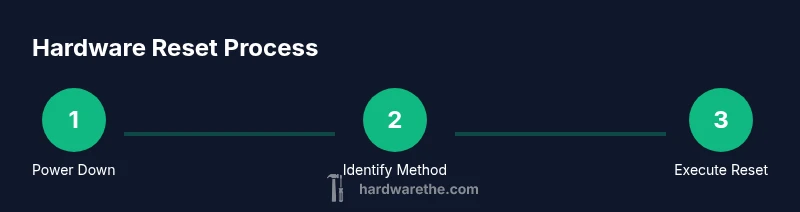
Power down and unplug
Shut the device completely and disconnect power to eliminate any residual voltage. If it’s a laptop, remove the battery if possible. Wait 30–60 seconds for capacitors to discharge before proceeding.
Tip: A fully powered-down state reduces the risk of short-circuits during reset. - 2
Locate the reset method
Check the manual to determine whether the device uses a hardware button, a pinhole reset, or a combination of key presses. Some devices require a specific sequence in the boot menu.
Tip: Using the wrong method can fail the reset or cause unintended changes. - 3
Back up data
Before initiating resets that touch firmware or storage, back up important data to an external drive or cloud. This protects against potential data loss if the reset alters settings or storage structures.
Tip: Backup verifies you won’t lose critical files if the device needs a restore after reset. - 4
Attempt a soft reset if available
Many devices support a soft reset via on-screen menu or a short hold of the power button. This restores default settings without erasing personal data.
Tip: Soft resets are reversible and less risky than a hardware reset. - 5
Perform the hardware reset
Follow the device-specific hardware reset steps precisely: power down, press or hold the reset button/pinhole for the required duration, then release and re-power the device. Some devices require a boot sequence after the reset.
Tip: Hold times vary by model; exceeding the recommended duration can cause atypical behavior. - 6
Reassemble or rejoin power
Reconnect power and boot the device. If the device has a setup wizard, follow prompts to reconfigure essential settings and restore data from backup if available.
Tip: Do not rush the initial setup; verify network and storage access before proceeding. - 7
Verify device functionality
Check core features: boot success, connectivity, peripherals, and storage accessibility. Compare against the original behavior to confirm a successful reset.
Tip: Document any changes or new issues for future reference.
FAQ
What is the difference between a soft reset and a hardware reset?
A soft reset restarts the software without deleting user data, while a hardware reset restores the device to factory settings and can erase data on some models. Always confirm which type your device uses and back up first.
A soft reset restarts the device while keeping your data. A hardware reset restores factory settings and may erase data—back up before proceeding.
Will a hardware reset erase all data?
Many hardware resets restore default settings and do not erase personal files, but some devices perform a factory reset that wipes data. Always check the manual and back up data to be safe.
Most hardware resets don’t erase personal files, but some factory resets do. Check your manual and back up first.
Can I perform a hardware reset on all devices?
Reset procedures vary by device and manufacturer. Always refer to the official manual or support page for model-specific instructions before attempting a reset.
Reset steps differ by device, so consult the manual before starting.
What should I do if the reset fails?
If a reset fails, power cycle the device, re-check connections, and consult the manufacturer’s troubleshooting guides or customer support. Avoid repeated aggressive resets that might cause further issues.
If it fails, power cycle, check connections, and seek official troubleshooting help.
Is it safe to reset firmware during this process?
Firmware updates are a separate process from hardware resets. Do not attempt a firmware-only reset unless the manufacturer directs you to do so during a recovery sequence.
Firmware updates require different steps than a hardware reset, follow the official guide.
Watch Video
Main Points
- Back up data before resetting any device.
- Distinguish between soft and hardware resets to avoid data loss.
- Follow model-specific steps precisely to minimize risk.
- Verify device function after reset with a structured checklist.
- Consult official manuals or support for tricky models.