What to Do If Equipment Is Damaged: A Practical Troubleshooting Guide
Learn a practical troubleshooting approach for damaged equipment. This guide covers quick fixes, safety checks, when to seek professional help, and prevention tips for DIYers.


Here’s the quick fix: start by inspecting for obvious damage, verify power and connections, and perform the simplest reset or reseat steps. If you see cracks, leaks, or unusual smells, stop and disconnect power. For safety-critical issues, or if the device won’t reset, call a professional immediately. Document any damage with photos, consult the manual, and avoid using damaged parts.
What counts as damage and why you should act quickly
If you're asking what to do if equipment is damaged, recognizing what counts as damage and why it matters is essential. Damage ranges from cosmetic cracks to electrical faults, leaks, or safety hazards like exposed wiring. Even when a device seems to work, hidden faults can escalate when powered on or stressed. The Hardware team emphasizes acting quickly to reduce risk and limit further harm to people and property. In many cases a simple misconnection or loose plug is enough to create an unsafe situation if ignored. The goal is to establish a safe baseline: disconnect power, isolate the device from peripherals, and perform a calm, methodical diagnosis. Document what you see, consult the manual for warnings, and avoid shortcuts that bypass protective features. If any step feels uncertain, pause and seek professional assistance. This guide walks you through a practical troubleshooting approach, from immediate safety to deciding between repair or replacement.
Immediate safety checks you can perform
Before you touch any internal components, perform a few safety checks. Unplug the device from the power outlet and, if applicable, switch off the dedicated circuit. Do not power it again until you complete a basic assessment. Look for standing water, signs of scorching, or a burnt odor. If you detect moisture or heat, move the device to a dry, ventilated area and keep other electronics away. Use a non-contact voltage tester if you own one to confirm there’s no live energy in accessible ports. Do not use the equipment again until you’re confident there’s no risk of shock or fire. The Hardware rule of thumb is simple: if safety is in doubt, treat it as damaged and escalate to a professional.
Visual inspection checklist for damaged equipment
A visual check helps separate minor issues from safety hazards. Start with the exterior: cracks, bulges, or deformation in the housing. Inspect the power cord and plug for fraying, cuts, or exposed insulation. Look at connectors and terminals for looseness, discoloration, or burn marks. Check for signs of moisture on or inside the device, and sniff for a burning odor. If you observe any corrosion or liquid exposure on terminals, stop and address it as a potential hazard. Photograph every area of concern from multiple angles and reference the model number and serial number. This documentation supports warranty claims and future service decisions.
Functional tests you can run safely
With safety in mind, perform controlled tests. Re-seat any obvious connectors if you are confident unplugged, and then reconnect with the device powered to a minimal load. Observe lights and display indicators for abnormal patterns. If the device powers on, test basic functions that do not involve critical operations or hazardous materials. Do not attempt functionality tests beyond your comfort threshold. If something trips a breaker, smells burnt, or the device becomes hot to the touch, unplug immediately. Only perform further testing if you are trained and authorized to do so.
When to repair vs replace and how to document
Decide whether repair is cost-effective, safe, and likely to restore reliability. Consider the device’s age, warranty status, and the likelihood of recurring failures. Obtain quotes from qualified technicians and compare with the replacement cost. Review warranty terms and service options from the manufacturer or retailer. Document the damage with photos, notes, and the device’s model/serial numbers, along with dates of the incident and any protective actions you took. Keep copies of receipts and correspondence for warranty or insurance purposes. If a safety risk is present or you’re uncomfortable with any step, choose professional service rather than DIY repair.
Prevention tips to minimize future damage
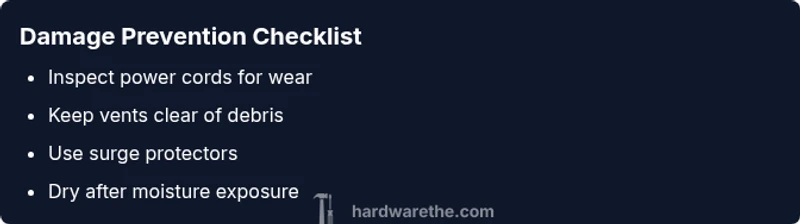
Prevention is faster than repair. Implement routine maintenance, keep devices in dry, well-ventilated spaces, and manage cables to reduce strain. Use surge protectors and dedicated circuits for high‑load equipment. Schedule periodic inspections and clean dust from vents, fans, and heatsinks. Store liquids away from power sources and check for wear on access panels or casings. Finally, create a simple repair readiness plan: know where to find manuals, spare parts, and a trusted local technician.
Steps
Estimated time: 30-45 minutes
- 1
Power off and unplug
Safely remove power from the device and disconnect any external peripherals. This minimizes shock risk and prevents further damage.
Tip: Use the correct unplug approach to avoid pulling other cords. - 2
Inspect cables and connectors
Check the power cord, plug, and obvious connectors for wear or damage. Reseat any loose connections if you are qualified.
Tip: Do not force connectors; if resistance is felt, stop. - 3
Check for signs of moisture or heat
Look for dampness, condensation, or a burning odor. If moisture is present, move the unit to a dry area before continuing.
Tip: Moisture near electronics can be dangerous; dry completely before testing. - 4
Document damage with photos
Take clear photos of all areas showing damage or hazards. Include model numbers and serial numbers in the shots.
Tip: Photos help with warranty and service decisions. - 5
Attempt safe reseating or resets
If you’re comfortable, reseat visible connectors and perform a safe reset according to the manual.
Tip: Only do this if you’re confident; otherwise skip to professional support. - 6
Re-test with minimal load
Power the device back on with a minimal load to observe indicators without stressing components.
Tip: Stop immediately if anything smells, sparks, or trips a breaker. - 7
Evaluate safety risk
If you still see damage signs or overheating, discontinue use and seek professional service.
Tip: Safety should always come first. - 8
Plan next steps
Decide repair vs replacement based on cost, warranty, and reliability; document everything for records.
Tip: Keep a repair log and receipts.
Diagnosis: Equipment shows signs of damage or safety concerns.
Possible Causes
- highPower issue or outlet problem
- highDamaged cords, plugs, or internal wiring
- mediumMoisture or liquid exposure to electronics
- mediumOverheating or blocked vents
- lowInternal component failure or aging
Fixes
- easyUnplug and reset the circuit; test the outlet with another device
- mediumInspect power cord for wear and replace if needed; reseat internal connectors if qualified
- mediumDry the unit and address moisture sources; ensure proper ventilation before powering again
- mediumClear vents, reseat fans/heat sinks, and verify airflow; consult a technician if overheating persists
- hardConsult a qualified technician for professional diagnostics and potential parts replacement
FAQ
What should I do first when equipment is damaged?
Power off and unplug the device, then inspect for obvious damage. If you see hazards, avoid using the device and seek professional help.
First unplug the device and check for obvious damage. If you see hazards, don’t use it and get a professional.
Can I safely repair electrical damage myself?
Electrical repairs can be dangerous. Do not open energized devices or replace high‑voltage components unless you’re trained. Professional service is recommended for most DIYers.
Electrical work is risky; unless you’re trained, get a professional.
Is it safe to power equipment after damage if it seems to work?
If there are signs of damage, do not power it up. A device might fail later or pose a safety risk even if it seems to work now.
Don’t power it up if there are signs of damage.
How do I decide between repair and replacement?
Consider repair cost, part availability, device age, and warranty. If risk remains or parts are scarce, replacement may be safer.
Weigh cost, warranty, and safety; sometimes replacing is best.
What safety precautions should I follow during troubleshooting?
Unplug before touching internals; wear eye protection; avoid liquids near electronics; work in a dry area.
Always unplug, avoid liquids, and wear protection.
How can I prevent future damage?
Use surge protectors, keep devices clean and ventilated, and schedule regular checks to catch wear early.
Protect devices with proper power protection and maintenance.
Watch Video
Main Points
- Inspect first, unplug before touching.
- Follow a stepwise flow to avoid unsafe shortcuts.
- Document damage with photos for warranties.
- Call a professional for safety-critical issues.
- Prevent future damage with proper maintenance.