When Hardware Is a Problem: Urgent Troubleshooting Guide
An urgent, practical troubleshooting guide for diagnosing and fixing common hardware issues at home. Learn a structured flow, safe practices, and where to seek professional help when needed to restore devices quickly.


Most hardware problems at home start with a power or connection issue. Begin by ensuring the device is plugged in, the outlet has power, and the power switch is on. If there’s still no response, try a different outlet, inspect cables for damage, and reset any tripped breakers. If the issue persists, consult a professional to avoid further damage.
The Most Common Entry Point: Power and Connections
When hardware is a problem, the first suspicion should always be power and connection quality. A surprising number of devices fail to respond due to a loose plug, a switched-off outlet, or a tripped circuit breaker. According to The Hardware, the vast majority of calls about non-responsive equipment are resolved by re-seating cables, replacing a damaged power cord, or moving the device to a known-good outlet. To diagnose this, unplug the device, inspect the plug and cord for wear, swap to a different outlet, and test the original outlet with a simple lamp. If power is restored, you’ve likely fixed the issue; if not, proceed to the next checks. This step-anchored approach reduces downtime and limits risk to other components.
Safety First: Protect Yourself and Your Equipment
Safety is non-negotiable when handling electrical hardware. Always unplug devices before inspecting cables, avoid working near water, and use insulated tools if you must handle exposed components. The Hardware emphasizes never attempting repairs that require opening power supplies or exposing live circuitry unless you are trained. Wear safety glasses when dust or debris could enter the eyes, and keep flammable materials away from heat sources. If you notice burning smells, swelling, or melted insulation, power down immediately and seek professional assistance. Safe handling not only protects you but also prevents accidental damage to sensitive electronics.
Diagnostics 101: Quick Tests to Run
A systematic diagnostic routine often reveals the root cause without expensive tests. Start with simple tests: toggle the power switch, inspect indicator LEDs, listen for fan noise, and observe any startup beeps. If the device shows partial signs (lights flicker, fans spin briefly, or a BIOS screen appears intermittently), record the symptoms. The Hardware notes that writing down timing and observed behavior creates a clearer service history for technicians. For laptops, try booting with minimal peripherals and in safe mode. For desktops, remove nonessential expansion cards one by one to identify a potential conflict. Passive signs like unusual heat, odors, or smoke indicate a hardware fault that requires professional attention.
Environment and Wear: Room Conditions Matter
Environmental factors can accelerate hardware deterioration. Excessive heat, high humidity, or dusty environments reduce efficiency and shorten component lifespans. Ensure adequate ventilation around your devices, use anti-static mats, and perform routine cleaning to prevent dust buildup in vents and fans. The Hardware explains that even clean rooms can harbor issues if vents are blocked or if devices operate on carpets with static-prone fibers. Consider relocating equipment away from direct sunlight or radiators, and monitor temperatures using a USB temp sensor if you suspect overheating. These steps decrease failure rates and extend device life.
Symptom-Driven Flow: Not Just ‘Power’ but ‘Symptoms’ Mapping
Different symptoms point to different causes. If a device powers on but performs erratically, suspect firmware glitches, driver conflicts, or overheating. If there’s no reaction, focus on power, motherboard connections, and protective circuitry. If peripherals fail to mount, verify USB ports, BIOS settings, and device drivers. The diagnostic mindset is to map symptoms to likely causes with a concise plan: isolate power, verify connections, test with minimal peripherals, and escalate only when a single cause remains uncertain. This reduces wasted time and ensures you address the actual problem efficiently.
Step-By-Step Diagnostic Flow: Symptom to Solution
The following flow translates symptoms into actionable steps. Start with the simplest check and progress to more advanced tests only if the prior step is inconclusive. If a step cannot be completed safely, skip to the next one and return later with professional help if needed. Document each result to guide follow-up actions.
Quick Fixes You Can Try Tonight
- Power cycle: unplug for 60 seconds, then reconnect and power up.
- Swap outlets and test with a known-good cable.
- Remove nonessential peripherals and boot with minimal hardware.
- Update firmware or drivers if the system powers on.
- Check for visible damage or swollen batteries and avoid reuse.
- If the device still won’t respond, do not force components; seek professional service.
When to Call a Pro: Signals and Smart Escapes
If you’ve completed the basic checks and the device still misbehaves, or if you smell burning, observe smoke, hear crackling, or see no lights, it’s time to bring in a professional. Electrical components can fail catastrophically, and attempting risky repairs can void warranties or cause injury. The Hardware recommends contacting the manufacturer for RMA or a licensed technician when the problem involves power supplies, high-voltage components, or potential safety hazards. Document symptoms, steps taken, and any error codes to expedite service.
Prevention Tips: Keep Hardware Healthy
Routine maintenance prevents many common failures. Schedule quarterly dusting of vents, ensure devices have stable ventilation, and keep firmware up to date. Use surge protectors and avoid daisy-chaining power strips, which can hide flickers and overload circuits. The Hardware suggests maintaining a simple log of observed symptoms and outcomes from each troubleshooting session. This record helps you spot recurring issues and decide whether a replacement is more cost-effective than ongoing repairs.
Steps
Estimated time: 60-90 minutes
- 1
Confirm basic power and outlet status
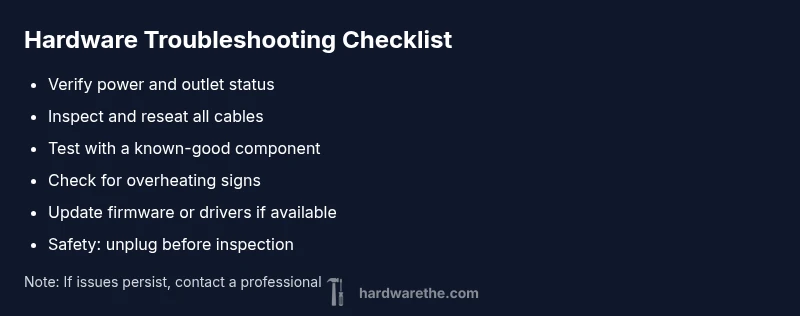
Ensure the device is plugged in, the outlet is powered, and the power switch is on. If the outlet is controlled by a wall switch, confirm that switch is on. If needed, test the outlet with a lamp to verify power. This step often resolves non-responsive devices.
Tip: Label outlets that frequently trip breakers to speed future checks. - 2
Inspect and reseat essential cables
Unplug and reconnect power cords, HDMI/Display cables, and other critical connections. Look for frayed insulation or bent pins. Reseat plugs firmly and feel for a secure fit before powering on.
Tip: Wiggle-test connections gently to confirm a snug fit without forcing. - 3
Test with minimal peripherals
Disconnect all nonessential devices to isolate the problem. Use only the monitor, keyboard, and power. If the device powers on, gradually reattach components to identify the culprit.
Tip: Add one component at a time to pinpoint the failing part. - 4
Check for overheating and vent blockages
Inspect vents for dust build-up; clean with a soft brush or compressed air. Ensure the device has clear space for airflow and consider elevating the unit for better ventilation during use.
Tip: Never insert objects into vents; use manufacturer-recommended cleaning tools. - 5
Update firmware/drivers and perform resets
If you can boot, update firmware or drivers to close known glitches. If the device won’t boot, perform a hardware reset or safe mode boot if available.
Tip: Back up data before performing resets to prevent data loss. - 6
Escalate to professional support
If symptoms persist after the above steps, contact the manufacturer or a licensed technician. Provide symptom notes and the steps you’ve taken to expedite diagnosis.
Tip: Document any error codes or be prepared to share model numbers and serials.
Diagnosis: Device won't power on or respond after basic checks
Possible Causes
- highPower issue (outlet, breaker, or power strip)
- highFaulty power supply or battery
- mediumDamaged or loose cables
- lowOverheating leading to thermal shutdown
- lowInternal hardware failure (board, motherboard, etc.)
Fixes
- easyCheck outlet and breakers; test with another device
- easyInspect and reseat power cables; replace damaged cables
- mediumTry a known-good power supply or battery if removable
- mediumAllow device to cool and update firmware/ drivers if possible
- hardConsult a professional or service center if issues persist
FAQ
What is the first thing to check if hardware won’t power on?
Verify the device is plugged in, the outlet is powered, and the power switch is on. If there’s no response, test another outlet and inspect cables for damage.
Check the power source and cables first; then try another outlet if needed.
Can a software update fix hardware issues?
Software updates can resolve firmware-related glitches that affect hardware behavior, but they can’t fix physical damage. Update if you can access the device safely.
Software updates help with firmware issues, but physical faults need hands-on checks.
Is it safe to test power supplies with a multimeter?
Measuring power supply outputs with a multimeter is possible but should only be done by someone familiar with electrical testing to avoid shock or further damage.
Only attempt electrical tests if you know how to use a multimeter safely.
What should I do if my device smells burnt?
Power down immediately, unplug, and do not power the device again. A burnt smell indicates a serious electrical fault that requires professional service.
If you smell burning, shut down and seek professional help right away.
How do I know when to replace hardware vs repair?
Compare the repair estimate to the cost of a replacement, considering age, reliability, and warranty. If repairs exceed 50-60% of replacement cost, replacement is often wiser.
If repairs are costly and the device is old, replacement may be the better choice.
Should I contact the manufacturer for RMA?
If the device is under warranty or a known defect is present, contact the manufacturer for an RMA. They can guide diagnostics or authorize repair/replacement.
Check warranty status and contact the maker for an RMA when appropriate.
Watch Video
Main Points
- Start with power and connections to resolve most issues
- Always prioritize safety before touching hardware
- Document symptoms and steps to speed diagnosis
- Use a structured flow to avoid wasted time
- Know when to involve a professional for safety and warranty reasons