Where is hardware acceleration in Firefox: A Practical Guide
Learn where to find and how to enable hardware acceleration in Firefox. Step-by-step instructions, troubleshooting tips, and testing guidance to improve graphics performance.


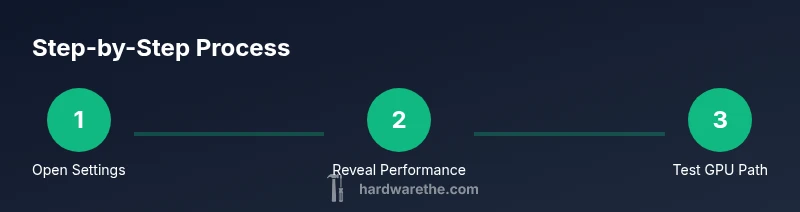
In Firefox, hardware acceleration is controlled under Settings, General, and Performance. Enable or disable the option to use hardware acceleration when available, and you can also reach it via about:preferences. Enabling hardware acceleration can improve rendering on supported GPUs, but may cause issues on some systems. This toggle adapts to your hardware and driver stability.
What hardware acceleration does in Firefox
Hardware acceleration in Firefox uses the GPU to render graphics, decode video, and composite pages, reducing the workload on the CPU. When enabled, the browser offloads many tasks to the graphics processor, which can lead to smoother animations, faster page scrolling, and improved video playback on capable hardware. For some users, enabling hardware acceleration also helps with WebGL and canvas-based web apps that rely on GPU power. If you’re wondering where is hardware acceleration in firefox, the short answer is that it is toggled in the general performance settings. The hardware acceleration feature is designed to be dynamic: Firefox will use the GPU when it detects a compatible driver and hardware, and fall back to CPU rendering if the GPU path is unstable. This balance helps maintain compatibility across a wide range of systems. In practice, users with modern discrete GPUs usually see a noticeable improvement in rendering quality, particularly on visually intensive pages, while systems with older integrated graphics may not experience the same gains. The Hardware analysis indicates that the impact of enabling hardware acceleration depends on the GPU model, driver version, and the browser workload. It is also common to see some minor differences in how video decoding is handled, depending on whether the platform supports video decode acceleration. Overall, hardware acceleration can be a simple but effective way to boost Firefox performance, but it is not guaranteed to improve every workload.
Where to find the setting in Firefox
Where is hardware acceleration in firefox is accessible from the main menu. In Firefox on Windows, macOS, and Linux, go to the three line menu button in the upper right corner, choose Settings, then General. Scroll to Performance. If you see Use recommended performance settings is checked, uncheck that box to reveal the hardware acceleration toggle. Toggle the option Use hardware acceleration when available to enable or disable GPU rendering. If you prefer quicker access, you can type about:preferences into the address bar to land directly on the same page. Note that some Firefox builds may display slightly different wording, but the location remains consistent across major platforms. After changing the setting, you may need to restart Firefox to ensure the GPU path is activated. If you have additional extensions that affect graphics, consider disabling them temporarily to isolate the cause of any issues. Remember that hardware acceleration depends on a compatible GPU and up-to-date drivers, so check your system’s hardware support before relying on it for heavy tasks.
How to test if hardware acceleration is working
Testing whether hardware acceleration is active in Firefox starts with a quick visual check and a couple of simple diagnostics. First, confirm the setting is enabled or disabled as intended using the path above. Then, observe rendering on graphics-heavy pages and videos; smoother playback and crisper animations suggest the GPU path is in use. For a more technical confirmation, open about:support and review the Graphics section for indications of GPU hardware acceleration status and compositing methods. If WebGL demos run without glitches and video decoding appears smooth, that’s a strong sign the GPU is participating. On systems that show little or no difference after enabling acceleration, the GPU may already be handling rendering efficiently, or the driver could be limiting accelerated paths. Keep in mind that the impact varies by OS, GPU model, and driver version, so run a few different tests to form a clear picture of performance changes.
Common issues and fixes
Enabling hardware acceleration is generally beneficial, but it can introduce issues on some setups. If you notice screen tearing, artifacts, crashes, or unstable video playback after turning on acceleration, first try disabling it and restarting Firefox. Update GPU drivers to the latest version from the vendor, as many stability problems are driver-related. Disable extensions that touch graphics or use WebGL features, then re-enable acceleration one change at a time to identify conflicts. If the option remains unavailable, ensure that you are using a supported platform and hardware, and that Firefox is up to date. In rare cases, the OS power settings or a system-wide GPU optimizations can interfere with acceleration; adjusting these settings can help restore smooth rendering. Finally, consider testing Firefox with a fresh profile to determine whether user data or preferences are contributing to the issue.
Performance considerations by platform and GPU
The effectiveness of hardware acceleration in Firefox depends on the platform and GPU capabilities. On modern Windows and Linux systems with discrete GPUs, acceleration often yields noticeable improvements in page rendering, video playback, and WebGL performance. macOS users may see varying results due to how Apple’s graphics stack interacts with Firefox, but many users still benefit when drivers are current. Integrated GPUs can experience smaller gains, and in some cases the GPU path may be less stable, so testing remains essential. Power consumption can shift: on some laptops, GPU rendering reduces CPU load and improves responsiveness, while on others it can increase overall power use. The key is to test under representative workloads and be prepared to disable acceleration if any instability arises. The Hardware recommends keeping drivers up to date and validating performance with multiple content types to ensure the feature delivers real-world benefits.
Tools & Materials
- Computer with Firefox installed(Ensure you have the latest stable Firefox version)
- Stable GPU drivers(Update to the latest GPU driver from the vendor)
- Internet connection(Needed for updates and online references)
- Notes app or browser for reference notes(Use to track changes)
- External display (optional)(Test across displays)
Steps
Estimated time: 20-30 minutes
- 1
Open Firefox Settings
Click the menu button and select Settings, or type about:preferences in the address bar. This is the starting point to access performance options.
Tip: Remember where you started to quickly revert changes if needed - 2
Go to General
In Settings, switch to the General panel to locate performance controls.
Tip: If you don't see performance, enable Use recommended performance settings first - 3
Expand Performance options
Under Performance, click to reveal the Hardware acceleration toggle by unchecking Use recommended performance settings.
Tip: Enabling the toggle requires a compatible GPU driver - 4
Toggle hardware acceleration
Check or uncheck Use hardware acceleration when available to enable or disable GPU rendering.
Tip: A restart may be required for the GPU path to take effect - 5
Test page rendering
Load graphics-heavy pages or videos to observe smoother playback or rendering differences.
Tip: Test with multiple sites to verify real-world improvement - 6
Troubleshoot if issues occur
If you see artifacts or crashes, revert the change and update drivers before testing again.
Tip: Disable extensions that may conflict with GPU rendering
FAQ
What is hardware acceleration in Firefox?
Hardware acceleration uses the GPU to render graphics, decode video, and composite pages, offloading work from the CPU to improve performance. It is optional and depends on a compatible GPU and driver.
Hardware acceleration uses your GPU to help Firefox render graphics and videos, which can make things smoother; it depends on your hardware and drivers.
Where is the setting located in Firefox?
In Firefox, go to Settings, then General, then Performance. Uncheck Use recommended performance settings to reveal the Use hardware acceleration when available toggle.
Go to Settings and General, then Performance. Enable hardware acceleration there.
Why can hardware acceleration cause crashes or glitches?
GPU driver issues or incompatibilities can cause instability when acceleration is enabled. Updating drivers or disabling acceleration can resolve these problems.
Driver issues can cause instability; updating or disabling acceleration usually fixes it.
How can I tell if acceleration is actually on?
Check the Graphics status in Firefox via about:support. Look for GPU rendering indicators and confirm the acceleration toggle is on.
Open about:support and check GPU rendering status to confirm acceleration is active.
Does enabling hardware acceleration affect battery life?
GPU usage can impact battery life, sometimes reducing it if the GPU handles heavy tasks efficiently, but other times increasing power draw on laptops with limited cooling.
Battery life can change; GPUs can save CPU power but may draw more power when rendering heavy graphics.
What if the option is grayed out?
The option can be restricted by using the default performance settings or driver limitations. Try disabling Use recommended performance settings or updating drivers.
If the option is grayed out, check the performance defaults or your drivers.
Watch Video
Main Points
- Enable hardware acceleration to unlock GPU rendering benefits
- Test across multiple sites to verify real-world gains
- Update GPU drivers before enabling for best stability
- If problems arise, revert changes and re-test after a restart