When to Disable Hardware Acceleration: A DIY Guide
Learn when to disable hardware acceleration, how to test its impact, and step-by-step toggles across Windows, macOS, browsers, and apps for stable, predictable performance.


By the end of this guide, you’ll know exactly when to disable hardware acceleration across common software, how to test performance after the change, and the steps to re-enable it if needed. You’ll learn practical checks for stability, compatibility, and visual issues, plus safe, reversible toggles you can apply on Windows, macOS, browsers, and major apps.
What hardware acceleration is and why it matters
Hardware acceleration uses the graphics processing unit (GPU) to handle rendering tasks that the central processing unit (CPU) would normally perform. This offloads work such as window compositing, video decoding, image processing, fonts rendering, and UI effects, which can translate into smoother scrolling, crisper video playback, and lower CPU temperatures on compatible hardware. The degree of benefit depends on factors like GPU model, driver version, and the workload. For everyday tasks—web browsing, office work, media streaming—hardware acceleration can feel invisible when it works well. When it doesn’t, you’ll notice glitches, stuttering, or instability. This is why the question of when to disable hardware acceleration is not about eliminating a feature, but about finding the right balance for your particular setup. According to The Hardware, most users experience a positive impact with acceleration enabled, but it’s common to encounter edge cases where the GPU path clashes with drivers, leading to instability. Keep in mind that changes should be tested and reversible, particularly on machines used for critical tasks like design work or software testing.
Signs that hardware acceleration may be causing issues
Unstable visuals, such as flickering, color corruption, or screen tearing, are classic indicators that the GPU path is fighting with the rendering pipeline. If video playback stutters, buffers, or displays artifacts during fast motion, that suggests the hardware-accelerated decoder or compositor is producing imperfect results. In browsers, you may see tabs crash when animations or WebGL tasks kick in, or you might observe increased GPU usage with little performance gain. On laptops, accelerated tasks can raise fan speeds and reduce battery life, even when workloads are light. Graphics driver crashes or blue screens during rendering episodes are the most severe signals that you should stop relying on acceleration until you update drivers or adjust settings. The Hardware analysis notes that many issues arise after driver updates or when third-party GPU utilities override defaults, hinting that a rollback or clean driver install can sometimes resolve symptoms without fully disabling acceleration.
When to disable hardware acceleration: practical scenarios
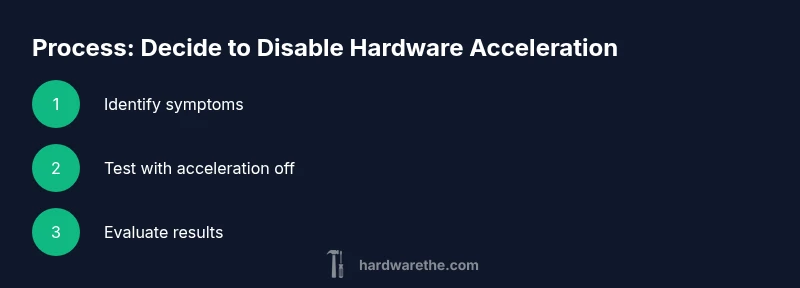
Disable hardware acceleration when you encounter consistent instability: a video keeps stuttering or playing back frames out of sync, a UI freezes during animations, or a program consistently crashes during rendering tasks. On battery-powered devices, acceleration can drain power faster; turning it off may extend run-time and reduce heat. In a browser with a site that uses heavy WebGL or canvas effects, turning off acceleration for testing can determine whether the issue is site-specific or GPU-related. In professional software like CAD or video editors, specific projects with unusual rendering demands may benefit from disabling acceleration to achieve predictable results. If you recently updated GPU drivers and started experiencing new problems, you should test with acceleration off to confirm whether the update caused the issue. Remember, the goal is not to disable acceleration globally forever but to identify a stable configuration that suits your workload.
Tools & Materials
- System backup or restore point(Create before changing GPU or app settings)
- Administrator access(Needed to modify OS/application settings)
- GPU driver version info(Record before making changes)
- List of apps to test(Identify programs to compare performance with acceleration on vs off)
- Browser with hardware acceleration toggle knowledge(Ensure you know how to access Web acceleration settings)
- Screenshots or notes(Document before/after results)
Steps
Estimated time: 15-25 minutes
- 1
Create a backup or restore point
Before touching graphics settings, create a system restore point or full backup to rollback if something goes wrong. This gives you a safe rollback path after toggling hardware acceleration.
Tip: Document the current state and save a quick note with date. - 2
Identify apps and workloads to test
List programs that rely on acceleration (browsers, video players, CAD tools, editors). Define key tasks to compare with acceleration on and off.
Tip: Use a simple test matrix with representative tasks. - 3
Disable acceleration in OS/app settings
Open the appropriate settings panel for each platform and turn off hardware acceleration. Avoid changing multiple settings at once to isolate effects.
Tip: Restart affected apps after changing the setting. - 4
Restart apps and run quick tests
Close and reopen applications to ensure the change takes effect. Run the same tasks as in Step 2 to compare results.
Tip: Capture screenshots or times to quantify differences. - 5
Evaluate performance and decide
Compare smoothness, battery life, and stability. If improvements are clear, keep the change; if not, revert.
Tip: Document final decision with notes. - 6
Re-enable if necessary or pursue drivers
If acceleration is needed for performance, try updating GPU drivers or adjusting vendor settings rather than leaving it off.
Tip: Obtain drivers from the official vendor site and re-test.
FAQ
What is hardware acceleration?
Hardware acceleration uses the GPU to speed up graphics tasks, offloading work from the CPU to render video, animations, and complex UI faster.
Hardware acceleration uses your GPU to speed up graphics tasks, offloading work from the CPU.
Will disabling hardware acceleration improve stability?
In some cases, yes. If the GPU path is unstable due to drivers or hardware, disabling acceleration can improve stability, though it may reduce rendering performance.
Yes, it can improve stability if the GPU path is unstable.
How do I disable hardware acceleration in Windows?
Open the display or graphics settings and look for hardware acceleration or similar GPU options. Turn it off, then restart affected apps.
Go to your display or graphics settings and toggle hardware acceleration off, then restart apps.
How do I disable hardware acceleration in Chrome?
In Chrome, go to Settings > System, turn off 'Use hardware acceleration when available', then relaunch the browser.
In Chrome's settings, disable hardware acceleration and restart.
Should I disable hardware acceleration permanently?
Only if testing shows a clear benefit. Re-evaluate periodically as apps and drivers update.
Only keep off if testing shows a real benefit.
What should I do after disabling hardware acceleration?
Test your critical tasks, monitor stability, and consider driver updates if issues return. Revert if necessary.
Monitor performance and re-enable if stability returns.
Watch Video
Main Points
- Back up before changes.
- Test across apps to compare results.
- Document outcomes to guide decisions.
- Revert changes if results are unclear or negative.