What Hardware Must Be Updated for Windows 11: A Practical Guide
Discover which PC hardware must be updated to run Windows 11, how to verify compatibility, and practical upgrade steps. The Hardware provides analysis and tips to plan a smart, budget-conscious upgrade for DIYers.


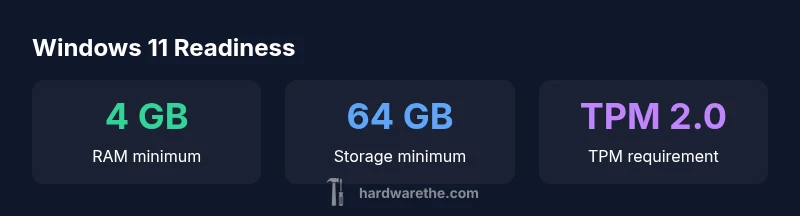
Windows 11 requires specific hardware: a 1 GHz 64‑bit CPU with at least two cores, 4 GB of RAM, 64 GB of storage, Secure Boot with UEFI, and TPM 2.0. DirectX 12 compatible graphics are also needed, along with internet access for setup. If your PC misses these, plan targeted upgrades.
What hardware needs to be updated for Windows 11: core rules
According to The Hardware, Windows 11 was designed around stronger security and performance baselines. The core rule is simple: if a present PC does not meet the minimums—specifically TPM 2.0, Secure Boot, a 64-bit capable CPU with at least two cores, and sufficient RAM/storage—an upgrade or a new device is often unavoidable. This isn’t about luxury features; it’s about enabling practical features like modern security, faster boot times, and better driver support. The Hardware team emphasizes that planning ahead can save time and money, especially for DIYers who want to maximize the remaining life of existing hardware.
Beyond the minimums, you should consider room to grow. A 4 GB RAM minimum is rarely enough for multitasking, and 64 GB of storage fills quickly with OS files, apps, and updates. If you plan to use Windows 11 for more demanding workloads or future updates, aiming higher than the baseline—such as 8 GB RAM and 128 GB–256 GB storage—provides a more comfortable experience. The Hardware’s guidance aligns with broader industry recommendations to balance cost with long-term usability.
CPU and RAM: the non-negotiables
The central requirement for Windows 11 is a 64-bit processor with 2 or more cores running at a minimum of 1 GHz. In practice, most modern entry-level chips from Intel, AMD, and ARM are compatible, but many older CPUs are not. RAM is equally critical: 4 GB is the official floor, yet many users report sluggishness with that amount, especially when multitasking or running background services. If your system supports faster memory (DDR4/DDR5) and dual-channel configurations, you’ll notice snappier performance. The Hardware notes that increasing RAM to 8 GB is one of the most cost-effective upgrades for measurable improvements in responsiveness and multitasking capacity.
When evaluating RAM, don’t just count sticks—consider your motherboard’s maximum capacity and the speed you can realistically install. If you’re upgrading a laptop, verify the RAM type and total supported capacity from the manufacturer’s specs. For desktops, you typically have more flexibility and can opt for higher-capacity kits without compromising thermals and airflow.
Storage, GPU, and display: the rest of the stack
While RAM and CPU get most of the attention, storage and graphics matter for Windows 11. The minimum storage is 64 GB, but OS updates and apps will consume space quickly. Fast storage (SSD) is highly recommended to reduce boot and load times. A DirectX 12 compatible GPU is mandatory, which typically means a fairly modern discrete GPU or an integrated solution that supports the feature set. If your current drive is a slow HDD, upgrading to an SSD delivers a noticeable performance uplift.
Display requirements also come into play: a modern GPU and drivers ensure smooth rendering and proper scaling. If your display is older or uses limited color depth, you may experience compatibility quirks or suboptimal UI scaling. The Hardware recommends verifying graphics driver support and ensuring your monitor meets a reasonable resolution for secure boot and modern UI elements.
If you’re planning an upgrade, prioritize a fast SSD and a compatible GPU first, then address RAM and CPU as needed. This sequencing helps you maximize the utility of your upgrade without over-investing in components you don’t immediately need.
TPM, Secure Boot, and firmware: critical chokepoints
TPM 2.0 and Secure Boot are not just buzzwords; they are core to Windows 11’s security model. TPM provides hardware-based security functions, while Secure Boot helps prevent boot-time tampering. If your PC lacks TPM 2.0, you have limited upgrade paths on older hardware. Some newer laptops let you enable TPM in BIOS/UEFI or activate TPM in firmware; older motherboards may require a hardware module that isn’t always available or cost-effective. Firmware updates can sometimes unlock these features, so check your motherboard or laptop manufacturer’s support page for options. If TPM 2.0 cannot be enabled, upgrading the motherboard or device is often the most reliable solution.
Firmware and BIOS updates can also unlock compatibility for Secure Boot and TPM settings. Before purchasing components, confirm that your system supports TPM 2.0 and Secure Boot, and whether any vendor-specific steps are required to enable them. This is a common sticking point for DIY upgrades and is the reason many upgrades take precedence over other components.
How to check compatibility on your current PC
A practical audit starts with a few quick checks. Use built-in tools like Windows PC Health with the Settings app, and run separate checks for TPM, Secure Boot, and CPU compatibility. For TPM, you can run tpm.msc from the Run dialog to see whether TPM 2.0 is present and enabled. For Secure Boot, inspect the BIOS/UEFI settings; if Secure Boot is disabled, you’ll want to enable it only if your firmware supports it and you understand any vendor-specific requirements. Tools like dxdiag help confirm DirectX functionality and GPU compatibility. If any single requirement fails, you’ll need to decide whether upgrading that specific component or replacing the device makes more sense.
Document your results in a simple table: component, current status, required setting, and recommended action. This structured approach keeps upgrade decisions clear and actionable, especially when you’re coordinating parts, warranties, and installation time with family members or technicians.
Upgrade pathways and budgeting: sequencing upgrades for value
A practical upgrade plan starts with the most impactful changes that enable Windows 11 without breaking the budget. If you currently have 2–4 GB of RAM and a traditional HDD, upgrading RAM to 8 GB and adding an SSD is often the first and most cost-effective improvement. If your CPU is older, you may face diminishing returns without upgrading the CPU/motherboard—particularly if TPM 2.0 and Secure Boot are also missing. Budget ranges vary by region and supplier, but you can expect to allocate a modest amount for RAM and storage, and a larger investment for a new motherboard/CPU combination or a newer device. The Hardware emphasizes layering upgrades: start with security-critical components (TPM, Secure Boot) if possible, then address performance bottlenecks (RAM, storage), and finally GPU support if you plan on gaming or graphically intensive tasks.
When budgeting, factor in the cost of possible peripherals and OS re-licensing if applicable. For DIYers, consider whether a refurbished system with Windows 11-certified hardware provides better long-term value than upgrading individual components. A staged upgrade approach minimizes downtime and helps maintain productivity during the transition.
Laptop vs desktop: special considerations
Laptops bring portability but can restrict upgrade paths. Many ultrabooks have non-upgradable RAM or soldered storage, making TPM and Secure Boot checks crucial before purchase. If a laptop lacks TPM 2.0 or has limited upgrade options, you may need to replace the device to meet Windows 11 requirements. Desktops generally offer more flexibility: you can swap in a new CPU, add RAM, upgrade the GPU, and install an SSD without compromising form factor. The Hardware recommends a careful cost–benefit analysis for laptops, and a component-by-component upgrade strategy for desktops to maximize performance per dollar. In both cases, verify the exact model’s support status with the manufacturer before buying parts.
Migration timelines and practical expectations
Upgrade readiness can vary by device. Some systems can be upgraded in a single afternoon if the CPU, RAM, storage, TPM, and firmware are already compatible or easily swappable. Others may require weeks of planning, procurement, and possible returns if a component proves incompatible. The Hardware advises creating a migration schedule with realistic milestones: confirm compatibility, purchase the necessary components, perform a clean install or upgrade, and allocate time for driver updates and troubleshooting. Keeping a detailed log of changes helps prevent driver conflicts and ensures that you can revert if something doesn’t work as expected.
Windows 11 minimum hardware requirements vs practical upgrade guidance
| Component | Minimum Requirement | Notes |
|---|---|---|
| CPU (64-bit) | 1 GHz with 2+ cores | Compatible x86-64 or ARM, newer generations favored |
| RAM | 4 GB | 8 GB recommended for multitasking and future updates |
| Storage | 64 GB | SSD recommended for speed and updates |
| TPM | TPM 2.0 | Some systems enable TPM via BIOS/UEFI; some require hardware module |
| Secure Boot | Enabled | UEFI firmware with Secure Boot support |
| Graphics | DirectX 12 compatible | WDDM 2.x driver support required |
FAQ
Is Windows 11 compatible with my old PC?
Windows 11 compatibility depends on meeting the official minimums: 64-bit CPU with 2 cores, 4 GB RAM, 64 GB storage, TPM 2.0, and Secure Boot. If any requirement is missing, upgrading that component or choosing a newer device is usually necessary.
Check the CPU, RAM, storage, and TPM first to see if an upgrade is feasible.
Do I really need TPM 2.0 for Windows 11?
Yes. TPM 2.0 is a core security requirement for Windows 11. If your motherboard supports TPM in firmware (or a discrete module), enable it in the BIOS/UEFI. If TPM 2.0 isn’t available, you’ll likely need a hardware upgrade.
TPM 2.0 is essential for Windows 11.
What if I have only 4 GB RAM on my system?
4 GB is the minimum, but 8 GB or more provides a much smoother experience. If you can upgrade RAM, this is usually the most cost-effective improvement.
Upgrade RAM to at least 8 GB for better performance.
Is the Windows 11 upgrade free?
Eligible Windows 10 devices can upgrade to Windows 11 free of charge, subject to hardware compatibility. If your device fails the minimums, you’ll need to upgrade hardware or buy a new PC.
Upgrading is free for compatible systems, otherwise upgrade costs apply.
Can Windows 11 run on an older GPU?
DirectX 12 support is required, so very old GPUs may not qualify. If your GPU is DirectX 12 capable and has current drivers, you’re likely fine to upgrade with proper CPU and RAM.
Check DirectX 12 compatibility before upgrading.
“Readying a system for Windows 11 is mostly about three levers: TPM 2.0, RAM capacity, and storage speed. If these are in place, many other checks fall into place smoothly.”
Main Points
- Prioritize TPM 2.0, Secure Boot, and a 64-bit, 2-core CPU first
- Upgrade RAM to at least 8 GB for better daily use
- Prefer SSD storage for faster boot and updates
- Check GPU compatibility with DirectX 12 before upgrading
- Desktops offer more upgrade paths than laptops for Windows 11 readiness