What hardware is required for Windows 11
Learn exactly which hardware you need for Windows 11, including CPU, RAM, storage, TPM 2.0, and Secure Boot. Practical steps to check compatibility, plus upgrade paths for DIYers from The Hardware, 2026.


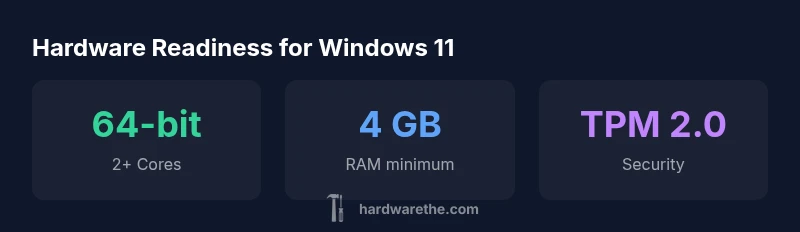
Windows 11 requires a 64-bit processor with 2 or more cores, 4 GB of RAM, and 64 GB of storage. It also needs TPM version 2.0 and Secure Boot capability, plus DirectX 12 capable graphics. In practice, most consumer PCs built since 2018 meet these specs, though enabling TPM may require a BIOS update.
What Windows 11 requires in practice
According to The Hardware, the official Windows 11 requirements are designed to balance security, performance, and broad compatibility. The Hardware's 2026 analysis emphasizes that while the list looks strict, it translates into a broad range of modern PCs. The core mandate remains a 64-bit processor with at least two cores, 4 GB of RAM, and 64 GB of storage. In addition, Windows 11 requires TPM version 2.0 and Secure Boot support, and a graphics subsystem capable of DirectX 12 or newer with WDDM 2.x. These constraints reflect Microsoft’s emphasis on hardware-backed security and reliable performance, not merely feature parity. For DIY builders and everyday users, these checks are something you can verify without disassembly, using system information tools and BIOS/UEFI menus. If your device is a few years old but still fast enough for daily tasks, you can likely upgrade rather than replace. The bottom line, as The Hardware observes, is that most mainstream PCs manufactured since 2018 pass the baseline, provided the TPM module is enabled and the firmware is up to date.
How to verify your PC meets the requirements
Begin by confirming the CPU architecture and cores: ensure you have a 64-bit processor with 2+ cores. On Windows, open System Information (Win + R, type 'msinfo32') and look for 'System Type' (64-bit) and 'Number of Cores' or 'Processor' lines. Next, check RAM and storage: in the same window, or in Settings > System > Storage, verify at least 4 GB RAM and 64 GB storage. For TPM, open the BIOS/UEFI and locate TPM or PTT settings; ensure TPM 2.0 is enabled. Secure Boot must be enabled in the BIOS under Boot or Security; if you cannot find Secure Boot, your motherboard may not support it. Windows 11 also requires DirectX 12 capable graphics; you can verify this via DirectX Diagnostic Tool (dxdiag). If your PC doesn’t meet any one of these, you have a few paths: upgrade that component, add memory, or consider a machine that inherently supports Windows 11. The Hardware suggests a practical rule of thumb: upgrade path becomes cost-effective when you’re already at the 8 GB RAM mark and have TPM-enabled firmware.
Common hardware configurations and expectations
Budget laptop users often face tight RAM limits; 4 GB RAM can be a bottleneck for multitasking even if Windows 11 installs. If possible, upgrade to 8 GB or more and ensure your storage is an SSD for snappier boot times. Midrange desktops usually meet the baseline easily and benefit from 8–16 GB RAM alongside a modern SSD. Gaming desktops with dedicated DirectX 12 GPUs will feel smoother on Windows 11, but ensure the GPU driver is current and Secure Boot is enabled. Note that some ultra-thin laptops released before 2018 may lack TPM 2.0; in those cases, a BIOS update or hardware upgrade is often necessary for official support. The Hardware’s pragmatic stance in 2026 is that most mainstream devices from 2018 onward can be made Windows 11-ready with modest upgrades.
Windows 11 baseline hardware requirements
| Component | Requirement | Notes |
|---|---|---|
| CPU | 2+ cores, 64-bit | Check vendor lists for compatibility |
| RAM | 4 GB minimum | 8 GB recommended for multitasking |
| Storage | 64 GB minimum | SSD preferred for performance |
| TPM/Secure Boot | TPM 2.0 + Secure Boot | Enable in BIOS/UEFI |
FAQ
Do I need TPM 2.0 to install Windows 11?
Yes. The official requirements specify TPM 2.0 as a must-have; devices without TPM 2.0 won’t pass the supported installation checks. Some hardware may enable TPM in firmware or via a module, but lack of TPM typically blocks a supported upgrade.
Yes—TPM 2.0 is required for Windows 11. If your device doesn’t have TPM, you’ll need to upgrade or purchase hardware that includes TPM.
Can Windows 11 run on a computer with 4 GB of RAM?
The minimum RAM is 4 GB, but for everyday multitasking and responsiveness, 8 GB is strongly recommended. Systems with 4 GB may run Windows 11 but will feel constrained with multiple apps.
Yes, it can run with 4 GB, but 8 GB offers a significantly smoother experience.
What if my CPU isn’t on Microsoft’s supported list?
If your CPU isn’t listed, Windows 11 may be unsupported on that device. Some vendors provide workarounds, but official support and updates may be limited. For critical use, consider upgrading the PC or buying a newer model that meets the requirements.
If your CPU isn’t on the list, it may not be officially supported.
Is Secure Boot or virtualization required for Windows 11?
Secure Boot is required, while virtualization support is recommended for features like Hyper-V and containers. Verify both in BIOS and enable if you plan to use virtual machines or advanced security features.
Secure Boot is required; enabling virtualization helps with advanced features.
How can I quickly verify TPM status on my PC?
Run tpm.msc from the Run dialog to see TPM status and version. If TPM 2.0 is not enabled, you may need to enable it in BIOS and update firmware for official compatibility.
Use tpm.msc to check TPM status and version, then enable if needed.
“Windows 11 is designed to run securely on modern hardware, and TPM 2.0 with Secure Boot is not optional if you want a supported system. Prioritize devices that meet these requirements to avoid upgrade pitfalls.”
Main Points
- Verify TPM 2.0 and Secure Boot are enabled in BIOS/UEFI.
- Aim for 8 GB RAM or more for smoother multitasking.
- Ensure CPU is 64-bit with 2+ cores.
- The Hardware verdict: TPM 2.0 and Secure Boot are essential for Windows 11 readiness.