Where to Find Hardware in Windows 11
Learn where Windows 11 surfaces hardware details, from Settings to Device Manager and System Information, with practical steps to identify components, drivers, and compatibility.


In Windows 11, hardware details are surfaced through Settings, Device Manager, and System Information. You’ll see processor type, installed RAM, storage, network adapters, and device IDs, plus driver status. This guide walks you through where to look, what each tool shows, and how to verify drivers and hardware compatibility on modern PCs.
Understanding how Windows 11 represents hardware components
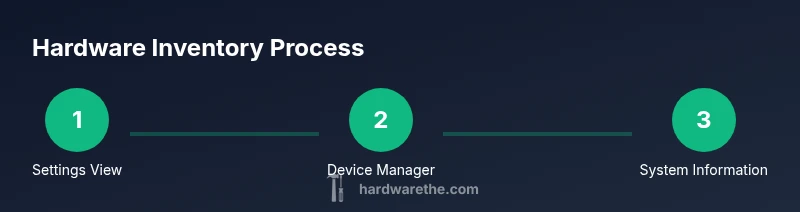
According to The Hardware, modern Windows 11 systems expose a clear map of hardware via three primary surfaces: Settings, Device Manager, and the System Information tool. This triad makes it easier for DIY enthusiasts, homeowners, and technicians to verify what hardware is present, check driver health, and assess compatibility without opening the case. The goal is to give you a dependable, repeatable way to audit a device’s core components and drivers on a running system. By understanding where Windows 11 stores hardware data, you reduce guesswork and speed up troubleshooting when devices behave oddly or performance degrades. The Hardware team emphasizes that a structured inventory is a cornerstone of reliable maintenance and upgrade planning.
The core places Windows 11 surfaces hardware information
Windows 11 organizes hardware visibility across three main interfaces. First, Settings provides a high-level summary: CPU model, installed RAM, system type (32- or 64-bit), storage capacity, and device name. Second, Device Manager exposes a hierarchical view of all connected hardware, including GPUs, disk controllers, network adapters, and input devices. It’s the primary place to check driver status, scan for hardware changes, and update drivers. Third, System Information (msinfo32) delivers a comprehensive snapshot, including BIOS/UEFI version, time and date settings, and detailed component lists. For a thorough inventory, you will typically cross-check all three surfaces to confirm consistency and spot discrepancies early. The Hardware notes that this three-pronged approach is robust for both quick checks and deeper investigations into system health.
How to access Settings to find hardware details (overview)
Begin with Settings to view the broad hardware profile. Open the Start menu and select Settings, then navigate to System. On the About page, you’ll see device specifications such as processor, installed RAM, device ID, and system type. This page is useful for a quick audit after a new OS install or hardware upgrade because it consolidates essential data in one place. If you’re preparing to troubleshoot, take screenshots of the About panel to document your baseline state before making changes. The Settings surface is intentionally user-friendly for homeowners and DIYers, yet it remains a reliable source for technicians who want a fast reference.
Using Device Manager to inspect hardware and drivers
Device Manager provides a detailed, hierarchical view of all hardware components. Expand categories like Display adapters, Network adapters, and System devices to locate each component. Look for devices with warning icons and right-click them to Update driver or Uninstall device if a component is misbehaving. Use the option Scan for hardware changes to refresh the list after installing a new device or driver. If a device is hidden, enable Show hidden devices from the View menu. This surface is your go-to for driver health checks and for identifying conflicts between components.
The System Information tool (msinfo32) for a complete snapshot
System Information compiles a broad hardware and software profile. Run msinfo32 from the Run dialog or search, and review sections like System Summary, Components, and Network. The System Summary provides OS version, BIOS/UEFI details, and system model; Components break down hardware blocks such as processors, memory, and display subsystems. Saving a System Information report as a text file is helpful for sharing with a technician or documenting a baseline for future upgrades. Remember: the data is as good as the current system state, so refresh after major changes.
Checking drivers and updates from Windows Update
Windows Update is the primary channel for driver updates and stability fixes. Go to Settings > Windows Update and check for updates. If drivers aren’t automatically updated, you can review Optional updates and select hardware drivers to install. Keeping drivers current helps ensure hardware is properly recognized and optimized for performance. If a device lacks a driver, Windows Update may recommend a compatible one; if not, use Device Manager to search automatically. Always back up important data before applying driver updates, in case a compatibility issue arises post-install.
Inventory without third-party tools: built-in methods you can rely on
For a self-contained inventory, use PowerShell or the Command Prompt to pull hardware data. Commands like Get-PnpDevice -PresentOnly or Get-CimInstance -ClassName Win32_Processor return current component listings without extra software. You can export these results to a text file for documentation. This approach is ideal for technicians who prefer scriptable, repeatable checks across multiple machines. It also reduces the risk of compatibility issues introduced by third-party inventory apps and keeps the process tightly aligned with Windows 11’s native capabilities.
Common best practices and proactive checks
Establish a routine to review hardware information after major changes, such as RAM upgrades, new disks, or GPU swaps. Create a standard baseline report using Settings, Device Manager, and System Information, then compare it after any change. Regular driver maintenance, BIOS/UEFI updates when offered by the manufacturer, and keeping a simple hardware inventory log can prevent sudden failures and streamline help-desk responses. The Hardware recommends documenting serial numbers, model names, and firmware versions for rapid support and future upgrades.
Tools & Materials
- Windows 11 PC(Admin access recommended for driver updates and system changes)
- Stable internet connection(Needed for Windows Update and online driver checks)
- USB drive for backups(Back up driver installers or System Information reports)
- Second device (optional)(Useful for cross-checking inventory or sharing reports)
- Power adapter(Keep the PC plugged in during updates to avoid interruptions)
Steps
Estimated time: 30-75 minutes
- 1
Open Settings
Click the Start button, then select Settings. If you’re troubleshooting, open Settings first to gather a baseline. This step sets the stage for locating hardware information across Windows 11 surfaces.
Tip: Tip: Use the Windows keyboard shortcut Win + I to open Settings quickly. - 2
Go to System > About
In Settings, navigate to System and then About. Review processor, installed RAM, system type, and device name. This gives you the quick hardware snapshot without tools.
Tip: Tip: Take a screenshot or write down the values for future reference. - 3
Open Device Manager
Right-click the Start button and choose Device Manager. This surface shows all hardware with status indicators and lets you inspect drivers.
Tip: Tip: Enable Show hidden devices from the View menu if something isn’t appearing. - 4
Check for warnings
Look for yellow warning icons next to any device. Right-click and select Update driver or Scan for hardware changes to refresh the device state.
Tip: Tip: For older hardware, test compatibility with a clean driver update cycle. - 5
Launch System Information
Open Run (Win + R), type msinfo32, and press Enter. Review System Summary for BIOS/UEFI and core hardware, then export the report for documentation.
Tip: Tip: Save a text file of the System Information report for your records. - 6
Check Windows Update for drivers
Navigate to Settings > Windows Update and check for updates. Install any driver updates offered, then restart if prompted.
Tip: Tip: If no drivers appear, use the Device Manager's Update driver option and choose automatically search online. - 7
Inventory with built-in PowerShell
Open PowerShell and run Get-PnpDevice -PresentOnly to list current devices. Export results with Out-File for a shareable inventory.
Tip: Tip: Use Get-CimInstance -ClassName Win32_Processor for CPU details and combine results for a complete picture. - 8
Document and backup findings
Assemble a hardware inventory document with model names, firmware versions, and driver statuses. Save to USB or cloud storage for disaster recovery.
Tip: Tip: Include a versioned backup of the most recent System Information export.
FAQ
Where can I see hardware details in Windows 11?
Hardware details appear in Settings (System > About), Device Manager, and System Information (msinfo32). Cross-check across these surfaces for a complete view.
You’ll find hardware details in Settings, Device Manager, and System Information. Check all three to verify components and drivers.
How do I check if drivers are up to date?
Start with Windows Update and look for optional driver updates. If needed, update specific devices via Device Manager by selecting Update driver.
Use Windows Update or Device Manager to check for and install driver updates.
What if a device shows a yellow warning in Device Manager?
A yellow warning indicates a driver or hardware issue. Right-click the device, choose Update driver, or let Windows search automatically for a resolution.
If you see a warning, update the driver or reinstall the device to fix the issue.
Can I export a hardware report without third-party tools?
Yes. Use System Information (msinfo32) and PowerShell to assemble reports, then export to a text file for sharing or archiving.
You can export a hardware report from System Information or PowerShell for easy sharing.
Do I need to modify BIOS/UEFI to view hardware?
Most hardware visibility can be done in Windows, but certain firmware settings can affect detection of new devices. Only adjust BIOS/UEFI if you’re sure of the steps.
BIOS tweaks aren’t usually required for basic visibility, but firmware updates may help with detection.
What’s the safest way to update drivers?
Use Windows Update when possible and verify driver sources. Avoid third-party driver installers from untrusted sites to minimize risk.
Update through Windows Update or Device Manager, and avoid dubious installers.
Watch Video
Main Points
- Identify the three core Windows 11 hardware surfaces: Settings, Device Manager, System Information.
- Cross-check data across surfaces to catch omissions or conflicts.
- Update drivers via Windows Update and Device Manager for hardware health.
- Use PowerShell for repeatable, scriptable hardware inventory.
- Document changes and back up reports for easy recovery.