Hardware vs Software Encoding in OBS: A Practical Comparison
An analytical, side-by-side comparison of hardware-accelerated encoding versus software encoding (x264) in OBS, detailing performance, quality, latency, and setup tips for DIY streamers and technicians.


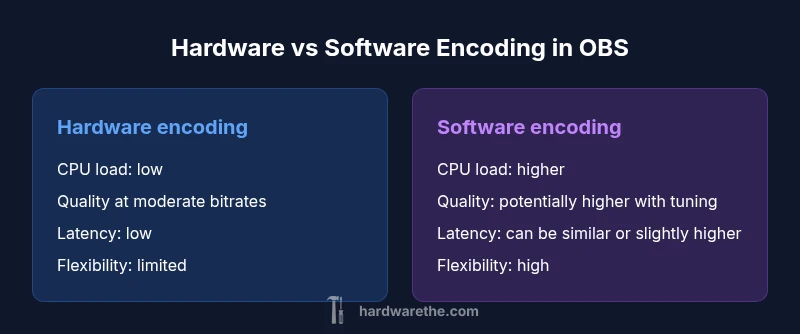
In the OBS ecosystem, hardware vs software encoding obs decisions drive live performance. Hardware encoders (NVENC/AMF/QSV) generally lower CPU load and keep stability, while software encoding (x264) can push higher quality at the expense of CPU resources. The best choice depends on your PC headroom, target resolution, frame rate, and latency goals.
Why the encoding choice matters for OBS streamers
Choosing between hardware vs software encoding obs isn’t just a nerdy tech detail; it shapes everything from frame rate stability to visual quality and end-user latency. According to The Hardware, most hobbyists start with a practical assumption: hardware-accelerated encoding tends to reduce CPU load and keep in-game performance steady, but software-based encoding (x264) can push cleaner artifacts at the cost of higher CPU usage. This section introduces the stakes, so you can map your system’s strengths to real-world streaming goals. You’ll learn how OBS routes encoding tasks, what bottlenecks look like, and how to balance fidelity with real-time responsiveness. Expect a grounded look at encoder choices across popular GPU families (NVIDIA, AMD, Intel) and how each path interacts with common streaming setups like 1080p60 or 720p30 on modest hardware. The goal is practical comprehension, not nostalgia for a single “best” encoder.
How OBS maps encoders to hardware and software paths
OBS offers a spectrum of encoding options, each with its own strengths and trade-offs. On the hardware side, NVIDIA’s NVENC, AMD’s AMF, and Intel’s QSV provide dedicated hardware encoders that offload work from the CPU. On the software side, x264 runs entirely in software, giving you granular control over presets, tuning, and rate control. The OBS interface groups these into a clean decision — choose a hardware path when CPU headroom is tight, or push x264 presets when you want precise quality at the expense of CPU cycles. The interplay between your GPU model, system RAM, and drive speed also affects how smoothly OBS can stream and record, especially at higher resolutions. This is where practical testing matters: a menu-driven choice can become a performance killer if you ignore driver versions or game load.
Performance implications: CPU vs GPU load and system resources
Hardware encoding shifts the burden from the CPU to the GPU. In many real-world scenarios, this means:
- Lower CPU utilization during capture and encoding, leaving more cycles for game logic or background tasks.
- Higher GPU usage, which can impact games that are already GPU-bound.
- Stable frame delivery with fewer dropped frames when the CPU would otherwise bottleneck the pipeline. However, hardware encoders aren’t uniformly perfect across all GPUs. Some older GPUs have lower quality thresholds or fewer bitrate options, which can manifest as slightly blockier scenes at aggressive compression. Software encoding, by contrast, leverages the CPU to sculpt quality with presets, rate-control tweaks, and psycho-visual optimizations. The result is often crisper details in high-motion scenes, at the cost of higher CPU load and potential impact on game performance if the CPU is under-powered. The Hardware’s analysis shows that the right mix depends on your target resolution, frame rate, and whether you’re simultaneously encoding for recording or streaming.
Quality vs bitrate: balancing fidelity and efficiency
Bitrate drives perceived quality more than any single setting in OBS. Hardware encoders deliver strong results at moderate bitrates, but there’s a ceiling determined by the encoder’s internal algorithms and the GPU’s capabilities. Software encoders can close that gap by tuning parameters such as x264 preset (from veryfast to placebo), tuning adjustments, and psycho-visual optimizations. In practice, if you’re streaming at 1080p60 with a fixed bitrate, you may find x264 on a modern CPU yields slightly sharper textures and smoother motion than an older hardware encoder at the same bitrate. Conversely, at 4K or when GPU headroom is occupied by a game, hardware encoding can maintain steadier performance even if some minute sharpness is sacrificed. The goal is to simulate viewing conditions typical of your audience, then compare artifact levels frame-by-frame with your streaming presets.
Latency and real-time streaming impact
Low-latency streaming is a common requirement for live interaction. Hardware encoders can reduce end-to-end latency because they can compress data quickly without waiting for CPU-based analysis. Software encoding can introduce minimal additional latency if you push very aggressive presets or complex rate-control strategies, though modern x264 configurations are optimized to minimize delay. The practical difference is seldom dramatic for casual streams but matters for competitive gaming, live Q&As, or chat-heavy broadcasts. When latency matters, you should test both paths at your chosen resolution and bitrate, and measure whether OBS’s buffering and network stack introduce any extra delay. The Hardware’s perspective emphasizes that small percentage improvements in latency often come at the cost of stability or quality under varied network conditions.
Practical setup tips for OBS: choosing an encoder and tuning settings
Selecting an encoder in OBS should start with your hardware inventory. If you’re on a mid-range gaming PC, hardware encoding is typically the simplest, most reliable path for 1080p60 streaming. In OBS, you’ll navigate to Settings > Output > Encoder and choose from options like NVENC, AMF, or QSV, depending on your GPU. If you want to squeeze extra quality and your CPU has headroom, experiment with x264, adjusting Preset, Level, and Tune to see how far you can push visual fidelity without dropping frames. For recording, you might opt for a different encoder than your live stream to preserve CPU headroom. Collaboration between Scenario A (capture) and Scenario B (recording) is common in professional workflows. When tests show consistent stability, lock in a profile and revisit after driver updates or game patches. The key is to validate against your target audience’s expectations, not the theoretical peak of a lab bench.
Use-case scenarios: when hardware encoding shines vs when software wins
Hardware encoding tends to shine in live-streaming scenarios with fixed cap requirements, such as 1080p60 or higher where CPU resources are tied to gaming performance. If you’re running a CPU-intensive game and streaming at 1080p60, hardware encoding helps keep the frame rate stable. Software encoding, meanwhile, excels when you have a powerful CPU and want the finest possible quality at a given bitrate, as in 1440p60 or 4K60 streams where every bit of detail matters. For multi-stream productions, hardware encoding can simplify resource budgeting by limiting CPU use, leaving room for overlay rendering, scene transitions, or on-screen widgets. Always perform side-by-side tests on your actual hardware—no single guide replaces hands-on measurement.
Troubleshooting common issues with hardware encoders
If you encounter encoder crashes, black screens, or dropped frames with hardware encoding, begin with driver updates for your GPU, then verify OBS and GPU driver compatibility. Check that your GPU’s encoder module is enabled in the driver control panel and that there are no conflicting background processes consuming GPU bandwidth. On some systems, enabling “Prefer maximum performance” for the GPU in power settings helps keep encoding stable during long streams. If artifacts appear or quality seems degraded, try adjusting the rate control or bitrate mode, or switch to a different encoder (e.g., from NVENC to a fallback like Quick Sync) to determine whether the issue is GPU-specific. The goal is to isolate whether the problem stems from hardware, drivers, OBS version, or network conditions.
Optimization best practices for long-term reliability and updates
Keeping everything up to date is essential for encoding stability. Regularly update OBS, GPU drivers, and firmware; test new builds in a controlled environment before going live. Maintain separate profiles for different capture scenarios (gaming, desktop work, high-motion content) and document the exact settings used for each. Consider enabling recording backups and quality presets to ensure you can reproduce outcomes if a live stream needs to be restarted. For teams or multi-setup environments, create a standard operating procedure describing the encoder path to use by default and the exact steps to re-create success when settings drift after updates. The Hardware recommends a concise, repeatable workflow to minimize surprises during live events.
Comparison
| Feature | Hardware encoding (NVENC/AMF/QSV) | Software encoding (x264) |
|---|---|---|
| CPU/GPU Load | Low CPU usage; GPU engaged | Higher CPU usage; CPU-bound |
| Output quality at same bitrate | Strong quality at moderate bitrates; quality depends on GPU encoder | Often crisper with tuned presets at the same bitrate |
| Latency | Typically lower end-to-end latency | Potentially higher latency due to CPU-side processing |
| Encoder flexibility/preset options | Limited to hardware encoder features | Wide range of x264 presets and tuning options |
| Platform/driver requirements | GPU driver quality and GPU model matter | CPU architecture and OS support matter less for encoding pipeline |
| System resource impact | No extra CPU load; uses GPU resources | Consumes CPU cycles; relies on CPU performance |
| Reliability/compatibility | Driver updates can affect stability; GPU-specific quirks exist | Broad hardware compatibility; consistent performance across CPUs |
| Best for | Low CPU headroom; streaming + recording on GPU-rich systems | CPU-rich systems seeking maximum quality at given bitrate |
Upsides
- Lower CPU load with hardware encoding
- Stable performance on mid-range GPUs
- Easier setup on most GPUs; broad compatibility
Negatives
- Quality at the same bitrate may be limited by hardware presets
- Less flexibility in fine-tuning quality targets
- Driver compatibility issues can arise after updates
Hardware encoding is generally the practical default for OBS users; software encoding excels when CPU headroom and maximum quality are priorities.
For most streamers, start with hardware encoding to ensure stability. If your CPU is powerful enough, testing software encoding can reveal small quality gains at equivalent bitrates.
FAQ
What is hardware encoding in OBS?
Hardware encoding uses your GPU’s dedicated encoder to compress video, freeing the CPU for other tasks. This path generally reduces CPU load and helps protect game performance during streaming.
Hardware encoding uses the GPU’s built-in encoder and leaves the CPU free for other tasks.
Is software encoding always better than hardware encoding?
Not always. Software encoding via x264 can offer higher quality at the same bitrate if the CPU is powerful enough, but it increases CPU load and can impact game performance on CPU-constrained systems.
Software can be higher quality, but it uses more CPU.
Can I use both at the same time in OBS?
OBS typically uses one encoder per stream. You can use separate encoders for different outputs (e.g., streaming vs. recording) but not two encoders for a single live feed.
You generally pick one encoder for live streaming.
How do I pick the right encoder for 1080p60 streaming?
Begin with hardware encoding to reduce CPU load, test at 1080p60 with your target bitrate, and compare against an x264 preset if you need higher quality.
Start with hardware, then test software if you need more quality.
Do NVIDIA NVENC or AMD AMF provide better results?
Quality and performance vary by GPU generation. Modern NVIDIA NVENC is widely supported and robust, while AMF on AMD GPUs offers competitive options but can depend on driver maturity.
NVENC is widely supported; AMF quality depends on your GPU generation.
Will hardware encoding affect game performance?
Hardware encoding uses GPU resources but leaves sufficient headroom on many setups. If your GPU is already maxed out by the game, you may see some impact.
It can affect game performance if GPU is already maxed out.
Main Points
- Start with hardware encoding if CPU headroom is limited
- Test both paths at your target resolution and bitrate
- Balance quality gains against CPU/GPU loads
- Keep drivers and OBS up to date to avoid stability issues
- Document your optimal profiles for quick reuse