Hardware vs Software Encoding in OBS: A Practical Guide
Explore OBS encoding options: hardware vs software encoding. Learn how to optimize for performance, quality, and reliability with practical setup tips and real-world scenarios.


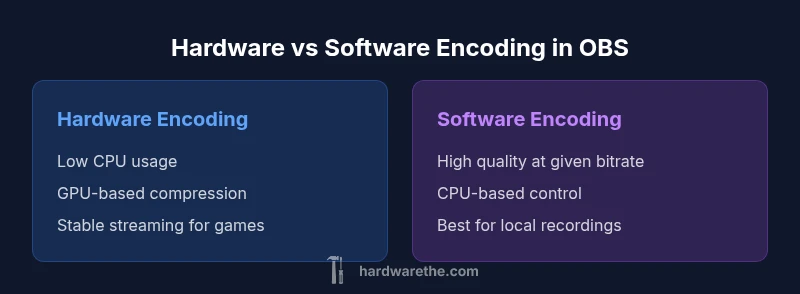
Hardware encoding in OBS typically delivers the best streaming performance by offloading work to a dedicated encoder on your GPU, reducing CPU load and heat. Software encoding uses your CPU (x264/x265) and offers flexibility, sometimes at the cost of higher CPU usage. The right choice depends on your hardware, desired quality, and whether you prioritize smooth gameplay or maximum control.
Defining OBS Encoding: Hardware vs Software
In Open Broadcaster Software (OBS), encoding is how raw video frames are compressed into a stream of data that can be sent to a viewer or saved to disk. There are two primary paths: hardware encoding, which leverages a GPU's dedicated video encoder, and software encoding, which runs on the CPU using encoders such as x264 or x265. The distinction matters because it changes where the workload runs, how much heat your system generates, and the final visual quality at a given bitrate. When we talk about hardware or software encoding OBS, we are describing two strategies to compress and distribute video streams or recordings while balancing performance and fidelity. The hardware path offloads most of the heavy lifting to the GPU, freeing the CPU to manage game logic, overlays, and streaming software overhead. The software path uses the central processing unit to perform compression, often delivering very precise control over bitrate, motion, and color, but at the expense of CPU resources. The choice should be guided by your hardware capabilities, your target resolution and frame rate, and whether you prioritize uninterrupted gameplay over maximum image perfection.
How Hardware Encoding Works in OBS
Hardware encoders reside inside modern GPUs. In OBS you’ll typically see options labeled NVENC (NVIDIA), Quick Sync (Intel), or VCE/AVC (AMD). Selecting one of these tells OBS to send video frames directly to the GPU’s encoder. The GPU handles compression and outputs a stream or file without tying up the CPU. This approach preserves CPU headroom for other tasks such as game engines, scene transitions, or live effects. Because the encoding is performed by dedicated hardware, you generally experience lower CPU usage and cooler system operation during streaming. However, the quality envelope and available presets vary by vendor and driver version. Some hardware encoders impose slight color space or chroma subsampling constraints compared with software encoders, which can manifest as subtle differences in gradients or fast-motion scenes. The practical result is that hardware encoding is often the best choice when you need consistent performance on mid-range hardware, or when you’re streaming while gaming under time pressure.
How Software Encoding Works in OBS
Software encoding relies on the CPU, typically via x264 (and for higher efficiency, x265). With software encoding you gain fine-grained control over compression settings, including CPU preset (ranging from ultrafast to very slow), rate control, and psycho-visual tuning. When you run x264, OBS distributes the encoding workload across CPU cores, allowing for excellent image quality at many bitrates, particularly in scenes with complex motion or subtle color gradients. The trade-off is higher CPU usage, which can compete with game rendering or other streaming tasks. If your CPU is strong and thermally capable, software encoding can surpass hardware quality at the same bitrate, especially with slower presets and careful tuning. Software encoders also tend to have fewer limitations regarding color depth and chroma subsampling. The key is to balance preset, bitrate, and scene complexity; in some setups, software encoding produces smoother textures and more faithful color representation in challenging footage.
Performance Implications: CPU, GPU, and Thermal Considerations
Choosing hardware or software encoding changes three main variables: CPU load, GPU utilization, and system temperature. Hardware encoding usually keeps the CPU free to run the game and overlays, which means fewer frames dropped and steadier gameplay during streaming. The GPU encoder handles compression, but if you’re streaming at high resolutions or using many GPU-accelerated effects, the GPU itself may become a bottleneck. In that case, you may notice reduced gaming performance or frame pacing issues. Software encoding shifts the burden to the CPU; on a multi-core, well-cooled processor, that can be manageable, and you may enjoy slightly better image quality at a given bitrate. However, if the CPU is already taxed, you can experience encoding-induced stutter or higher system temperatures. The optimal choice often hinges on a balance between game performance and stream quality, along with long-term reliability under sustained recording sessions.
Quality and Latency Differences You Might See
Quality and latency are the core trade-offs. Hardware encoders are designed to minimize CPU load and can deliver very low-latency streams with modern presets, but the compression algorithm may be less flexible than x264/x265 in extreme scenes. Software encoding offers more room to push image quality through slower presets, larger motion-adaptation parameters, and advanced features like psychovisual tuning, at the cost of higher CPU demand. In practice, many streamers report comparable visual quality between the two paths at standard streaming bitrates; differences become more noticeable when you push for the best possible quality in challenging scenes, or when recording locally with minimal compression. Latency is often influenced by the encoder’s internal buffering and the rest of your OBS pipeline (scene transitions, filters, and monitor capture). For live streaming, hardware encoding can provide the most reliable low-latency path, while software encoding can win for high-fidelity local recordings or for content with complex motion.
Practical Setup: How to Enable and Tune in OBS
Starting with a clean OBS profile makes the comparison easier. In OBS, go to Settings > Output. Under Encoder, choose either a hardware option (for example, NVENC or Quick Sync) or a software option (typically x264). For streaming, select a rate control method that suits your content and target audience: constant bitrate (CBR) is common for live streams, while variable bitrate (VBR) can be advantageous for recordings, though some platforms prefer CBR for consistency. Adjust bitrate to match your target platform’s guidelines and your internet upload speed, and pick a balanced preset: hardware presets often emphasize speed and stability, while software presets can be tuned toward quality with slower options. Enable B-frames if available and ensure color format matches your capture source. Finally, run a short test broadcast or recording session with a few representative scenes to verify stability, visual quality, and CPU/GPU load, taking notes on any stutter, dropped frames, or color differences between encoders.
Common Scenarios: When to Pick Each Option
For casual streaming on a modest rig, hardware encoding is usually the safer choice because it minimizes impact on game performance. If you’re running a demanding game or multi-monitor setup, hardware encoding can provide a stable, low-overhead stream with minimal frame drops. If you’re a creator focusing on maximum image quality for offline recordings or platform-specific uploads, software encoding with a slower x264 preset can yield the very best fidelity, provided your CPU can sustain the load. Content creators with strong CPUs and cooler systems might prefer software encoding to exploit advanced options like psychovisual tuning and larger motion vectors. Finally, if you frequently switch between streaming and recording the same scene, test both paths in your typical workflow; you may find that the same machine handles hardware encoding for streaming and software encoding for high-quality local captures without compromise.
Pitfalls and Troubleshooting Common Issues
Compatibility and driver issues are common with hardware encoders; ensure you have the latest GPU drivers and that OBS is up to date. If you notice encoding failures, check your GPU load and memory usage; a GPU at capacity can produce artifacts or dropped frames. For software encoding, keep an eye on CPU temperatures and throttling, and consider a faster preset if your heat limits are reached. Some users experience color or gamma mismatches when switching encoders; verify color spaces and color range in both OBS and your capture sources to ensure consistency. If your streaming platform reports inconsistent bitrate or buffering, try forcing CBR or lowering resolution or frame rate. Finally, run a controlled A/B test by streaming the same content with each encoder to quantify differences and ensure the choice aligns with your performance goals.
Real-World Examples and Best Practices
This section translates theory into practice. Case A: A gamer with a mid-range GPU streaming at 1080p60 uses hardware encoding (NVENC) to preserve CPU headroom for the game while maintaining a stable stream. After a few tests, the user settled on a bitrate and preset that balanced quality and stability, with GPU temps acceptable under long sessions. Case B: A creator with a high-end CPU and a powerful GPU records high-quality local content using software encoding with a very slow x264 preset. The recording looks excellent, particularly in fast-motion scenes, but the user monitors CPU temperatures and ensures adequate cooling to sustain longer edits. In both cases, small adjustments to bitrate, preset, and keyframe timing dramatically improved results. The key takeaway is to validate encoder choices against your actual workload and streaming platform requirements.
Comparison
| Feature | Hardware Encoding (OBS) | Software Encoding (OBS) |
|---|---|---|
| CPU Usage | Low CPU impact; workload shifts to GPU | High CPU usage; depends on CPU power |
| Quality/Bitrate Flexibility | Quality tied to hardware presets | Greater manual control with x264/x265 presets |
| Latency | Typically lower, optimized for streaming | Can be higher if CPU is bottleneck |
| System Requirements | Requires compatible GPU encoder; drivers matter | Requires strong CPU and adequate cooling |
| Heat and Power | Lower CPU heat; GPU bears encoding load | Higher CPU heat with potential throttling |
| Setup Complexity | Often plug-and-play with presets | More tuning for optimal x264/x265 results |
| Upgrade Path | Upgrade GPU to improve hardware encoding | CPU upgrades may unlock better software encoding |
| Best For | Gaming streams; low-latency needs | High-fidelity recordings; complex scenes |
Upsides
- Low CPU usage with hardware encoding frees CPU for game logic
- Stable performance on mid-range systems
- Flexible quality control with software encoding on strong CPUs
- Easier to upgrade via GPU changes
Negatives
- Hardware encoders may have color/subsampling limitations
- Software encoding demands a capable CPU and cooling
- Hardware encoders depend on driver support and may vary by GPU
- Occasional artifacts on certain fast-motion scenes with some hardware paths
Hardware encoding generally offers the best streaming stability; software encoding shines for peak quality when the CPU can spare cycles.
If you stream mainly while gaming, start with hardware encoding to preserve CPU headroom. Switch to software encoding if you need maximum quality and your CPU can sustain the load.
FAQ
What is OBS hardware encoding?
OBS hardware encoding uses the GPU’s dedicated video encoder to compress video. It offloads work from the CPU, reducing workload and heat while preserving gaming performance. The trade-off can be slightly less color precision in some scenarios compared to software encoding.
Hardware encoding uses your GPU's built-in encoder, freeing the CPU for game tasks. It’s usually the smoother path for streaming on mid-range systems.
Is hardware encoding better for gaming streams?
For most gaming streams, hardware encoding provides stable performance with lower CPU load. If your GPU is capable and drivers are current, you can achieve smooth streams even when gaming at high settings. If you need maximum quality, software encoding may edge ahead depending on CPU power.
Yes, hardware encoding is typically better for gaming streams because it keeps the CPU free for gameplay.
Can I switch encoders mid-stream in OBS?
Yes, OBS allows you to switch between hardware and software encoders, but doing so mid-stream can introduce brief interruptions. It’s best to test transitions during a non-critical session and pick a default that matches your usual workload.
You can switch encoders, but test first to avoid interruptions during live streaming.
Do I need the latest drivers to use hardware encoding?
Yes. Keeping GPU drivers up to date improves stability and encoder performance. Outdated drivers can cause artifacts or crashes when using hardware encoders in OBS.
Yes—update your GPU drivers to ensure hardware encoding works reliably.
Is software encoding always higher quality?
Not always. Software encoding can achieve higher quality at a given bitrate on a strong CPU, but modern hardware encoders close much of the gap. Your content and scene complexity will influence which path looks best.
Software can be higher quality if your CPU is strong, but hardware has closed the gap in many cases.
What about recording vs streaming?
For streaming, hardware encoding often provides stability with low CPU usage. For local recording, software encoding can maximize quality if your CPU can handle it, especially with slow x264 presets and advanced options.
Use hardware for streaming; software for high-quality local recordings if your CPU can handle it.
Main Points
- Test both paths with your typical scenes
- Use hardware encoding for steady streaming on mid-range rigs
- Opt for software encoding when CPU headroom and quality matter
- Keep drivers up to date for best encoder compatibility