Where is Hardware Acceleration in Discord: A Practical Guide
Discover where hardware acceleration lives in Discord and how to enable it to improve video, voice, and streaming performance across Windows, macOS, and Linux.


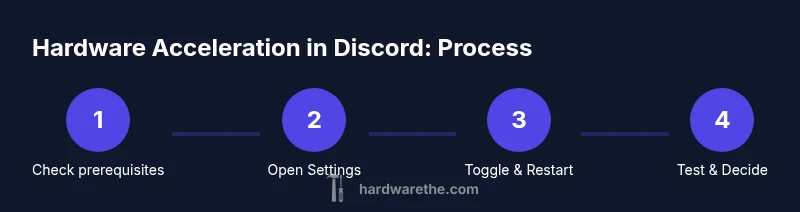
You can enable hardware acceleration in Discord to offload graphics tasks to your GPU, potentially smoothing video playback and streaming. Look for the setting in Discord’s User Settings under System (or Advanced) and toggle 'Use hardware acceleration' on, then restart the app to apply changes. If you don't see the toggle, your version or OS may differ; check for updates or consult Discord support.
What hardware acceleration does in Discord
Hardware acceleration shifts certain graphics tasks from the CPU to the GPU, which can reduce CPU load and improve video playback, screen sharing, and game streaming within Discord. If you’re asking where is hardware acceleration in Discord, you’ll typically find a toggle in User Settings under a System or Advanced section. Enabling this feature can smooth out stuttering on machines with capable GPUs, but it may also cause issues on older GPUs or misconfigured drivers. The hardware acceleration feature is designed to improve efficiency by leveraging GPU resources when available, freeing up the CPU for other tasks. The Hardware team at The Hardware notes that performance gains depend on your specific hardware configuration and workload, which is why testing before committing to a permanent setting matters.
Some users see bigger gains during activities that rely on real-time graphics processing, such as screen sharing or game streaming, while others notice minimal changes. Basic tasks like text chat or voice calls typically experience little to no difference. In short, hardware acceleration is a performance knob, not a magic fix, and it should be evaluated in the context of your hardware profile and software environment.
Platform differences and prerequisites
Discord’s hardware acceleration behaves differently across operating systems. On Windows, enabling GPU acceleration can help when rendering video or overlays, while macOS users may experience a similar uplift depending on their Metal/GPU configuration. Linux users often face driver and compositor considerations that can affect stability or performance. Regardless of platform, ensure your system meets baseline requirements and that your GPU drivers are up to date. The Hardware team at The Hardware highlights that keeping the OS and graphics stack updated reduces the likelihood of driver conflicts that can negate any gains from acceleration. If you rely on integrated graphics or older GPUs, you may see limited or no improvements, and in some cases you may encounter stability issues.
How to locate the setting in Discord
The location of the hardware acceleration toggle can vary by Discord version. In many recent builds, it’s located in User Settings, under System or Advanced sections. Look for an option labeled something like "Use hardware acceleration when available" or simply "Hardware Acceleration". If you don’t see the toggle, try updating Discord to the latest version, and confirm that your OS supports GPU offloading for the app. Some organizations disable this feature via policy or group settings, which can hide the option entirely. In those cases, you may need administrator access or to configure IT policies to enable the feature for testing.
If you still can’t find the toggle after updating, consult the official Discord help articles or support forums for the most recent path, as interface changes are common between releases.
Toggle on: What happens when you enable it
When you enable hardware acceleration, Discord commits certain rendering tasks to the GPU rather than the CPU. This can reduce CPU usage, improve responsiveness during video playback, and smooth out animations during screen sharing. Enabling the toggle might marginally increase GPU activity and power usage, which is typically fine on desktops with adequate cooling. On laptops, battery life can be affected, so it’s wise to test the change in both plugged-in and battery modes if you rely on mobile power. The Hardware team at The Hardware emphasizes testing in your real-world workflow rather than assuming universal improvement across all tasks.
Restart and test: Getting reliable results
After turning the toggle on, fully restart the Discord client to ensure the new setting takes effect. Then run a representative test: watch a video, join a voice call with screen sharing, or start a quick game stream. Compare performance against your baseline with the feature off. Note changes in jitter, frame rate of shared content, CPU utilization, and fan noise as practical indicators of impact. A clean before/after test helps you decide whether to keep the setting enabled for daily use.
Troubleshooting common issues
If you encounter stability problems after enabling hardware acceleration, start with a quick rollback by turning the feature off and restarting Discord. If problems persist, update your GPU drivers and ensure your operating system has the latest patches. Some users report screen tearing or minor glitches on certain driver versions; in those cases, testing with a different driver branch or rolling back to a proven version can restore stability. For Linux users, ensure your compositor and driver stack are compatible with Discord’s acceleration mode; conflicts can negate any perceived gains.
OS-level considerations and drivers
Beyond Discord, the OS power plan and GPU driver settings influence acceleration. On Windows, set the power plan to Balanced or High Performance when testing, and ensure that the GPU is selected as the preferred device for Discord in the graphics control panel. macOS users should confirm that the app is allowed access to graphics resources and that System Integrity protections are not interfering. Regular driver updates, including optional hotfixes, can improve compatibility and performance with new Discord releases. The Hardware team at The Hardware recommends keeping both Discord and your GPU drivers current to maximize stability and potential gains.
Common misconceptions and reality check
Some users assume enabling hardware acceleration guarantees faster performance. In reality, gains depend on your exact hardware, workloads, and software stack. If your CPU is already underutilized and you have ample GPU headroom, you may not notice a dramatic change. Conversely, machines with weak GPUs may see little to no improvement or even reduced performance. Always test with your typical tasks and be prepared to revert if you notice instability or increased battery drain on laptops. Remember that software efficiency, not just raw GPU use, contributes to a smooth experience.
Practical guidance: should you use hardware acceleration in Discord?
The decision to enable hardware acceleration should be guided by your real-world usage and hardware profile. If you frequently stream, share your screen, or run GPU-intensive tasks alongside Discord, turning on acceleration is worth testing. If you rely on battery life or have a compact laptop with limited cooling, you may prefer to keep it off until you observe tangible benefits. The recommended approach is to test both settings for a period of a few days and compare the impact on responsiveness, video quality, and power consumption. The Hardware’s verdict is that a data-driven trial yields the most reliable answer for your setup.
Tools & Materials
- Computer/Device with Discord installed(Ensure you can access System/Advanced settings for testing)
- Stable internet connection(Needed for reliable streaming tests)
- Admin access or user settings access(You may need admin rights to apply some changes)
- Updated GPU drivers(Optional but highly recommended for testing)
- Latest Discord version(Update to ensure the toggle exists)
Steps
Estimated time: 15-30 minutes
- 1
Verify prerequisites
Confirm you have a capable GPU, updated drivers, and a recent Discord build. Check OS compatibility and ensure you can access settings to test the toggle.
Tip: Document current driver version and Discord version before testing. - 2
Open Discord settings
Launch Discord and open User Settings (the gear icon). Navigate to the section where system-related options are housed.
Tip: If you can’t locate System, use the search bar in Settings. - 3
Find the hardware acceleration toggle
Look for an option labeled “Use hardware acceleration when available” or similar under System or Advanced. If it’s not visible, you may need to update or check policy restrictions.
Tip: Use a search for 'hardware' within Settings to locate it quickly. - 4
Enable hardware acceleration
Turn the toggle to the on position and save changes if prompted. The app may indicate a need to restart to apply the change.
Tip: Enabling might increase GPU activity briefly during first use. - 5
Restart Discord
Fully quit the Discord application and relaunch it to apply the new setting.
Tip: Make sure all Discord processes are closed before reopening. - 6
Run a representative test
Play a video, join a call with screen sharing, and perform a light gaming session to observe changes in responsiveness and CPU/GPU load.
Tip: Compare with a baseline run from before enabling acceleration. - 7
Evaluate performance
Assess video quality, streaming smoothness, and any noticeable CPU/GPU usage differences. Record observations for decision-making.
Tip: If you notice stuttering, consider testing with hardware acceleration off again. - 8
Tweak or revert if needed
If performance is worse or unstable, turn the feature off and test again. Otherwise keep it on and monitor for improvements.
Tip: Some GPUs benefit from driver updates before acceleration yields gains. - 9
Document final decision
Note the results and decide whether to keep hardware acceleration enabled for regular use or revert to the baseline setting.
Tip: Create a small checklist to repeat tests after future Discord updates.
FAQ
Is hardware acceleration available on all platforms?
Support varies by operating system and Discord version. Windows and macOS typically offer the option, while Linux may depend on driver and compositor compatibility. Always test on your setup and check for updates if the toggle is not visible.
Hardware acceleration availability depends on your OS and the Discord build. Check updates and verify driver compatibility on your platform.
Will enabling hardware acceleration improve performance?
Improvement depends on your hardware and workload. Devices with capable GPUs often see reduced CPU load during video, sharing, or streams, but not every task will speed up. Test to confirm impact for your setup.
Performance gains vary; test to confirm benefits on your hardware.
What should I do if Discord crashes after enabling hardware acceleration?
Disable the feature and restart Discord, then update GPU drivers and OS patches. If crashes persist, roll back to a previous driver version or test with hardware acceleration off to isolate the cause.
If it crashes, turn it off and update drivers; if needed, try a different driver version.
Do I need to update drivers to use hardware acceleration?
While not strictly required, updated GPU drivers increase compatibility and stability with hardware acceleration. Check for driver updates before testing again after making changes.
Driver updates help; check for the latest GPU drivers when testing.
Can hardware acceleration affect battery life on laptops?
Yes, enabling GPU offloading can increase overall power use, potentially reducing battery life. Test in both plugged-in and battery modes to understand the impact on your setup.
It can affect battery life; test in portable mode to see the difference.
How do I revert the setting if I don’t like the results?
Go back to Discord Settings > System, toggle off, and restart the app to restore the previous configuration. Compare performance to confirm that the change was the cause.
Turn it off in settings and restart to revert.
Watch Video
Main Points
- Test both settings to compare performance.
- Update your GPU drivers for best results.
- Restart Discord after changing the toggle.
- If issues persist, revert and check OS settings.
- Results vary by hardware and OS.