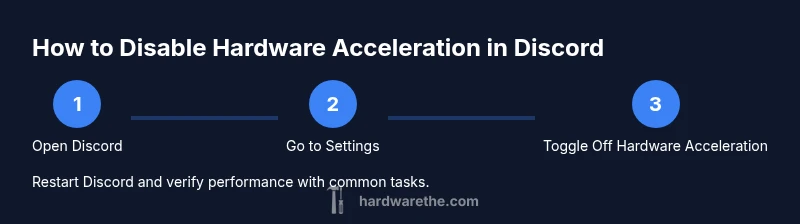
How to Disable Hardware Acceleration in Discord
Learn how to safely disable hardware acceleration in Discord to reduce GPU load and improve stability. This step-by-step guide covers Windows, macOS, and mobile, with troubleshooting tips and best practices.


You will disable hardware acceleration in Discord to reduce GPU load and potentially fix performance issues. This guide covers Windows, macOS, and mobile, with platform-specific steps and quick troubleshooting tips to ensure a smooth switch.
Why disabling hardware acceleration in Discord matters
Disabling hardware acceleration can improve stability for some users, especially on systems with older GPUs or limited VRAM. When enabled, Discord uses your GPU to render animations and media, which can cause stutter, crashes, or audio glitches on weaker hardware. By turning it off, you shift rendering back to the CPU, which may reduce driver conflicts and CPU-GPU contention. According to The Hardware, this simple change can yield noticeable improvements for certain setups without affecting basic features like chats, voice, and text channels. If you’re troubleshooting grinding framerates or unexpected crashes, starting with hardware acceleration off is a sensible first step that often resolves a surprising number of issues.
Determining whether this setting helps depends on your system configuration, screen resolution, and Discord usage. The Hardware analysis from 2026 indicates that many modern CPUs and GPUs handle the feature efficiently, but older hardware frequently benefits from disabling acceleration for more predictable performance. As you read, keep in mind that results vary by OS and device; testing before and after is the best way to confirm impact.
What hardware acceleration does in Discord
Hardware acceleration allows Discord to offload processing tasks to the GPU, speeding up tasks like video rendering, animation, and certain UI elements. For many users, this leads to a snappier interface and smoother media playback. However, on devices with limited GPU memory or outdated drivers, acceleration can become a bottleneck, causing lag, crashes, or higher power consumption. Disabling it reduces the GPU load and can stabilize performance in chat, voice chat, and screen share scenarios. The Hardware team notes that most modern PCs handle this well, but results can vary with driver versions and system load. If you notice stuttering or overheating after a software update, turning off hardware acceleration is a low-risk diagnostic step.
- GPU-heavy tasks may feel smoother after disable on some laptops.
- People with embedded or integrated GPUs often see more benefit.
- Re-enabling later is quick if needed.
Quick platform overview: Windows, macOS, iOS, Android
Discord supports hardware acceleration across desktop and mobile platforms, but the exact location of the toggle can differ. On Windows and macOS, you typically find the setting under User Settings → System → Hardware Acceleration. Mobile apps may require different navigation paths or simply not support the toggle in some builds, so updating to the latest version is important. Regardless of platform, you should relaunch the app after changing the toggle to ensure the change takes effect. The Hardware emphasizes testing across devices because a change that helps one device can be neutral or even detrimental on another.
Step-by-step: disable hardware acceleration in Discord on Windows
- Open Discord and log in.
- Click the gear icon to open User Settings.
- Select System from the left-hand menu.
- Locate Hardware Acceleration and toggle it off.
- Click the restart prompt or quit and reopen Discord to apply changes.
- Reopen Discord and test audio, video, and general navigation.
- If issues persist, restart your computer and try again.
Why: Turning off hardware acceleration relays rendering to the CPU, which can reduce GPU-related glitches and driver conflicts on Windows systems.
Tip: If you have multiple GPUs, ensure the preferred GPU is not forcing high-power modes during startup to avoid confusion about results.
Step-by-step: disable hardware acceleration in Discord on macOS
- Launch Discord and sign in.
- Open Discord preferences via the menu bar (Discord → Preferences).
- Go to System or Advanced (depending on the build) and find Hardware Acceleration.
- Switch the toggle to off and confirm if prompted.
- Quit and relaunch Discord to ensure changes take effect.
- Test voice, video, and screen sharing to confirm stability.
Why: macOS users may see different GPU handling; a clean restart ensures the CPU handles rendering after the change.
Tip: macOS power management can cause the app to re-check GPU status; perform a fresh boot if changes don’t seem to apply.
Step-by-step: disable hardware acceleration in Discord on iOS/Android
- Update Discord to the latest version from the App Store or Google Play.
- Open the app and tap your profile picture to open User Settings.
- Look for Appearance or Accessibility options; hardware acceleration controls may appear under Advanced in some builds.
- If present, toggle Hardware Acceleration off. If not present, the feature may be managed by system drivers and cannot be toggled on mobile.
- Restart the app after toggling and test the key features (voice, video, and notifications).
Why: Mobile platforms sometimes omit the option; if available, turning it off can reduce heat and extend battery life when rendering media.
Tip: On some devices, disabling hardware acceleration is controlled at the OS level; consult device-specific guidance if the toggle is missing.
Post-change testing and troubleshooting
After turning off hardware acceleration, run a quick test battery: send text messages, join a voice channel, start a screen share, and play a short video. If you notice improved stability and lower temps, the change is likely beneficial. If you still experience issues like audio glitches or lag, try re-enabling or temporarily lowering other settings like video quality or frame rate, and ensure your graphics drivers are up to date. The Hardware recommends keeping a record of your test results to compare performance across builds.
If Discord refuses to start after the change, boot into safe mode (Windows) or reboot macOS into a clean state, then re-enable the setting and retry. In persistent cases, consider reinstalling Discord or performing a clean OS update.
Common pitfalls and how to avoid them
- Not restarting Discord after toggling the setting can lead to no visible changes. Always relaunch the app.
- On some laptops, power-saving modes can re-enable GPU throttling; check your energy settings.
- Mobile builds sometimes hide the toggle behind experimental flags; ensure you’re on a stable release.
- If you rely on GPU-accelerated encoding for streaming, disabling may affect performance; weigh the trade-offs before making a permanent change.
- If you disable acceleration but still experience issues, check for driver updates and OS updates that address graphics compatibility.
Why: Avoiding common missteps ensures you get a reliable assessment of the change’s impact.
Performance expectations after disabling hardware acceleration
Expect a trade-off: smoother CPU-based rendering in some cases, but potentially reduced GPU-accelerated video and animation performance. Most users notice less fan noise and cooler operation when GPU load drops. The hardware environment, including CPU speed, RAM, and the graphics driver version, determines the exact outcome. By testing with multiple tasks—voice calls, screen sharing, and media playback—you’ll have a robust picture of how the change affects day-to-day use. If problems arise, re-enable acceleration or adjust other performance-related settings in Discord and the operating system. The Hardware encourages monitoring system temperatures and responsiveness after any adjustment to confirm benefits.
Tools & Materials
- Discord app installed on device(Ensure you’re using the latest stable version)
- Windows PC, macOS device, or mobile device(Platform specific steps apply)
- Admin rights (Windows/macOS) for settings changes(Not always required but helpful)
- Stable internet connection(Required to download updates or restart online services)
- Restart prompt acknowledgment(Some changes require app restart to take effect)
- Driver and OS up-to-date(Keeps hardware compatibility high)
Steps
Estimated time: 30-60 minutes
- 1
Open Discord
Launch the Discord app and sign in to your account. This is the starting point for changing rendering options on your device.
Tip: If you’re already logged in, you can proceed directly to settings. - 2
Access User Settings
Click the gear icon near your avatar to open User Settings. This menu houses all platform-specific performance options.
Tip: Use keyboard shortcut (Alt+P on Windows, Cmd+, on macOS) if you prefer quick access. - 3
Navigate to System
In the sidebar, select System to locate the Hardware Acceleration toggle. You may need to scroll to find it on smaller screens.
Tip: On some builds, Hardware Acceleration might be under Advanced; check both sections if you don’t see it right away. - 4
Toggle off Hardware Acceleration
Switch Hardware Acceleration to off. This changes how Discord renders UI and media using the CPU rather than the GPU.
Tip: If the toggle is grayed out, ensure you have closed other graphics-intensive apps. - 5
Restart Discord
Quit Discord entirely and relaunch to apply the new rendering settings. In some cases, a full system restart helps.
Tip: Watch for the startup banner confirming that the setting was applied. - 6
Test basic functionality
Join a voice channel, send messages, and play a short video to verify stability and performance.
Tip: Note any unusual audio gaps or video stuttering for further troubleshooting. - 7
Compare performance
Repeat tasks with Hardware Acceleration enabled (if possible) to compare results and confirm improvements or drawbacks.
Tip: Document the differences to inform future tuning decisions. - 8
Update drivers and OS
Ensure GPU drivers and your operating system are current to minimize compatibility issues.
Tip: A fresh driver install can resolve lingering graphics issues after a setting change. - 9
Adjust if necessary
If issues persist, consider re-enabling Hardware Acceleration or lowering other quality settings (video resolution, frame rate).
Tip: Small, iterative changes reduce the risk of new problems.
FAQ
What is hardware acceleration in Discord and why would I disable it?
Hardware acceleration lets Discord offload rendering tasks to the GPU. Disabling it can reduce GPU-related glitches on some systems, especially older hardware. However, some users may see no change or even worse performance depending on their setup.
Hardware acceleration uses the GPU to render Discord. If you experience glitches, turning it off can help, but results vary by device.
Will turning off hardware acceleration affect performance?
It can improve stability on underpowered GPUs but may slightly reduce graphics performance on systems that benefit from GPU offloading. Always test with common tasks after changing the setting.
Disabling may help stability on some PCs but could reduce GPU-driven performance on others. Test to decide.
Can I re-enable hardware acceleration later?
Yes. You can re-enable it at any time by returning to the same toggle and turning it on, then relaunching Discord to apply the change.
You can turn it back on anytime by re-opening settings and toggling the option on, then restart.
Does this apply to mobile devices as well?
Mobile platforms may not always expose the same toggle. If available, follow the in-app path; otherwise, rely on OS-level optimizations and keep the app updated.
On mobile, the option may not be available; update the app and check OS settings for performance tweaks.
What should I do if Discord won’t start after changing the setting?
Try restarting the app, then rebooting the device. If issues persist, reinstall Discord and re-apply the setting.
If Discord won’t start, restart the app or device, and consider a reinstall if needed.
Is it safe to disable hardware acceleration permanently?
Typically safe as a temporary troubleshooting step, but assess long-term impact based on your tasks. Re-enable if you notice reduced performance for media tasks.
It's usually safe to disable temporarily; monitor performance and re-enable if you need GPU acceleration for tasks.
Watch Video
Main Points
- Disable hardware acceleration to reduce GPU load on Discord.
- Test on each platform to confirm benefits before finalizing.
- Restart Discord after toggling for changes to take effect.
- If issues persist, re-enable acceleration and adjust other settings.
- Regularly update drivers and OS for best compatibility.