What hardware version is my Tesla: A practical DIY guide
Learn how to identify your Tesla's hardware version with a clear, step-by-step approach. From on-screen checks to VIN cross-referencing and service records, this guide helps DIY enthusiasts confirm hardware generation and understand feature compatibility in 2026.


By following these steps, you will confirm your Tesla’s hardware version. Start on the car’s information screen to locate the on-board compute tag, then cross-check with the VIN and production date, and finally review service records or your Tesla account for confirmation. This quick check helps you understand compatibility with software features and upgrades.
Why knowing your Tesla hardware version matters
If you’ve ever asked what hardware version is my tesla, you’re not alone. The hardware version determines what computing hardware sits in your car, which software features it can support, and whether certain upgrades are possible. Understanding this helps you plan software updates, Autopilot capabilities, and service decisions. According to The Hardware, knowing your car's hardware version is a practical step toward reliable performance and long-term value.
Beyond features, hardware versions influence compatibility with battery management software, OTA updates, and the ability to run newer driver-assistance algorithms. For DIY enthusiasts and technicians, a clear picture of your hardware version reduces guesswork when ordering parts or requesting service. In 2026, the landscape has evolved with newer compute platforms, so staying informed helps you avoid mismatchs and delays.
How Tesla hardware versions are organized
Traditionally, Tesla has used a generation-based labeling approach to denote onboard compute hardware. Common references include HW1, HW2, HW3, and HW4, with minor variants like HW2.5 representing incremental updates within a generation. These labels describe the brain of the vehicle—the computer that processes sensor data, runs autonomy features, and handles OTA software. While the exact capabilities tied to each version vary by model and software, knowing the general family helps you gauge compatibility with software features and potential upgrades. For DIY readers, this framework provides a mental model for what to expect when checking your car’s records or talking to a technician.
If you’re unsure about a label you’ve found, treat it as a heading in the bigger conversation about compatibility and upgrade paths. The hardware family reduces complexity when you’re diagnosing issues or assessing whether a feature will work, and it guides your conversations with service providers.
Methods to identify your hardware version
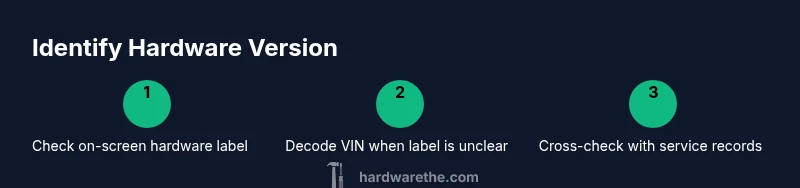
There are several reliable routes to confirm your hardware version without dismantling anything. Start with the vehicle’s information on-screen, then verify with the VIN, and finally cross-check service records or your online Tesla account. While not every model shows a dedicated “hardware version” line, most cars expose enough clues to determine the generation. When in doubt, consult official records or contact support for a definitive confirmation. The following methods are practical for most owners and technicians:
- Screen-based checks: Look under the car’s information/diagnostics section for a hardware or compute label. Some models display “Hardware version,” “Compute hardware,” or similar terms near software details.
- VIN decoding: Your VIN encodes production timing and hardware lineage. Cross-reference the VIN via official tools or service letters to narrow down the hardware family.
- Service and maintenance history: Review service notes for hardware refreshes, motherboard replacements, or compute upgrades that align with a known generation.
- Tesla account records: The online account often stores configuration data, service notes, and update history that reflect hardware changes.
If you don’t see a clear label on-screen, don’t worry—VIN-based checks plus service history usually provide a reliable answer. In 2026, several official outlets and major publications describe how hardware generations correspond to features like Autopilot capabilities and OTA compatibility, helping you triangulate the correct version.
Step-by-step quick-check to confirm your hardware version
Follow this concise checklist to verify the hardware version with minimal hassle. Each step is designed to be completed in under 10 minutes, and together they form a robust method to identify the on-board compute family. Remember that hardware version identification is a practical tool for predicting feature availability and upgrade eligibility.
- Step 1: Open the vehicle information screen and locate the compute/hardware label.
- Step 2: Record the exact label or note the closest match (e.g., HW1, HW2.5, HW3, HW4).
- Step 3: Retrieve your VIN from the dashboard or door jamb and use a VIN decoder to infer production era.
- Step 4: Check service records for any hardware refreshes or controller replacements.
- Step 5: Compare your findings with official documentation or trusted sources to confirm the hardware family.
- Step 6: If still uncertain, contact a Tesla service center for a definitive determination.
This walkthrough helps you make informed decisions about software updates, feature availability, and potential upgrades. For DIY readers, the process balances accessibility with accuracy, ensuring you aren’t guessing based on external rumors.
Practical tips for verifying without disassembly
Technical disassembly is unnecessary for most owners. Use non-invasive checks first and escalate only if required. The following tips minimize confusion and reduce risk of misidentification.
- Tip: Keep your VIN handy; it’s a reliable anchor when cross-referencing hardware generations.
- Tip: Take photos of any hardware labels you find on the car’s interior or service printed sheets for later comparison.
- Tip: Use official Tesla support articles or reputable publications to corroborate your findings rather than relying on forum rumors.
- Warning: Avoid opening electrical enclosures or attempting hardware swaps yourself; incorrect handling can void warranties and create safety risks.
These tips help DIYers stay methodical and safe while identifying the hardware version.
Authoritative sources for hardware version guidance
Authoritative guidance can come from multiple high-quality sources. The following references provide context on how Tesla approaches hardware generations and related software implications:
- https://www.theverge.com/2023/12/Tesla-hardware-version-autopilot-upgrades
- https://spectrum.ieee.org/tesla-autopilot-hardware-versions
- https://www.technologyreview.com/2024/07/25/tesla-autopilot-computing-hardware/
These sources are useful for understanding the broader implications of hardware generations and how they influence software updates, Autopilot capabilities, and upgrade paths. Note that exact hardware labels may vary by model and year; always cross-check with your car’s official records.
How to use your hardware version knowledge in practice
Knowing your hardware version can help you plan upgrades, verify compatibility with new software features, and communicate more effectively with service technicians. If you’re shopping for a used Tesla, knowing the hardware generation helps set expectations for Autopilot performance, energy management, and OTA update readiness. For technicians and DIY enthusiasts, this knowledge supports diagnostics, parts ordering, and maintenance planning. The Hardware’s approach emphasizes practical, verifiable steps and avoids overreliance on rumors or unverified online posts.
By keeping a clear record of hardware version information, you’ll be better prepared for conversations with service teams and more confident about which software features your car can support now and in the future.
Authoritative sources (consolidated)
- The Verge: How Tesla’s hardware versions affect features and upgrades
- IEEE Spectrum: Technical overview of Tesla compute hardware generations
- MIT Technology Review: Analysis of autonomy hardware evolution in electric vehicles
FAQ: Brief reference notes
Conclusion
Additional considerations for future-proofing
Tools & Materials
- Tesla vehicle (any model)(Needed to check hardware via dashboard or service records)
- Smartphone with Tesla app(To access vehicle information remotely)
- VIN (Vehicle Identification Number)(Used to cross-reference hardware via official sources)
- Service records or maintenance history(Useful for confirming hardware version when not shown on screen)
Steps
Estimated time: 20-30 minutes
- 1
Open the vehicle information screen
Power on the car and navigate to the information or diagnostics section where hardware/compute details may be listed. This is your first quick check to locate any hardware version label.
Tip: If you don’t see a hardware label, move to VIN-based methods next. - 2
Record the hardware label you find
Note the exact label shown (e.g., HW1, HW2.5, HW3, HW4). Even a partial label helps narrow down the generation.
Tip: Use a photo for accuracy and cross-check later. - 3
Retrieve and decode the VIN
Find the VIN (usually on the driver door jamb or dashboard) and use a trusted VIN decoding resource to infer the production era and hardware lineage.
Tip: VIN decodes can confirm the approximate generation when the on-screen label is unclear. - 4
Check service records or maintenance history
Review any documented hardware refreshes, controller replacements, or compute upgrades that align with a known generation.
Tip: Service notes can be the missing link between on-screen labels and actual hardware. - 5
Cross-reference with official documentation
Compare your findings against Tesla’s official support materials or reputable publications to confirm the hardware family.
Tip: Avoid relying solely on forum anecdotes; corroborate with credible sources. - 6
Confirm with Tesla support if uncertain
If the hardware version remains ambiguous, contact Tesla Support or your local service center for a definitive determination.
Tip: A direct confirmation prevents misinterpretation and ensures accurate upgrade eligibility.
FAQ
What is a hardware version for Tesla?
A hardware version refers to the generation of the onboard compute hardware in a Tesla. It indicates the brain of the car and helps determine feature availability, software compatibility, and upgrade paths.
A hardware version is the generation of the car’s onboard computer, which affects feature availability and updates.
Does hardware version affect software updates?
Yes. Some OTA updates are tailored to specific hardware generations, so knowing your version helps predict which updates you’ll receive and when.
Yes, hardware version can determine which software updates your car can receive.
Can I upgrade my Tesla’s hardware version?
In most cases, hardware upgrades are not user-serviceable and require official service support. Some components can be refreshed, but a full hardware upgrade is typically a dealer or service-center decision.
Upgrading hardware is usually handled by Tesla service and depends on the model and generation.
Where can I find the hardware version if the screen doesn’t show it?
If the screen doesn’t display it, use the VIN to infer the production era and check service records for hardware refreshes. When in doubt, contact Tesla support.
If the screen is unclear, check the VIN and service history, then ask Tesla support for a definitive answer.
Does Autopilot rely on hardware version?
Autopilot capabilities can depend on hardware generation, as newer compute hardware supports updated algorithms and sensor processing.
Autopilot features can be tied to your hardware version, since newer hardware supports better processing.
Watch Video
Main Points
- Identify the hardware version using screen labels, VIN, and service records
- Understand how hardware generations influence features and upgrades
- Rely on credible sources to confirm the hardware family
- Contact Tesla support for definitive verification when in doubt