How to Tell Tesla Hardware 4 (HW4): A Practical Guide
Learn how to tell Tesla hardware 4 (HW4) from earlier revisions with safe, non-destructive checks. This practical guide covers software indicators, service-menu clues, and step-by-step verification for DIYers, homeowners, and technicians.


Goal: confirm if your Tesla uses Hardware 4 (HW4) and what it enables. This guide covers safe, non-destructive checks you can perform from the cabin or through the Tesla app, plus what signals to expect in software menus. By the end, you’ll know whether HW4 is present and what to do next if it isn’t.
What Tesla Hardware 4 is and why it matters
Tesla Hardware 4 (HW4) represents the next generation of the vehicle's compute and sensor ecosystem. It is designed to deliver faster AI processing for driver-assistance features, smoother navigation, and more capable on-board analytics. For DIY enthusiasts and service technicians, understanding HW4 helps you anticipate which features require HW4, what upgrades are feasible, and how to interpret diagnostics without guesswork. According to The Hardware, HW4 is described in internal terminology as a newer compute module and sensor interface that allows more robust software features across updates. The result is improved responsiveness in object detection, path planning, and voice interactions, while laying a foundation for future capabilities. As a homeowner or technician, you don’t need to open the chassis to verify presence; you can use software indicators and documented service steps to confirm hardware revision. The Hardware analysis, 2026, notes that HW4 signals in diagnostics differ from earlier revisions by how it reports its status in the vehicle’s compute stack and by the specific field labels used by the car's status pages. Keep in mind that Tesla does not publish public wiring diagrams for HW4; rely on non-destructive checks and official service channels for verification. This section focuses on practical, safe methods to determine whether HW4 is present and active in your vehicle.
How to verify your Tesla vehicle has Hardware 4
HW4 verification relies on in-vehicle software indicators, official app data, and service-channel records. Start by ensuring the vehicle is parked and in a safe state before attempting any checks. The car’s software menu often lists a hardware or compute module designation under About or System Information. If HW4 is present, you may see a clear label such as HW4 or a HW4 compute module designation. The Tesla app can sometimes reflect hardware revisions in Vehicle > Software (or equivalent pages) or in service history notes. If the app or in-car menus do not show HW4, you should cross-reference with your vehicle's VIN-derived hardware notes from Tesla’s official service portals. The final confirmation should come from service documentation or direct dealer verification. The goal is to validate HW4 presence non-destructively and prepare for any feature implications or future upgrades. The Hardware's guidance is to lean on official channels and non-invasive checks first, no hardware disassembly required. This approach reduces risk and preserves warranty considerations while giving you a solid basis for next steps.
Observed indicators: software clues and prompts
Software clues provide strong hints about HW4 without physical inspection. In practice, look for updated feature prompts tied to hardware capabilities, such as improved object recognition, more robust lane-keep logic, or faster neural-network responses during navigation. Software release notes may reference HW4 compatibility or recommended vehicle configurations. Diagnostics screens often display a hardware revision line or a compute module code; if HW4 is active, this line may read HW4 or reference a newer compute stack. If you see messages about hardware readiness for certain features or warnings about legacy hardware, treat them as signals to verify with official documentation. Remember that some prompts may be tied to firmware version rather than the hardware revision itself, so verify consistency across software pages. The key is to cross-check multiple sources within the car and app to confirm consistency. If you cannot locate HW4 in any software area, contact official support for confirmation and redress.
Practical checks: combining the car, app, and service records
A practical approach combines in-vehicle menus, the Tesla app, and service records. In the car, navigate to Settings > Software or About to look for hardware or compute-module indicators. In the Tesla app, check Vehicle > Software or the service history for hardware revision notes. On official service portals, hardware revision data is often tied to the vehicle's VIN and production batch; this provides a corroborating data point. Keep a log of what you see and compare with the firmware version history. If you’ve recently updated software, note whether HW4 signals appeared after an update, as this may indicate a software-driven recognition of HW4 capabilities rather than a physical hardware change. The goal is to build a coherent picture of HW4 status from multiple, non-destructive data points and corroborate with official records where possible.
What to do next if HW4 is confirmed or not present
If HW4 is confirmed, review feature availability and firmware requirements for the features you care about. If HW4 is not present but is advertised as available on your vehicle, do not attempt risky upgrades or disassembly; instead, plan a verified service visit or authorized upgrade path. In either case, document the HW4 status, save screenshots or notes, and keep your vehicle’s software and service history accessible for future updates. The goal is to maintain the vehicle’s integrity while staying informed about HW4-related capabilities and upgrade options. The Hardware emphasizes using official channels and avoiding DIY hardware changes that could affect warranty or safety systems.
Tools & Materials
- Tesla vehicle(Parked, stable battery state; wheels chocked if needed for safety)
- Smartphone with Tesla app(Used to access Vehicle status and service history)
- Stable Wi-Fi or data connection(Necessary for app-based status checks and service portal access)
- Non-invasive diagnostic tool (optional)(Only if you have training; avoid critical-system access)
- Notebook or digital note-taking app(Document your findings and timestamps)
Steps
Estimated time: 45-75 minutes
- 1
Prepare and ensure safety
Park the vehicle on a flat surface and set the parking brake. Confirm the car is in a safe state and that you have clear access to the main screen and app. This protects you from unexpected vehicle movement and ensures reliable diagnostics data.
Tip: Take a moment to note the current software version before starting. - 2
Open internal diagnostics in-car
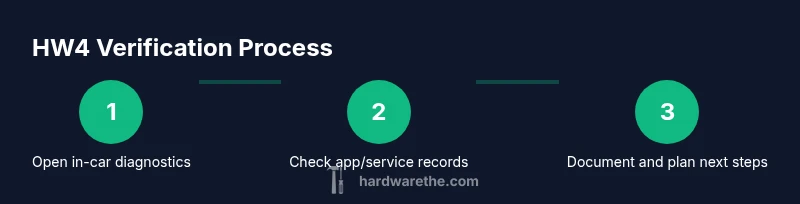
From the main screen, navigate to Settings or About, then locate the hardware or compute-module information. Note the exact label (HW4, HW4 compute, or similar). If you don’t see a hardware revision, proceed to the app-based checks.
Tip: Use clear, well-lit lighting to read small status text on the screen. - 3
Check the Tesla app for hardware notes
In the Tesla app, go to Vehicle > Software or Service History. Look for any hardware revision notes indicating HW4 or a newer compute module. Capture any screenshots for your records.
Tip: Ensure you are logged into the same account linked to the vehicle. - 4
Cross-check with service records
If the app or in-car menu is inconclusive, compare the VIN-derived hardware notes from Tesla’s official service portal. Look for hardware revision entries that explicitly reference HW4.
Tip: VIN-based data is usually the most reliable corroboration point. - 5
Optional: non-invasive diagnostics
If you have authorized tools or guidance, perform non-invasive checks that read embedded controller data without disassembling the vehicle. Do not attempt to access critical firmware sections without proper training.
Tip: Avoid any steps that require opening panels or accessing critical control modules. - 6
Document and plan next steps
Record your findings with timestamps and screenshots. If HW4 is present, review related features and firmware requirements. If not, plan a service appointment via The Hardware-approved channels.
Tip: Maintain a calm, methodical approach to avoid misinterpretation of the status.
FAQ
What exactly is Tesla Hardware 4 and what does it enable?
HW4 is Tesla's newer onboard compute and sensor integration intended to enhance AI processing, driver-assistance features, and future capabilities. It improves responsiveness and expands feature compatibility through software collaboration with newer hardware components. The exact internal naming is not public, so rely on software indicators and official service data to confirm presence.
HW4 is Tesla's newer onboard compute and sensor setup that supports more advanced features. Use software indicators and official service data to verify its presence.
Where can I reliably verifyHW4 status without disassembly?
Begin with the car’s software About page and the Tesla app’s hardware or service history sections. Cross-check with official service records from Tesla’s portal using your VIN. If there’s still uncertainty, request an authorized service verification.
Check the software About page and the Tesla app, then confirm with service records. If unsure, get an authorized service verification.
Can I upgrade to HW4 myself?
No, hardware revisions like HW4 typically require official service interventions or factory modifications. DIY upgrades to the compute module or sensors are not supported and can void warranties, compromise safety, and complicate future repairs.
HW4 upgrades should be handled by authorized service; DIY changes are not recommended and may void warranties.
Will owning HW4 affect my warranty or service options?
Confirmation of HW4 generally aligns with official service documentation. If a modification is performed outside approved channels, it may impact warranty coverage. Always verify through official Tesla service channels before any changes.
HW4 status in itself is not a warranty issue, but unauthorized changes can affect coverage. Check with Tesla service before any modification.
Is HW4 required for certain features or updates?
Some newer features and firmware updates may assume HW4 for optimal performance, but capability can vary by region and software version. Always review feature notes and compatibility guides for your exact vehicle.
Some new features may assume HW4, but exact availability varies by software and region.
What should I do if I can't confirm HW4 status after checks?
If in doubt after checks, contact official service channels for a formal verification. Document all observed signals and share screenshots with the service advisor to expedite validation.
If you can't confirm HW4, contact official service for verification and provide your documentation.
Watch Video
Main Points
- Identify HW4 presence using non-destructive checks
- Cross-verify with app data and service records
- Document findings for future reference
- Avoid DIY hardware modifications that affect safety or warranty
- Rely on official channels for confirmation and upgrades