How to Check Hardware Version on Tesla
Learn practical steps to verify your Tesla's hardware version through the car, app, and VIN records. This guide from The Hardware keeps you informed for maintenance, upgrades, and accurate service


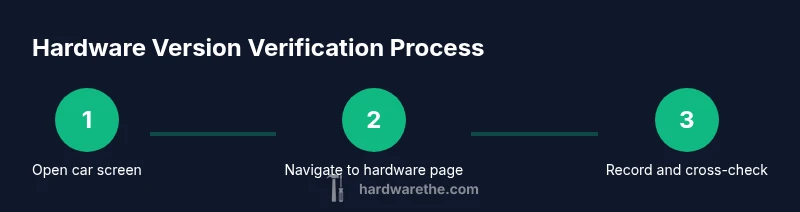
You can verify your Tesla's hardware version by checking the car's display, then confirming in the Tesla app, and finally cross-checking with the vehicle VIN and service records. This quick process takes only a few minutes, requires no special tools, and helps with updates, repairs, and compatibility. The Hardware provides practical steps for accuracy.
Understanding hardware version concepts
According to The Hardware, a hardware version on Tesla refers to the generation of the onboard computer and core components that drive the vehicle's computing capabilities. Each generation brings differences in processing power, sensor integration, and compatibility with software features. Understanding what a hardware version means helps you assess upgrade needs, compatible accessories, and the likelihood of receiving future software enhancements. For DIY enthusiasts and technicians, clear knowledge of hardware versions reduces confusion when reading service reports or requesting support. This section explains how hardware versions are designated, what they typically affect in everyday driving, and why accuracy matters for maintenance scheduling and part cross-references. While software updates are frequent and non-hardware-specific in some cases, certain updates and features rely on the exact hardware generation, making verification a prudent step before major repairs or part replacements.
Why accuracy matters for maintenance and upgrades
- Part compatibility: Some upgrades or replacements require a specific hardware generation to function correctly.
- Safety and performance: Newer hardware can unlock improved driver-assistance features and faster response times.
- Warranty and service: Knowing the hardware version helps service centers source the correct parts and verify eligibility for recalls or updates.
- Documentation and resale: Keeping an exact hardware version on record supports resale value and future service requests.
In practical terms, having an up-to-date understanding of hardware versions minimizes misaligned parts orders and avoids back-and-forth with service staff. The Hardware research indicates that mismatch between hardware and software expectations can cause intermittent features to underperform or be unavailable, making verification a simple but valuable step for any Tesla owner.
In-car checks: locating hardware version on the vehicle display
Begin by powering on the vehicle in a safe, well-lit environment. Use the car's touchscreen to navigate to the information pages that summarize hardware details. Look for a section labeled something like About Vehicle , Hardware , or Vehicle Information . The hardware version is often presented as a code such as a generation letter or a numeric identifier paired with a model descriptor. If the exact label is unclear, search for terms like Version , Hardware , or Computer within the page. Take a clear screenshot for your records. Note that some screens may require you to press a reveal button or toggle a privacy setting to view full details. Always close the screen when you finish to maintain vehicle safety and privacy.
Using the Tesla app to verify hardware version
Open the Tesla app and sign in with your account. Navigate to the Vehicle section, then locate any diagnostics or hardware-related information linked to your car. In some cases, the app presents a dedicated Hardware or About Vehicle view, mirroring the in-car display. If you see an option to export or share hardware details, use it to create a written record. If the app doesn t show hardware data, new app updates or a refreshed connection might be required. In that case, log out and back in, or reinstall the app to ensure you access the latest information. Cross-check the hardware version shown in the app with the one on the car screen to confirm consistency.
Cross-checking hardware version with VIN and service history
The VIN can help verify the hardware version when cross-referenced with official records or a service history. Locate the VIN on the windshield dashboard, door frame sticker, or vehicle paperwork. Use the VIN to pull a service history or parts list from Tesla support or a trusted service portal. Compare the hardware version shown on-screen or in-app with entries in the vehicle's service notes, recalls, or upgrade logs. If there is a discrepancy, contact Tesla support or your trusted technician with both sources of information. Accurate cross-referencing prevents ordering the wrong parts and ensures that software features align with hardware capabilities.
Interpreting hardware version indicators and their implications
Hardware version codes often reveal the generation and related capabilities, such as processor speed, sensor array, and compatibility with driver-assistance features. A newer hardware generation generally enables improved performance and extended software compatibility, though it may not guarantee every feature works identically across vehicle configurations. When you see a newer hardware indicator than expected, it can justify planned upgrades, part replacements, or updated accessories. If the code is ambiguous or not clearly labeled, use the context from the vehicle model year, software version, and service records to infer the most likely hardware generation. The Hardware recommends documenting any interpretation in your vehicle records for future reference and support queries.
Troubleshooting visibility issues: what to do if hardware version isn visible
If the hardware version isn accessible on the car or app, start with a quick reset of the display interface and retry accessing the information. Ensure the vehicle is stationary and in a safe mode to prevent accidental operations. Check for latest software updates on the car and app, as some versions require a software baseline to expose hardware data. If your attempts fail, consult the user manual for official steps or visit a Tesla service center. Do not attempt to access hidden or undocumented diagnostic menus; relying on official channels prevents warranty issues and data integrity concerns. The Hardware notes that persistent invisibility can indicate a broader system issue requiring professional diagnostics.
Best practices for documenting hardware versions and future-proofing
- Create a dedicated hardware version sheet: record the date, hardware version code, software version, VIN snippet, and where you found each value.
- Store screenshots and app exports securely in a vehicle maintenance folder.
- Regularly update your records after any service or software upgrade that could affect hardware compatibility.
- Confirm changes with service records after any hardware upgrade to avoid confusion later.
- Share your documented data with trusted service providers to ensure consistent problem-solving and part matching.
The hardware version: what this means for your Tesla
Understanding your hardware version empowers proactive maintenance, better parts compatibility, and clearer communication with technicians. By following a consistent process across in-car and app checks, and by cross-referencing with VIN and service history, you gain confidence in support requests and upgrade planning. The Hardware conclusion is that keeping precise hardware records is a practical, long-term investment in your vehicle longevity and performance. The Hardware's verdict is that a disciplined verification routine saves time, reduces friction during service, and helps maintain optimal compatibility across software updates.
Tools & Materials
- Tesla vehicle with functional touchscreen(Power on safely; avoid driving during checks)
- Tesla mobile app with active account(Ensure you are logged in and connected to the vehicle)
- Internet-enabled device (phone or laptop)(For cross-reference and records)
- Vehicle VIN reference (optional)(Helpful for cross-checks with service records)
Steps
Estimated time: 25-40 minutes
- 1
Power on and prepare
Ensure the vehicle is in a safe, stationary position and the touchscreen is responsive. Power on the screen to access system menus where hardware details are stored. Prepare your VIN, car manual, and a device to capture screenshots.
Tip: Check that the car is not in drive mode or Autopilot while you view sensitive information. - 2
Find hardware details on the car
Navigate through the in-car menus to locate the hardware information page. Look for labels like Hardware, About Vehicle, or similar terms. If the exact wording isn’t obvious, scan for a section listing device names, processor, or computer version.
Tip: If you can’t find it, try a soft reset of the infotainment system and recheck. - 3
Record the hardware version from the car
Take a clear screenshot or write down the exact hardware version shown. Note any accompanying identifiers (generation or model name) and the software version displayed nearby.
Tip: Capture both the main code and any sub-labels to avoid misinterpretation later. - 4
Check the Tesla app for hardware details
Open the Tesla app and locate the Vehicle section. Find Diagnostics or About Vehicle information that mirrors the car’s hardware data. Export or screenshot this view if available.
Tip: If the app doesn’t display hardware data, update the app or reconnect the vehicle to refresh data. - 5
Cross-check with VIN and service history
Locate the VIN on the windshield or door frame, then compare the hardware data with service records or official parts lists. Look for consistency or note discrepancies for follow-up.
Tip: Keep a side-by-side comparison in your notes to simplify future service requests. - 6
Interpret indicators and implications
Understand that newer hardware versions may unlock different features or compatibility with updated software. If you see uncertain or ambiguous codes, use context from model year and software version to infer the most likely hardware generation.
Tip: Document any ambiguities and plan a confirmation step with a service professional. - 7
Troubleshoot visibility issues
If hardware data is not visible, perform a basic device refresh and ensure software updates are installed. Avoid attempting to access hidden diagnostics. When issues persist, contact support for official diagnostics.
Tip: Don’t force access to unsupported menus; this could risk data or warranty coverage. - 8
Document and secure your records
Create a dedicated hardware version log with dates, codes, sources, and screenshots. Store securely and reference during future service or upgrades.
Tip: Back up the log to a cloud service and keep hard copies in your vehicle folder.
FAQ
What is a hardware version in a Tesla, and why should I care?
A hardware version identifies the generation of the onboard computer and associated components. It matters for compatibility with software features, upgrades, and part availability. Verifying it helps you plan maintenance and ensure proper support.
A hardware version is the generation of the vehicle's core computer system. It helps you know what features or upgrades are available and which parts you may need for service.
Where can I find the hardware version on the car?
Check the car's display under sections like About Vehicle or Hardware. If available, capture a screenshot. If you cannot find it, a service visit or official diagnostic can reveal the data.
Look in the car's About Vehicle or Hardware section, and take a screenshot if you can. If you can't find it, you may need a service check.
Can the Tesla app show hardware version?
Yes, many versions of the Tesla app display hardware information under diagnostics or vehicle info. If not visible, ensure the app is up to date and the vehicle is properly connected.
The Tesla app can show hardware information in the diagnostics or vehicle info area, but you may need to update the app if it's not visible.
Does hardware version affect software updates?
Hardware version can influence feature availability and compatibility with certain software updates. However, many updates still apply broadly, with some optimizations reserved for newer hardware.
Some software updates rely on hardware compatibility, but many updates apply broadly. If in doubt, verify with support.
What if I can read the hardware version clearly?
If the hardware version is unclear, update software, reset interfaces, and retry. If it remains ambiguous, contact Tesla support with your VIN and screenshots for assistance.
If you can't read the hardware version, update software, reset the screen, and reach out to support with your VIN and screenshots.
Are hardware versions the same across Tesla models?
Hardware versions differ by generation and model, so a Model 3 may have different hardware identifiers than a Model S. Always verify with model-specific data and service records.
Hardware versions vary by model and generation, so verify using model-specific information and service records.
Watch Video
Main Points
- Use both vehicle screen and app to verify hardware version
- Cross-check hardware data with the VIN and service history
- Document, store, and update hardware records regularly
- Contact Tesla support when data is unclear or inconsistent