How to Install Hardware in a Laptop: A DIY Guide (2026)
A detailed, step-by-step guide to upgrading laptop hardware—RAM, SSD, and more—with safety checks, compatibility guidelines, and post-install testing. Learn tools, techniques, and troubleshooting to extend your laptop’s life without voiding warranties.


Upgrade your laptop by choosing compatible RAM or storage, gathering anti-static tools, and following a safe, step-by-step workflow. This guide walks you through model checks, component installation, BIOS verification, and post-install testing. You’ll learn how to plan upgrades, avoid common mistakes, and maximize performance without voiding warranties. This quick answer signals the outcome and sets expectations for the deeper steps in the body.
Why upgrading laptop hardware matters
When you want to learn how to install hardware in a laptop, you start by understanding what upgrades can realistically improve performance. In most modern notebooks, memory and storage are the two upgrades with the most noticeable impact on speed and responsiveness. Upgrading RAM can smooth multitasking, and increasing storage capacity reduces wait times when opening large files. The Hardware emphasizes planning around compatibility, not chasing the latest spec sheet. Before you begin, identify your exact model and check the official maintenance guide to see which components are upgradeable and which are soldered on. This initial assessment helps you avoid wasted parts or voided warranties. In general, upgrading RAM or swapping a spinning drive for an SSD offers the best balance of cost, complexity, and benefit for many laptops. If you’re a DIY enthusiast, this is a manageable first project that builds confidence for more complex upgrades later.
Compatibility and safety prerequisites
The first step in any hardware installation is to verify compatibility. Start by locating your laptop’s model number and checking the manufacturer’s official maintenance manual or support page. Confirm the type and maximum capacity of RAM supported (for example, SO-DIMM DDR4/DDR5 and the maximum memory). Verify the drive interface (SATA vs NVMe) and the available slot or bay for a new SSD. Battery removal guidelines and service mode procedures are usually documented; follow them to avoid electrical shorts. Always handle components at ground potential and use an anti-static strap or mat. Remember that some laptops have warranty stickers or service constraints that prohibit user upgrades; if you’re unsure, contact the manufacturer or a qualified technician before proceeding. Taking these precautions protects both your device and your data.
Upgrade options: RAM, storage, Wi‑Fi, and more
Upgrades vary by model, but some common options consistently improve performance across many laptops. RAM (memory) typically comes in SO-DIMM sticks; DDR4 or DDR5 is common in newer devices. The benefit is most noticeable when running multiple applications or large data sets. Storage upgrades usually involve replacing a hard drive with an SSD or adding an additional SSD; NVMe PCIe drives offer the fastest data transfer. Some laptops allow wireless card upgrades for faster Wi‑Fi or newer Bluetooth standards. Battery replacements can restore life if cycles are low, and even a clean cooling paste reapplication may help thermal performance on older devices. Know your model’s limits before purchase: check the maximum RAM, the number and type of SSD slots, and whether components are soldered to the motherboard. If upgrading beyond RAM/SSD, be aware of power and cooling implications.
Planning, workspace, and safety
Create a clean, well-lit workspace free of liquids and clutter. Gather the tools you’ll need and organize screws by location to avoid misplacement. Use an anti-static wrist strap or mat, and periodically touch a grounded metal surface to discharge static. Remove external devices and unplug the charger to eliminate shock risk. If you plan a battery refresh, power down fully and disconnect the battery connector only after following the laptop’s service procedure. Keep the service manual handy and use labeled containers for tiny screws. Finally, back up important data before you begin; hardware work has a small but real risk of data loss. Preparation reduces surprises and speeds up the upgrade process.
Tools and workspace setup
The following tools cover most common upgrades. Essential items are marked required; optional tools can speed up the process on stubborn models.
- Anti-static wrist strap or mat (required): prevents damaging static discharge.
- Precision screwdriver set with Phillips and Torx bits (required): fits laptop screws securely.
- Spudger or plastic opening tools (required): helps separate components without scratching.
- Small container or magnetic parts tray (recommended): keeps screws organized.
- Thermal paste (optional): only if you reseat or remove the cooling assembly during more involved upgrades.
- ESD-safe cleaning brush and microfiber cloth (optional): cleans dust before reassembly.
Step-by-step overview: RAM upgrade workflow
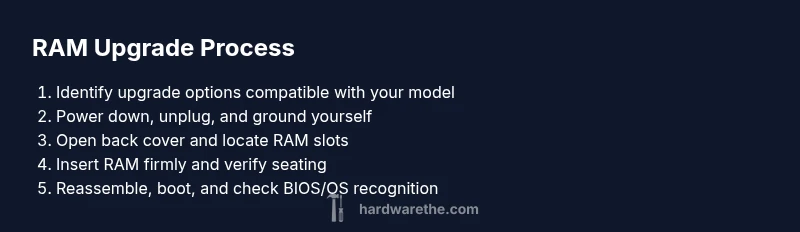
A RAM upgrade typically follows a standard workflow across many laptops, though exact steps vary by model. The goal is to insert compatible memory modules into the correct slots, ensure BIOS recognizes the total memory, and verify stability after boot. Start with model checks, then power down and unplug, remove the back cover, install RAM in the empty slot or replace existing modules, reassemble, and boot. The post-install checks include BIOS memory count and stability testing with lightweight tasks like web browsing and document editing. If your device has multiple slots, populate the primary slot first and test before adding more memory. By understanding the RAM upgrade flow, you minimize risk and maximize the chance of a successful upgrade.
Step-by-step overview: SSD upgrade workflow
For SSD upgrades, the aim is to increase storage capacity or speed without compromising data. Confirm the drive type (SATA or NVMe) and available slot. Power down and unplug, open the back, and carefully disconnect the existing drive if replacing. Install the new SSD, secure with screws, reassemble, and boot to BIOS to confirm the drive is detected. Use a system utility to clone the old drive if you want to keep your existing system and data. If you’re performing a clean install, prepare installation media in advance. After first boot, verify that the OS recognizes the full capacity and run a short disk health check. Maintain careful static precautions and handle the connector gently to avoid pin damage.
BIOS, firmware, and post-install checks
After any hardware upgrade, a few checks ensure stability. Enter the BIOS/UEFI during boot to confirm the system memory or storage is listed correctly. Update BIOS only if a newer version is recommended, and avoid flashing unless necessary. In the OS, confirm the new hardware is visible in device manager or system information, run basic benchmarks, and test typical workloads. If boot failures occur, recheck connections and reseat the memory or SSD. Some laptops require firmware updates for new RAM modules to be fully compatible; check vendor support notes. Finally, monitor temperatures and fan behavior for a few sessions to ensure cooling remains adequate after changes.
Troubleshooting common post-upgrade issues
Even with careful work, you may encounter issues after upgrading. If there is no POST, recheck all cable connections, reseat RAM, and attempt to boot with minimal peripherals. If the BIOS does not recognize the new RAM, try a different slot or test each module individually to identify a defective stick. For SSD upgrades, ensure the drive is properly formatted and initialized in the OS disk management utility. If temperatures spike, reapply thermal paste only if comfortable with the process and consider a cooling pad. Data loss after upgrade is rare but possible; ensure backups remain intact. Keep patience and follow manufacturer guidelines to isolate the problem quickly.
Maintenance and best practices for longevity
To get the most from a laptop upgrade, keep the system clean and dust-free, replace thermal paste when cooling becomes inefficient, and keep firmware up to date. Regularly check RAM and storage health using built-in tools, and run light stress tests after major changes. Document your upgrades so future servicing or resale remains straightforward. Finally, consider gradual upgrades over time to minimize risk and stay within the device’s power and cooling envelope. With care, your laptop can feel nearly new again after hardware enhancements.
Final checklist before powering on
Before powering up for the first time after an upgrade, double-check that all screws are tight, cables are connected, and the back panel is securely closed. Confirm the battery is properly seated, the RAM is fully seated, and the SSD is connected. Reconnect power and boot to BIOS to verify hardware detects correctly, then load into the operating system and run quick tests to validate stability. If any warning lights or beeps appear, consult the service manual or manufacturer support.
Tools & Materials
- Anti-static wrist strap(prevents ESD when handling sensitive components)
- Precision screwdriver set (Philips and Torx)(bit sizes vary; common models use PH0-PH2, T5-T6)
- Plastic opening tools (spudger)(helps separate panels without damage)
- Magnetic parts tray(organizes tiny screws by location)
- RAM modules compatible with laptop (SO-DIMM, DDR4/DDR5)(match speed and capacity to model specs)
- 2.5"/7mm SATA SSD or M.2 NVMe SSD(depends on drive bay and interface)
- Isopropyl alcohol 70%+ and lint-free cloth(for cleaning contacts or dust)
Steps
Estimated time: 30-60 minutes
- 1
Power down and unplug
Shut down the laptop completely and disconnect the charger. If possible, remove the battery to reduce any residual power before you begin. This minimizes the risk of short circuits while you handle internal components.
Tip: Ensure the device is cool and you have a clean, static-free workspace. - 2
Open the access panel or back cover
Use the appropriate screwdriver to remove the screws securing the panel. Keep screws organized by location so reassembly is straightforward. Some models require keyboard or bottom cover removal first.
Tip: If a panel is stubborn, work gently with a spudger to avoid bending clips. - 3
Discharge static and prepare components
Ground yourself and the workspace. Place RAM or SSD on an anti-static mat or in a grounded container before handling. Keep all parts in the same area to prevent misplacement.
Tip: Avoid touching connector pins or gold contacts. - 4
Install the RAM module
Align the RAM module with the slot’s notch and press firmly until it clicks into place. If upgrading to multiple sticks, install in the correct order as per the model’s guidance.
Tip: Do not force the module; if it doesn’t seat evenly, remove and reseat. - 5
Reassemble and reconnect battery
reseat the back cover, reinsert any screws, and reconnect the battery if you removed it. Double-check that all cables are secure and the panel sits flush.
Tip: Take this moment to confirm no screws are loose before powering on. - 6
Power on and verify memory in BIOS
Start the laptop and enter BIOS/UEFI to verify the total installed memory is recognized. If the count differs, reseat the RAM or try a different slot. Exit BIOS and boot into the OS to run quick memory tests.
Tip: If BIOS doesn’t show the new RAM, try one module at a time until each is tested.
FAQ
Can I upgrade RAM on any laptop?
RAM upgrades depend on your model. Some laptops have soldered memory or only a single slot, making upgrades impossible or limited. Always check the manufacturer’s maintenance manual.
RAM upgrades depend on your model; many laptops support it, but some have soldered memory or limited slots.
What RAM type should I buy for my laptop?
Use the RAM type specified for your device (e.g., SO-DIMM, DDR4 or DDR5). Mismatched speed or type may not post or could cause instability. Refer to the model’s official specs.
Make sure you choose the right RAM type and speed for your model, as specified by the manufacturer.
Will upgrading RAM void my warranty?
Upgrading RAM usually won’t void a warranty if you follow the manufacturer’s guidelines and perform the upgrade yourself in a supported manner. Some brands require service by authorized technicians for certain upgrades.
Warranty terms vary; check your brand’s policy before upgrading.
How do I know if BIOS sees the new RAM?
Enter BIOS during boot to verify the total memory recognized. If it doesn’t match, reseat the modules or test each module individually.
BIOS should show the total RAM after installation; if not, re-seat or test the modules.
What if the laptop won’t boot after the upgrade?
Power down, unplug, and reseat the RAM and SSD. Try booting with minimal peripherals. If issues persist, revert changes or seek professional help.
If it won’t boot, reseat components and consult the manual or support.
Watch Video
Main Points
- Prepare workspace and static precautions.
- Use compatible RAM/SSD for your model.
- Follow step-by-step to minimize risk and errors.
- Test in BIOS and OS after installation.