How to Hardware Reset a Laptop: A DIY Guide
Learn how to safely perform a hardware reset on a laptop, when it helps, and which steps, tools, and precautions ensure you don’t lose data during the process.


Hardware reset is a power-down sequence that clears residual hardware states when a laptop won’t boot or freezes. It’s different from a software reset or BIOS reset, and should be performed after data backup and model-specific checks. This quick answer outlines when to use it and how to do it safely.
What a hardware reset does and why it helps
A hardware reset, or how to hardware reset a laptop, interrupts the device's current power and clears transient hardware states that can cause boot loops, hang-ups, or inexplicable freezes. Unlike a software reset, which restarts applications and services, a hardware reset targets the device's power rails and control chips, often restoring a clean baseline for POST (Power-On Self-Test). This is especially useful after a failed BIOS update, after a sudden power loss, or when the system refuses to proceed past the manufacturer logo. Remember, a hardware reset does not erase your storage; it resets the hardware-facing state and may require you to re-enter BIOS settings if they were altered.
When to consider it: if normal reboot fails, the device is unresponsive to input, or you suspect hardware-level glitches rather than software corruption. Always back up important files when possible before attempting any reset, and consult model-specific manual guidance to avoid voiding warranties.
When a hardware reset is appropriate
Hardware resets are most helpful when the laptop exhibits stubborn startup issues, firmware hangs, or BIOS/UEFI anomalies that software-only resets cannot cure. They’re not a substitute for data recovery or system reinstallation, and they won't fix malware or driver conflicts. If the device boots intermittently but behaves erratically, a reset can clear residual states that contribute to instability. Consider firmware or driver updates after a reset to maintain long-term stability.
Safety, backups, and prerequisites
Before touching inner components, ensure you have a clean, static-free workspace. Back up data from the affected drive if possible, and verify you know which keys or prompts to use to enter BIOS/UEFI after reset. Gather the right tools, such as a precision screwdriver and an anti-static wrist strap, and power down completely before starting. If your model has a non-removable battery, a full hardware reset might involve a longer power-drift procedure or limited options; consult the service manual to avoid damage.
Methods at a glance: basic power reset, BIOS/CMOS access, and emergency reset
There are several hardware reset approaches depending on the model:
- Basic power reset: disconnect power, hold the power button to drain residual power, reconnect power, and boot.
- CMOS/battery reset: for laptops with an accessible CMOS battery, removing and reinserting it after a few minutes can reset low-level settings.
- Pinhole or key reset: some devices provide a hidden reset hole or a keyboard shortcut to reset hardware states.
Note that not all laptops expose a CMOS battery or reset pin; many ultrabooks conceal these features. If you can’t access them, skip to the manufacturer-recommended method or seek professional service.
Model-specific notes and warranty considerations
Always check the device’s manual for any cautions about disassembly, battery removal, or CMOS handling. Resetting hardware components can affect firmware settings, including time, boot order, and security features like TPM. In some regions, voiding the warranty is possible if you open the chassis or perform operations beyond the manufacturer’s instructions. If your device is under warranty or you lack the right tools, prioritize a software-based reset or professional service.
What to expect after performing a hardware reset
After the hardware reset, you may see the power light, the OEM logo, or the BIOS/UEFI screen. If the system boots, re-enter BIOS to verify date/time and boot order, then let the system boot into the OS. If the device still won’t boot or shows error codes, note the POST codes and check the manual or manufacturer support for next steps. You may need to reinstall drivers or perform a clean OS setup if software issues persist.
Troubleshooting after reset and next steps
If the reset resolves the issue, monitor for any recurring instability. Run built-in hardware diagnostics if available, and update firmware and drivers from the official site. If problems recur, avoid repeated hardware resets and seek professional diagnostic help. Keep a log of symptoms, timestamps, and any changes to software or firmware for future reference.
Alternatives to hardware reset and when to pursue them
Sometimes software or firmware corruption is the root cause, and a full OS reinstall or factory reset may be more effective than another hardware reset. Consider diagnostics tools, driver cleanups, or factory restoration options provided by the manufacturer. In all cases, ensure important data is backed up before attempting deeper system changes.
Tools & Materials
- Precision screwdriver set(Philips and flathead bits for laptop screws)
- Anti-static wrist strap(Ground yourself to prevent damage)
- Plastic pry tool(Gentle case opening, no metal prying)
- Optional CMOS battery (if accessible)(Only if your model exposes a CMOS cell)
- Soft microfiber cloth(Wipe dust and static-prone surfaces)
Steps
Estimated time: 25-45 minutes
- 1
Power down and disconnect power
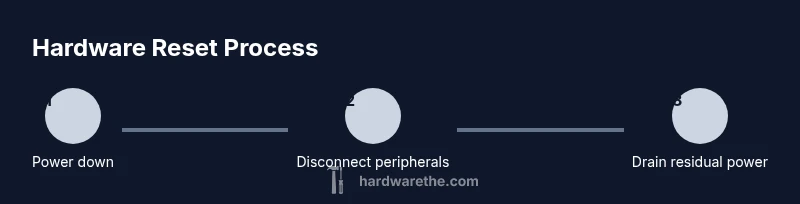
Shut the laptop completely and unplug the AC adapter, ensuring no power is flowing to the device. Hold the power button for 10-15 seconds to drain residual power and eliminate capacitive energy.
Tip: If the screen remains on during the hold, keep the button pressed until it goes dark. - 2
Remove external peripherals
Detach any USB devices, SD cards, or external drives so they cannot interfere with the reset process.
Tip: Note any devices in case you need to reconnect them after boot. - 3
If removable, disconnect the battery
If your model has a removable battery, carefully remove it and set it aside to prevent it from re-energizing the system during the reset.
Tip: Verify the battery release latches are fully open before removal. - 4
Perform a hard power reset
With the battery removed (or still disconnected), press and hold the power button for 15-20 seconds to clear residual power. Release and wait 10-15 seconds before reconnecting power.
Tip: This step clears the power rails that can hold stale states. - 5
Reset CMOS or access BIOS settings (if available)
If your device exposes a CMOS battery or reset pin, remove the CMOS battery for 3-5 minutes or use the reset pin per the manual, then reinsert and reconnect power.
Tip: Some laptops do not expose CMOS; skip this step if you can't locate the battery. - 6
Reconnect power and boot
Reinstall any battery, reconnect the charger, and press the power button to boot. Watch for the POST screen and proceed to BIOS if prompted.
Tip: If the OS attempts to boot, you may need to enter BIOS to restore boot order. - 7
Check BIOS/UEFI and boot order
If you reach BIOS/UEFI, verify the system time, boot order, and security settings such as TPM. Save changes and reboot.
Tip: Take screenshots of current settings before changing anything. - 8
Test OS boot and run diagnostics
Let the OS load and run built-in diagnostics or stress tests to ensure stability. Update firmware/drivers as needed.
Tip: Document any POST codes or error messages to reference later.
FAQ
What is a hardware reset and how does it differ from a software reset?
A hardware reset clears residual power and resets hardware states, which can resolve boot or hang issues. It is not the same as rebooting the OS or performing a BIOS reset, and it may require reconfiguring BIOS settings afterward.
A hardware reset clears the laptop's hardware state and power, not the software or BIOS settings. It helps when the device is unresponsive, but you may need to reconfigure BIOS afterward.
Is a hardware reset safe for my laptop?
When performed using manufacturer-approved methods and with backups, a hardware reset is generally safe. Avoid disassembly beyond what the manual allows, and discontinue if you experience unusual heat or smells.
If you follow the manual and back up data, hardware resets are usually safe. Stop if you notice heat or smells.
Can I hardware reset if the battery is non-removable?
Some laptops do not support CMOS or power-reset procedures when the battery is non-removable. In these cases, perform a standard power-cycle or seek service if issues persist.
If the battery isn’t removable, you may still do a power-cycle, but CMOS-based resets might not be possible.
What should I do if the laptop still won’t boot after a reset?
Note POST codes, check power and battery status, verify BIOS settings, and consider professional service if the issue persists beyond a basic reset.
If it still won’t boot after reset, write down error codes and contact support for next steps.
Should I reset BIOS/UEFI to default settings after a reset?
Resetting BIOS to default can help if misconfigured settings caused issues, but document the current configuration before changing anything and reapply custom changes after reboot.
Reset BIOS to defaults if settings seem off, but keep notes in case you need to revert.
Watch Video
Main Points
- Power down completely before handling internals.
- Back up data prior to hardware resets and follow model guidance.
- Know your laptop’s CMOS access and risks before disassembly.
- Verify boot after reset and update firmware/drivers as needed.