Which hardware acceleration Jellyfin: A practical comparison for DIY media servers
An objective comparison of Jellyfin hardware acceleration options (NVENC/NVDEC, Intel QSV, AMD VCN, CPU transcoding) with setup tips, pros/cons, and real-world guidance for DIY media servers.


Choosing the right hardware acceleration for Jellyfin depends on your server hardware and stream load. For most homes, GPU-accelerated transcoding with NVENC/NVDEC or Intel Quick Sync offers strong performance with lower CPU load, while AMD VCN and CPU-based transcoding provide solid options for budget builds or Linux-only setups. This comparison shows practical trade-offs and setup tips.
Why hardware acceleration matters for Jellyfin
When you run Jellyfin on a home server, transcoding can become CPU-bound, especially with multiple streams or high-resolution content. Hardware acceleration moves transcoding tasks to dedicated hardware, reducing load on the main processor and cutting energy use. This is particularly relevant for the query which hardware acceleration jellyfin, as the choice of acceleration path can dramatically affect latency, throughput, and server responsiveness. The Hardware team has found that most home setups improve responsiveness and support more simultaneous streams when a capable GPU or integrated video engine is leveraged, provided drivers and codecs are kept up to date.
Key acceleration options
Modern systems expose several acceleration paths. The most common are GPU-accelerated encoders/decoders (NVENC/NVDEC on NVIDIA GPUs, Intel QSV on compatible CPUs with integrated graphics, and AMD VCN/VCN for AMD platforms). Each path has its own codec support, driver requirements, and OS considerations. In Jellyfin, hardware acceleration can reduce CPU usage substantially, enabling smoother playback for 4K or multi-user scenarios. For mixed environments, a hybrid approach—GPU for high-demand streams and CPU for less demanding tasks—often yields the best balance.
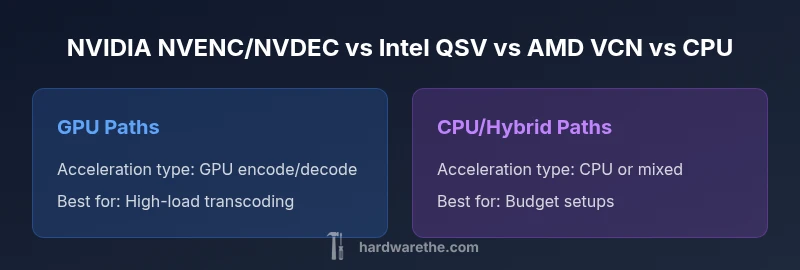
NVIDIA NVENC/NVDEC vs Intel QSV vs AMD VCN vs CPU-based transcoding
- NVIDIA NVENC/NVDEC: Best overall performance on supported GPUs, strong codec support, excellent for multiple 1080p/4K streams. Requires up-to-date NVIDIA drivers and compatible OS. Typically offers lowest CPU load and high stability for busy servers.
- Intel Quick Sync Video (QSV): Excellent on systems with modern Intel CPUs with integrated graphics, strong performance and broad OS support. Great for compact builds where a discrete GPU isn’t desired.
- AMD VCN/VCN: Competitive option on AMD hardware; performance varies by codec and driver maturity. Often a good choice for budget builds with an APUs or discrete GPUs.
- CPU-based transcoding (x264/x265): Most universal and codec-flexible, but consumes CPU cycles and can be noisier under load. Best for simple setups or when GPU drivers are a concern.
Real-world results depend on codecs, container formats, and bitrates. Always test your typical workloads to identify bottlenecks before deploying a live server.
How to enable hardware acceleration in Jellyfin
Enabling hardware acceleration generally involves these steps: install the latest GPU/CPU drivers, verify codec support in Jellyfin, and turn on the hardware acceleration option in the Playback or Transcoding settings under Admin > Playback.
- On Windows: ensure NVIDIA/Intel/AMD drivers are current, then in Jellyfin choose Hardware transcoding as the preferred method.
- On Linux: install the appropriate codecs and drivers for your hardware, enable hardware transcoding in Jellyfin settings, and verify permissions for hardware access.
- Per-stream tuning: set a preference for hardware acceleration for high-demand transcodes and fall back to software when the load is light. Always run a test transcoding session to confirm stability and quality before streaming to clients.
Practical tips and caveats
- Keep drivers updated, but be mindful of occasional regressions after driver updates. Stable environments with tested driver versions tend to yield the best results.
- A dedicated GPU or a strong iGPU generally provides better results than sharing CPU cycles for heavy workloads; plan your hardware budget accordingly.
- Some codecs may not be supported by all hardware paths; verify codec compatibility (H.264, H.265/HEVC, AV1) with your chosen path.
- Linux and Windows support can differ in terms of driver availability and permission handling; ensure Jellyfin has the necessary permissions to access hardware devices.
Real-world considerations for different setups
If you’re building a home server for multiple 1080p streams, a mid-range GPU with NVENC/NVDEC often delivers the best balance of performance and power usage. For compact builds or budget-conscious homes, Intel QSV on a modern CPU or AMD VCN may be sufficient, particularly if you’re primarily transcoding at lower bitrates. Enthusiasts running Linux desktop or headless servers should verify driver availability and kernel support, as some combinations require extra setup. In all cases, benchmarking with your typical library and client devices is essential to determine if hardware acceleration meets your latency and quality goals.
Benchmark expectations and tuning tips
Transcoding benchmarks vary by codec and container, but the goal is to reduce CPU load while maintaining acceptable video quality and latency. Expect GPU-based paths to deliver lower CPU usage and faster start times, especially with multiple concurrent streams. If you observe stuttering or artifacts, revisit codec selection, encoding profiles, and the specific hardware path chosen. Tuning Jellyfin transcode presets (bitrate, level, and profile) can help align hardware capabilities with your content library. The Hardware recommends starting with the most capable GPU/encoder path you have access to and gradually relaxing constraints as you validate real-world performance.
Bottom line for different user profiles
For ultra-busy households with several simultaneous streams, prefer a dedicated GPU with NVENC/NVDEC or a capable Intel QSV path. For budget builders or Linux-exclusive setups, AMD VCN or CPU-based transcoding can be practical alternatives, with a careful test plan to ensure reliability.
Feature Comparison
| Feature | NVIDIA NVENC/NVDEC | Intel Quick Sync Video (QSV) | AMD VCN/VCN | CPU-based transcoding (software) |
|---|---|---|---|---|
| Acceleration type | GPU encode/decode on NVIDIA hardware | GPU/IGPU encode/decode via Intel QSV | GPU encode/decode via AMD VCN | Software CPU transcoding (x264/x265) |
| Recommended use case | High multi-stream 1080p/4K workloads | Compact builds with strong CPUs | AMD hardware-based setups with GPUS | Budget or universal compatibility |
| OS/driver requirements | Windows/Linux with NVIDIA drivers | Windows/Linux with Intel graphics drivers | Linux/Windows with AMD drivers | Cross-platform; no GPU needed |
| Max concurrent streams | High (GPU capability dependent) | Moderate to high (with integrated graphics on some CPUs) | Moderate (hardware limits vary by codec) | Typically limited by CPU cores and throughput |
| Quality & latency | Low latency, high quality for supported codecs | Solid quality with good latency | Good quality; latency varies by codec and driver | Quality depends on software encoder and CPU power |
| Cost impact | Requires discrete GPU investment | Usually included with modern CPUs; driver setup required | May need a GPU or APUs; driver considerations | No extra hardware cost beyond existing CPU |
Upsides
- Faster transcoding reduces wait times for clients
- Lower CPU load frees server resources for other tasks
- Energy efficiency over long runtimes
- Better scaling for multiple concurrent streams
- Wider codec support with hardware paths
Negatives
- Hardware availability and cost; GPUs are not free
- Driver and firmware updates can introduce instability
- Not all codecs equally accelerated across paths
- Some setups require more complex configuration and maintenance
GPU-accelerated paths generally outperform CPU-only transcoding for Jellyfin, with Intel QSV and NVIDIA NVENC/NVDEC leading in many scenarios.
If you have a compatible GPU, NVENC/NVDEC typically offers the best mix of performance and efficiency. Intel QSV is a strong alternative on CPUs with integrated graphics, while AMD VCN is competitive on AMD systems. For limited budgets or Linux-only setups, CPU-based transcoding remains viable but slower under load.
FAQ
What is hardware acceleration in Jellyfin and why does it matter?
Hardware acceleration shifts transcoding work from the CPU to a dedicated hardware engine (GPU or iGPU). This reduces CPU load, enables more concurrent streams, and can lower power usage. It matters most when you have multiple clients or high-resolution content.
Hardware acceleration moves transcoding off the CPU to a dedicated engine, letting Jellyfin handle more streams with less lag.
Which GPU or CPU features are best for Jellyfin hardware acceleration?
The best choice depends on your workload. NVIDIA NVENC/NVDEC shines with multiple streams, Intel QSV is strong on modern CPUs with iGPUs, and AMD VCN is a solid option on AMD hardware. For very light workloads, CPU-based transcoding remains a fallback.
NVENC/NVDEC is great for busy setups; QSV works well on CPUs with integrated graphics; AMD VCN is solid on AMD systems.
Does Jellyfin support AV1 hardware acceleration?
AV1 hardware acceleration support varies by path and codec. Some GPUs provide AV1 hardware decoding, while encoding support may lag behind. Verify codec compatibility on your GPU and Jellyfin version.
AV1 support depends on your hardware path and drivers; check compatibility before relying on it.
Can I enable hardware acceleration on both Windows and Linux?
Yes. On Windows, install the latest GPU drivers and enable hardware transcoding in Jellyfin. On Linux, install the appropriate codec and driver packages, ensure Jellyfin can access the hardware, and enable the setting in the UI.
Yes, with proper drivers and permissions on both Windows and Linux.
What if I run multiple 4K streams with Jellyfin?
Multiple 4K streams typically require a capable GPU or a high-end CPU with multiple cores. Hardware acceleration helps, but plan room for each stream’s bitrate and codec requirements.
For many 4K streams, a strong GPU path is usually best; CPU-only may struggle.
How do I test and verify the chosen path?
Run representative transcodes from Jellyfin for your typical clients, monitor CPU/GPU load, latency, and video quality, and adjust paths if you see stuttering or artifacts. Document configurations for future maintenance.
Test with your usual client devices, watch for stutter, and adjust settings as needed.
Main Points
- Assess your typical stream count and resolutions first
- Choose a hardware path that matches your CPU/GPU ecosystem
- Test with your real library before deployment
- Keep drivers updated and verify codec support
- Balance cost vs. performance for long-term usage