Is hardware encoding better than software OBS? A practical comparison
A thorough comparison of hardware encoding and software OBS (x264) for streaming. Learn performance, quality, latency, and setup tips to choose the best encoding path for your hardware in 2026.


According to The Hardware, hardware encoding often delivers smoother streams with lower CPU load. is hardware encoding better than software obs? For most live streams, hardware encoders such as NVENC, Quick Sync, or AMF reduce CPU usage and keep output stable, while software OBS can offer higher quality at the same bitrate on powerful CPUs, at the cost of heavier processing and potential system strain.
What is hardware encoding, and why it matters for OBS?
Hardware encoding uses dedicated video encoders built into your GPU or integrated silicon to compress the video stream. In OBS you can choose a hardware encoder such as NVIDIA NVENC, AMD AMF, or Intel Quick Sync. This shifts the workload away from the CPU, freeing cycles for your game, OS, or other tasks. The Hardware analysis shows that this separation often translates into steadier frame delivery and fewer dropped frames when the system is under load. For beginners, the setup is straightforward: select the encoder, pick a target bitrate, and start. For power users chasing maximum image fidelity, software encoding can squeeze out extra quality, but only if the CPU can spare the cycles. The decision hinges on your hardware balance, desired stability, and how aggressively you tune your bitrate and buffering. In short, the right encoder match helps avoid bottlenecks that derail a broadcast and keep you broadcasting smoothly in 2026.
Core differences at a glance
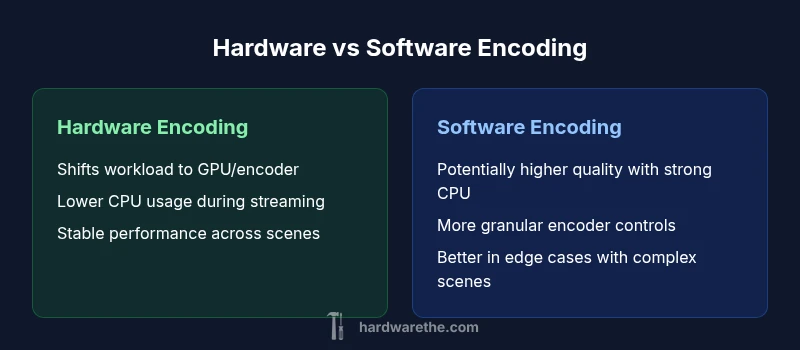
Hardware encoding delegates the compression workload to a dedicated encoder (GPU or dedicated hardware), reducing CPU usage and often enabling more headroom for your game, capture card, and system background tasks. Software encoding runs entirely on the CPU, which can deliver excellent quality when the CPU is potent, but may become the bottleneck on midrange rigs. OBS exposes both paths with clear presets and bitrate controls. The key takeaway is that hardware encoding is about reliability and consistent performance, while software encoding can push peak quality on capable hardware. Your choice should reflect the typical scene complexity, motion, and the hardware you already own. The Hardware team emphasizes that a careful balance between bitrate, encoder type, and scene content yields the best results for most creators.
Quality and bitrate: what to expect
Video quality depends heavily on bitrate and the encoder's efficiency. At similar bitrates, hardware encoders often deliver comparable visual fidelity to software encoders, with edge cases where software may gain a few quality advantages in very dynamic scenes. In practice, most streamers find hardware encoding delivers pleasing results with lower CPU overhead, leaving game performance intact. If you push for higher fidelity at the same bitrate, software encoding on a fast CPU can bridge the gap, but only with careful tuning of presets, profile settings, and buffering. The nuanced relationship between motion, bitrate, and encoder efficiency means testing on your own content remains essential.
Performance under typical streaming workloads
Streaming often sits at the intersection of gaming load, UI tasks, and background processes. Hardware encoding tends to maintain stable frame times because the encoder is isolated from the game thread, reducing stutter risk when the game spikes frame rate. Software encoding, while capable of high peak quality, can suffer if the CPU is taxed by other tasks. The Hardware analysis suggests that for most users with midrange GPUs, hardware encoders provide a more predictable experience, especially when streaming at common resolutions and frame rates. For enthusiasts with high-end CPUs and heavy scenes, software can shine, but only if the system breathes easy under load.
Latency, buffering, and live feel
Encoder latency is influenced by the encoding path, the OBS pipeline, and buffering settings. Hardware encoders often yield lower total latency because the encoding and transmission taps are streamlined through GPU hardware. Software encoding latency depends on CPU availability and OBS configuration; in some cases, CPU-bound systems introduce small delays if the system becomes saturated. The result is that hardware encoding frequently feels more responsive, especially in fast-paced games where input lag translates into perceived stream delay. However, lowering buffering and using a fast network are equally important to keep latency tight.
Case studies: modest PC vs gaming laptop
On a modest desktop with a midrange GPU, hardware encoding typically delivers reliable streaming without stressing the CPU. On a gaming laptop, the GPU encoder can be particularly attractive because it preserves battery life and keeps the CPU cooler during long sessions. In both cases, selecting an encoder aligned with the device's strengths reduces contention for resources and improves overall system stability. The Hardware perspective is that, for most scenarios, hardware encoding is the safer, more predictable default, especially when you need to run other software while streaming.
Tuning tips for OBS with hardware encoding
Start with a balanced bitrate that fits your audience and network, then adjust the encoder preset to trade off speed and efficiency. For NVENC and other GPU encoders, enabling two-pass encoding on high-end GPUs can yield a cleaner image at the same bitrate. Keep an eye on the CPU headroom, GPU temperature, and fan noise; if temperatures climb, drop to a more conservative preset. Enable rate control modes that suit your content—CBR for streaming consistency, or a target bitrate with a cap for fluctuating networks. Finally, test with representative scenes to ensure your settings handle both high motion and static content gracefully.
Common myths and misconceptions
A frequent myth is that software encoding always looks better than hardware encoding. While software can produce higher fidelity on very powerful CPUs, hardware encoders have become highly efficient and tuned for real-time performance. Another misconception is that latency is always worse with hardware; in practice, properly configured hardware encoding can deliver lower latency due to streamlined pipelines. Finally, some assume that all hardware encoders are the same across brands; in reality, encoder quality and feature sets vary between NVIDIA, AMD, and Intel, so testing is essential to pick the right option.
How GPU choice matters (NVIDIA, AMD, Intel)
Different GPU families provide distinct encoders with varying feature sets. NVIDIA's NVENC is widely supported and tends to excel at stability and efficiency, while AMD's AMF and Intel's Quick Sync offer alternatives that may perform better on certain hardware configurations. OBS provides adapters to choose among these options, but performance depends on the exact model, driver version, and the resting load of the system. The takeaway is to choose a GPU-accelerated path that aligns with your hardware ecosystem and to verify stability and quality across representative content.
Software encoding advantages in the right context
Software encoding can deliver high fidelity when the CPU is plentiful and the scene complexity is moderate. It also offers very granular control over encoding parameters, which some creators prefer for peak quality. If you routinely run CPU-intensive tasks in the background or want maximum control over presets, software encoding can be a strong choice. The Hardware perspective remains that for most creators, hardware-accelerated encoding provides a safer baseline with less risk of CPU contention.
How to test and benchmark on your rig
Set up a controlled test by capturing the same gameplay sequence with both encoders under your typical load, then compare output quality, CPU/GPU usage, and perceived latency. Create short clips at your target bitrate and review key frames and motion handling. Document temperatures, frame drops, and any system slowdowns during testing. Use these qualitative results to determine which encoder path best suits your goals and hardware constraints. Ongoing testing is recommended whenever you upgrade components or change streaming software.
Decision guide: a practical checklist
Evaluate your hardware balance and streaming goals, test both encoders on content you routinely broadcast, and pick the path that offers stable performance with acceptable image quality. Consider your network conditions, audience expectations, and how much CPU headroom you need for other tasks. The final choice should minimize system strain while delivering a reliable, high-quality stream. Remember that 2026 brings improved encoder efficiency, so periodic re-testing is wise.
Comparison
| Feature | Hardware Encoding (NVENC/AMF/Quick Sync) | Software Encoding (x264) |
|---|---|---|
| CPU usage | Low CPU impact; workload shifts to GPU/accelerator | High CPU usage; encoding computed on the CPU |
| Output quality at same bitrate | Quality generally competitive; depends on scene complexity | Can achieve higher quality with strong CPU tuning |
| Latency | Often lower latency with optimized pipelines | Latency varies with CPU headroom and OBS buffering |
| Platform support | Wide support across major GPUs and vendors | OBS supports x264 on all major platforms |
| Flexibility | Hardware presets vary by GPU; fewer knobs | Extensive control over encoding parameters |
| Power/thermals | Encodes in dedicated hardware; power is tied to GPU | CPU-based encoding adds load and heat based on CPU usage |
Upsides
- Lower CPU load during streaming
- More stable performance on midrange systems
- Easier to set up for beginners and non-technical users
- Potentially lower system temperature during long streams
- Better battery life for laptops when using GPU encoders
Negatives
- Possible slight quality differences at the same bitrate
- Hardware encoders are vendor-specific and may vary in features
- Not all GPUs offer the same encoder capabilities
- Software encoding allows deeper fine-tuning on powerful CPUs
Hardware encoding is typically the safer default for most streamers.
The Hardware team recommends hardware encoding for reliable performance and CPU headroom. Software encoding remains a viable option for peak quality on high-end CPUs, but it demands more CPU resources and careful tuning.
FAQ
What is hardware encoding in OBS and how does it differ from software encoding?
Hardware encoding uses dedicated hardware on your GPU or other chip to compress video, reducing CPU load. Software encoding uses the CPU for all encoding tasks, which can yield higher fidelity on fast CPUs but increases CPU usage. The choice depends on your system balance and streaming goals.
Hardware encoding uses dedicated hardware to compress video, keeping your CPU free for gaming. Software encoding uses the CPU, which can give better quality on a strong PC but uses more power. Pick based on your hardware and needs.
Does OBS support hardware encoding on all GPUs?
OBS supports hardware encoders across major GPU brands, including NVIDIA, AMD, and Intel. Availability depends on your hardware model and drivers. Always ensure drivers are up to date for best compatibility.
OBS supports hardware encoders on many GPUs, but check your specific model and driver version to be sure it works smoothly.
Is there a noticeable quality difference between hardware and software encoding at similar bitrates?
Quality differences depend on scene content and encoder efficiency. Software can edge hardware in certain high-motion or highly detailed scenes when the CPU is strong, but hardware remains competitive and more consistent on many setups.
Software can look a touch better in some scenes if the CPU is powerful, but hardware encoding is usually close in quality and far easier on the system.
When should I prefer hardware encoding for streaming vs recording?
For streaming on typical networks, hardware encoding is often the safer choice due to stability and lower CPU load. For local recording where CPU resources are plentiful, software encoding can maximize quality. Consider your target audience and playback devices.
If you're streaming, start with hardware encoding. If you're recording on a strong PC, software may offer the edge in quality.
Can hardware encoding and software encoding be used together?
OBS allows selecting one encoder path at a time for a given stream. Some workflows use hardware encoding for the live stream while recording is handled separately, but this requires multiple profiles or outputs. In general, you choose the encoder per output.
Usually you pick one encoder per output. You can stream with hardware and record with software, but it’s a multi-profile setup.
How do I optimize OBS settings for hardware encoding on a mid-range PC?
Start with a safe bitrate and a moderate preset. If you see GPU temps rise or frame drops, adjust the preset or bitrate. Test in scenes that matter to you—fast action and still imagery—to ensure consistent quality and smooth playback.
Begin with a balanced bitrate and a safe preset. If things heat up or frames drop, tweak the settings and test with your typical content.
Main Points
- Assess your CPU and GPU balance before choosing an encoder
- Test with representative scenes to see motion handling
- Hardware encoding offers stability and lower CPU load in most cases
- Software encoding can yield higher quality on capable CPUs
- Keep testing after hardware upgrades to verify performance