HP PC Hardware Diagnostics: Troubleshooting Guide
A practical, step-by-step guide to diagnose and fix HP desktop and laptop hardware issues using reliable diagnostics, safety practices, and DIY-friendly strategies.


If your HP PC misbehaves, start with simple checks: verify power, reseat RAM, inspect drives, and run HP PC hardware diagnostics to pinpoint the faulty component. If the test flags a specific part, replace or service it and re-test. Always unplug before touching internal components and seek professional help for power supply or motherboard concerns.
Why HP PC Hardware Diagnostics Matter
For DIY enthusiasts, hp pc hardware diagnostics are essential for isolating faults quickly and safely. According to The Hardware, robust diagnostics reduce guesswork and prevent unnecessary parts replacement. This guide focuses on practical approaches for HP desktops and laptops, offering a structured path from symptom to solution. By understanding how diagnostics fit into everyday maintenance, you build confidence to handle common failures and extend your devices' lifespan. As HP systems evolve, staying current with diagnostic best practices helps you catch issues early and minimize downtime. The Hardware's analysis shows that the most impactful fixes come from a disciplined, repeatable process rather than ad-hoc tinkering. If you suspect a hardware fault, start with basic power checks, then move through memory seating, storage health, and firmware considerations.
Recognizing the Most Common HP Diagnostics Signals
HP PCs often present a handful of repeatable signals when something is wrong. Watch for POST beeps, LED blink codes, sudden shutdowns, overheating, blue screens, or boot loops. Each symptom narrows the field: power delivery, memory, storage health, or firmware issues are the usual suspects. The goal is to map the symptom to a likely subsystem and then apply targeted tests. The more you document, the faster you’ll recognize patterns across multiple HP devices, which helps you avoid unnecessary replacements and keeps maintenance costs predictable.
Building Your Diagnostics Toolkit
A practical toolkit for hp pc hardware diagnostics includes a clean workspace, an anti-static wrist strap, a reliable multimeter, and a USB drive for bootable diagnostics. Have a spare set of compatible RAM modules and known-good cables on hand. Use HP PC Diagnostics tools when available, but also have generic testing utilities for memory and storage. Safety is paramount: work on a non-powered device, unplug the power, and discharge static before touching any components. The goal is to run repeatable checks rather than one-off tinkering.
The Diagnostic Flow: Symptom to Solution
Successful troubleshooting follows a predictable path: observe the symptom, partition the problem by subsystem, test each candidate, and verify the result with a retest. Begin with power and basic boot checks, then address memory and storage, followed by drivers and firmware. If a test fails, document the result and move to the next high-lidelity test. Use HP diagnostics results as a map, not as a final verdict, to decide whether you can DIY or need professional help.
Step-by-Step Quick Fixes You Can Try
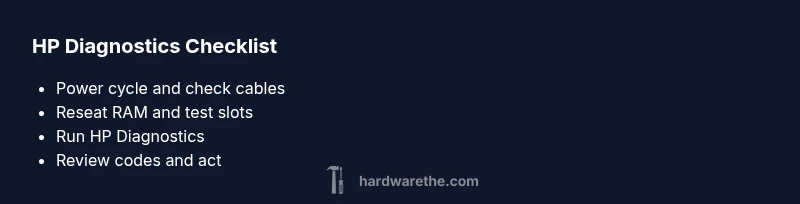
Start with low-risk steps: power cycle the system, reseat RAM, and inspect all cables for secure connections. Clean dust from vents and fans to reduce thermal throttling. If the system boots, run the diagnostics again to confirm stability. For storage concerns, run SMART tests and check for bad sectors. Remember, firmware and BIOS updates should be performed only when the device is stable and battery/power is reliable. Always back up important data before advanced repairs.
Safety First and When to Call a Pro
Never force components or open power supplies beyond your comfort level. High-voltage areas, capacitors, and power circuits pose shock hazards. If you observe smoking, burning smells, or swelling capacitors, stop immediately and contact a professional. Power issues, motherboard faults, or suspected PSU failures usually require professional service. Use diagnostics to guide the decision, not to replace expert judgment.
Reading Diagnostics Results and Next Steps
Interpret diagnostic codes with HP’s official documentation and your device model. If tests point to RAM, reseat or replace modules. If storage health fails, prepare for data backup and a drive replacement plan. Firmware and BIOS warnings often indicate the need for an update or a clean reinstall. Always perform a final retest after any fix to ensure stability.
Prevention: Keeping HP Devices Healthy
Regular cleaning, dust management, and periodic firmware updates keep HP PCs healthy. Schedule quarterly checks of memory seating, storage health, and cabling integrity. Maintain a predictable backup routine and keep recovery media ready. By institutionalizing diagnostics into your routine, you reduce the likelihood of unexpected downtime and extend device lifespan.
Steps
Estimated time: 60-90 minutes
- 1
Prepare and safety check
Power down the PC, unplug the power cord, and ground yourself. Open the case only if you’re comfortable; set up a clean, static-free workspace. Gather your diagnostic tools and backup media before proceeding.
Tip: Label cables as you disconnect them to ease reassembly. - 2
Check power and indicators
Inspect the power cable, wall outlet, and any power strip in use. Confirm the PSU fan spins up during startup and watch for any unusual LED codes or beeps. Replace or tighten any loose connections.
Tip: Test with a known-good power cable to rule out the cord. - 3
Reseat RAM and check slots
Remove all RAM sticks and reseat them firmly in their slots. Try one module at a time in different slots to identify a faulty stick or slot. If the system POSTs with a single module, test each module individually.
Tip: Power off and discharge static before handling memory. - 4
Inspect storage and OS health
Run SMART checks on SSD/HDD and look for bad sectors or health warnings. If possible, clone the drive to a healthy backup before attempting repairs. Reinstall or repair the OS if diagnostics indicate corruption.
Tip: Have a verified backup before attempting OS repairs. - 5
Update firmware and drivers
Enter BIOS/UEFI to verify settings, update firmware if a newer version exists, and ensure critical drivers are up to date. Keep a USB with the latest drivers handy in case the system cannot boot into Windows.
Tip: Only update firmware when the system is stable and powered by a reliable source. - 6
Run HP PC Diagnostics and interpret results
Boot into the HP diagnostics environment or run the diagnostics from within Windows if available. Note any error codes and compare them with HP’s documentation. Apply the recommended actions and retest to confirm resolution.
Tip: Document results with screenshots or notes for future reference.
Diagnosis: PC powers on but fails to boot or shows random errors
Possible Causes
- highPower issue or unstable power delivery
- mediumFaulty or loose RAM modules
- mediumFailing storage drive or corrupted OS
Fixes
- easyTest the outlet, replace faulty power cord or PSU if needed, and use a surge protector
- easyReseat RAM modules, reseat in different slots, or test with known-good RAM
- mediumCheck SMART status on the drive, replace failing drive, and reinstall OS if required
FAQ
What is HP PC hardware diagnostics and why should I use it?
HP PC hardware diagnostics are built-in tests that assess core components like RAM, storage, and power delivery. They help you quickly identify failing parts and guide repairs, saving time and money for DIY technicians.
HP PC hardware diagnostics are built-in tests for memory, storage, and power. They help you pinpoint failing parts and guide repairs.
Do I need to boot from a USB drive for diagnostics?
Some HP diagnostic tools require booting from a USB drive or running from a dedicated diagnostic partition. Follow HP's official instructions for your device model to select the appropriate test mode.
Some HP tools require booting from USB. Check HP's official instructions for your model.
Can diagnostics fix hardware issues by themselves?
Diagnostics identify problems, but fixes often require physical replacement or firmware updates. Use the results to guide your next steps and decide whether you can DIY or need professional help.
Diagnostics point to what's wrong, but fixes may need hardware replacement or updates.
What should I do if HP diagnostics show an uncertain code?
If an error code is unclear, consult HP’s official documentation or contact support. Collect system details and test results to help a technician diagnose the issue.
If codes are unclear, check HP docs or contact support with your test results.
Is it safe to repair an HP laptop battery with diagnostics alone?
Diagnostics can indicate battery health, but replacing a laptop battery involves handling high-risk components. If you’re unsure, seek professional service to avoid damage or injury.
Battery replacements are risky; get a pro if unsure.
How often should I run HP diagnostics for maintenance?
Run diagnostics quarterly or after notable hardware changes, like RAM upgrades or new storage. Regular checks help catch issues early and extend device life.
Run diagnostics every few months or after hardware changes.
Watch Video
Main Points
- Start with power and seating checks
- Use HP diagnostics to identify the fault
- Back up before major changes
- Know when to call a pro