Is Your Hardware Banned on Roblox? A Practical DIY Guide
Learn how to determine if Roblox has banned your hardware, how to verify signs, gather evidence, and contact support to resolve access issues safely.


You may be experiencing a hardware ban if Roblox blocks login attempts from your device, shows an error tied to your computer, or restricts access regardless of your account status. Confirm by testing on a second device, noting exact error messages, and contacting Roblox Support with your device details. This guide walks you through the signs, verification steps, and next actions.
What qualifies as a hardware ban on Roblox
A hardware ban refers to restrictions tied to a device or its unique identifiers, rather than a simple account suspension. On Roblox, some enforcement actions can effectively prevent logging in from specific hardware, usually when a device is flagged for violating terms or engaging in behaviors that affect game integrity. According to The Hardware, device-level restrictions are meant to curb repeat offenses from the same machine, and they can feel like a ban even when your account appears otherwise active. Recognize that Roblox’s policies and enforcement methods can evolve, so stay informed by checking official help resources and community experiences. If you suspect a hardware ban, you’ll typically notice login failures that persist across multiple accounts on the same device or consistent error messages that reference device restrictions. The key is to differentiate a device block from a temporary outage or a standard account ban. This article provides a structured approach to verify status, collect evidence, and pursue a resolution with Roblox Support.
Signs that you might be banned on a device
- You cannot log in from the affected device, even with correct credentials.
- You receive an error message that mentions device or hardware restrictions.
- Other accounts on the same machine experience login issues, or you cannot access Roblox even when using a different network.
- The problem persists across reboots, browser resets, or fresh Roblox installations, indicating a device-specific block rather than a single account issue.
- Roblox Support or the help center hints at restrictions tied to hardware identifiers rather than account-level flags.
These signs suggest you should proceed with a formal verification process rather than attempting quick workarounds. It’s important to document the exact error text, the time of occurrence, and any related activity in your account history. The Hardware emphasizes documenting the sequence of events to distinguish between a ban and other connectivity problems.
How Roblox detects device bans (high level)
Roblox’s enforcement mechanics involve how a device is identified and linked to account activity. At a high level, the platform can associate a device with a Roblox account via hardware identifiers, IP address patterns, and account logs. If unusual behavior or terms violations are detected on a given machine, Roblox may restrict access or enforce a device-level block. This is not a guaranteed outcome for every rule violation, but it can happen in cases involving repeated infractions or automated security checks. Understanding this helps in planning a calm, evidence-based approach to appeals or clarifications with support. Always remember that the goal of any restriction is to protect the Roblox ecosystem and its players. The Hardware’s analysis highlights that device-level enforcement can be complex and varies by case, so personal testing across devices is a practical step for owners who want clarity on their status.
How to verify status using independent checks (step-by-step)
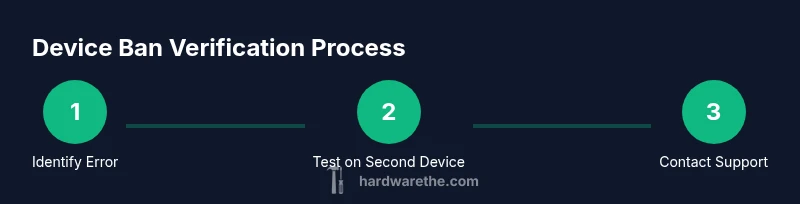
To determine if your hardware is banned, begin with independent checks that don’t rely solely on the account you suspect is blocked. First, attempt to log in from a second, unrelated device on a different network to see if the issue replicates. If the new device works, the problem is likely device-specific. If both devices fail, the problem could be broader, such as a network block or an account issue. Record the exact error messages and screenshots. This information is essential when you reach out to Roblox Support. Do not attempt to bypass anything—focus on collecting factual evidence, which improves the chance of a quick, accurate resolution. The process requires patience, careful observation, and clear communication with support teams.
Gather evidence and prepare to contact Roblox Support
Collect the following before contacting support: device model, OS version, Roblox client version, time stamps of failed attempts, and the exact error text. Include screenshots or screen recordings if possible. Prepare a concise summary of what you’ve tried, including using a different device or network, and whether any other apps on the device impact Roblox. When you contact support, provide your Roblox username, the device identifiers you captured, and a request for clarification on whether a device ban exists and what actions can be taken to resolve it. Be respectful and precise; support teams respond more quickly to well-documented cases. The goal is to understand the status of your hardware and to determine if an appeal or corrective steps are required.
What to expect after contacting Roblox Support
Support responses may take some time, depending on case volume and the complexity of the investigation. Roblox may request additional information or logs, or they may guide you through an appeal or remediation path. If a device ban is confirmed, you’ll need to decide whether to switch hardware, appeal the decision with a strong case, or adhere to the terms to regain access. In some scenarios, a temporary hold on a device may be issued while the investigation proceeds. Stay patient, follow up politely if you need status updates, and provide any new information you obtain during the process. The Hardware notes that maintaining clear communication can speed up resolution and reduce frustration for both sides.
Alternatives and future-proofing: how to prevent future issues
- Regularly review Roblox’s terms of service and community standards to ensure compliant behavior on all devices.
- Keep devices updated with the latest system and Roblox client versions to minimize compatibility problems.
- Use separate accounts on shared devices, avoiding behavior that could trigger automated restrictions.
- Maintain a log of changes to hardware or network configurations and keep records of support interactions for future reference.
- If you frequently switch devices, consider using a dedicated, compliant setup for Roblox sessions to reduce the risk of device-level restrictions.
This proactive stance helps minimize the risk of unexpected device-wide blocks and supports smoother recovery if a restriction is applied. The Hardware emphasizes that staying informed and organized is key to resolving issues efficiently.
Authority sources and further reading
- For consumer protection and safety guidelines relevant to online services, see: https://www.consumer.ftc.gov/
- Cybersecurity best practices and incident response guidance: https://www.cisa.gov/
- Perspective on digital platform policies and moderation from a major publication: https://www.nytimes.com/
Tools & Materials
- Primary device (the one you suspect is banned)(Include model, OS version, and Roblox client version)
- Second device (to test login on another hardware)(Same network or different network to compare results)
- Alternate network(Mobile hotspot or another Wi-Fi network can help isolate network issues)
- Roblox account(Account credentials for testing and support references)
- Screenshots or screen recordings(Capture error messages with timestamps)
- Documentation of attempts(Record times, error codes, and steps taken)
Steps
Estimated time: 25-40 minutes
- 1
Identify and document the exact error
Note the precise login error text, codes, and the time it occurred. Take screenshots to anchor your report and distinguish between a device ban and server issues.
Tip: Capture both the first and last failed attempts to show consistency. - 2
Test on a second device
Attempt to log in on a different device using the same Roblox account. If the second device works, the issue is likely device-specific.
Tip: Use a different OS (e.g., Windows vs macOS) to broaden the test coverage. - 3
Try a different network
Connect via a different network (mobile hotspot, neighbor’s Wi-Fi) to rule out network-based blocks or IP-level restrictions.
Tip: Avoid public networks that may throttle or block Roblox traffic. - 4
Check for related account issues
Confirm whether the problem is tied to a single account or all accounts on the device. Log out all accounts and attempt a clean login.
Tip: Be careful with credential storage to prevent accidental logins. - 5
Prepare to contact support
Compile device specs, error messages, timestamps, and the steps you’ve taken. Draft a concise summary of the issue before reaching out.
Tip: Keep all evidence organized in a single folder for easy sharing. - 6
Submit a support request
Contact Roblox Support with your collected information, request status on device bans, and ask for guidance on resolution or appeal.
Tip: Remain factual and courteous; avoid emotional language to improve response times.
FAQ
Can Roblox ban hardware permanently?
Yes, Roblox can impose device-level bans in serious cases, which may require an official appeal or policy review to resolve. Always verify status with support before assuming permanence.
Roblox may permanently ban a device; you should contact support for confirmation and next steps.
Will a hardware ban affect all accounts on the same machine?
If a ban is applied at the device level, other accounts on that machine could be affected as well. Testing with a different device helps confirm scope.
A device ban often affects all accounts on that device.
How can I verify if my device is banned?
Start by noting the error text, log in on a different device, and check if the issue reproduces across networks. Then contact Roblox Support with your findings.
Check errors, try another device, and contact support with your findings.
Can a VPN bypass a device ban?
Using a VPN is not a guaranteed solution and may violate Roblox's terms. Do not rely on it as a workaround.
VPNs aren’t a safe fix; they may violate rules and won’t guarantee access.
What information should I provide to Roblox Support?
Share device specs, Roblox username, the exact error messages, timestamps, and steps you’ve taken. This helps support diagnose the issue faster.
Have your device details and error messages ready when you reach out.
Watch Video
Main Points
- Verify on a second device to isolate hardware issues.
- Collect precise error messages and timestamps for support.
- Contact Roblox Support with organized documentation.
- Avoid circumvention; focus on official resolution paths.