How to Know If Your Hardware Is Banned on COD
Learn how to tell if your hardware is banned in Call of Duty, the signs to look for, and practical steps to verify and resolve bans. Expert guidance from The Hardware helps you test safely.


Here is the quick answer: You can usually tell if your hardware is banned on COD by noticing persistent login errors, an inability to join matchmaking with your standard devices, or direct ban messages tied to your device IDs. This guide outlines exact checks, how to verify hardware bans, and practical steps to appeal or adjust safely.
Understanding what constitutes a hardware ban in Call of Duty
If you're asking how to know if your hardware banned on cod, you’re not alone. A hardware ban targets the physical device identifiers that COD uses to recognize a player’s gear rather than only the account. This means even a fresh account or different username may be blocked if the system detects the same hardware signature across sessions. The Hardware team emphasizes that these bans are designed to deter cheating and tampering, and they can affect consoles, PCs, or peripheral configurations linked to your hardware ID. Recognizing this distinction helps you troubleshoot more effectively and avoid misinterpreting an account ban as a hardware ban. Expect that bans are tied to device-level IDs rather than just login credentials, so your testing should focus on the devices you use for COD.
Signs of a potential hardware ban in COD
Hardware bans can manifest in several consistent ways. You may encounter repeated errors when launching multiplayer modes, an inability to join matches on your standard rig while other devices work, or a generic “blocked from multiplayer” message that doesn’t reference an account-specific issue. If you notice that multiple accounts on the same device are blocked, or you receive a denial that seems to follow the device rather than the login, this points toward a hardware-level enforcement. Keep in mind that some bans can be temporary, and platform-specific notices may appear on console stores or the COD support site. Document any messages you see, including timestamps and the exact device you used, as these details will help when you contact support.
How COD detects and enforces hardware bans
COD’s anti-cheat ecosystem relies on hardware identifiers (HWID), platform IDs, and, in some cases, network fingerprints. When the system flags behavior that violates terms, enforcement may include hardware bans that prevent the flagged device from accessing multiplayer content. It’s important to note that a hardware ban can be independent of the COD account itself, so a new account on the same device may still be blocked from multiplayer. The Hardware team recommends recognizing that these bans are intentional safeguards, not a mystery, and that understanding the detection mechanics helps you pursue a proper resolution rather than guessing at root causes.
Steps to verify whether your hardware is banned
To determine if your hardware is banned, start with a controlled test. First, test the same actions on a different device to see if the issue persists. Check for any official ban notices from COD Support or your platform’s support channels. Compare device IDs across sessions and review recent activity that might have triggered security flags. If possible, temporarily substitute another piece of hardware (for example, a different console or PC) to isolate the culprit. Finally, contact COD Support with your findings, alongside the hardware IDs and account details, to request a formal review. The goal is to confirm whether the restriction is hardware-bound rather than account-bound.
How to troubleshoot and appeal if needed
If you suspect a genuine hardware ban, gather evidence: the exact device IDs, serial numbers, and a timeline of when you last accessed COD successfully. Submit an appeal through the official support portal and attach your evidence, plus a clear description of your setup and any third-party tools you used. Be patient—bans can require manual review. In some cases, support may offer a hardware ID reset or guidance on using an alternate device while the issue is investigated. Throughout the process, avoid sharing sensitive information publicly and maintain a calm, factual tone when communicating with support representatives.
Preventive practices to avoid future hardware bans
Prevention starts with clean, compliant configurations. Avoid third-party tweaks that modify your hardware signatures or provide unfair advantages. Keep your drivers up to date, scan for malware or unauthorized software, and ensure your network is stable and secure. If you must swap hardware, do so one component at a time and document changes so you can reproduce the issue if needed. Regularly review COD’s terms of service and anti-cheat updates so you’re aware of any new hardware-related rules.
Authority sources and official guidance
For authoritative guidance beyond experience, refer to official resources and well-regarded security publications. The Hardware emphasizes corroborating information with established authorities. Consider reviewing guidance from government and major publications to understand best practices around digital safety, fair play, and device identification. While COD’s internal policies are the primary source for bans, external standards help frame your troubleshooting approach and ensure you take safe, compliant steps when testing hardware compatibility.
Additional considerations for console vs PC bans
Console bans can involve platform-level restrictions that differ from PC HWID bans, while PC bans may rely on motherboard IDs or BIOS fingerprints in some anti-cheat implementations. If you play across multiple platforms, verify each device independently, as a ban on one platform does not automatically transfer to another unless the hardware fingerprint is shared. Coordination with support may be required to rule out cross-platform enforcement and confirm the exact scope of the restriction.
Quick recap of testing and validation
The overall approach is to isolate variables: swap hardware components, test on another device, and gather official notices. Document device IDs, collect screenshots, and submit a structured appeal if you believe there’s been a false positive. The goal is to restore access while ensuring your setup complies with the game’s rules. Remember, the process can take time, so keep records and communicate clearly with support.
Practical next steps you can take today
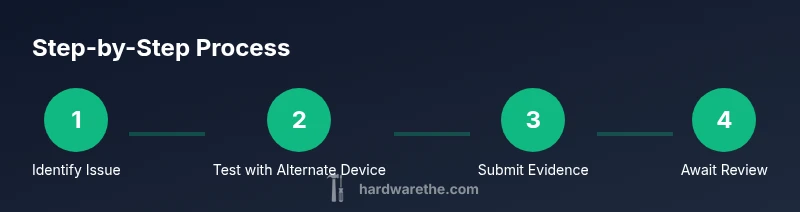
- Identify the exact device you used when you received the notice. 2) Attempt to reproduce the issue on a different device. 3) Check COD Support and platform status pages for any notices. 4) If you believe there’s a mistake, file an appeal with collected evidence and await a formal review. 5) If resolved, document the resolution and note any changes to hardware before your next attempt.
Tools & Materials
- Console or PC with COD installed(Your primary testing device to reproduce the issue)
- COD account credentials(Username and password used to access multiplayer)
- Stable internet connection(Reliable network to avoid false error signals)
- Alternative testing device(A different console/PC to isolate hardware factors)
- Official COD support access(Access to submit appeals and view notices)
- Documentation tools(Notepad or screenshot tool to record IDs and messages)
Steps
Estimated time: 60-120 minutes
- 1
Gather device IDs and account details
Collect the hardware IDs, serial numbers, MAC addresses, and the COD account details you used during the incident. This baseline helps you compare across devices and prepares you for an appeal.
Tip: Record timestamps of when you encountered issues to build a timeline. - 2
Check for official ban notices
Visit COD Support and your platform’s service status pages to see if there is any public notice about bans affecting your device. Note any reference to hardware IDs or device fingerprints.
Tip: Take screenshots of any notices and save the URLs for your appeal. - 3
Test with a different device
Log in on a separate console or PC to verify whether the issue is device-specific. If the other device works, the problem is most likely tied to your original hardware.
Tip: Ensure the second device has similar network conditions to avoid confounding factors. - 4
Submit a formal appeal with evidence
If you believe the ban is mistaken, submit an appeal through official channels with the collected IDs, screenshots, and a clear description of your setup.
Tip: Keep your tone factual and concise to aid a faster review. - 5
Follow up and monitor status
After submission, monitor your ticket or email for responses. Do not create duplicate tickets; consolidate information in a single thread.
Tip: Set aside time for follow-up notes and any requested actions from support. - 6
Plan for a potential resolution
If the ban is confirmed, explore alternatives such as hardware-upgrade paths or platform-specific exceptions if provided by support. Prepare to adjust your setup if needed.
Tip: Avoid repeating the same steps that triggered the ban.
FAQ
Can a hardware ban be reversed or appealed?
Yes. If you suspect a false positive, submit an appeal through COD Support with your device IDs and evidence. Allow time for a review and follow any additional requests from support.
You can appeal a suspected hardware ban by submitting evidence to COD Support and awaiting their review.
Does COD ban hardware or accounts only?
COD bans can target hardware IDs in addition to accounts. A device may be blocked from multiplayer even if a new account is created, because the system recognizes the hardware signature.
Hardware bans are device-based and may affect all accounts on that device.
What information should I gather before contacting support?
Collect device IDs, serial numbers, MAC addresses, screenshots of error messages, timestamps, and any notices from COD Support. Having a clear timeline helps the review.
Gather IDs, screenshots, and a clear timeline before contacting support.
Will a different platform help if my PC is banned?
If the ban is hardware-bound, switching platforms (e.g., PC to console) may allow access, but this depends on whether the hardware fingerprint is shared across platforms.
A different platform might help if the ban is platform-specific, but it depends on the hardware fingerprint.
How long does the review typically take?
Review times vary by case and support workload. Expect a wait for official verification or requests for additional information, and follow up per the guidance provided in the support portal.
Review times vary; be prepared for a wait and follow up as directed.
Watch Video
Main Points
- Identify whether the issue is hardware-bound or account-bound.
- Use a controlled device test to isolate the root cause.
- Collect evidence and submit a formal appeal when appropriate.
- Follow platform-supported processes to avoid prolonging the issue.
- Maintain compliant hardware configurations to prevent future bans.