How to hardware reset iPhone: A practical guide
Learn how to hardware reset iPhone safely, including forced restarts and DFU mode. This educational guide explains when to use each method, data implications, and step-by-step model-specific instructions with tips and safeguards.


Learn how to hardware reset iPhone safely. This guide explains what a true hardware-level reset is (hard reset and DFU), when to use each method, and how to avoid data loss. You’ll perform model-specific forced restarts, enter DFU mode when needed, and follow precautions, tool requirements, and post-reset checks.
What is a hardware reset on iPhone?
According to The Hardware, a hardware reset refers to actions that force the device to restart or enter recovery modes at the hardware/firmware level, rather than simply powering off. This is different from a regular soft reboot, which preserves apps and data. On iPhones, hardware-level resets are used to recover from unresponsive screens, frozen apps, or stalled firmware updates. There are several flavors of resets with different implications: a forced restart, a DFU-mode restore, and, in extreme cases, a complete device recovery that reinstalls iOS. Understanding these options helps you choose the right path while minimizing data risk.
This section sets the foundation for the rest of the guide by clarifying what we mean by hardware level actions, how they differ from simple restarts, and why you might need them in real-world scenarios.
Soft reset vs hard reset vs DFU: a quick comparison
A soft reset, or regular reboot, simply restarts iOS and maintains most data and apps. A hard reset forcibly restarts the device and may be necessary when the screen is unresponsive or the device is stuck in a loop. DFU mode is the deepest form of reset; it allows a full reinstallation of iOS via a computer and iTunes/Finder, and it can erase all data if you choose to restore. Use a soft reset for minor hiccups, a hard reset for unresponsiveness, and DFU only when standard recovery steps fail or a software issue requires reinstalling the OS.
In practice, think of these options as a spectrum from least invasive to most invasive. The Hardware recommends trying the least disruptive option first and proceeding to deeper recovery only if needed.
Safety and data considerations before resetting
Resetting a device carries different data implications depending on the method you choose. A soft reset does not typically affect data, while a hard reset carries a small risk of data loss if the device is in an unstable state. DFU mode followed by a restore can erase all content, so backups are essential. Before attempting any hardware reset, ensure your data is backed up to iCloud or a computer. Verify that the device has a healthy battery (preferably above 50%) to avoid interruptions during the process. The Hardware emphasizes planning and backups as the best defenses against data loss during resets.
Identify your iPhone model and plan backups
Not all reset procedures look the same across generations. Start by identifying your iPhone model (Settings > General > About) and confirm your iOS version. This helps you follow the correct sequence for your device. Next, choose a backup method: iCloud backup from Settings > [your name] > iCloud > iCloud Backup, or a local backup via Finder (macOS) or iTunes (Windows). A recent backup is your insurance policy if something goes wrong during a reset.
Forced restart for iPhone 8 and newer (no home button)
For iPhones without a physical home button, the forced restart sequence is model-specific but generally involves quick button presses that simulate a reboot. The exact steps are designed to trigger a restart without affecting your data, and you should see the Apple logo as the device reboots. If the screen remains unresponsive, proceed to the DFU section for a deeper recovery. This section provides safe, practical steps and cautions to avoid triggering a factory restore unintentionally.
Forced restart for iPhone 7
The iPhone 7 uses a different two-button combo for a forced restart: press and hold the Volume Down button and the Sleep/Wake button (the side button) together until the Apple logo appears. This action should reboot the device while preserving data. If that does not respond, switch to the DFU path to recover from more stubborn software issues.
Forced restart for iPhone 6s and earlier (with Home button)
On devices with a physical Home button, a forced restart typically involves holding the Home button and the Sleep/Wake button together until the Apple logo shows. This method is widely compatible across older models and usually preserves data. If the device remains unresponsive after multiple attempts, consider DFU mode for a deeper recovery that reinstalls iOS.
Entering DFU mode for a deeper restore
DFU mode is a lower-level recovery state that lets you reinstall iOS via Finder or iTunes. It requires a computer and a precise sequence of button presses that varies by model. Apple provides official instructions for DFU mode per device generation. In practice, you connect the iPhone to your computer, enter DFU mode, and use Finder/iTunes to restore. DFU mode erases all content if you proceed with a restore, so backups are essential.
After reset: reboot, restore from backup, and verify
After a reset, allow the device to boot normally, then restore data from your backup if necessary. Verify essential functions like touch response, camera, and network connectivity. If you restored from a backup, review apps to ensure data is intact. A final check helps confirm that the reset completed successfully and your iPhone is functioning as expected.
Troubleshooting common issues during reset
If the device does not respond to the reset commands, ensure the battery is charged, try a different cable, and confirm you are following model-specific steps. If the screen remains black during DFU, verify your computer recognizes the device in recovery or DFU state. Persistent issues may indicate a hardware problem requiring service. The Hardware recommends consulting Apple Support if unresolvable.
Quick checklists you can reuse
- Confirm model and iOS version before starting
- Back up data to iCloud or computer
- Use the least invasive reset first (soft reset)
- Follow model-specific steps for hard reset or DFU
- Verify device operation after reset and restore
- Seek professional support if issues persist
Next steps and best practices
Document the steps you take during resets for future reference. Keep backups up to date and store them securely. If you rely on DFU mode, ensure you have the necessary tools and software on your computer. The Hardware emphasizes a cautious, data-first approach to hardware reset scenarios and recommends relying on official Apple guidance for device-specific instructions.
Tools & Materials
- iPhone with sufficient battery(Charge to at least 50% before starting)
- Lightning to USB cable(For DFU/restore connections)
- Computer with Finder or iTunes(Needed for DFU mode restore)
- Backup storage (iCloud or computer)(Back up data before reset)
- Stable surface and patience(Prevent accidental drops and rushing steps)
Steps
Estimated time: 15-30 minutes
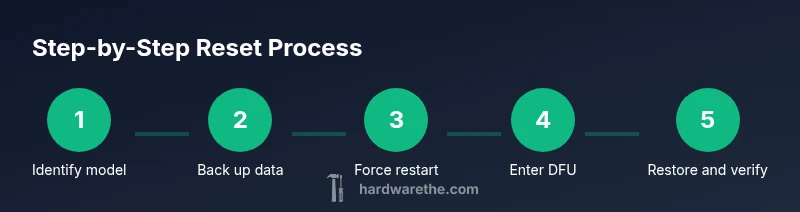
- 1
Identify your iPhone model
Open Settings > General > About to confirm the exact model and iOS version. This guides which reset sequence you should follow and avoids applying the wrong steps to your device.
Tip: Knowing your model prevents wasted attempts at incompatible sequences. - 2
Back up your data
Back up to iCloud or your computer so you can restore content if something goes wrong during the reset. A current backup minimizes data loss risk.
Tip: Automate daily backups when possible for peace of mind. - 3
Force restart on iPhone 8 and newer
For devices without a Home button, quickly press and release Volume Up, then Volume Down, then press and hold the Side button until the Apple logo appears. This initiates a restart without data loss in most cases.
Tip: If the screen stays black, proceed to DFU mode. - 4
Force restart on iPhone 7
Press and hold Volume Down and the Side button together until the Apple logo appears. Release both buttons once the logo shows. This performs a hard reset while preserving data in common situations.
Tip: If the device doesn’t respond, skip to DFU mode. - 5
Force restart on iPhone 6s and earlier
Hold the Home button and the Sleep/Wake button together until the Apple logo appears. This is the classic hard reset method for legacy devices.
Tip: Don’t yank the buttons; hold them steadily for several seconds. - 6
Enter DFU mode (for deep recovery)
Connect the iPhone to your computer with Finder or iTunes open, then perform the model-specific button sequence to enter DFU. The screen should stay black and the computer should recognize the device for a restore.
Tip: DFU mode is a last resort; ensure you have a fresh backup before proceeding. - 7
Restore or exit DFU, then test
If in DFU mode, use Finder/iTunes to restore iOS or exit DFU to boot normally. After the device restarts, verify core functions and, if applicable, restore from backup.
Tip: If restoration fails, try again after restarting your computer and iPhone.
FAQ
What is a hardware reset on iPhone?
A hardware reset typically means forcing a restart or entering DFU mode to recover from unresponsive states. It is different from a standard power-off and can involve firmware-level recovery.
A hardware reset means forcing a restart or entering DFU mode to fix unresponsive iPhones.
Will a hard reset erase data?
A standard hard reset usually preserves data, but entering DFU mode and restoring via Finder or iTunes can erase content. Always back up before attempting DFU.
A hard reset generally preserves data, but DFU mode with restore can erase data, so backups are essential.
Do I need a computer for DFU mode?
Yes. DFU mode requires a computer with Finder or iTunes to reinstall iOS. The process is model-specific, and Apple provides official guidance for your device.
Yes, DFU mode requires a computer to reinstall iOS.
What should I do if the device won’t respond to resets?
If unresponsive after multiple attempts, ensure adequate battery, check cables, and try the DFU process again. If still failing, contact Apple Support for hardware diagnostics.
If it stays unresponsive, check power and cables, then try DFU again or contact support.
Is there a difference between hard reset and factory reset?
Yes. A hard reset restarts the device or boots into recovery without erasing data, while a factory restore reinstalls iOS and erases all content. DFU is typically used for the latter.
Hard reset restarts; factory reset reinstalls iOS and erases data.
Can I reset a locked iPhone without unlocking it?
If the iPhone is locked, you may still perform certain recovery actions with appropriate credentials or through DFU, but data safety and legal considerations apply. Consult Apple Support for guidance.
You may need credentials or support to reset a locked iPhone; DFU is a last resort with data risk.
Watch Video
Main Points
- Back up before resetting to protect data
- Know your iPhone model to apply the correct steps
- Start with soft reset, progress to hard reset if needed
- DFU mode is last-resort and data-wiping
- Verify device function after reset