How to Fix Hardware Issues on a Laptop: A Practical Guide
Learn practical, safe steps to diagnose and fix common laptop hardware issues—from RAM and storage to cooling and power. The Hardware guides DIY enthusiasts with confidence.


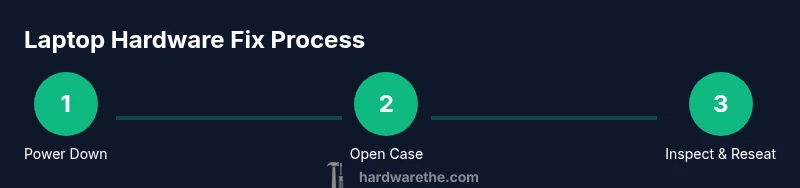
If you want to fix hardware issues on a laptop, start with a safe diagnostic routine and address the most common components: power, RAM, storage, and cooling. Begin by disconnecting power, grounding yourself, and reseating modules. Inspect the heatsink and vents, then test boot behavior and external ports. This practical, stepwise approach reduces guesswork and avoids needless replacements.
Understanding common laptop hardware failure patterns
Hardware failures in laptops show up in predictable ways. If you're exploring how to fix hardware issues on a laptop, note whether symptoms appear at boot, under load, or after sleep. According to The Hardware, most failures cluster into categories you can recognize: power and battery problems, memory issues, storage troubles, cooling and thermal management, display/keyboard faults, and motherboard or port failures. Recognize the pattern early by recording when symptoms occur and whether a single component or multiple subsystems are affected. This clarity helps you apply a focused, safe troubleshooting workflow and avoid costly, unnecessary replacements.
Before you begin: safety and backups
Safety and data integrity come first. Power down completely, unplug the charger, and remove the battery if possible to eliminate stored energy. Ground yourself with an anti-static wrist strap or by touching a grounded metal surface, and work on a non-conductive surface. Back up important data before disassembly whenever possible, as power loss during repair can corrupt files. Document screw counts and cable routes with photos to ease reassembly. A methodical plan reduces risk and speeds you toward a successful fix; remember, the goal is to diagnose, not guess.
Diagnosing power and battery problems
Power and charging issues are among the most common laptop hardware problems. Start by checking the charger and cable for wear, test with a known-good adapter if available, and inspect the DC-in board for signs of damage. If the battery is removable, reseat it and try booting with and without the battery installed. Monitor for consistent boot behavior and charging indicators. If the battery fails to hold a charge or the system only powers on when plugged in, it’s often a replaceable component rather than a motherboard fault.
RAM issues: symptoms and reseating
RAM faults can cause random freezes, blue screens, or boot failures. First, power down and discharge static, then locate the RAM modules. Remove each module carefully by releasing the side clips, then reseat them firmly until they click. If you have multiple sticks, test one at a time to identify a defective module. If reseating solves the problem, you’ve avoided a larger repair; if not, you may need a replacement module matching the laptop’s specifications.
Storage health and replacement
Storage problems show up as slow performance, unexpected file corruption, or boot failures. Check SSD/HDD health using built-in diagnostics or third‑party tools, and reseat the drive connectors to rule out a loose cable. If the drive shows signs of failure (read errors, repeated bad sectors) or if SMART data indicates problems, plan for a replacement drive. When replacing storage, clone the old drive if possible to preserve your OS and data, then verify boot from the new drive before full re-use.
Cooling and thermal management
Overheating is a frequent culprit behind throttling, unexpected shutdowns, and shortened lifespan. Begin by cleaning dust from vents and fans using compressed air, holding fan blades to prevent damage. Ensure cooling paths are clear—laptops love to collect lint around the heatsink. Replace or reapply thermal paste only if you have experience and the device warrants it, as improper application can worsen thermal performance. After maintenance, monitor temperatures under typical workloads to confirm improvement.
Display and input devices: screens, keyboards, and ports
Faulty displays, keyboards, or trackpads can mimic deeper hardware problems. Check cables and connectors behind the display assembly, reseat the video cable, and inspect the inverter or backlight components if the screen is dim or flickering. Keyboard and touchpad issues often stem from driver conflicts, but physical faults may require connector reseating or component replacement. Don’t ignore loose ports and damaged connectors; a simple re-seat can restore functionality without a full board repair.
Motherboard connections and loose cables
If symptoms persist after basic checks, inspect internal connections around the motherboard. Reseat ribbon cables gently, verify battery and power connections, and look for signs of corrosion or swollen capacitors. A loose or damaged connector can manifest as intermittent failures across multiple subsystems. When reassembling, work methodically, recheck each connection, and replace damaged cables rather than forcing a fix that could create further problems.
External diagnostics and tests you can run
After you’ve cleared internal issues, run external diagnostics or boot from a recovery drive to isolate hardware vs software problems. Use built-in POST codes, BIOS diagnostics, or vendor-specific tools to identify failing components. Document any beeps, LEDs, or error codes and reference the manufacturer’s guide for precise meanings. If tests point to a specific component, obtain compatible replacement parts and follow the manufacturer’s guidelines for installation.
Tools & Materials
- Anti-static wrist strap(Keeps you grounded while working inside the laptop)
- Precision screwdriver set (Phillips and Torx)(Include small sizes (PH00, PH0, T5, T6))
- Plastic pry tool or spudger(For safe case opening without damaging shell)
- Thermal paste(Only if you plan to reseat/repaste CPU/GPU heatsink)
- Isopropyl alcohol 90%+(For cleaning contacts and paste residue)
- Replacement RAM modules (DDR4/DDR5)(Only if RAM faults are identified)
- Replacement SSD/HDD(Only if a drive fault is detected or upgrade needed)
- Multimeter (optional)(For rare voltage checks)
Steps
Estimated time: 60-120 minutes
- 1
Power down and unplug the laptop
Shut down completely, unplug the charger, and remove the battery if possible. This prevents short circuits and data loss. Wait 30 seconds after unplugging to discharge residual power.
Tip: Keep tools away from the battery area while unplugged. - 2
Ground yourself and open the chassis
Ground yourself to avoid static damage. Use an anti-static strap or touch a grounded metal surface. Remove the bottom panel with the correct screwdriver, keeping track of screws for reassembly.
Tip: Take photos of screw layouts before removing components. - 3
Initial visual inspection and plan
Look for obvious damage such as bulging batteries, cracks, or loose cables. Map out internal routes to avoid tugging on delicate connectors. This plan helps you access components without causing new problems.
Tip: Avoid forcing connectors; use a plastic pry tool if needed. - 4
Check and reseat RAM modules
Locate RAM slots, release clips, and carefully remove modules. Reseat firmly until they click. If you have multiple sticks, test one at a time to identify a faulty module.
Tip: Consult the laptop manual for correct RAM type and slots. - 5
Check storage drive and data cables
Inspect SSD/HDD connections; reseat data and power cables. If possible, test with a known-good drive to isolate issues. Ensure mounting screws are secure.
Tip: Back up data before disconnecting drives. - 6
Clean cooling system and inspect fans
Use compressed air to remove dust from vents and fans. Do not spin fans by hand, and check that they rotate freely when powered. Consider reseating the heatsink if temps remain high.
Tip: Hold the fan blade while cleaning to prevent damage. - 7
Check internal connectors and boards
Reseat ribbon cables, battery connector, and motherboard cables. Look for signs of corrosion or swelling. Ensure all connectors are seated evenly and straight.
Tip: Use a steady, even pressure; avoid wiggling connectors aggressively. - 8
Power up and run POST diagnostics
Reconnect power and boot the device. Watch for POST codes or LED indicators and use built-in diagnostics when available. Document any codes for reference.
Tip: If codes appear, refer to the official guide for exact meaning. - 9
Evaluate repair vs. replacement
If diagnostics point to a single, affordable replacement, proceed. If multiple components fail or the motherboard is implicated, consider professional service or a device replacement.
Tip: Compare repair costs to the price of a replacement device.
FAQ
What are the most common laptop hardware issues?
Power/battery problems, RAM faults, storage failures, overheating, and display or port issues are the most frequent. Treat symptoms as clues to root causes rather than separate problems.
Common laptop hardware problems include power and battery issues, RAM faults, storage failures, overheating, and display or port problems.
Is it safe to open a laptop for DIY repairs?
Yes, with proper safety steps: power off, unplug, remove the battery if possible, and ground yourself. Use anti-static protection and take photos to aid reassembly.
Yes, as long as you power down and protect against static and short circuits.
Should I reseat RAM if the laptop won’t boot?
Reseating RAM can resolve seating-related faults. Remove each module, clean contacts, and reseat firmly. Test with one module at a time if you have multiple sticks.
Reseat the RAM modules to fix seating issues when the laptop won’t boot.
When should I replace rather than repair a laptop?
If multiple components fail or repair costs approach the price of a new device, replacement is often the wiser option. Consider warranty status and future reliability as well.
If many parts are failing or repairs are costly, replacement may be the better choice.
Can software updates fix hardware issues?
Software updates cannot fix underlying hardware faults. They may improve performance or compatibility, but physical inspection and component testing are required for hardware problems.
Software can't fix hardware faults; hardware troubleshooting is needed.
Should I back up data before starting repairs?
Yes. Back up important data before disassembly to prevent loss if the device fails during repair. Having a recovery plan minimizes risk.
Back up your data before you start repairing to avoid data loss.
Watch Video
Main Points
- Identify root causes with a methodical approach.
- Always power down and discharge static before opening.
- Start with RAM and storage before deeper board work.
- Document progress with photos to simplify reassembly.
- Escalate to a professional when multiple components fail.