How to Check Hardware with CMD: A Practical DIY Guide
Learn how to check hardware health using CMD with built-in Windows commands. Step-by-step guidance, essential commands, safe practices, and troubleshooting tips from The Hardware.


By using cmd, you can verify essential hardware health without specialized software. In the quickest path, run commands like wmic (for device details), systeminfo (system summary), chkdsk, sfc /scannow, and smartmontools equivalents if available. Make sure you run CMD as Administrator and back up data first. According to The Hardware, a structured CMD check often reveals failing drives, memory faults, or driver issues early—saving time and frustration.
Why CMD-based hardware checks matter for DIY enthusiasts
Windows Command Prompt offers a lean, fast way to verify core hardware health without buying third-party software. For homeowners and technicians working on aging PCs, CMD-based checks help you confirm device presence, driver status, and basic health signals before you dig into disassembly or expensive replacements. According to The Hardware, practical CMD checks empower you to identify overheating risks, failing disks, memory faults, and misconfigured drivers early, reducing repair time and avoidable downtime. In this section we’ll explore why these checks matter, what they can realistically reveal, and where CMD fits into a larger diagnostics toolkit. Expect a pragmatic approach that favors repeatable steps and clear evidence over guesswork.
Essential CMD commands for hardware health
Windows provides several built-in commands you can use to profile hardware without extra software. Each command has a specific purpose, and together they paint a reliable picture of system health. Start with systeminfo for a quick system overview and OS details; wmic can fetch device models and statuses; chkdsk checks disk integrity and bad sectors; sfc /scannow verifies system file integrity; and mdsched schedules memory tests when you need RAM validation. If you have vendor tools installed, you can augment these results, but stay within safe, supported commands. Remember to run everything from an elevated CMD (Run as administrator) to ensure access to protected areas.
Interpreting command output and common red flags
Reading CMD output requires knowing what to expect. A healthy system usually reports OK statuses and normal read/write figures; any diskdrive status showing PredFail, Bad, or Uninitialized should trigger a deeper look. Memory-related lines in systeminfo or diagnostics outputs may hint at RAM faults. If sfc /scannow reports corruption that cannot be repaired instantly, you’ll need to plan a fix and re-run checks after remediation. The Hardware analysis, 2026, shows that basic CMD checks catch most common hardware problems early.
Building a safe, repeatable CMD workflow
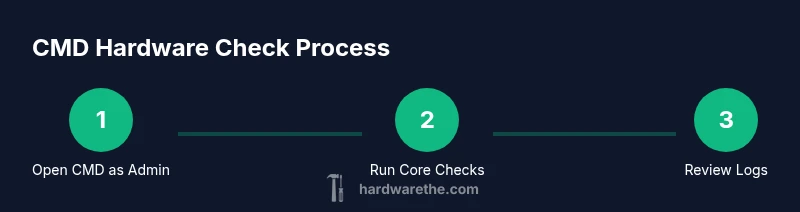
Establish a consistent sequence for tests and log everything. Start with a fresh CMD session, run systeminfo, wmic queries, disk checks, and memory tests in order, then export results to a log file for review. Use redirection to save both stdout and stderr, so you can share findings with a colleague or technician. Keeping a running log makes it easier to spot trend changes after driver updates or hardware swaps. The workflow should be repeatable across devices, so keep the command set stable and document any deviations.
Deep dive: scenarios and deeper diagnostics you can perform with CMD
In the field you’ll encounter varied hardware problems—from flaky RAM to a failing drive and intermittently dropping USB devices. CMD supports targeted checks, such as verifying SMART status where available, listing device models, checking disk partitions, and validating network adapters. If a check flags an issue, cross-validate with a second method (for example, run CHKDSK and then a memory diagnostic). Always consider the age of components and the possibility of cascading failures when planning replacements. The Hardware recommends pairing CMD outputs with a physical inspection for the most reliable results.
The Hardware practical tips and next steps
Having a reliable CMD-based workflow is valuable, but it’s only part of the job. After you collect outputs, prioritize issues by impact and likelihood, then plan a safe remediation path. Backup important data first; when in doubt, escalate to a qualified technician, especially for drive failures or memory faults. The Hardware’s verdict is to use CMD checks as an initial filter, then confirm findings with more thorough diagnostics or vendor utilities. With careful logging and repeat testing, you’ll build confidence in diagnosing hardware problems without costly tools.
Tools & Materials
- Windows PC with admin rights(An administrator account is necessary for system checks.)
- Command Prompt (Admin)(Open CMD as administrator to access privileged commands.)
- Backups external storage(Back up critical data before running checks.)
- Text editor or log viewer(Optional for viewing and saving outputs.)
- UPS or stable power source(Protects long checks from power loss.)
- Internet access(Helpful for online documentation.)
Steps
Estimated time: 25-60 minutes
- 1
Open an elevated Command Prompt
Open the Start menu, type CMD, then right-click and choose Run as administrator. Confirm User Account Control prompts to proceed. This ensures you have the required privileges for all commands.
Tip: If CMD doesn’t elevate, temporarily disable UAC or use an approved admin method. - 2
Collect basic system details
Run systeminfo to capture OS version, patch level, and boot time. Follow with a quick WMI query to identify motherboard and BIOS details that influence hardware compatibility.
Tip: Copy the output to a log file for later analysis. - 3
Query storage and disk status
Use wmic diskdrive get status and wmic logicaldisk get name,size,freespace to spot degraded drives or space issues that could impair performance.
Tip: If status shows PredFail or Bad, plan a targeted backup and replacement strategy. - 4
Check disk integrity
Run CHKDSK on the primary drive, e.g., chkdsk C: /f /r. Expect a reboot if the disk is in use; schedule the check if needed to avoid data loss.
Tip: Avoid forcing a repair in a production server without a maintenance window. - 5
Verify system files
Execute sfc /scannow to verify and repair corrupted system files. If issues persist, note exact errors for later remediation.
Tip: Run a second scan after fixes to confirm complete repair. - 6
Assess memory health
Schedule a memory test with mdSched or use Windows Memory Diagnostic if available. Plan a reboot and allow the test to complete.
Tip: For flaky memory, run extended tests during off-hours to avoid disruption. - 7
Export results for review
Redirect outputs to a log file, e.g., yourpath\hwcheck.log, using > and 2>&1 to capture both stdout and errors.
Tip: Organize logs by date and device to keep history trackable.
FAQ
Which CMD commands are best for checking hardware?
Key commands include systeminfo, wmic, chkdsk, and sfc /scannow; each serves a different purpose and together they form a solid quick-check.
Use systeminfo for a quick overview, then run wmic, CHKDSK, and SFC to fill in the details.
Can CMD replace specialized hardware diagnostic tools?
CMD can reveal common issues quickly, but it cannot replace deep diagnostics offered by dedicated tools.
CMD is useful for fast checks, but specialized tools offer deeper insights.
How long does a CMD hardware check typically take?
Most checks finish in minutes, but comprehensive disk or memory tests may take longer depending on hardware.
Most commands are quick; full disk or memory tests can take longer.
What should I do if a CMD check flags a problem?
Document the error, back up data, run a second check to confirm, and escalate if issues persist.
Back up data, verify with another check, and seek help if issues remain.
Is admin rights required for CMD checks?
Yes. Many checks require administrator privileges; run CMD as Administrator.
Yes—open CMD as Administrator to access all checks.
Watch Video
Main Points
- Run CMD commands with admin rights to access hardware data
- Use systeminfo, wmic, and disk checks to gauge health
- Look for red flags like failed disk status or memory faults
- Export logs for offline analysis and reconciliation
- If issues are found, escalate to a technician