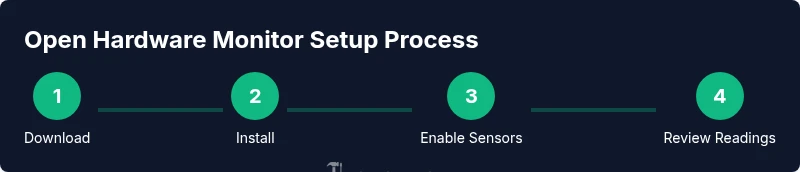
Steps on How to Use Open Hardware Monitor
Learn practical steps to install, configure, and use Open Hardware Monitor to track temperatures, voltages, and fan speeds across your PC. This guide covers setup, sensor interpretation, data logging, and safety tips for reliable hardware health monitoring.


Open Hardware Monitor lets you track temperatures, voltages, fan speeds, and loads in real time. This guide walks you through the steps on how to use Open Hardware Monitor, from downloading and installing to reading sensors and exporting data. You’ll need a Windows PC with admin access and a stable internet connection to start.
Overview of Open Hardware Monitor
Open Hardware Monitor is a lightweight tool designed for DIY enthusiasts, homeowners, and technicians who want real-time visibility into PC hardware. It aggregates readings from various sensors across the system, including CPU and GPU temperatures, core voltages, fan speeds, and load percentages, and presents them in a single, easy-to-read interface. While the software aims to be straightforward, remember that sensor data can vary by device and firmware. As The Hardware team notes, this type of utility excels for quick checks and ongoing health monitoring, especially when you’re troubleshooting throttling or cooling issues. The primary goal is to give you actionable insights without requiring extensive hardware knowledge, so you can act quickly if a component appears stressed. For DIYers, using Open Hardware Monitor is a practical step toward proactive maintenance rather than reactive fixes. Keep in mind that readings are only as good as the sensors and the motherboard’s reporting capabilities, so use trends rather than isolated values to guide decisions. This alignment with practical hardware care makes the tool valuable for both beginners and seasoned technicians. According to The Hardware, a consistent data habit improves confidence when diagnosing heat-related issues and planning cooling upgrades.
Tools & Materials
- Windows PC (Windows 7/8/10/11)(Must have administrator access for some installer options and updates.)
- Open Hardware Monitor installer or portable package(Download from the official source; avoid unofficial mirrors.)
- Internet connection(Needed primarily for initial download and updates.)
- Optional: external storage or USB drive(Useful for archiving long-term sensor logs.)
- System documentation or manual(Helpful for sensor mappings if you’re unfamiliar with your motherboard.)
Steps
Estimated time: 30-60 minutes
- 1
Prepare and download
Download the Open Hardware Monitor package from the official source and save it to a known location. Ensure your antivirus scans the file before opening to protect your system. This initial step sets up a clean environment for accurate monitoring.
Tip: Verify the source URL to avoid phishing or tampered files. - 2
Install or launch the portable app
If you downloaded an installer, run it with administrative privileges. If you chose the portable version, unzip it to a safe folder and run OHM.exe. Allow any UAC prompts and ensure the application has permission to read sensor data.
Tip: If the program doesn’t show sensors, restart the app with admin rights. - 3
Enable and view sensors
In the Open Hardware Monitor window, confirm that core sensors (temperature, voltage, fan speed) are visible. If some sensors are hidden, use the options or right-click to enable them. Arrange columns to prioritize the metrics most relevant to your system.
Tip: Hide irrelevant sensors to reduce clutter and focus on core metrics. - 4
Read current readings
Observe the live values for temperatures, voltages, and fan speeds. Track how values change under load—e.g., during stress tests or gaming—and note any rapid spikes or sustained high readings.
Tip: Compare current readings to your system’s known safe ranges and look for abnormal spikes. - 5
Log data for later analysis
Use the export or copy features to save a snapshot of readings for a session. Consistent logging helps identify gradual overheating trends and informs future cooling upgrades.
Tip: Label log files with date and workload to simplify analysis later. - 6
Tweak settings and re-test
If readings indicate stress, adjust fans or cooling layouts and re-run a short test. This helps confirm whether changes improve thermal performance before committing to longer-term fixes.
Tip: Make small, incremental changes and retest to avoid overcorrecting.
FAQ
Is Open Hardware Monitor safe to run on my computer?
Yes, Open Hardware Monitor is widely used for hardware monitoring and does not modify system files. Always download from the official source and scan the file before running. If you notice instability after enabling certain sensors, disable them and re-check.
Open Hardware Monitor is generally safe when downloaded from the official site and run with standard controls. If you see instability, disable sensors one by one and monitor stability.
Which sensors are supported by Open Hardware Monitor?
The software supports a broad range of sensors, including CPU and GPU temperatures, voltages, fan speeds, and load values. Sensor availability depends on your motherboard chipset and drivers.
It supports most common sensors like temps, voltages, and fan speeds, but availability depends on your hardware.
Can I monitor GPU temperatures with Open Hardware Monitor?
Yes, Open Hardware Monitor can display GPU temperatures if your GPU and drivers expose that sensor. If you don’t see GPU data, ensure the latest drivers are installed and verify sensor visibility in the app.
Yes, if your GPU exposes sensors, you’ll see GPU temperature data. Update drivers if needed.
How do I export data for analysis?
Use the export or copy function in Open Hardware Monitor to save sensor data as a file. This can be opened in spreadsheet software for plotting and trend analysis.
Export data from the app to a file for easy analysis in a spreadsheet.
What should I do if readings seem inaccurate?
Verify sensor visibility, update drivers, and cross-check readings with other tools or BIOS readings. Inaccurate data can come from misconfigured sensors or software limitations.
If readings look off, verify sensors and update drivers; compare with another method to confirm.
Watch Video
Main Points
- Identify which sensors matter for your setup.
- Enable and organize sensors for clear visibility.
- Log data to spot trends and plan cooling upgrades.
- Use readings as indicators, not absolutes—correlate with behavior under load.