How to Use a Hardware Token for MFA
Learn how to use a hardware token for secure MFA. This step-by-step guide covers selection, enrollment, backup methods, and best-practice tips for home and work environments.


Learn how to use a hardware token to enable strong MFA across your accounts. You’ll choose a compatible token, enroll it with services you use, and set up backups. You’ll need a compatible device and an account that supports hardware tokens.
Why use a hardware token for MFA?
Using a hardware token for multi-factor authentication (MFA) dramatically improves security by providing a physical key that verifies your identity during login. Unlike passwords alone, tokens resist phishing since the authentication challenge is tied to the device itself and requires user presence. According to The Hardware, integrating a hardware token into your authentication flow minimizes the risk of credential theft and reduces the impact of stolen passwords. For homeowners, technicians, and DIY enthusiasts, this means fewer risk exposures when remote work or online shopping. The token is designed to stay offline most of the time, which limits exposure to online threats. In practice, you’ll typically use it during sign-in on a supported service or app. This shift from knowledge-based factors to possession-based factors makes it harder for attackers to impersonate you, even if they know your password. MFA with a hardware token also supports a broad ecosystem of providers and standards, enabling consistent security across devices and platforms.
Key terms to know include MFA (multi-factor authentication), WebAuthn, FIDO2, and U2F. MFA with a hardware token is compatible with many popular services, but you’ll still need to verify each service’s specific enrollment steps. For many users, the benefit is a streamlined login experience once tokens are set up, with a single touch or tap completing the authentication.
How hardware tokens work: a quick primer
Hardware tokens operate on public-key cryptography and standardized authentication protocols. When you register a token with a service, the platform stores a public key linked to your account. During login, the service sends a challenge that your token signs with its private key, creating a cryptographic proof of possession. This proof is unique to your device and session, preventing replay attacks. The most common standards you’ll encounter are FIDO2/WebAuthn and FIDO U2F. WebAuthn is widely adopted on desktops, laptops, and mobile devices, while U2F remains common in older ecosystems. Because the token performs cryptographic operations locally, you don’t need to transmit personal secrets or OTP codes via SMS, email, or apps. This reduces the likelihood of phishing-based breaches and credential stuffing.
A word on usability: most tokens support multiple form factors, including USB-A, USB-C, NFC, and Bluetooth, depending on their design. Ensure your token type aligns with your devices. If you travel often, consider tokens with cross-platform compatibility. The core concept remains the same across vendors: a physical device that proves who you are without exposing a secret through the network.
Choosing the right hardware token
When selecting a token, consider compatibility, form factor, and ecosystem support. Look for tokens that support the major standards (FIDO2/WebAuthn and U2F) and are recognized by the authenticating services you use daily. If you work across multiple devices, a USB-C token may be more convenient for modern laptops, while USB-A remains useful for older desktops. NFC-enabled tokens work well with many smartphones, allowing tap-to-auth experiences without cables. Check whether the token supports multiple profiles or user accounts so you can enroll separate tokens for personal and work use.
Also assess security features such as PIN protection, tamper resistance, and a clear warranty. Some tokens offer built-in backup options, such as a secondary token or backup codes, which can be practical if your primary token is misplaced. Finally, confirm the vendor’s software support and firmware update policy. Regular updates help address discovered vulnerabilities and keep authentication safe.
Enrollment and setup workflow
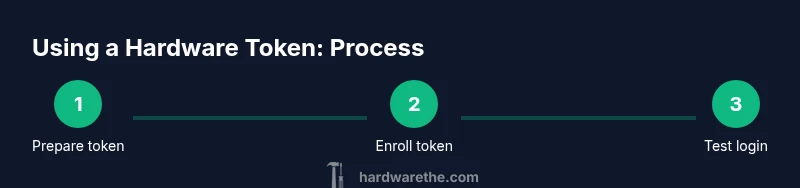
Enrolling a hardware token typically starts in the security or account settings of each service you want to protect. You’ll initiate the MFA enrollment process, then insert or tap your token when prompted. The service will generate a challenge that your token signs with its private key, and you’ll confirm the operation on the token itself (often via a button press or entering a PIN). Some platforms will require you to authorize a browser extension or companion app during setup. After enrollment, test a login to ensure the token works as expected. If you use mobile apps, verify the token prompts are consistent across both iOS and Android.
A practical tip is to perform enrollment first on a device you control and trust, then add tokens to other devices. This minimizes the risk of being locked out if a token is misplaced during setup. Ensure you have a backup method (another token, codes, or recovery options) configured before removing password-based MFA entirely from an account.
Using the token across popular services
Many major providers support hardware tokens, including cloud services, email platforms, and developer tools. For each service, navigate to the security or MFA settings to begin enrollment. Expect slightly different prompts and terminology, but the core flow remains consistent: connect your token, approve the prompt on the device, and confirm the association. For ongoing use, you’ll typically be prompted to present the token at the login screen or during sensitive actions like password changes. Some services will offer auto-fill-style prompts for convenience while preserving strong authentication.
If you manage multiple accounts, consider organizing tokens by scope (personal vs. work) or by provider. Some businesses offer the ability to reuse a single token across multiple services, while others require separate credentials per service for heightened security. In all cases, avoid sharing tokens, and never store tokens with passwords or in easily accessible locations. A dedicated, secure storage location (like a safe or locked drawer) helps prevent loss or theft.
Security best practices and backup strategies
Even with a hardware token, plan for contingencies. Create a secure backup plan: keep a secondary token in a separate safe location or rely on backup codes provided during enrollment. Update backup credentials after token replacement or if you suspect compromise. Periodically verify token operation by performing a controlled login test on a trusted device. Keep firmware up to date, monitor for unusual sign-in activity, and enforce strong recovery options on all accounts. If a token is lost, immediately revoke it through the service’s account recovery process and re-enroll a replacement token. Consider having a dedicated token for critical accounts (email, banking, developer platforms) to reduce cross-account risk.
For DIY enthusiasts, a hardware token can complement other security measures, such as strong password hygiene and device encryption. The combination of a robust token and careful account management provides a practical balance between security and usability in home and small-business settings.
Troubleshooting common issues
If a token isn’t recognized by a device, check the port, cable (if used), and whether the token requires a PIN to activate. Some tokens need to be unlocked before use; ensure you’ve entered any required PIN correctly. In browser-based workflows, make sure your browser is up to date and that WebAuthn support is enabled. If you’re stuck mid-enrollment, try starting the process on a different browser or device, then resume on the original device. When a login fails, review error messages for hints—some services will indicate if the token is not recognized or if additional verification is required.
In case of loss or theft, immediately revoke access via the account recovery process, report the incident to your organization if applicable, and re-enroll with a new token. Regularly testing a backup method can prevent surprises during critical moments.
Maintaining your hardware token long-term
Treat your token as a critical security asset. Keep it physically secure, avoid exposing it to magnets or liquids, and store it in a protected space when not in use. If your token supports firmware updates, apply them after confirming the update details and risk profile. Periodically review the services where the token is enrolled and prune any unnecessary associations. As part of a broader security routine, rotate tokens if you observe anomalies in usage or if a token has become damaged. By combining physical security with routine software updates, you extend the token’s reliability and your overall protection.
Tools & Materials
- Hardware security token(Choose a model supporting FIDO2/WebAuthn and compatible with your devices (USB-C/USB-A/NFC).)
- Device with compatible port or NFC reader(PC, Mac, or mobile device with USB-C/USB-A or NFC support.)
- Accounts that support hardware tokens(Examples include mainstream providers and developer tools; verify MFA options per service.)
- Backup recovery method (backup codes or second token)(Always have a recovery path in case the primary token is unavailable.)
- Cable (if required by token)(Some tokens rely on a cable for older devices.)
Steps
Estimated time: 25-45 minutes
- 1
Prepare token and device
Unbox the hardware token and inspect for any damage. Confirm the token supports the required standards (FIDO2/WebAuthn). If using a USB-C token, ensure your device has a compatible port. Havebackup access ready in case enrollment is interrupted.
Tip: Test token visibility on the host device before starting enrollment; this helps prevent mid-procedure dropouts. - 2
Open MFA settings on the target account
Navigate to the security or MFA settings of the service you want to protect. Start the enrollment process for a hardware token. Some services may require you to temporarily disable other MFA methods during enrollment.
Tip: Use a trusted device for enrollment to avoid losing access if the token is misplaced during setup. - 3
Connect and authorize the token
Insert or tap the token when prompted. If required, enter the PIN or press the token button to authorize. The service will register the token’s public key and complete the enrollment.
Tip: Ensure you confirm prompts exactly as shown; a minor misstep could cause enrollment failure. - 4
Verify enrollment with a test login
Log out and attempt a test login on the same device. Use the token to complete authentication. Confirm that the login succeeds and that the prompt is consistent across sessions.
Tip: If the test fails, reattempt enrollment on a different browser or device to isolate the issue. - 5
Configure backup recovery options
Set up backup codes or enroll a second token if available. Store backup codes securely and confirm you can use them if needed. Document recovery steps for future reference.
Tip: Do not store backup codes with your password or token; keep them separate and secure. - 6
Integrate tokens across services you use
Repeat enrollment for other essential services (email, cloud, developer tools). Maintain a simple inventory of where each token is enrolled and which devices are impacted.
Tip: Label tokens clearly (e.g., “Work Laptop Token”) to avoid confusion during travel or audits. - 7
Practice safe storage and travel
When not in use, store tokens in a secure container away from magnets, heat, and moisture. While traveling, carry tokens in a dedicated protective pouch.
Tip: Avoid leaving tokens in unattended vehicles or public spaces. - 8
Review and rotate regularly
Periodically review enrolled accounts and update recovery options. Consider rotating tokens after hardware changes or suspected compromise.
Tip: Set a reminder to sanity-check token status every 6–12 months.
FAQ
What is a hardware token and how does it work with MFA?
A hardware token is a physical device used for multi-factor authentication. It stores cryptographic keys and signs authentication challenges locally, providing a strong second factor beyond a password. This makes credential theft far less effective for attackers.
A hardware token is a physical device that signs authentication challenges locally, enhancing your login security beyond passwords.
Do I need internet access every time I use the token?
No. The token performs cryptographic operations offline. An internet connection is only needed for the initial enrollment and subsequent sign-ins to verify the token with the service.
No. The token works offline during sign-in; internet is only needed for enrollment and verification.
Can I use one token for many accounts?
Many services allow a single hardware token to serve multiple accounts, but some may require separate tokens for different providers. Check each service’s MFA documentation.
Yes, often you can use one token for several accounts, but some services require separate tokens.
What should I do if my token is lost or stolen?
Revoke the token's access through each service’s account recovery flow and enroll a replacement token. Update recovery options and notify relevant administrators if applicable.
If a token is lost, revoke it in services, replace it, and update recovery options.
How many tokens should I have?
A practical approach is to have at least one primary token and one backup token stored securely. For critical accounts, consider a second token kept in a separate location.
Have a primary token and at least one backup token, stored securely.
Is a hardware token mandatory for MFA?
No, many services support other MFA methods such as authenticator apps or SMS. Hardware tokens are highly secure but check your service's MFA options to choose what fits you best.
Not mandatory; hardware tokens are one strong option among several MFA methods.
Watch Video
Main Points
- Understand why hardware tokens improve security.
- Choose a token compatible with your devices and services.
- Follow a clear enrollment and testing workflow.
- Establish backup options and secure storage.
- Regularly review token use and stay vigilant against loss or compromise.