How to Increase Hardware Specs: A DIY Guide
Learn practical, step-by-step strategies from The Hardware to increase hardware specs through balanced upgrades, safe practices, and planning for desktops and laptops.


With this guide you’ll learn how to increase hardware specs by upgrading core components, optimizing performance, and avoiding common bottlenecks. We cover CPU, RAM, storage, GPU, and power considerations, plus safety and compatibility checks. Follow a practical, step-by-step approach that fits desktops and laptops alike and balances cost with meaningful gains.
Understanding the goal of increasing hardware specs
For many DIYers, the question how to increase hardware specs isn’t about swapping the most expensive part; it’s about identifying the actual bottlenecks and choosing upgrades that yield tangible gains. Start by clarifying your primary workload: gaming, video editing, 3D rendering, or everyday computing. Different tasks stress different components, so your plan should target the weak link rather than chasing universal speed boosts.
Create a simple baseline: monitor representative tasks with a few benchmarks or built-in system tools. Record CPU load, memory usage, disk latency, and graphics frame rates during typical sessions. This baseline gives you a concrete target and helps you compare before-and-after results. Budget matters too—upgrades are often a balance between cost, risk, and expected benefit. In some cases, incremental improvements over time are wiser than a single, high-cost upgrade.
The Hardware’s approach stresses compatibility and stability. When you know what you need to improve, you can evaluate whether a CPU swap, more RAM, faster storage, or a stronger GPU will deliver the most meaningful improvement. This is the foundation of a measured, repeatable upgrade path. By starting with goals and a plan, you avoid wasted effort and keep the project aligned with your daily needs.
Tools & Materials
- Anti-static wrist strap(Ground yourself before handling components to prevent ESD damage.)
- Magnetic screwdriver set(Include Phillips #1 and #2 and a precision driver for small screws.)
- Thermal paste(Only needed if you remove/replace the CPU cooler or reseat a CPU.)
- RAM modules (matching specs to your board)(Check DDR type (DDR4/DDR5), speed, and capacity before purchase.)
- NVMe SSD(For OS drive or fast game/program storage in compatible motherboards.)
- SATA SSD(Alternative if NVMe is not available or your budget requires.)
- Power supply tester or multimeter(Useful to verify PSU health and rail voltages after upgrades.)
- Cable ties and zip ties(For neat cable management and airflow optimization.)
- ESD mat(Optional, adds extra grounding for prolonged builds.)
Steps
Estimated time: 2-6 hours
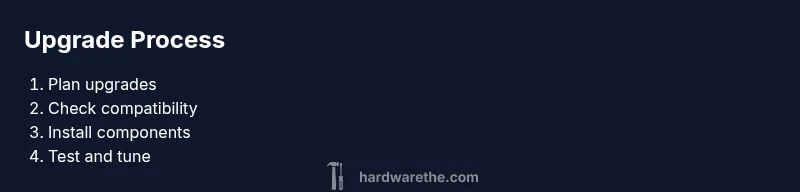
- 1
Define upgrade goals
Identify the workloads that matter most and set concrete, measurable targets (e.g., reduce load times by X%, improve frame rate to Y). This clarifies which components will deliver the biggest gains. Collect baseline metrics from your typical tasks before touching any hardware.
Tip: Document your baseline and target results so you can quantify success after each upgrade. - 2
Check compatibility
Review motherboard specifications, CPU socket type, RAM type, storage interfaces, and GPU/bus compatibility. Ensure BIOS/UEFI supports the new components, and confirm power and cooling margins are adequate.
Tip: If upgrading multiple components, stagger purchases to avoid incompatible combinations. - 3
Power down and prep workspace
Shut down the system, unplug all cables, and ground yourself with the anti-static strap. Clear a clean, flat workspace and have screws organized by component to simplify reassembly.
Tip: Keep a photo log of connections to help with reassembly. - 4
Upgrade RAM or add/adjust storage
Install RAM modules into recommended slots, ensuring proper seating and alignment. If adding storage, mount drives in correct bays or M.2 slots and connect data/power cables. Verify BIOS recognizes new memory or drives.
Tip: Use matched RAM kits where possible to minimize compatibility issues. - 5
Upgrade GPU and assess power needs
If upgrading GPU, remove the old card, fit the new one, and connect required PCIe power cables. Confirm the case supports the card length and that the PSU provides adequate wattage and connectors.
Tip: Check thermal headroom; heavy GPUs need good airflow and potentially a PSU upgrade. - 6
Boot, configure, and test
Power on and enter BIOS to confirm new hardware is detected. Install or update drivers, then run benchmarks and monitor temperatures under load. Watch for instability, crashes, or throttling and adjust settings as needed.
Tip: Enable performance profiles and monitor temps with a baseline to detect issues early. - 7
Iterate and optimize
If benchmarks show room for improvement, consider a second, smaller upgrade or software tweaks. Keep a maintenance log and run periodic checks to sustain performance improvements over time.
Tip: Aim for stable, repeatable gains rather than chasing the highest single benchmark score.
FAQ
What does it mean to increase hardware specs?
Increasing hardware specs means upgrading core components (CPU, RAM, storage, GPU, PSU) or optimizing settings to improve performance and system responsiveness, while keeping compatibility in mind.
It means upgrading key parts to boost performance while staying compatible.
Can I upgrade a laptop’s CPU?
In most laptops, CPUs are soldered to the motherboard or limited by the chassis, making upgrades impractical. Some high-end models may support CPU swaps, but always check the manufacturer’s guidelines.
Usually not feasible; laptops rarely allow CPU upgrades.
How do I know what RAM to buy?
Consult your motherboard or laptop specs for the correct type (DDR4/DDR5), speed, and maximum capacity. Use matching modules when possible and ensure the BIOS supports the configured speeds.
Match RAM type, speed, and capacity to your system specs.
Should I upgrade PSU with GPU?
Yes, if the new GPU requires more power than your current PSU can deliver, a higher-wattage unit with the right connectors may be necessary. Always verify total system power under load.
Upgrading the power supply is often essential for GPU upgrades.
Is mixing components risky?
Mixing components can work, but it may cause stability issues or underperformance. For best results, use components with tested compatibility and balanced specifications.
Mixing is possible but test for stability and performance.
Watch Video
Main Points
- Plan upgrades around real bottlenecks.
- Prioritize RAM and storage for most systems.
- Verify compatibility before buying components.
- Test thoroughly after each change.
- Document changes for future maintenance.